
Split Contract With Insurance
The first time you deal with this, please call Tops Support (770.627.2527). Once you have walked through it with a Support member, you can use this article as a reminder of the process!
Before You Begin
When a patient’s contract must be split between two responsible parties, you must create both Account 1 and Account 2.
When splitting a contract, it is strongly recommended that both responsible parties sign their respective contracts.
Insurance Guidelines
If there is one or more insurance benefit involved, the entire expected insurance amount (or combined benefits) must be entered in the Expected Insurance field on Account 1, even if Account 2 is the policy holder.
This is critical for accurate claim generation.
Initial Fee Guidelines
It is very important to enter the Initial Fee correctly on both accounts:
- Account 1 Initial Fee should equal:
- Their specific down payment plus
- Their portion of any courtesy adjustment
- Account 2 Initial Fee should equal:
- Their specific down payment plus
- Their portion of any courtesy adjustment
Steps to Splitting a Contract
Creating the Account 1 Contract
The Account 1 contract must:
- Have Accept Assignment selected
- Initially reflect the full contract total
- Be created as though Account 1 is the only financially responsible party
Do not worry — adjustments will be made afterward. This setup is necessary to generate an accurate insurance claim.
Complete the left side of the contract worksheet to reflect the breakdown of the contract for insurance purposes (see Create a Contract with Insurance).
For Account 1:
- The Copayment portion should include the entire Expected Insurance amount
- The Initial Fee should reflect only Account 1’s down payment and courtesy (if applicable)
Because the Initial Fee reflects only Account 1’s portion, the scheduled monthly charges in the copayment column will not initially appear accurate. This will be corrected during the adjustment process.
- Initiate the contract on Account 1. The claim will reflect a correct contract total for submission.
Creating the Account 2 Contract
The Account 2 contract must:
- Not have Accept Assignment selected
- Reflect only their total copayment amount
After initializing both contracts
- After both contracts have been initiated:
- Reduce Account 1's contract value by the amount assigned to Account 2.
- The combined total of Account 1 and Account 2 must equal the full contract value.
-
Update the Copayment column for Account 1 to reflect the correct scheduled monthly charges.
Update the Amount Column on Account 1’s contract to reflect the reduced total contract value.
- The new total should equal:
- Account 1’s financial responsibility
- Plus the Expected Insurance amount
- The new total should equal:
- Reduce Account 1's contract value by the amount assigned to Account 2.
- Once the Total Contract value has been updated:
- The Calculated Insurance in the Copayment column should match the Expected Insurance entered in the contract worksheet.
- Record the updated contract worksheet
Final Verification
The combined total of the Account 1 and Account 2 contracts must equal the original total contract value.
Apply the steps to a scenario:
Mom and Dad are splitting the contract fee.
Mom is Account 1 holder as custodial parent AND she has orthodontic insurance.
The total of treatment fee after insurance is being split equally between Mom and Dad.
Example: Total contract = $6000
Expected Insurance = $2000
Downpayment - $1000
Split - 50/50
Calculation:
$6000 (contract total) - $2000 (insurance benefit) = $4000 remaining to be split among Account 1 and Account 2.
Account 1 will pay $2000. Downpayment of $500 down and remaining $1500 paid over 20 monthly installments of $75.00.
Account 2 will pay $2000. Downpayment of $500 down and remaining $1500 paid over 20 monthly installments of $75.00.
Account 1 Contract:
-
Open the patient's chart; go to View > Patient Info... or press Command-I.
Tops Tips: Using Command-1 will bring you directly to the Contracts/Ledgers tab.
- Click the Contracts/Ledgers tab.
- Click the New tab and select the appropriate Treatment Plan.
- Click Quick Contract. The Quick Contract Worksheet displays.
- Check the box Accept Assignment; the right side of the contract worksheet unlocks.
- Create the contract with the full treatment fee amount with expected insurance for the full expected insurance amount.
- Contract Total - $6000
- Initial Fee - $2000 (generally this is about 25%-30% but we are using $2000 for this example)
- Charges are made - Monthly
- Number of charges - 20 (equal to the minimum number of treatment months)
- Other charges - 0
- First Charge Date - this will be the first charge date in the scheduled totals.
- Patient Copay Plan - The copayment portion should reflect should include the entire amount of expected insurance and an initial fee that is equal to the downpayment portion and courtesy (if applicable) for Account 1.
- Expected Insurance - $2000
- Initial Copayment Fee - $500
- Monthly Copayment Charge - $75
- Number of Copayment Charges - 46 (this number is auto-calculated based on the monthly copayment charge) The 46 Copay Charges will be edited later to reflect 20 copay charges.
The 46 Copay Charges will be edited later to reflect 20 copay charges.

- Record, then Activate contract for Account 1. The Insurance Claim will auto-generate. You can close this claim and send it later.
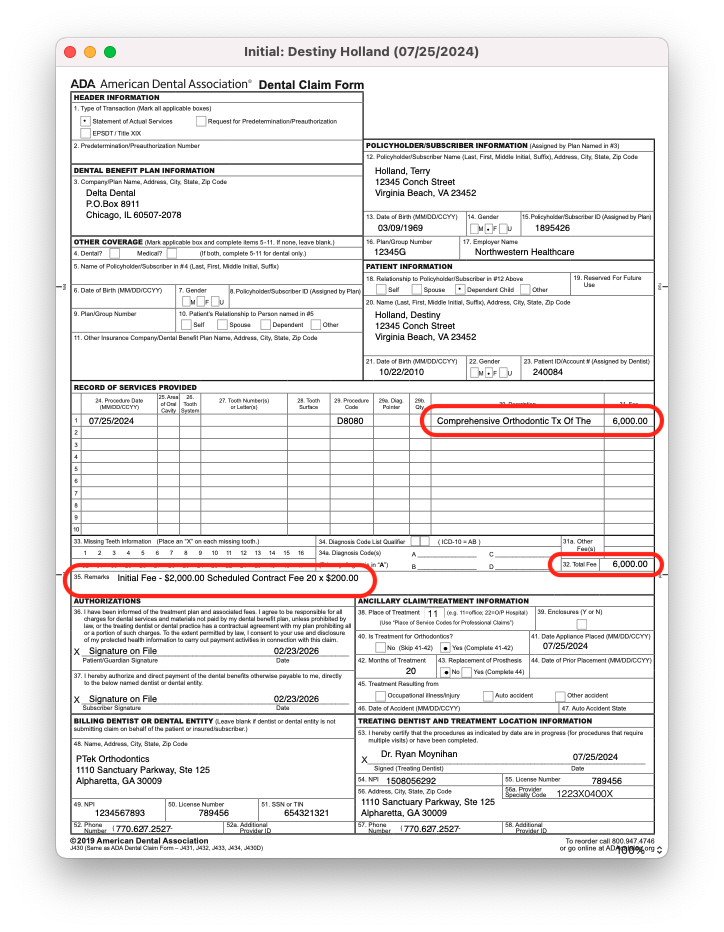
- From the contract and ledgers tab, open the recorded and activated contract for Account 1.
- Decrease the Account 1 contract total by the amount of the Account 2 contract
- The contract for Account 2 contract is $2000.
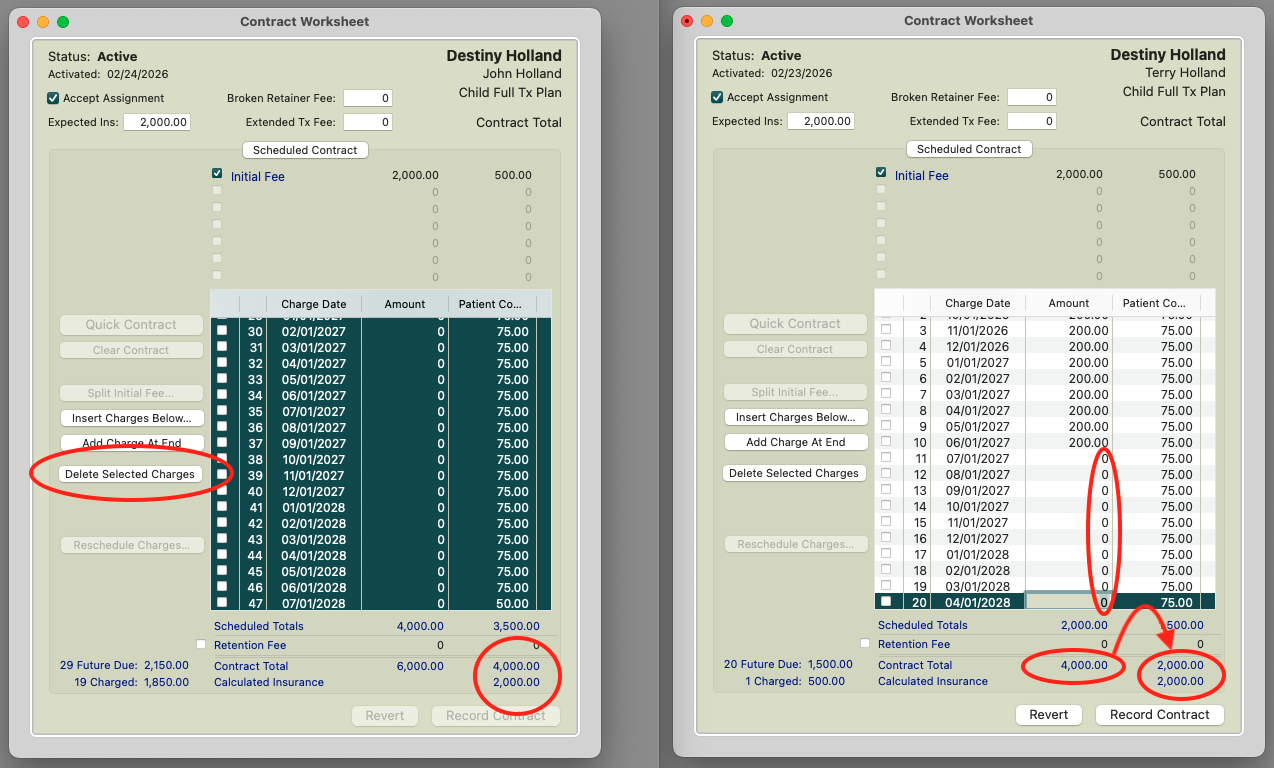
- Reduce the existing $6000 contract amount for Account 1 to a Total Contract amount of $4000. Do this by editing the number of Copay Charges (screenshot on the left) as well as the Amount (Insurance) Charges (screenshot on the right) to balance the out-of-pocket charges for client and original expected insurance.
Select all of the zero amount column charges and click delete selected charges (this handles the value of the account 2 contract) and expected insurance goes up to $4000, then edit the amount column charges to reflect the zero for the number of charges to cover the $2000 increase and expected insurance will revert back to $2000.
Account 2 Contract:
- Record and activate the contract for Account 2 for $2000.

The sum of both contracts combined will equal the total original treatment fee of $6000.