
Merge and Delete Duplicate Referrers
Sometimes staff members accidentally enter the same referrer more than once in Tops Ortho. Don't worry - there's a solution! Follow the steps below to merge and/or delete a referrer record.
Rename the duplicate record
- Open up the original referrer record and all of its duplicates. Go to View > Referrer Info... or press Command R.
- Review how many patients are assigned to each referrer; decide which one you wish to use moving forward. This is typically the referrer with more patients assigned.
- Place an X or another identifying letter on the name of the referrer you do not wish to use moving forward.

Remove and reassign patient data
The next steps detail how to remove all patients from the Patients, Referrals and Contacts/Letters tab from the referrer record you wish to delete.
Patients tab
- Under the Patients tab of the referrer record, double click on each patient in the unwanted referrer record to open their chart.
- In the Dentist field of the patient chart, highlight the referrer's name (it should now show Xs).
- Type in the referrer's name.
- In the Referrer search window, select the referrer you wish to use.


- The patient will move from the unwanted referrer to the desired one.
- Repeat this process for each patient until they are all moved to a single referrer.
Referrals tab
-
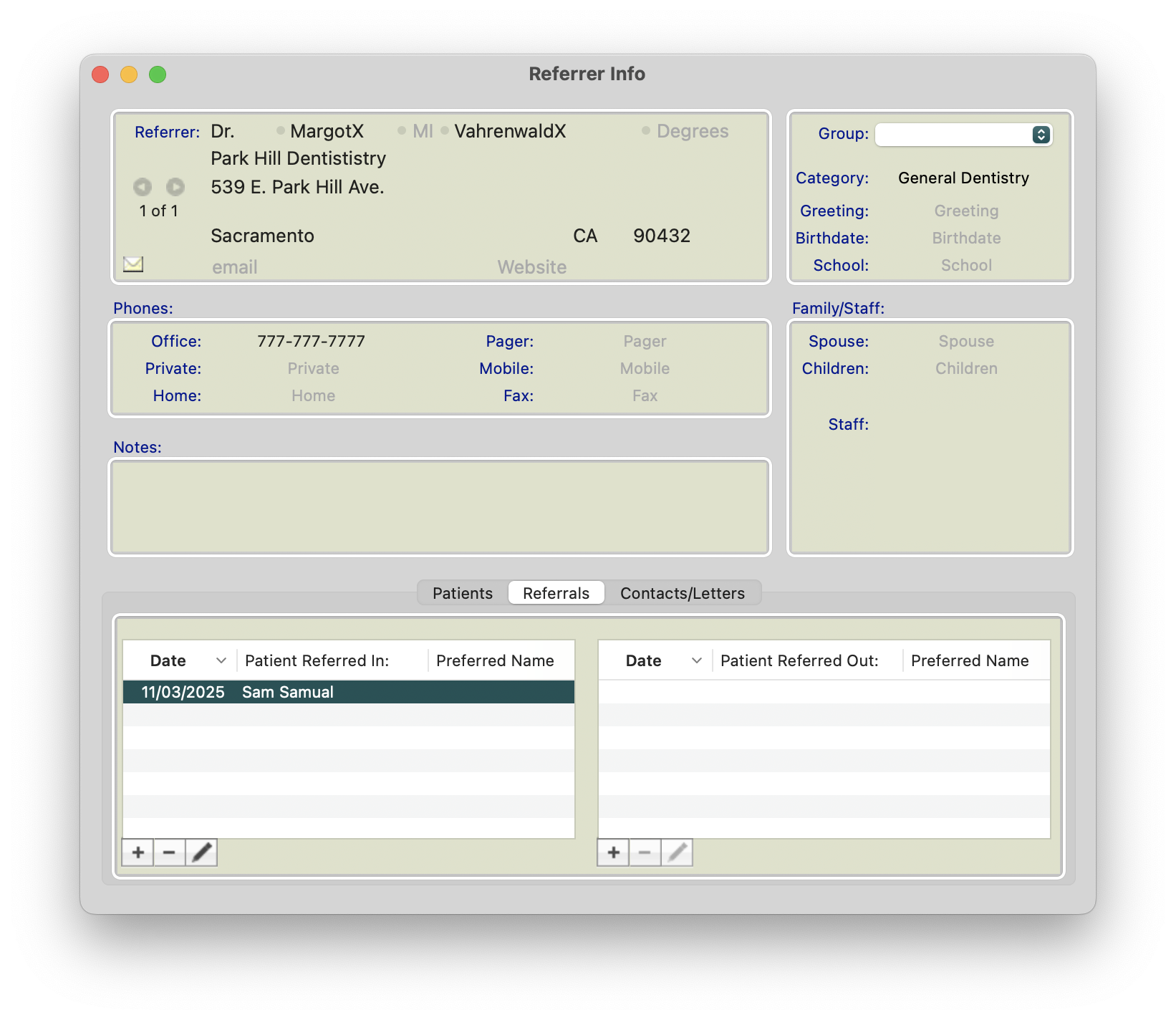
Under the Referrals tab of the referral record, double click on each patient in the unwanted referrer record to open their chart. The unwanted record will be listed in the the patient's Referrals tab.
-
Highlight the incorrect referrer record and click the (-) symbol to remove the record. (Take note - clicking the pencil to edit the referrer record will allow you to see if there are any notes associated. Also note the referral date)
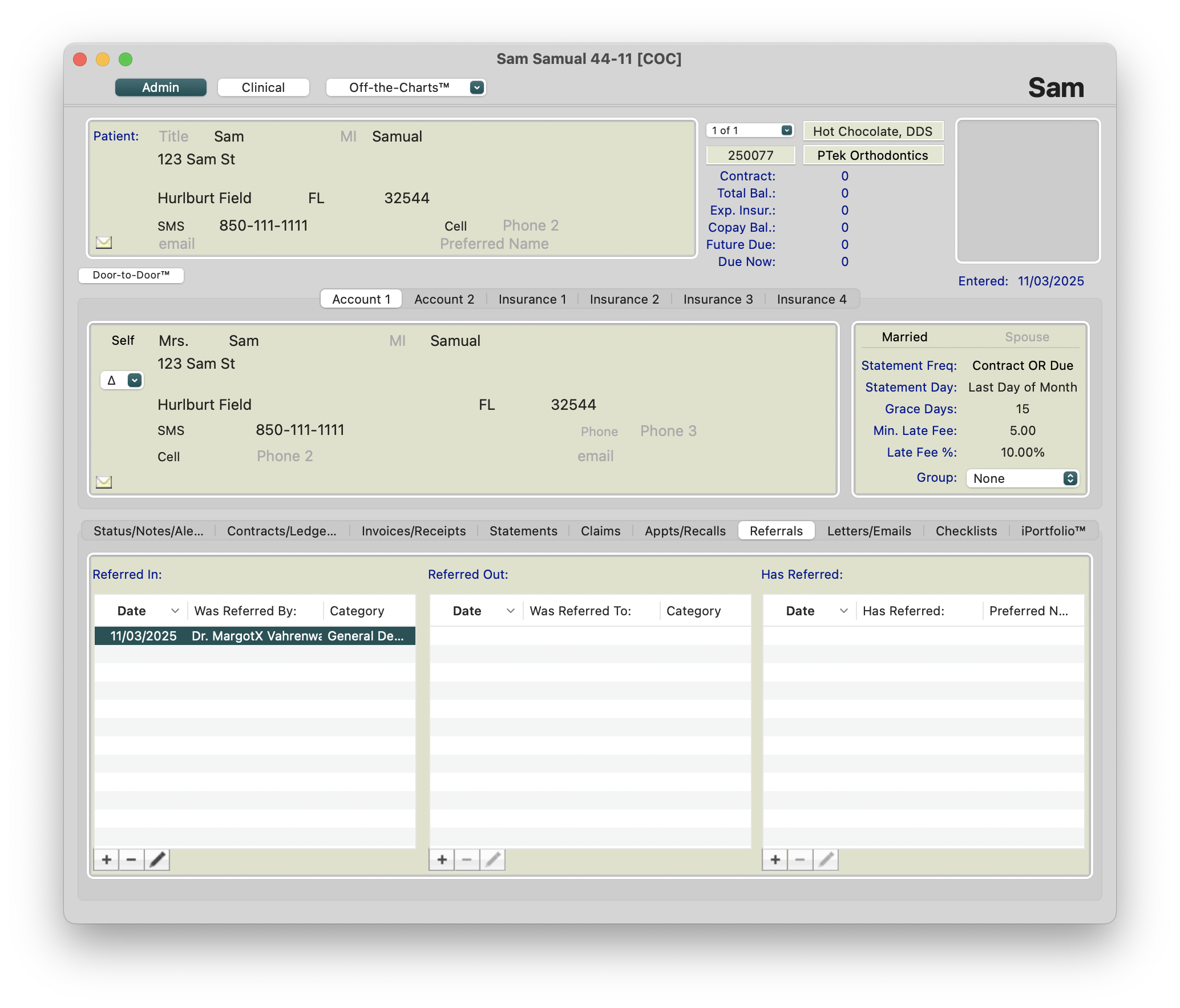
- Click the (+) Symbol to add the correct referrer, updating the referral date and adding the note.
Contacts/Letters tab
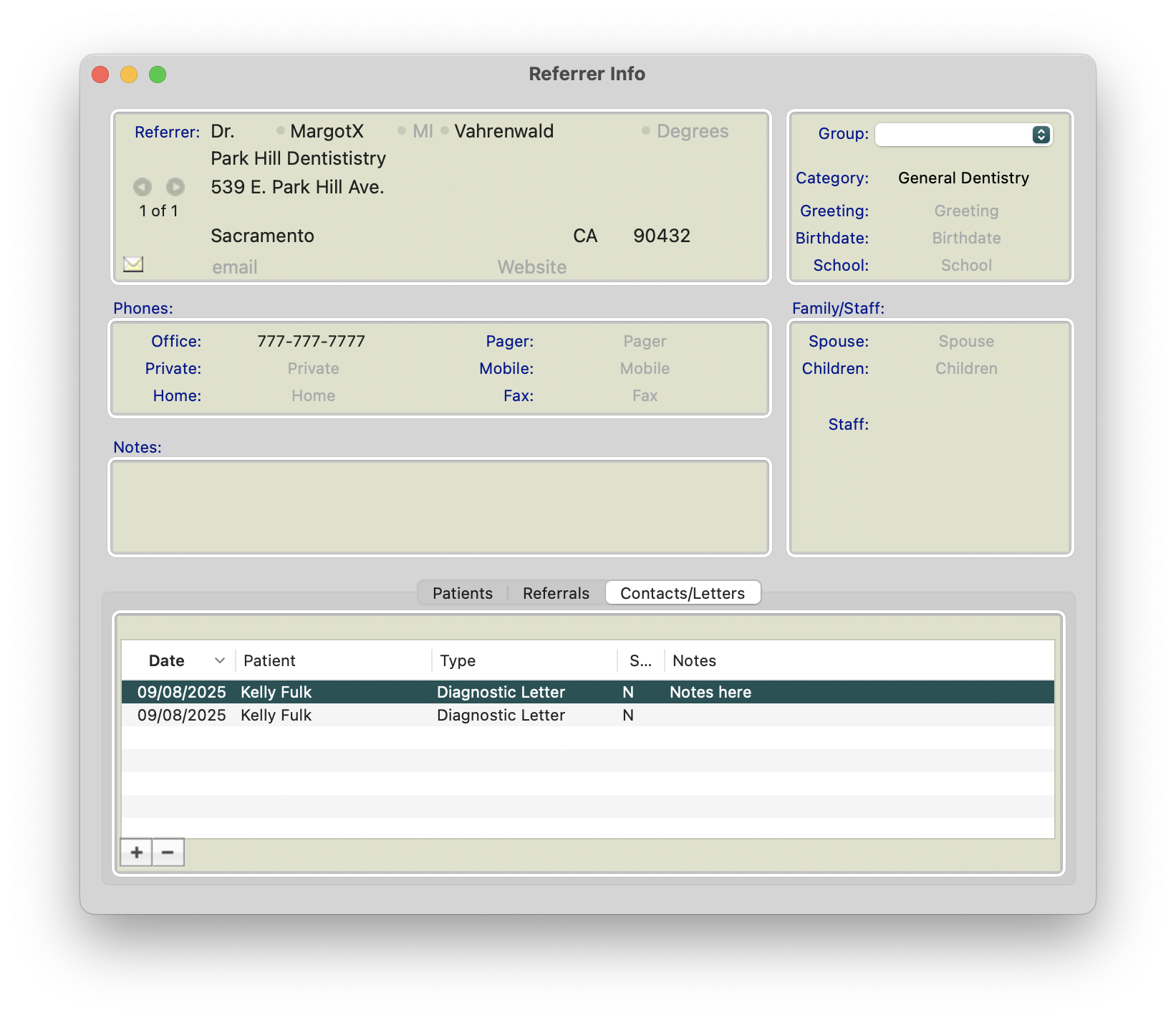
- Under the Contacts/Letters tab of the referral record, remove any letters associated with the referral record by highlighting each letter and clicking the (-) symbol. (Take note - once the letter has been removed, it no longer appears in the patient's chart. We recommend opening the letter, saving it as a PDF and dragging it to the patient's iPortfolio prior to deleting it from the referral record).
-
Delete the Referrer record
- Go to Matrix > Referrers.
- Find the unwanted referrer on the list; select it.
- Go to Edit > Delete Referrer.
- If the unwanted referrer does not have any patients, referrals or letters attached to their record, Tops Ortho will allow you to delete it.
- If you are not able to delete the referrer, keep the Xs in the name field or add DO NOT USE to the name field to discourage future use by staff.
Problems deleting a record - Ghost Patients!
There are times when the steps above do not allow you to delete a referrer record.
When using the steps above and all patient data has been removed, if you receive an error that a patient is still attached to the record, you have a Ghost Patient record!

This typically occurs when the record was previously used in a school field but information has been changed - the company name has been removed and many times, the category has been removed or changed.
Steps to Locate the Ghost Patient
- Open the Referrer Record you are trying to delete.
-
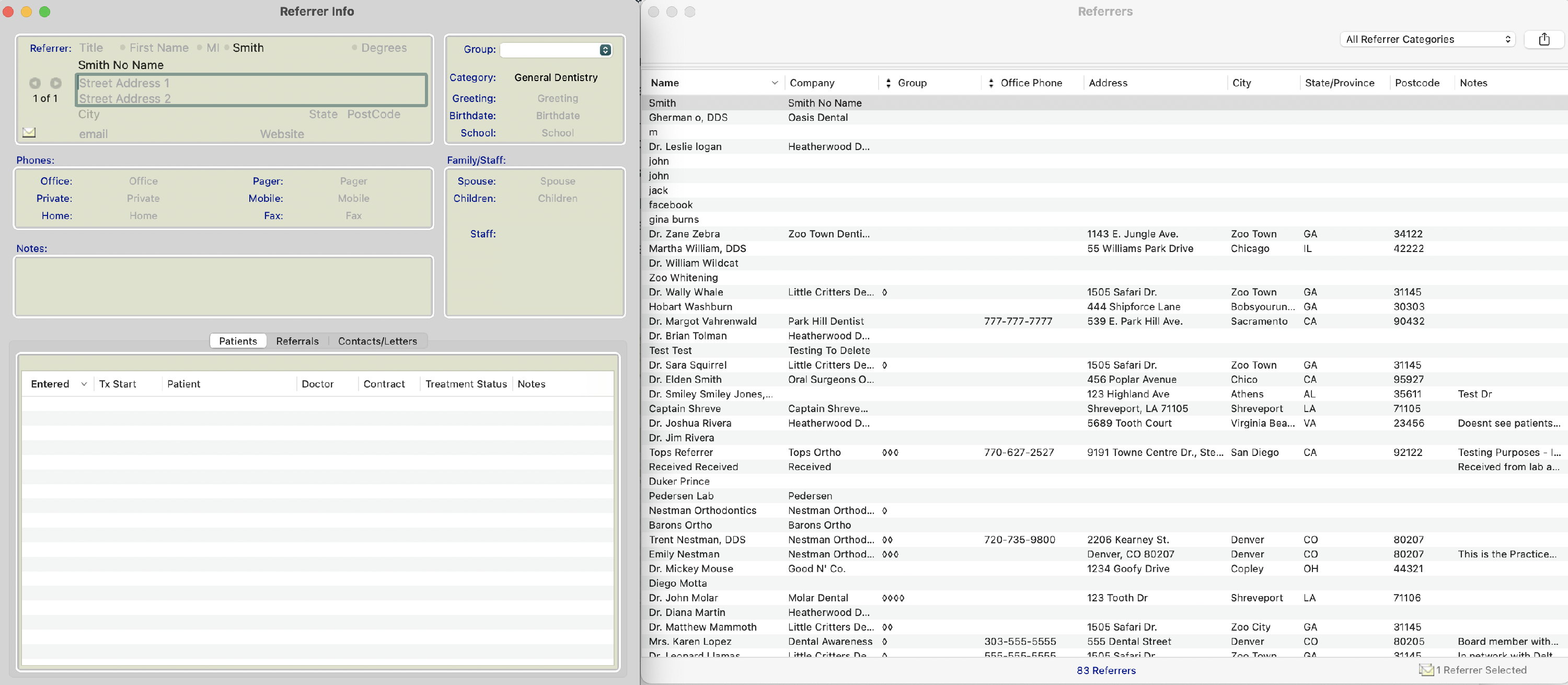
Assign the record a last name and company name - i.e. Smith, Smith No. Name
-
Update the category to School
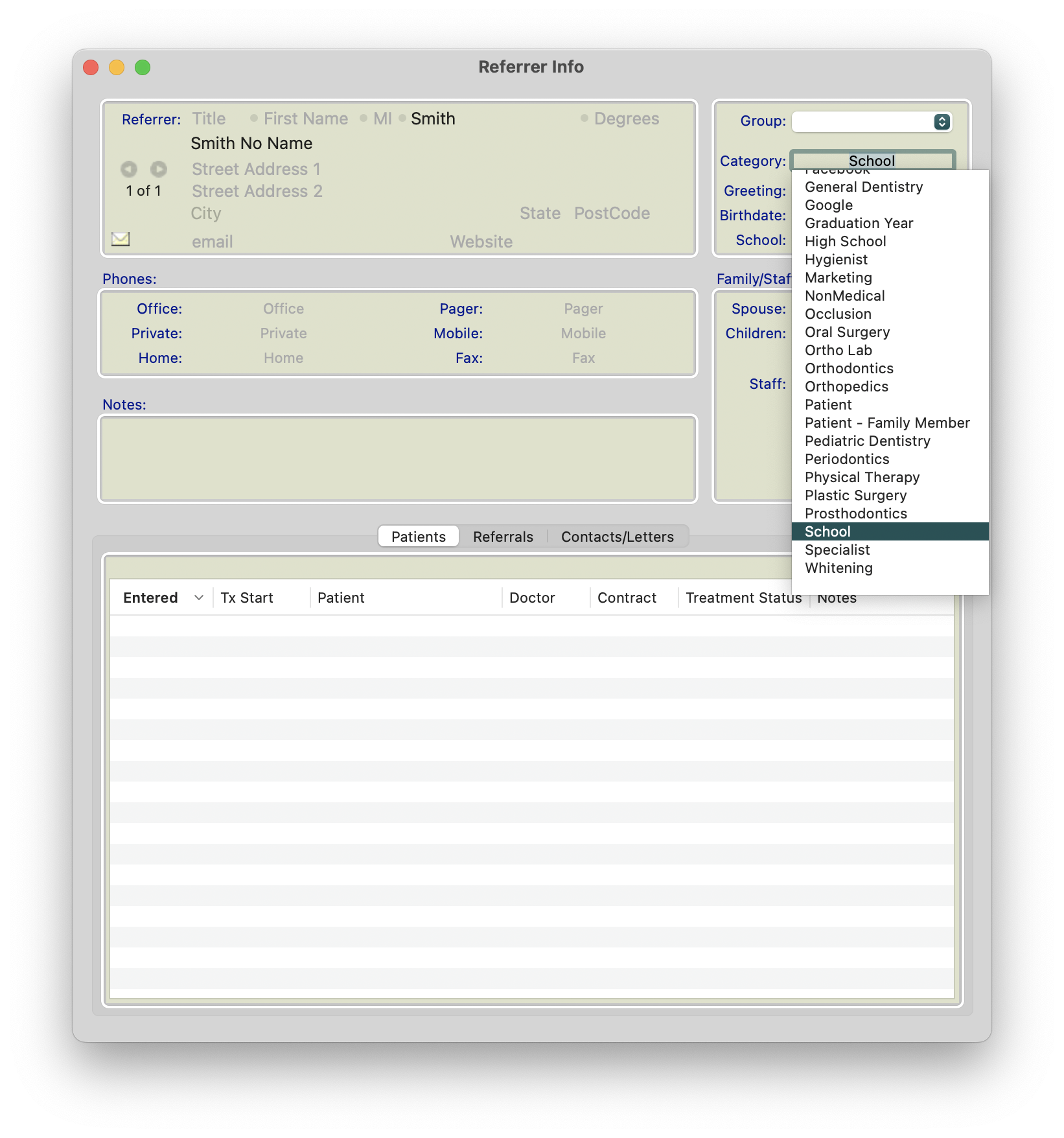
- Close the record and reopen it
-
You can now see your "ghost" patient on the referrer record. Follow the steps at the top of this page to remove the patient, which will allow you to delete the record.
