
Link Your Social Media Review Sites in TopsDPX
Link Your Social Media Account(s)
Linking your Social Media in TopsDPX allows you to:
- Receive alerts when reviews are added
- Respond to reviews from the dashboard
- See all your practice reviews in the Public Review Sites section
Your practice must have Reminders+ or Full TopsDPX to enjoy this feature. To learn more about upgrading, call us at 770.627.2527!
- Go to Comm > Tops Reminders.
- Click Products > Review > Public Reviews or Review>Public Reviews if you have your window expanded.


- Click Connect Your Social Media.
- Scroll down to Connected Accounts. Click Connect with Facebook or Connect Google My Business.
- Follow the prompts to log into your business page.
- Once connected, the new review information will populate on your Review Overview page!

View and Respond to Reviews
- Go to Comm > Tops Reminders.
- Click Products > Review > Public Reviews or Review>Public Reviews if you have your window expanded.
- Use the Filter option on the right-hand side of the window to isolate specific reviews by date range, rating and feedback.


- Within Reviews, click to respond to any review directly from within Tops.
-
Want Google to auto-respond to a review rating? Go to Review> Settings and toggle "on" to auto-respond from Google.
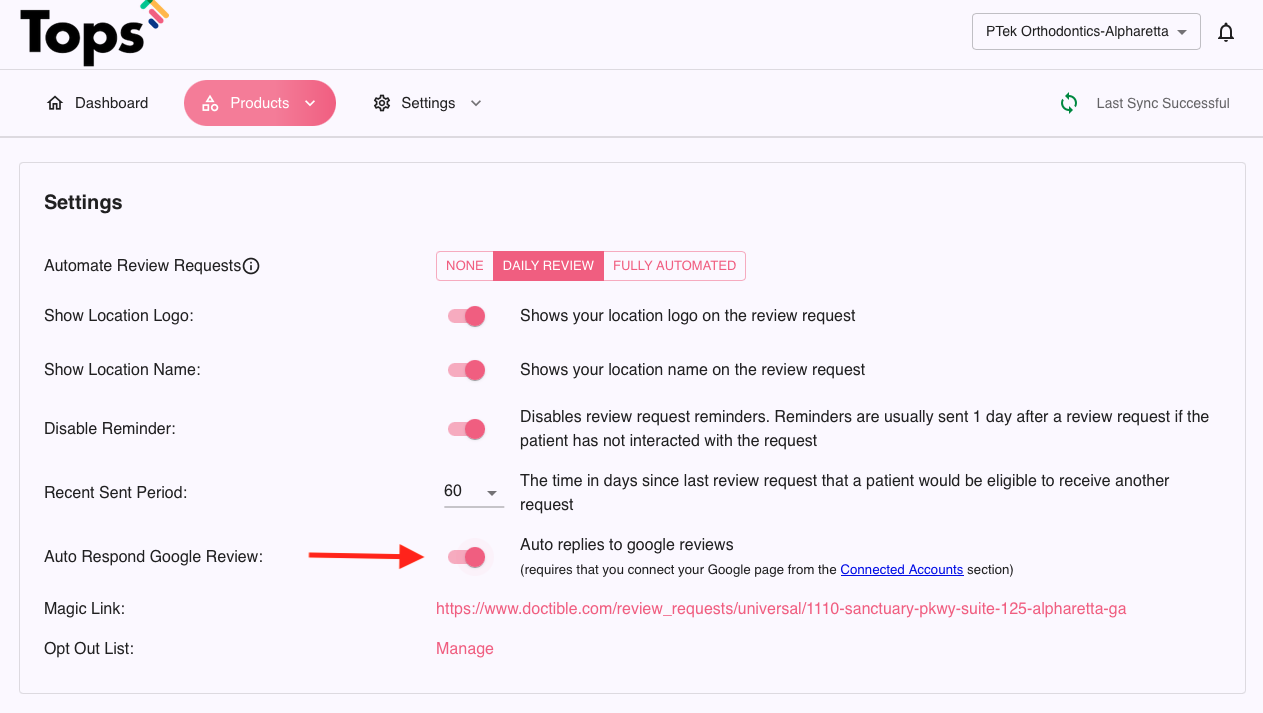
- To customize your responses, go to Products>Settings>Templates>Reviews. Click Google Response Templates. Update your responses and click the Save button.
-
