Weekday Settings in TopsDPX
If you don't want patients to receive automated notifications on certain days of the week, you can manage the Weekday Settings for all automated messages or by individual message type.
Edit your Weekday and Automated Notification Settings in TopsDPX for your Reminders, Confirmation Requests, Review Requests and Patient Recalls. Below are methods to limit the days messages are sent:
In your Location Details:
- Go to Comm > Tops Reminders.
- Click Settings > Location Details.
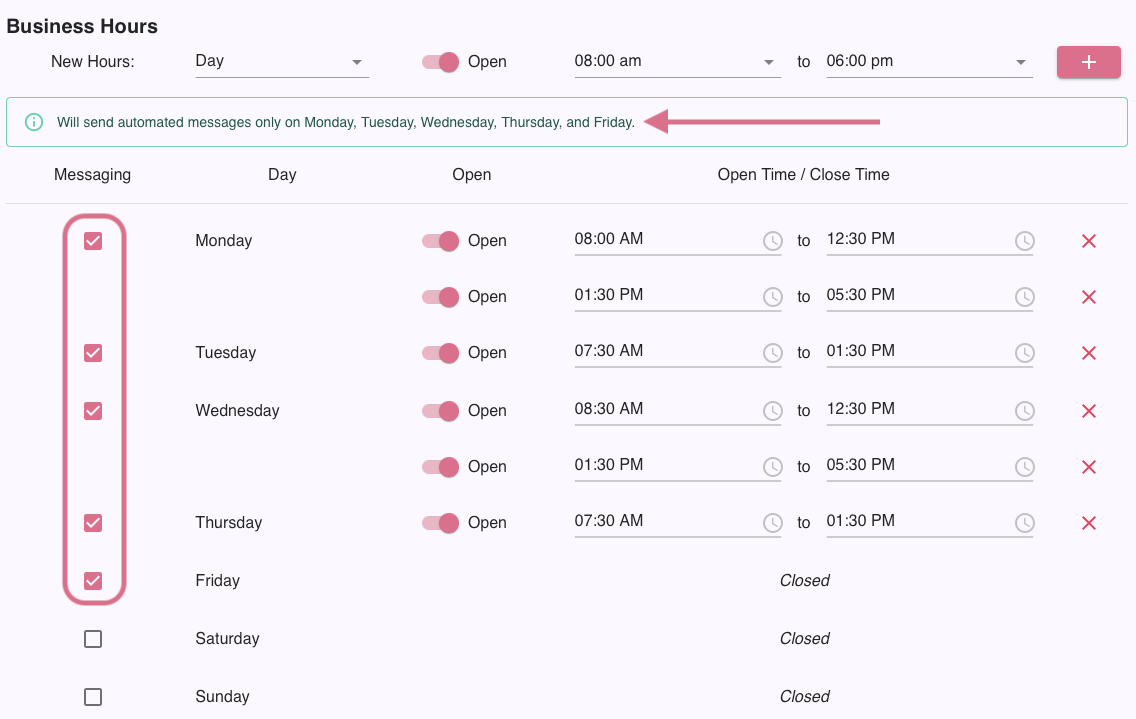
- Scroll down to Business Hours.
- Place a checkmark in the checkbox under Messaging to indicate the days you wish to send automated messages.
- Remove the checkmark from any days you do not wish for your automated messages to send.
- Your changes will be saved automatically within seconds.
- These are the overall settings; what you mark here will determine when all automated messages will send. Automated messages include reminders, confirmation requests, recall reminders, review requests and birthday messages.
Within a specific message's settings:
- Go to Comm > Tops Reminders.
- Click Settings > Templates > Schedule.
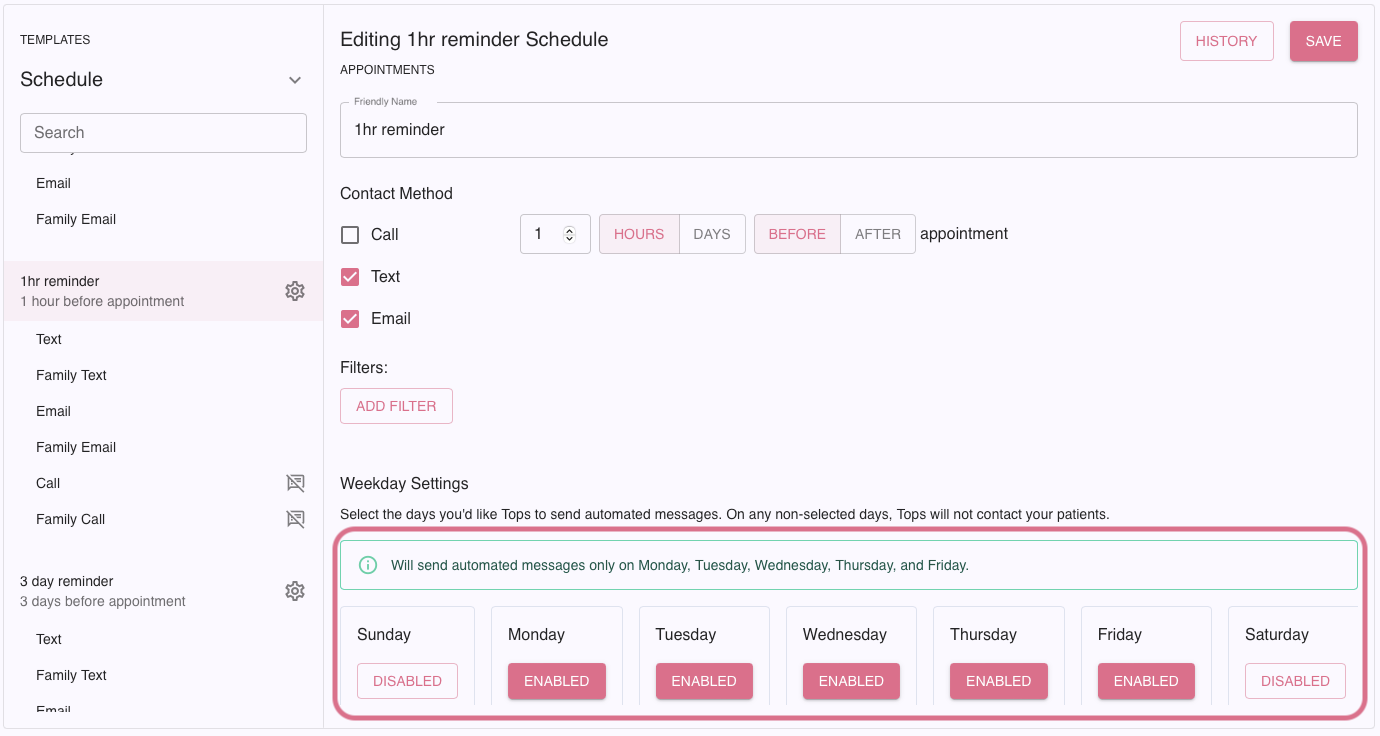
- Click the gear wheel icon for the message you wish to edit, such as the 1hr reminder. The settings for that message will display.
- By default, the message will be enabled for all days of the week. Click the Enabled box to change this status for a particular day.
- Click Save.