
Customizing an Invoice or Receipt
Customizing your invoice and receipt templates allows you to generate documents that reflect your practice's branding, include information customers may need for reimbursement.
Unlike letter templates, invoice and receipt templates use ledger-generated content. As a result, not all placeholders available from the Format menu are supported. We recommend using the placeholders documented in this article or those already included in an existing invoice or receipt template to ensure your templates display correctly.
On This Page
Review an Existing Invoice or Receipt Template
Customize an Invoice or Receipt Template
🎓 Watch a Webinar (scroll to bottom of page)
Best Practices
- We recommend duplicating an existing invoice or receipt template rather than creating one from scratch. Existing templates already contain the correct ledger tables and supported placeholders.
- When modifying a standard template, create a duplicate first so you always have the original available for reference.
- If you want to use placeholders from another template, open both templates simultaneously so you can copy and paste supported placeholders between them.
- For additional guidance on working with templates, visit the Webinar and Videos category in the Knowledge Base and look for Quick Tips and Videos.
Review an Existing Invoice or Receipt Template
- From TopsOrtho>Practice Set-up>Letters/Forms, select the Forms tab.
- Locate the Transactions/Ledger Forms section.
- Select the invoice or receipt template you want to view.
- Click Edit.

- Click Edit Layout

Template Components
Invoice and receipt templates are made up of several components:
- Text Boxes
- Placeholders
- Transaction Tables
- Static Text

Understanding Template Components
|
Text Boxes Text boxes are used to display both static text and dynamic content throughout the receipt. Some text boxes are intentionally fixed in size and position and should not be moved or resized. They are designed to display their contents without requiring adjustment. Other text boxes are dynamic. Depending on the data returned by their placeholders, they may automatically expand, shrink, or reposition to accommodate the merged content. Use the Inspector (available from the Format menu) to view and manage a text box's positioning and resizing properties. This helps maintain proper alignment when placeholder data is merged into the document. |
|
|
Placeholders Placeholders (highlighted in yellow) automatically pull information from the patient's chart. Whenever a placeholder is available, use it instead of static text. Placeholders always display the most current information from the patient’s chart, such as the patient name, office information, and ledger details. Some placeholders display information using string values, while others are inserted directly from From>Placeholders, such as Letter: Short Date. Double-clicking a placeholder displays its associated string value. For a list of string values that are unique to invoices and receipts, see the Invoice and Receipt String Values section later in this article. Example String Value <string value="letterDate" type="short date"/> |
|
|
Transaction Table Customizable transaction tables display information from a patient's ledger. To modify a transaction table:
|
|
|
Static Text Static text includes fixed labels such as column headers, practice information, and balance identifiers.
|
|


Customize an Invoice or Receipt Template
- From TopsOrtho>Practice Set-up>Letters/Forms, select the Forms tab.
- Locate the Transactions/Ledger Forms section.
- Click Duplicate
- Rename the duplicated template.
- (Optional) To add a background image, select the field next to Background and choose the desired background. For more information, see the related Knowledge Base article listed at the bottom of this page.
-
Click Edit Layout
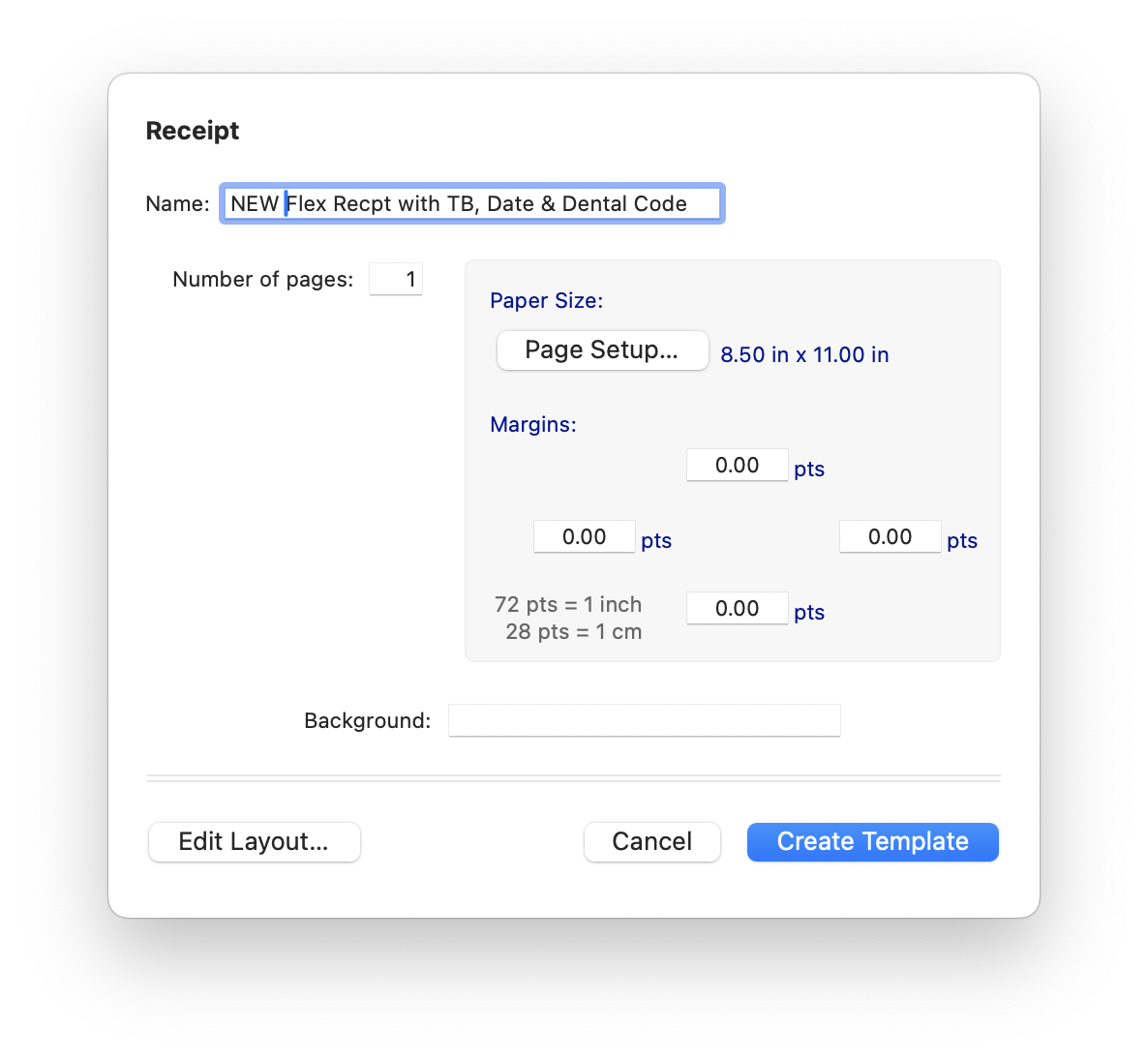
- The template will display.
Draw A Text Box(es)
To draw a text to add in static text or placeholders, click the tool within the Letters Toolbar that looks like a script A. Draw your text box where you would like it to appear on the template.
Adding Static Text
To add static text, click the Selection Tool (the arrow tool within the Letters Toolbar) and double-click within your text box to activate the cursor. Begin typing.
Editing Placeholders
To add, remove or modify a placeholder, make sure you have clicked the Selection Tool in the Letters Toolbar and have clicked within the text box containing the placeholder(s):
- Delete a Placeholder
- Click the placeholder once and press Delete
- Replace a Placeholder
- Double-click the placeholder and replace the existing string value with another supported string value..
- Add a Placeholder
- Place the cursor where the placeholder should appear. Copy an existing placeholder, paste it into the text box, then double-click it and replace the string value with the desired supported value.e.
Save and Test
- Select File>Save
- Close the template.
- Generate a test invoice or receipt from a patient’s chart.
- Review the output and make any necessary adjustments.
Pro Tip: Press Commend-S frequently while editing to save your work.
Placeholders for Custom Receipts and Invoices
For available string values compatible with Invoices and Receipts, see the referenced article below titled Placeholders for Receipts and Invoices.
🎓 Watch a Webinar