
Creating Auto-Pay Plans for DentiCare Financing
Setting Up Auto-Pay Plans for Patients Financed Through Denticare
DentiCare provides payment assurance for orthodontic practices, meaning the practice receives payments on a scheduled basis regardless of the patient’s payment activity. In Tops, a manual Auto-Pay plan can be created in the patient’s chart so payments are automatically posted to the ledger on the appropriate schedule, reducing the need for staff to manually post each payment.
In this workflow, the Auto-Pay plan is not intended to mirror the patient’s payment schedule with DentiCare. Instead, it should mirror when the practice receives payments from DentiCare. This allows the practice to reconcile the amounts received from DentiCare against the payments posted in Tops. The goal is to ensure the money received from DentiCare matches the money posted to each patient’s ledger.
Best Practice for Set-up
When creating an Auto-Pay plan for a DentiCare-financed patient, configure the plan to match when the practice receives payments from DentiCare—not when the patient makes payments to DentiCare.
This makes it much easier to:
- Review the Auto-Pay Detail report and cross-reference automatically posted payments.
- Review and process payments listed on the Deposit Slip.
- Identify and correct failed payments quickly.
- Compare ledger activity with DentiCare deposits.
If the office attempts to match the patient’s DentiCare payment frequency instead of the practice’s deposit schedule, the financial records will not reconcile properly. DentiCare can provide patients with their payment history and receipts, so the practice only needs to track the actual payments received from DentiCare and posted to each patient’s account.
How to Set Up the Auto-Pay Plan
- From the patient’s Contracts/Ledgers tab, click the Auto-Pay Plan button below the list of contracts.
- Enter the total amount of the payment plan.
- Configure the payment schedule and payment amounts to match when the practice receives payments from DentiCare.
- Click Record and Activate to save the Auto-Pay plan.
- Payments will automatically post to the patient’s ledger based on the schedule.
Reporting
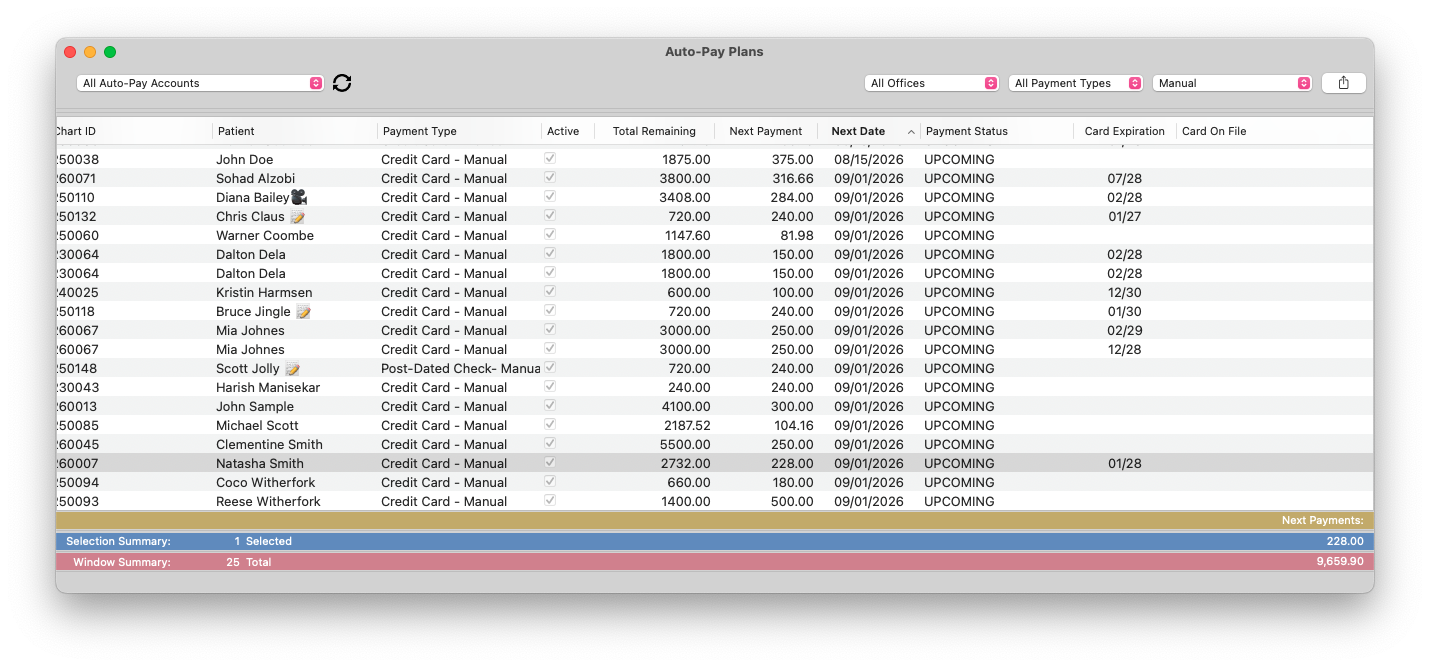
Use Matrix > Auto-Pay Plans to review upcoming scheduled payments. Select a date range to determine the total deposit expected from DentiCare.
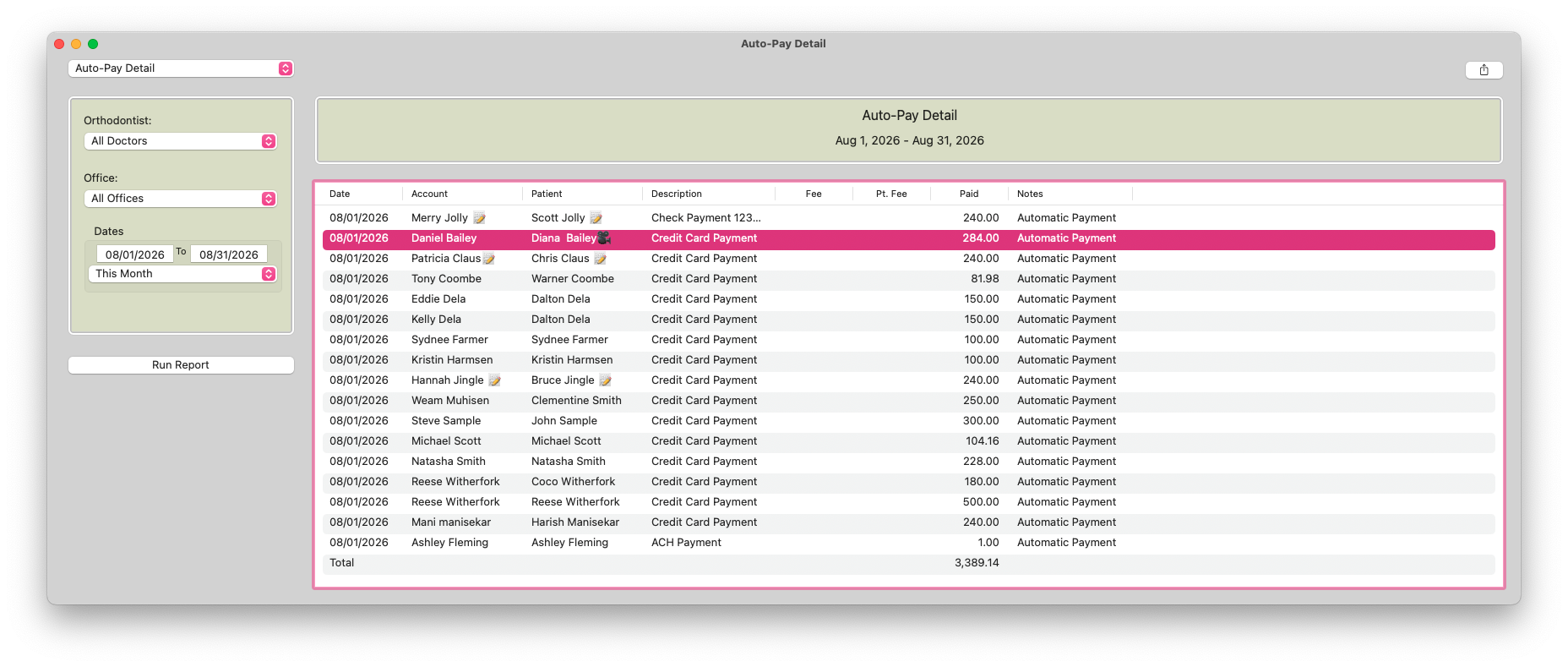
Use Reports>Auto-Pay Detail to review posted payments and compare them with the deposits received from DentiCare.
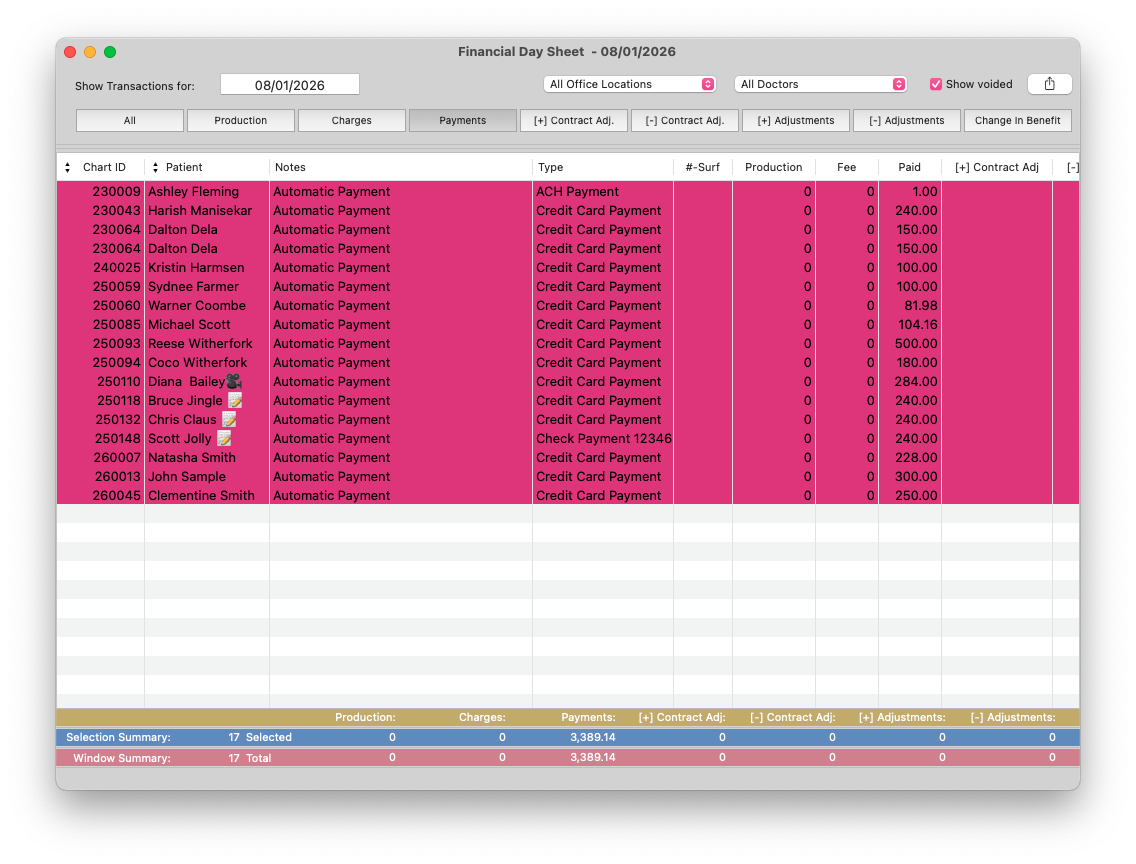
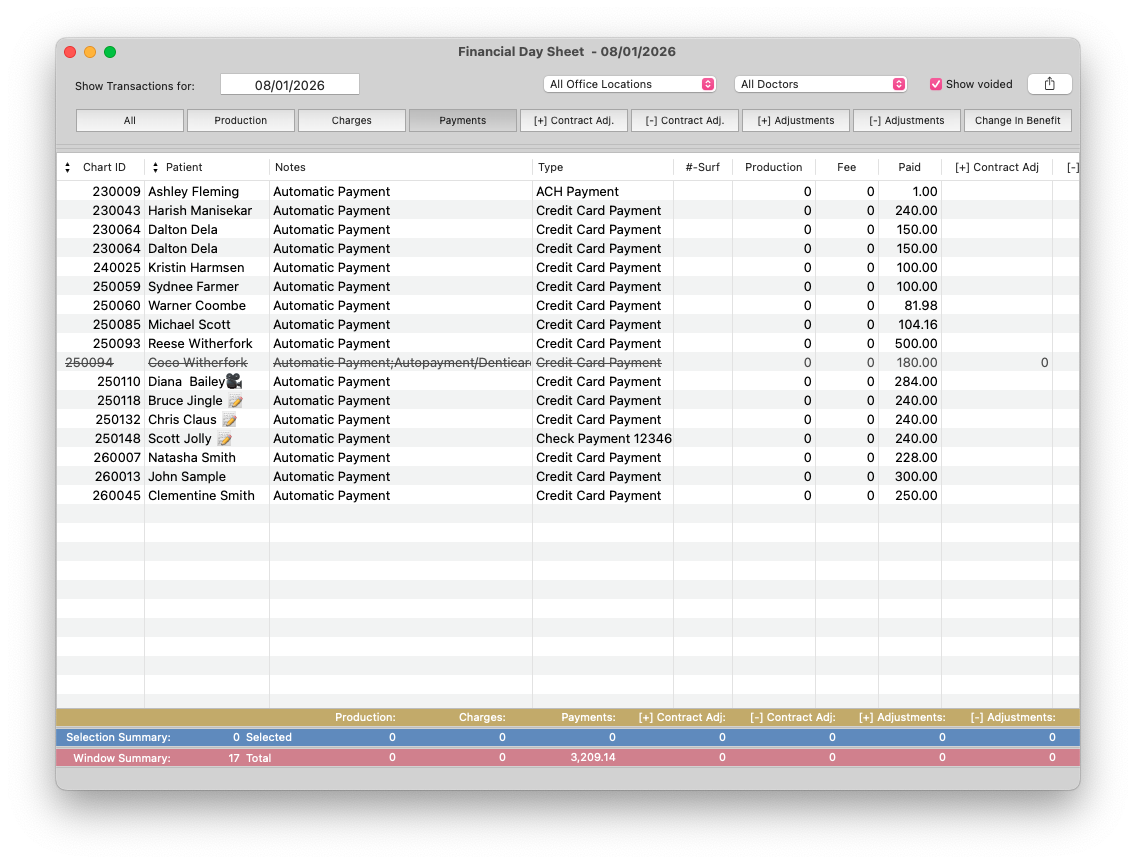
Use Matrix>Financial Day Sheet to review posted payments by date and compare them with the deposits received from Denticare.
Pro Tip: Click the Payments tab to isolate payments, and Drag the Notes column closer to the payment amount. Sort by the notes column. Payments reflecting Automatic Payment are those that posted from an auto-pay plan.
Handling Failed Payments
If DentiCare reports a failed payment, use the Auto-Pay Detail report, the Financial Day Sheet, or the patient’s ledger to identify the transaction date.
-
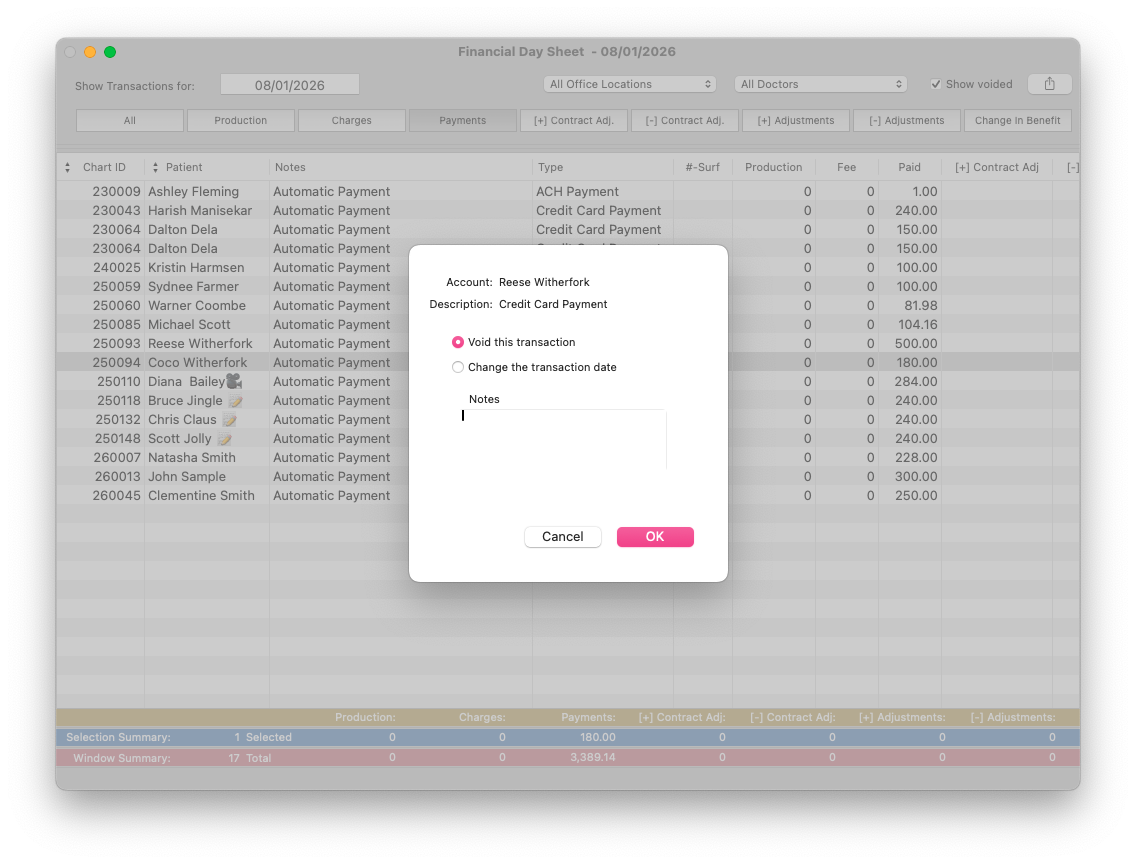
Open the Financial Day Sheet, select the transaction date, and double-click the payment to void the failed transaction.
-
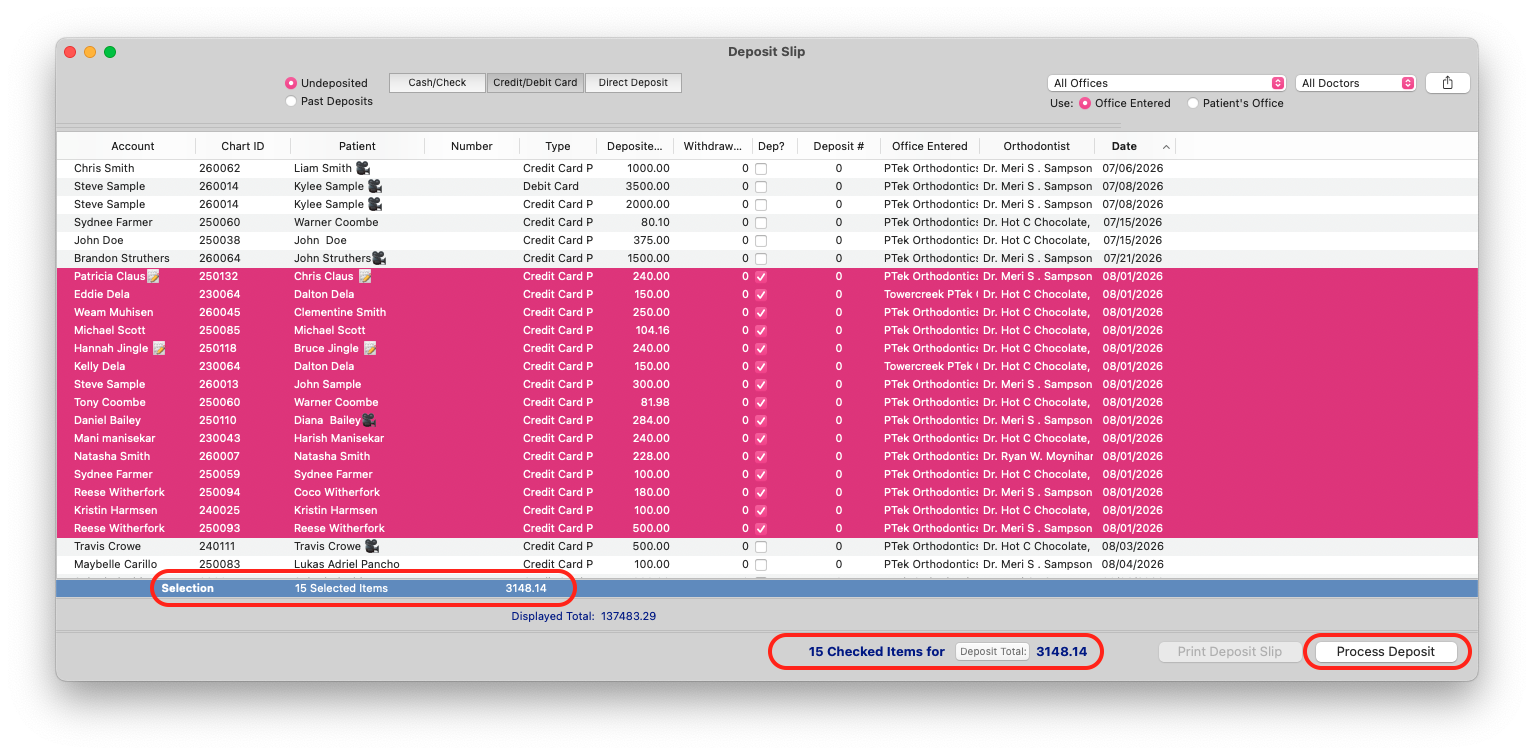
Use the Deposit Slip (Matrix>Deposit Slip) to deposit the remaining payments, by payment type.
-
Before clicking Process Deposit, verify that the Selection Total matches the amount received of that payment type, from DentiCare.
Helpful Tips
Record a Ledger Note
If desired, add a ledger note (Action>New Transaction>Ledger Note) when creating the payment plan to document the payment frequency the patient established with DentiCare. This provides a helpful reference for staff without affecting the Auto-Pay schedule used for reconciliation.
Store Supporting Documentation
If you need to retain a copy of the patient’s DentiCare payment schedule or financing agreement, save it in the patient’s iPortfolio for future reference.
The key to successful reconciliation is ensuring the Auto-Pay plan in Tops reflects the practice’s DentiCare deposit schedule—not the patient’s payment schedule. Doing so keeps the office financial records accurate and makes daily reconciliation significantly easier.
Summary
For DentiCare-financed patients, the Tops Auto-Pay Plan is a reconciliation tool rather than a payment collection tool. Configure the Auto-Pay schedule to match when the practice receives deposits from DentiCare, review the Auto-Pay Detail report regularly, and use the Financial Day Sheet and Deposit Slip to reconcile payments with the deposits received.
Following this workflow helps keep patient ledgers accurate, simplifies daily deposits, and ensures the office’s financial records remain in balance.