
Modifying and Adding to the Fee Schedule
Understanding the Fee Schedule
When a transaction posts to a patient’s ledger-whether to the patient ledger or insurance ledger-it pulls information directly from the Fee Schedule. Because these transactions become part of the patient’s permanent financial history, changes made to existing fee descriptions can affect how historical transactions appear throughout Tops.
Important Considerations
Once a fee has been used on a patient ledger, use caution when modifying that fee in the Fee Schedule.
- Do not delete an existing fee description that has been used.
- Avoid renaming existing fees unless absolutely necessary.
- Historical ledger entries, contracts, reports, and claims will reflect any changes made to the fee description.
- Fee descriptions and CDT procedure codes can only be modified in the Fee Schedule within Practice Set-up; they cannot be edited directly on an insurance claim.
The default fee amount can be updated at any time within the Fee Schedule. When posting a fee from the transaction window, the default amount may also be overridden if a different fee amount is needed for a specific patient.
For example:
- If a fee named Retainers is renamed to Upper Retainer, all historical Retainer transactions will display as Upper Retainer.
- If the fee is renamed to Whitening Kit, historical Retainer transactions will display as Whitening Kit.
- If the label is removed entirely, the transaction amount remains on the ledger, but the description will appear blank.
.

|

|

|

|
Preloaded Fees with Meaning
The Fee Schedule contains both system-provided fees and custom fees created by your practice.
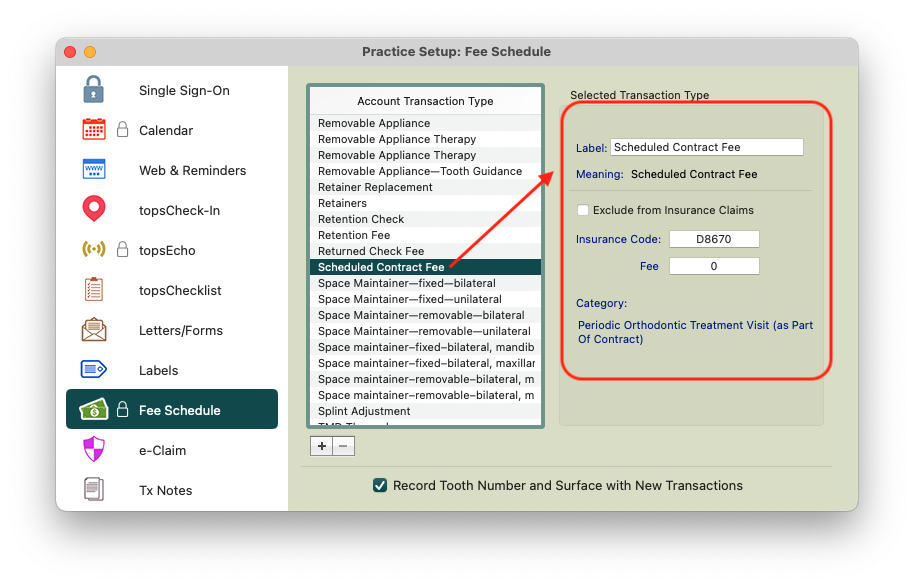
Many preloaded fees have a specific purpose within Tops and may be used behind the scenes for claim generation and other automated processes. For this reason:
- Do not delete or modify the description of preloaded fees.
- Do not alter CDT codes (procedure codes) associated with preloaded insurance-related fees.
For example, Scheduled Contract Fee is used to post contract charges automatically based on a patient’s active contract schedule. While the label may be modified for patient-facing clarity (such as “Orthodontic Monthly Fee”), the underlying meaning and CDT code should remain unchanged.
Adding Custom Fees
To add a new transaction type to the Fee Schedule:
- Navigate to TopsOrtho>Practice Set-up.
- Enter your password and click OK.
- Select Fee Schedule.
- Click the + button.
- Enter a description in the Label field.
- If applicable, enter a default fee amount.
- Configure claim settings as needed.
- Click Save.
The new fee will now be available when posting transactions to patient ledgers.


Adding a CDT Code to a Fee
CDT Code Best Practice
To ensure CDT codes (Procedure codes) are correctly associated with a procedure fee for insurance claims, verify that all fees included in a claim have a valid CDT code entered in the Insurance Code field.
Missing or incorrect CDT codes may result in claim submission issues.
To add or change a CDT code (Procedure code) associated with a procedure fee, follow the steps below.
- Open Practice Set-up>Fee Schedule
- Select the fee you wish to edit.
- Locate the Insurance Code field.
- Enter the appropriate CDT code.
- Save your changes.
Note: For a claim that has already generated with the incorrect or missing CDT code, simply adding or correcting the CDT code in the Fee Schedule of Practice set-up will update the claim.
Allowing a Fee to Appear on an Insurance Claim
If you want the fee to be included when generating insurance claims:
- Verify that the Exclude from Insurance Claims checkbox is unchecked.
- Fees marked as Exclude from Insurance Claims will not appear on newly generated claims.
Excluding Fees from Insurance Claims
Some transaction types should never appear on insurance claims, such as administrative charges or non-treatment-related fees.
To exclude a fee from claim generation:
- Open the fee in the Fee Schedule.
- Check Exclude from Insurance Claims.
- Save your changes.
Note: This setting only affects future claims. It does not remove transactions from claims that have already been generated.
Generate a Report of Your Existing Fee Schedule
Need to see a report of your existing fee schedule? This is currently not a report that can be exported by an individual Tops user, regardless of permissions. Please reach out to Tops Support as a form will need to be completed to request the export report.
Email: [email protected]
Phone: 770-627-2527
Text: 770-406-0685
🍿 Watch a Video