
Schedule an Appointment within Patient Flow
Tops Ortho provides multiple ways to create an appointment. The instructions below use Patient Flow.
- Go to Utilities > Patient Flow, keyboard shortcut Shift-Command-F.
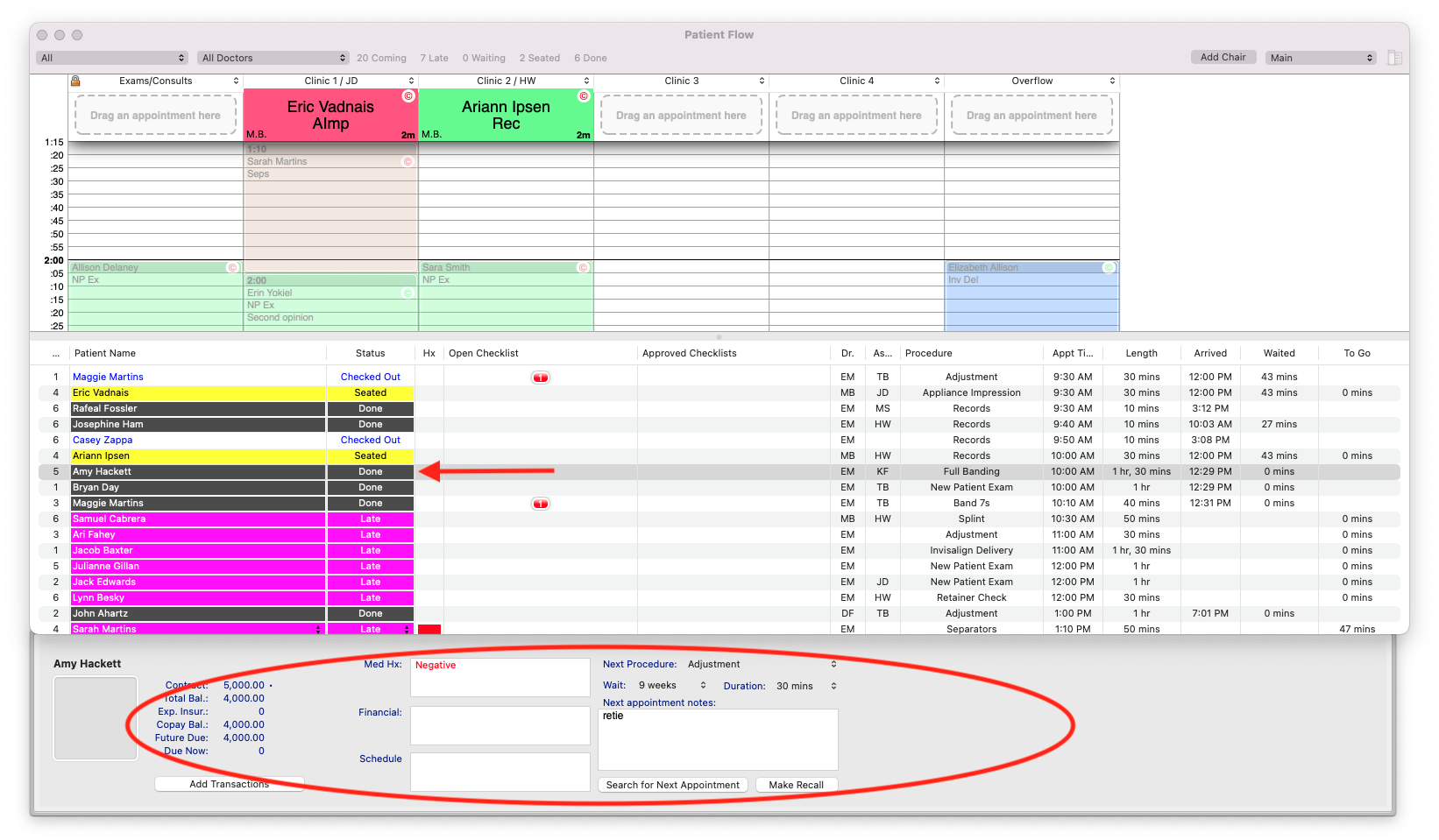
- The patient must have a Status of Done. Click on their picture or name within the grid.
-
In the drawer that displays, click Search for Next Appointment.
-
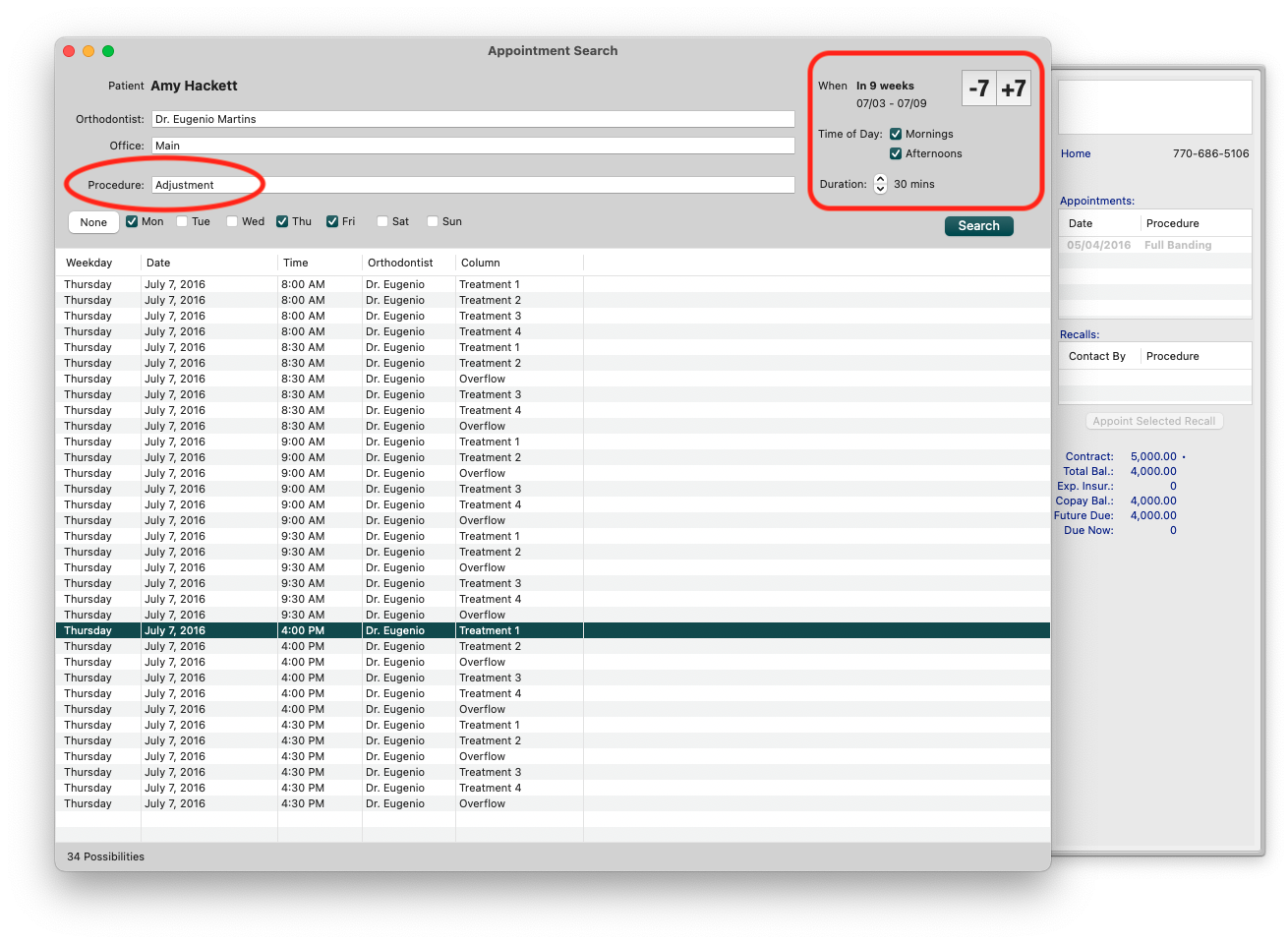
In the Appointment Search window, the search defaults allow you to view the appointments available for the Procedure displayed. If needed, update the search criteria, and click Search. Note: The icons for -7 and +7 update the When field by seven days forward or backward.
-
Single click on the appointment line item. Note: This action opens a window of the Appointment Book and displays the appointment.
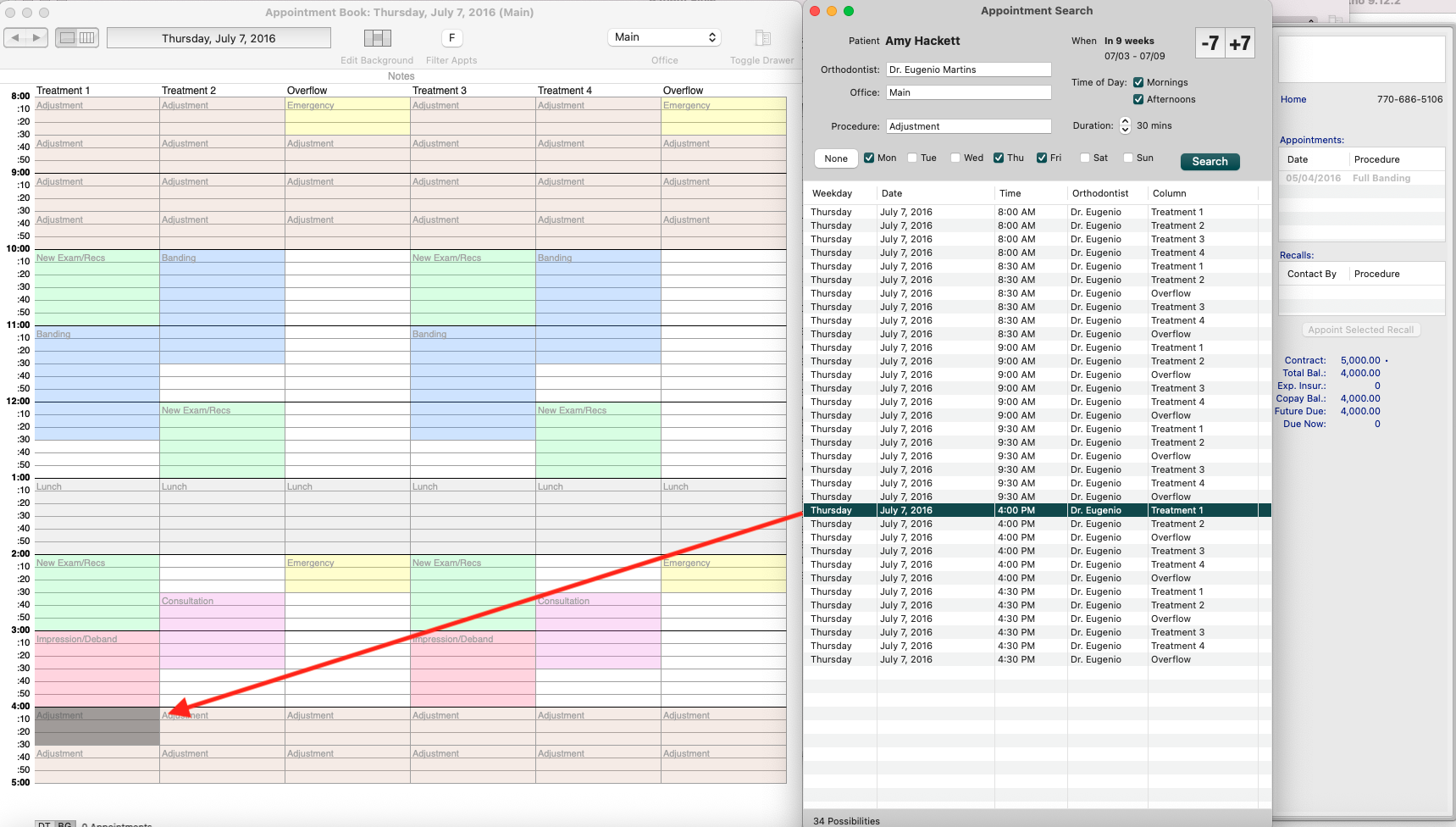
- If the appointment you have selected looks good within the appointment book, double click the line item.
- The Appointment window displays, update the fields as required.
- If the appointment is due to an emergency, it is important to check the box beside Emergency.
- To print an Appointment Slip, click Print Slip.

-
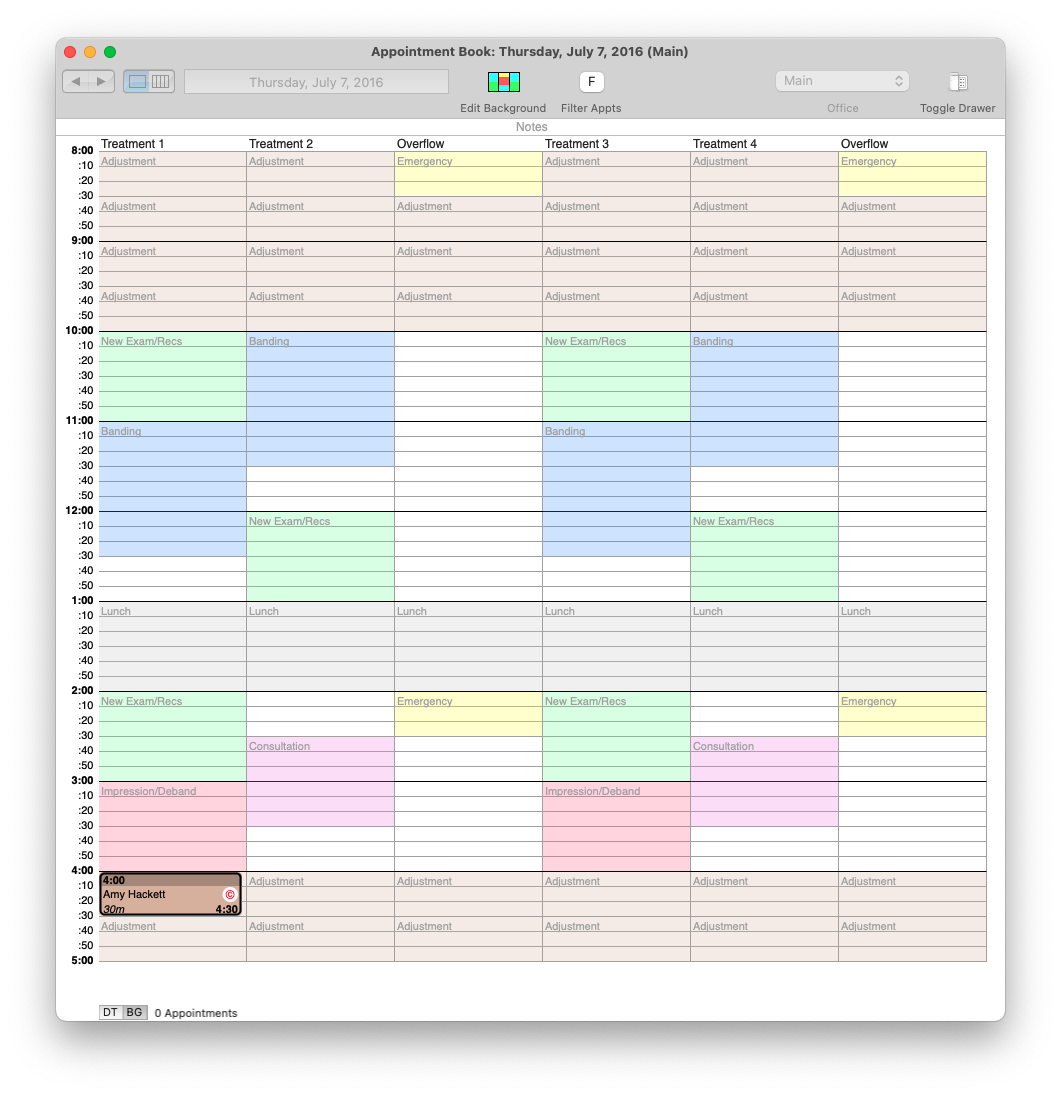
Click OK. The appointment will now appear on the appointment book.
- Update the patient's status in Patient Flow to Checked Out.
