
Create a Custom Contact List for TopsDPX
Do you need help creating a custom contact lists for Broadcast texts or email campaigns! Read below for steps on our suggestions!
Generate and Export your Recipient List within Tops
The example below is using the Patient Matrix pulling a phone list for a Broadcast Text.
- Go to Matrix > Patients.
- Set your filters. For example, do you want to reach out to everyone in Active Treatment status? Want to send a special bulletin to all of your Monitor Development - Not Ready for Initial Tx patients?
- Click Search.

- In the first blank column, click the arrows and select Phone A.
- Click the Phone A heading to filter the numbers to the top of the list.

- Click the upload icon in the upper right corner and select Export to spreadsheet. Note: You will need to enter your Tops Ortho password.
- You will be prompted to name your .txt file. Give it a memorable name and save it to your desktop.
Open your txt file within Numbers or Excel
Right-click on the .txt file on your desktop and select Open With. Select Numbers or Excel.

Format your Spreadsheet
The spreadsheet created must be modified to reflect only the required columns and column headers to load properly to TopsDPX.
The following steps details how to modify your spreadsheet using the Numbers spreadsheet application.
- When the spreadsheet opens, click to select the first column that contains the Chart ID; right-click, and choose Delete Column
- Repeat the step above to delete the additional three blank columns that appear after the Phone Number with the Patient list. If using Matrix>Accounts, delete all columns except for the Account Holder name and Phone 1 columns.
- Note: if creating a spreadsheet for an email campaign, include the email column.
-
Rename your headers to reflect the requirement of TopsDPX.
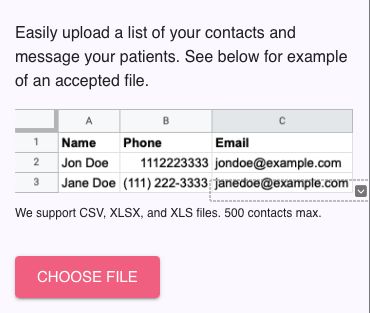
- Your spreadsheet headers should look like this below depending on how the recipient name exported and whether sending a broadcast text or an email campaign.
|
|
|


Export your Spreadsheet to a CSV file
If you are using Numbers, follow the instructions for your selection but we do recommend following the steps below even if you are using Excel:
- In Numbers, go to File > Export to > CSV and follow the prompts to save the file.
- In Excel, go to File > Save As. In the File Format dropdown, select Comma Separated Values (.csv). Save the file.
Check the box to Include Table Name and click the Save… button

- Confirm the filename and where it will be saving to (i.e. Desktop) and click the Export button
- Your file is now ready for Drag and Drop when you click to Upload a Contact List for the Tops DPX Broadcast feature.
How to Handle More than 500 Contacts for Broadcast Text
There is a 500 contact limit for .csv files uploaded to TopsDPX. You may need to separate your lists and upload them separately. See related article "Upload Contact List to DPX > 500" below.
Max Daily Limit
There is a daily limit of 500 recipients using the Broadcast Text feature.
To locate your limit for the day, follow the steps below
TopsOrtho>Comm>Tops Reminders
If you have more than one location, select the desired location
Click (Product) Messages
Click the Broadcast button or the messages bubble next to the search field

Why is there a daily broadcast texting limit?
To protect both your practice and your patients, daily limits are in place for the following reasons:
-
Protect against compromised accounts
In the rare event an account is compromised, limits help reduce the number of phishing or unauthorized messages that could be sent.
-
Minimize patient opt-outs
High-volume bulk messages can feel irrelevant to patients, increasing the likelihood they opt out of texting.
When a patient opts out, they will no longer receive any messages, including appointment reminders, recalls, review requests, and direct communications.
-
Reduce risk of carrier spam filtering (10DLC compliance)
Sending large volumes of messages-especially those containing links-can trigger carrier spam filters.
If flagged, your number may be blocked, preventing messages from being delivered to patients on that carrier.
-
Based on observed trends
Most instances of patient opt-outs and carrier filtering have been associated with high-volume marketing messages.