
Add Staff Member Credentials for TopsDPX
Does a new staff member need TopsDPX access? Adding them is easy!
Understanding Single Sign-on for Tops DPX
With TopsDPX, users are granted access to TopsDPX based on the location assigned to the workstation, not based on which locations they can view once logged into TopsDPX. Selecting a location only determines whether the user can launch TopsDPX from that specific computer.
The locations listed in Single Sign-On directly correspond to the location assigned to the workstation in TopsOrtho > Workstation Settings. For a user to access TopsDPX from the Comm menu, the workstation’s assigned location must match one of the locations selected in Single Sign-On.
If a workstation is assigned to Location A, but the user is only granted access for Location B, the user will not be able to access TopsDPX from Tops on that workstation.
If a user needs to access TopsDPX regardless of which workstation or location they are assigned to, it is recommended to select all locations.
Configuring Single Sign-On for TopsDPX Users
- Go to Tops Ortho > Practice Setup > Single Sign-On.
- From the menu on the left, select Tops Reminders.
- Select the name of a staff member who already has access to TopsDPX.
- Click the duplicate icon at the bottom of the window.

-
In the window that opens, select the new staff member's name and press Tab.
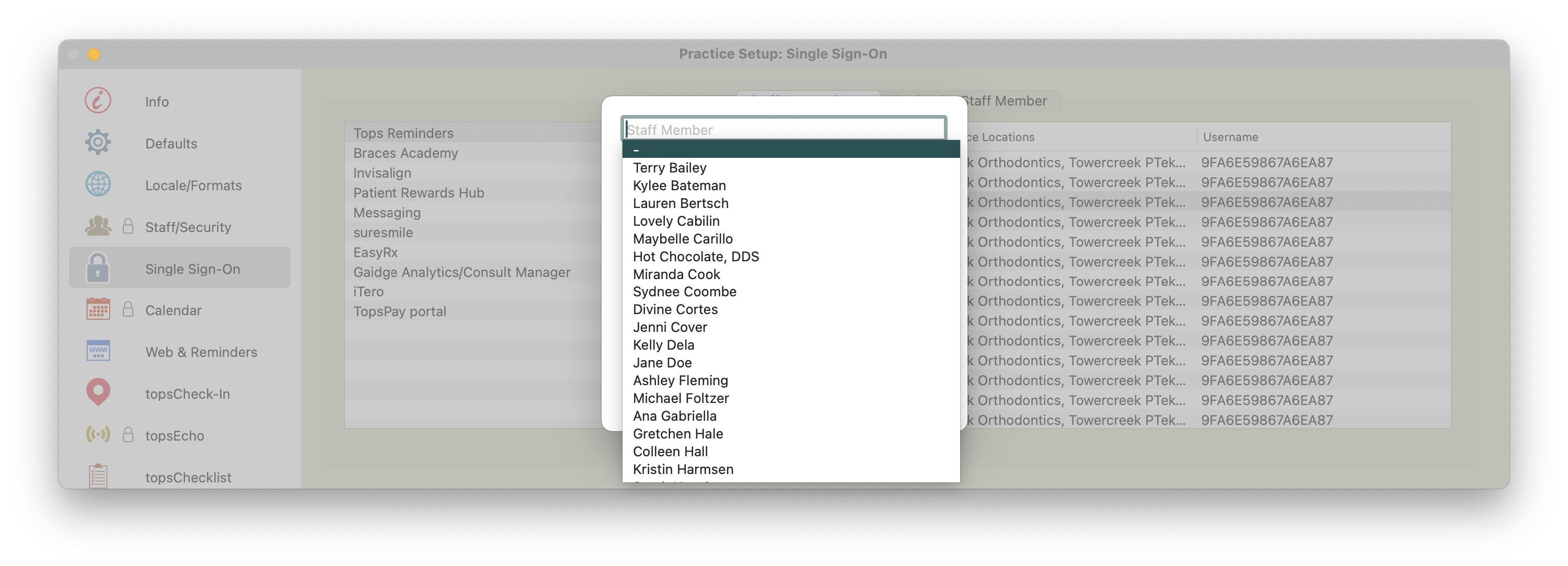
-
Select all locations or the location that the workstation is assigned to. To locate the workstation's assigned location, go to TopsOrtho>Workstation Preferences>Location.
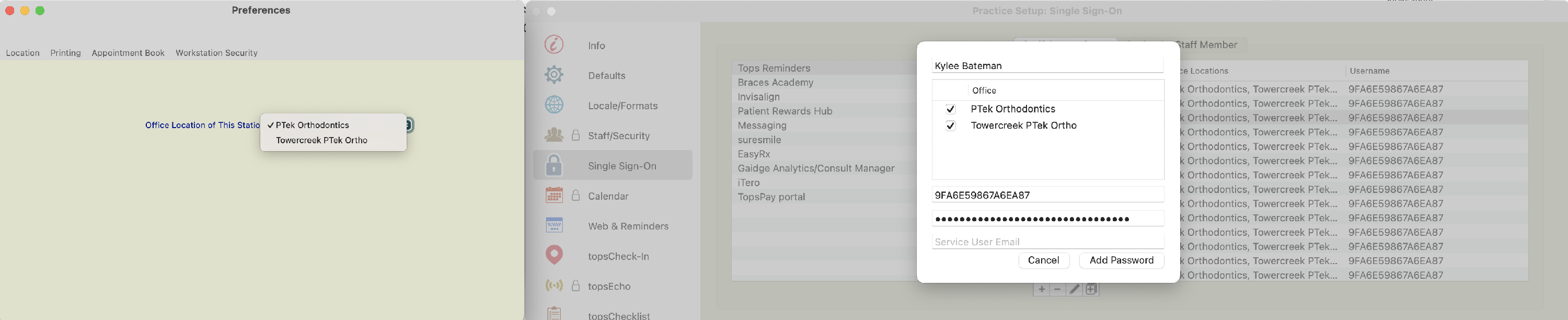
- Click Add Password.
- Your new staff member will now be able to access TopsDPX by going to Comm > Tops Reminders and entering their Tops password!
At this point, the staff member now has access to TopsDPX via the Comm menu and will be connected using the practice's default user account in TopsDPX.
Next Steps...
It is recommended to set up individual user profiles within TopsDPX to allow for effective message management.
- If you haven't created their user profile in TopsDPX, please click the article Add a New TopsDPX User and follow the instructions.
- If you have already created the staff member(s) user profile in TopsDPX, click the staff member's name from the Single Sign-on list for Tops Reminders, and select the pencil icon to edit their credentials. Input the staff members unique email address that was used to create their TopsDPX user profile and click Save Changes. Do not alter the username and password.
-
If you do not want to set up a unique user account for the new staff member, do not enter an email address
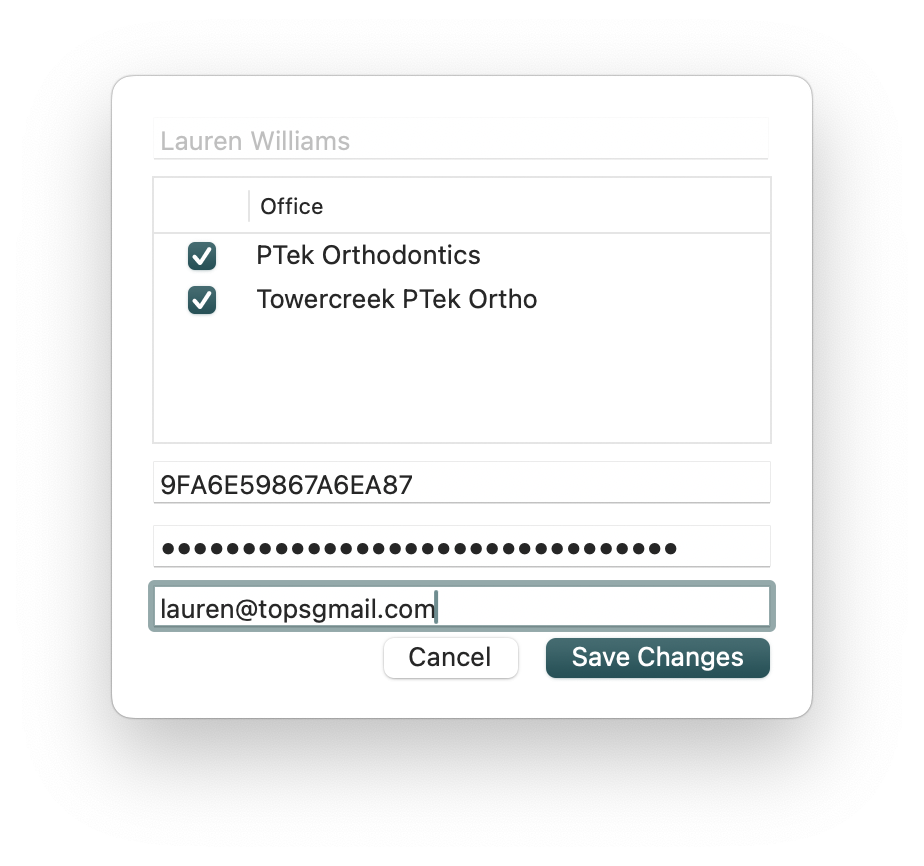
The user's email added to TopsDPX will receive an email to create a password for logging in directly via a web browser. Individual passwords created to access TopsDPX (powered by Doctible©) via the web browser are not managed by Tops nor should they be added to Single Sign-on. Access via the web browser is strictly by individual and should only be used when TopsDPX via TopsOrtho is not accessible.