
Create a TopsDPX Broadcast
Have an important announcement to send? A fun office event to broadcast? Here's how to reach the most patients possible!
Create a Broadcast Text
- Go to Comm > Tops Reminders.
-
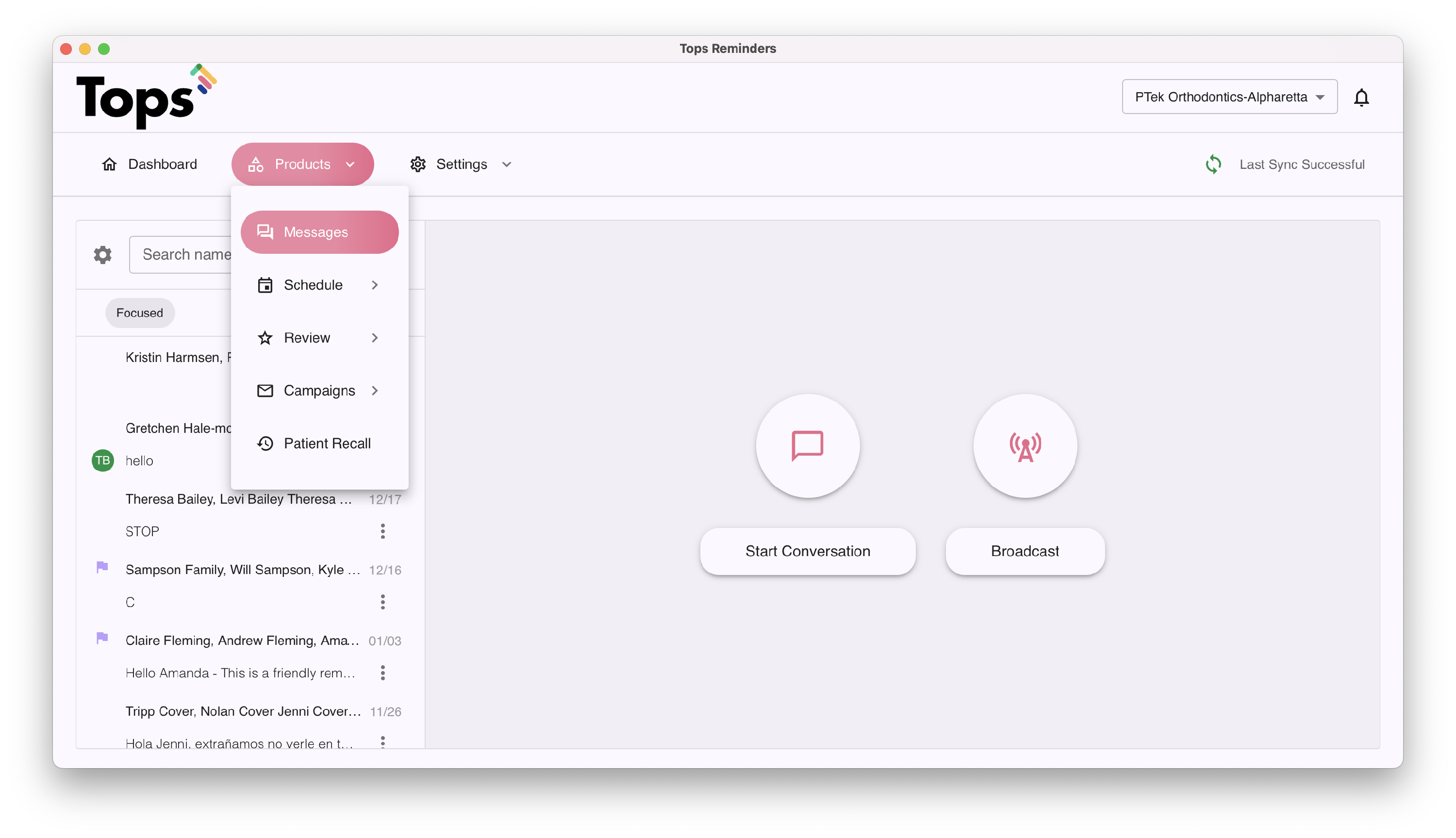
Go to Products > Messages or if you widen the TopsDPX window, you can click directly on Messages
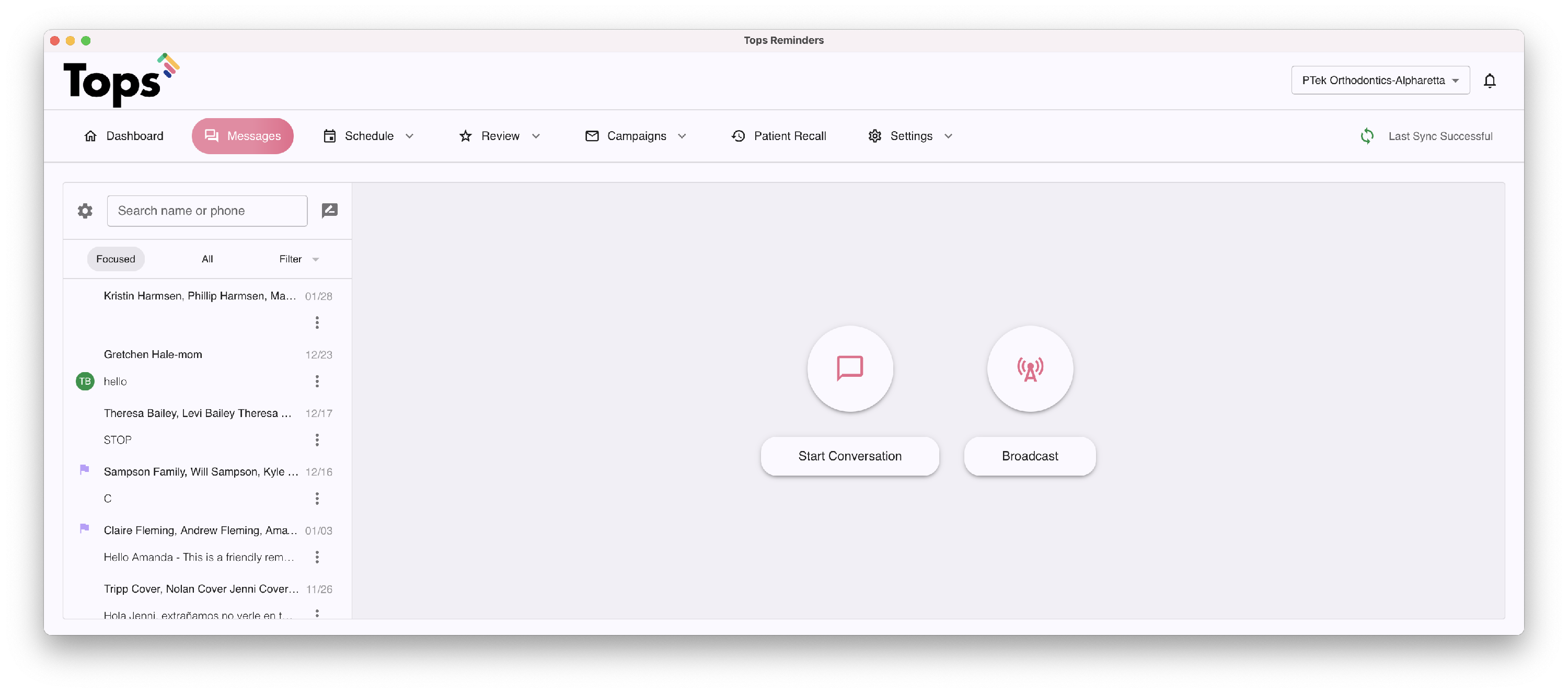
- Click the Broadcast button.

- A window will display asking you to select your audience.
- From Schedule allows you to pick everyone on the schedule for a selected period - whether a date in the past or up to 30 days in the future. Patient Groups can be used to target patients with specific appointment types on the schedule.
- From existing contacts allows you to enter specific contacts already in your TopsDPX contact list to create a custom group.
- Upload a contact list allows you to upload a list of names and numbers (you can create this in Tops Ortho or bring it in from another source; it must be a .csv file). This is a helpful option when you want to send a broadcast text to a specific group of recipients that are not necessarily on the schedule. For directions on how to create a .csv file, see the related article below, Create a Custom Contact List for TopsDPX.

-
After selecting your audience, click Next.

- You can use an existing Template, or simply type your message in the Content field. If desired, you can add variables to your message to make it more personal. Just click to add!

|
|
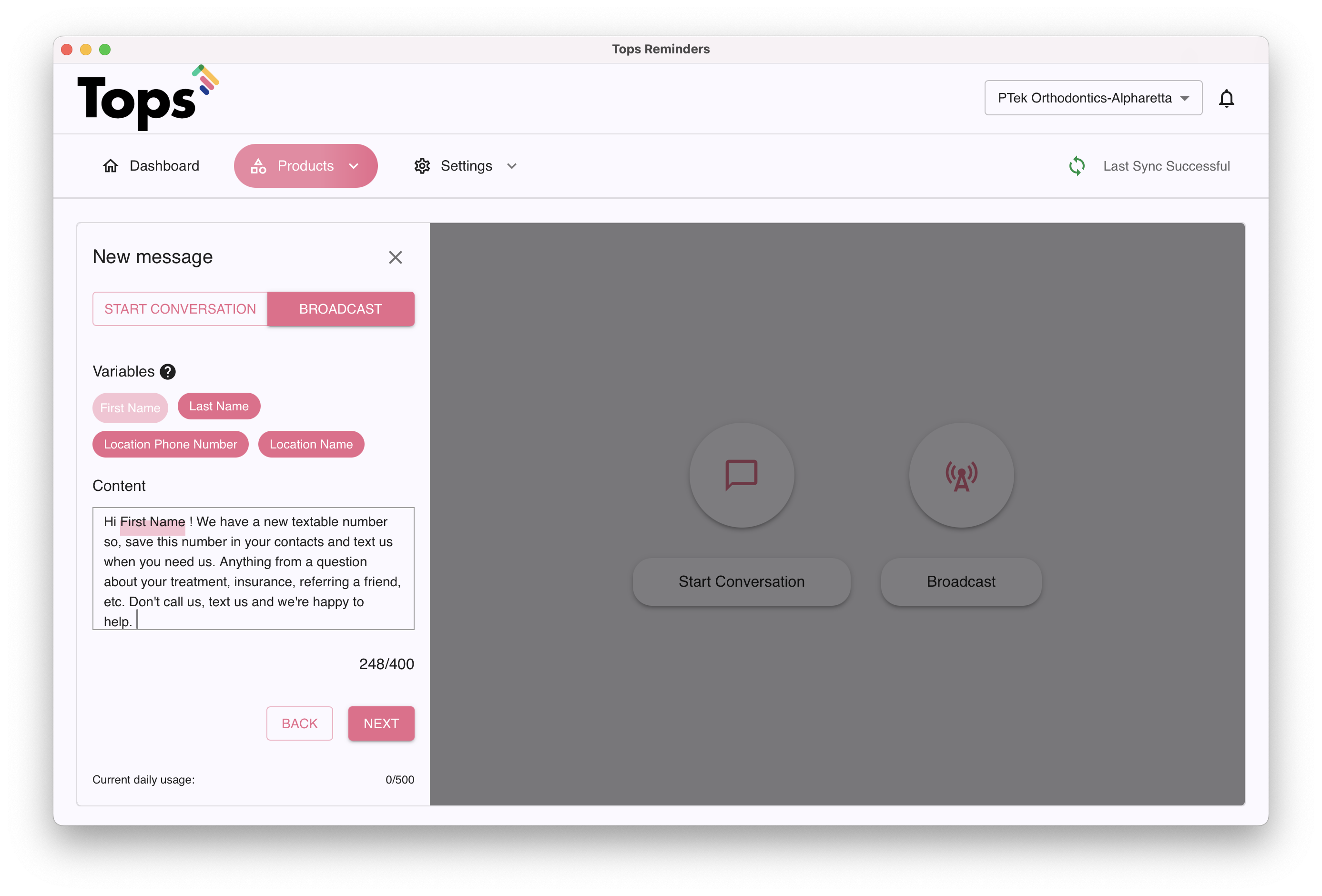
Receive an error?
Check for possibly being over the character limit. Did you include an Emojii? Considering removing it.

-
When you are satisfied with the message, click Next.
- A preview of your broadcast and a list of recipients will be visible. Uncheck any recipients that you do not want to receive the text. Review and click Submit.

-
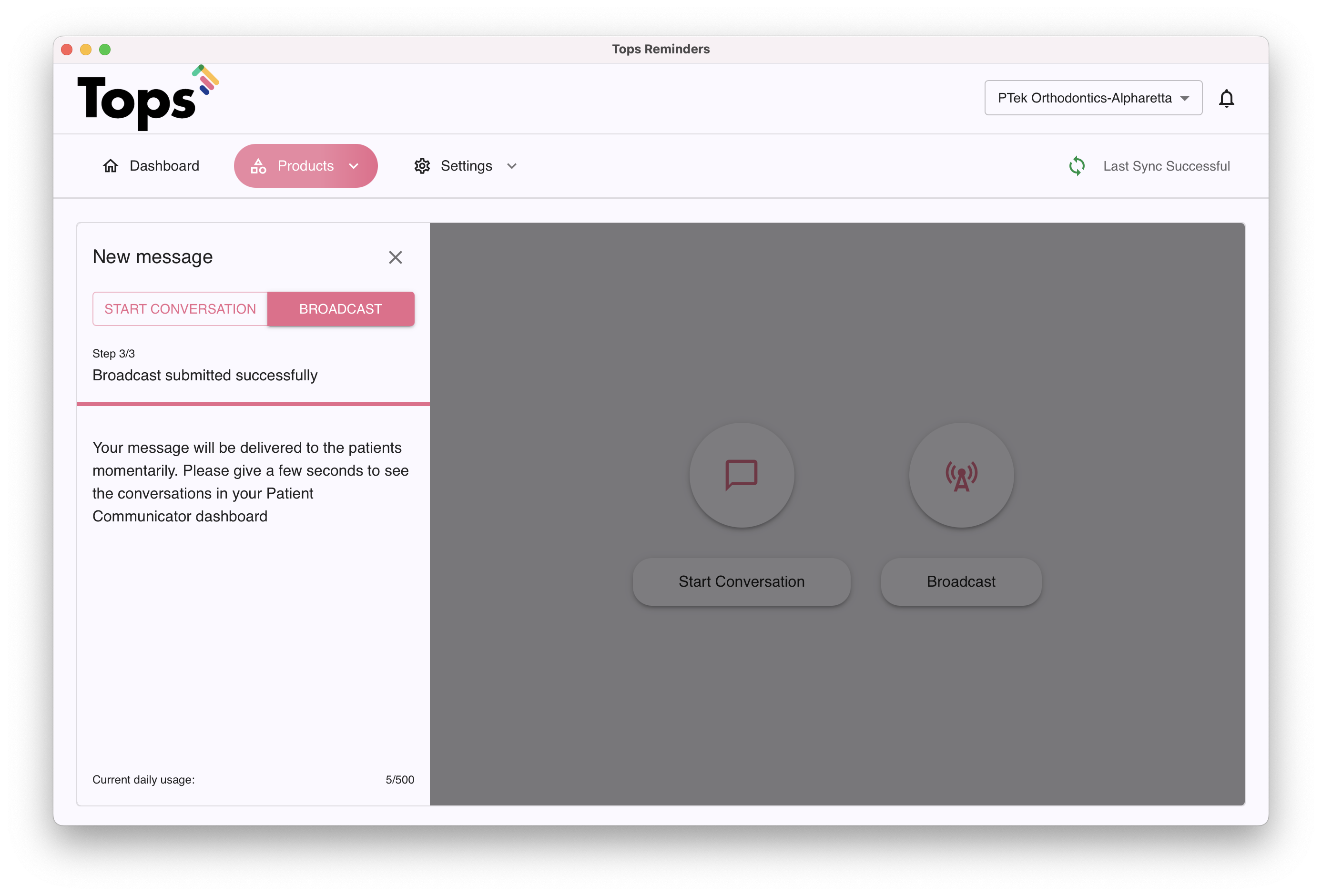
You're done! You will soon see your broadcast in patient threads in the Messages tab.
Max Daily Limit
There is a daily limit of 500 recipients using the Broadcast Text feature.
To locate your limit for the day, follow the steps below
TopsOrtho>Comm>Tops Reminders
If you have more than one location, select the desired location
Click (Product) Messages
Click the Broadcast button or the messages bubble next to the search field

Why is there a daily broadcast texting limit?
To protect both your practice and your patients, daily limits are in place for the following reasons:
-
Protect against compromised accounts
In the rare event an account is compromised, limits help reduce the number of phishing or unauthorized messages that could be sent.
-
Minimize patient opt-outs
High-volume bulk messages can feel irrelevant to patients, increasing the likelihood they opt out of texting.
When a patient opts out, they will no longer receive any messages, including appointment reminders, recalls, review requests, and direct communications.
-
Reduce risk of carrier spam filtering (10DLC compliance)
Sending large volumes of messages-especially those containing links-can trigger carrier spam filters.
If flagged, your number may be blocked, preventing messages from being delivered to patients on that carrier.
-
Based on observed trends
Most instances of patient opt-outs and carrier filtering have been associated with high-volume marketing messages.