
Create a Paid in Full Contract with Insurance
The following example is based upon a typical contract including insurance:
Estimated Treatment Length: 20-24 months
Contract Total: $6000.00
Patient Insurance Benefit: $2000.00
Patient Downpayment : $4000.00
Courtesy/Pay in Full Discount : 3%
Patient Remaining Balance: $3880.00
Patient selected a payment plan: Pay in Full
The Quick Contract and Contract Worksheet
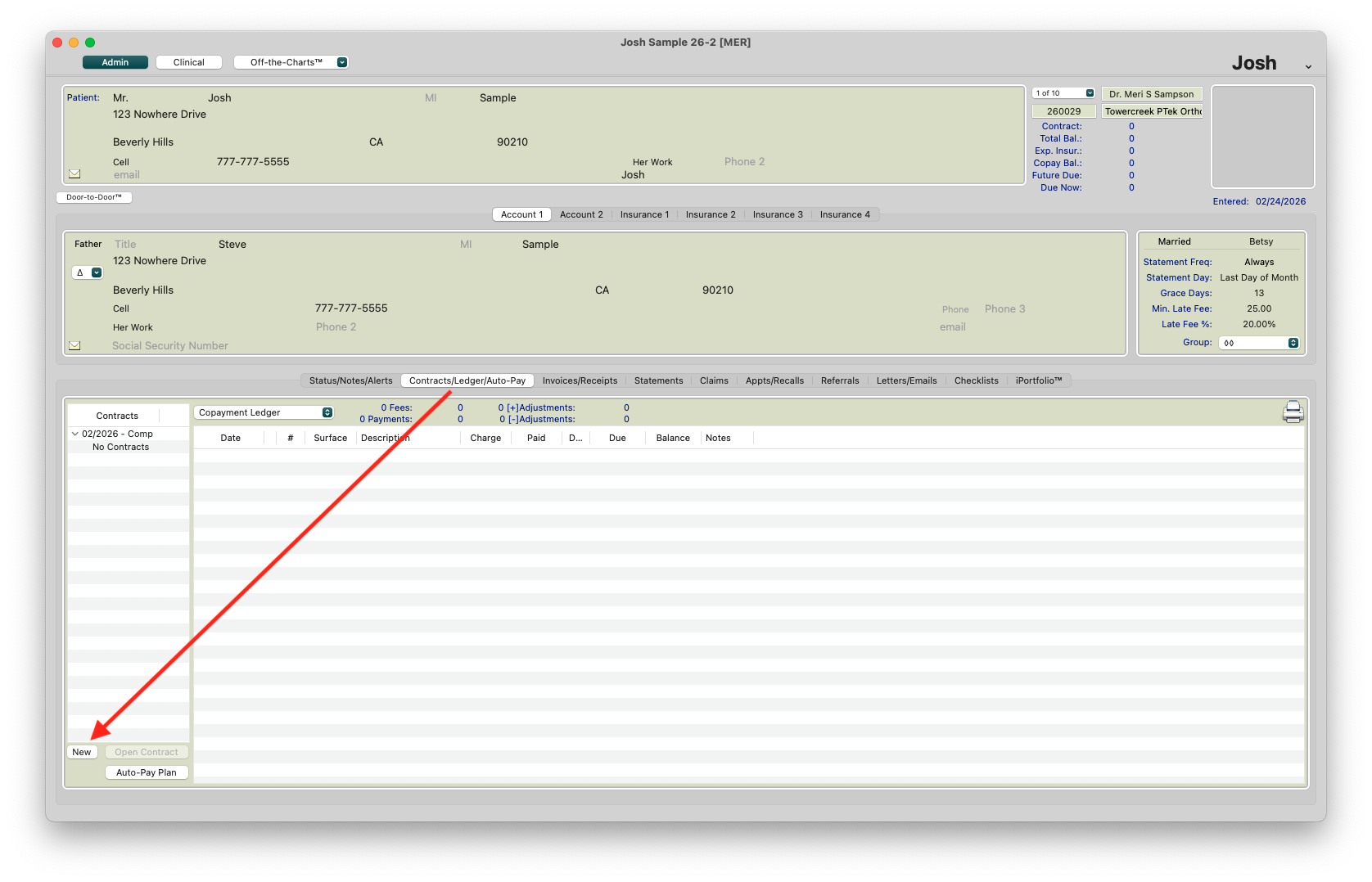
- Open the patient's chart; go to View > Patient Info or press Command-I
- Click the Contracts/Ledgers tab.
-
Click New and select the appropriate Treatment Plan.
-
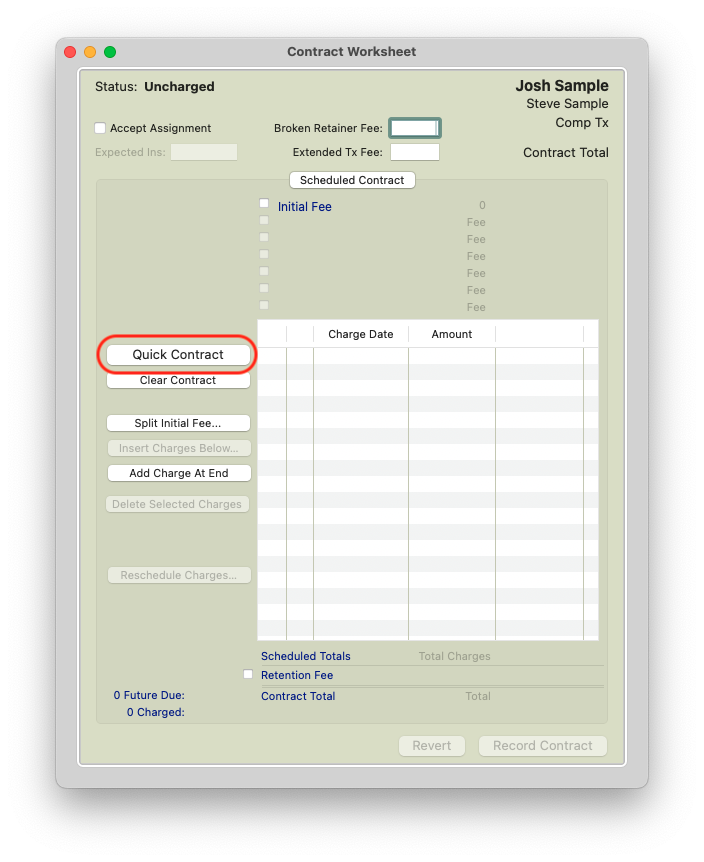
Click the Quick Contract Quick button. The Quick Contract Worksheet opens.
Contract Worksheet 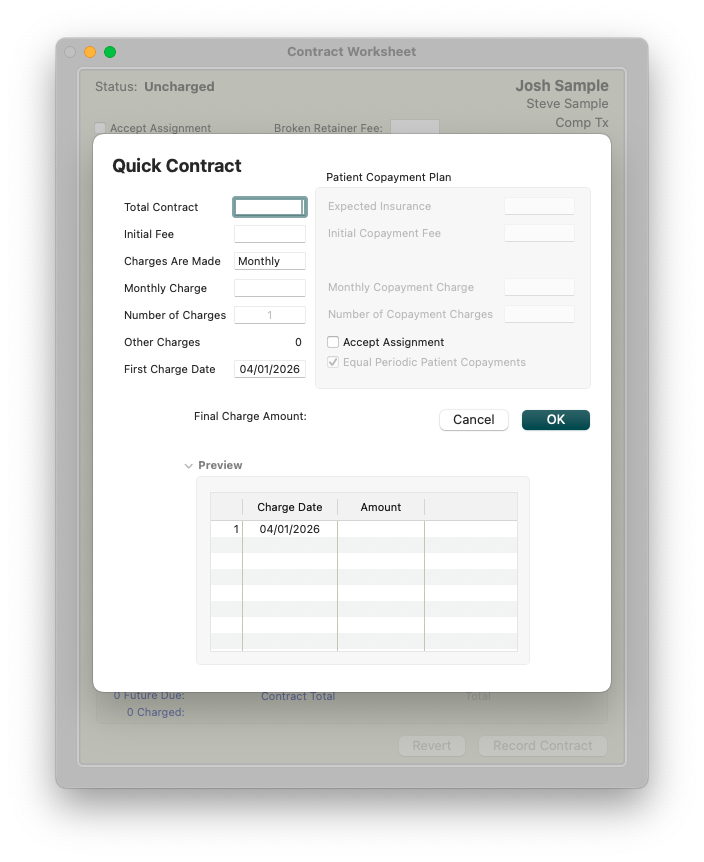
Quick Contract - Check the box Accept Assignment
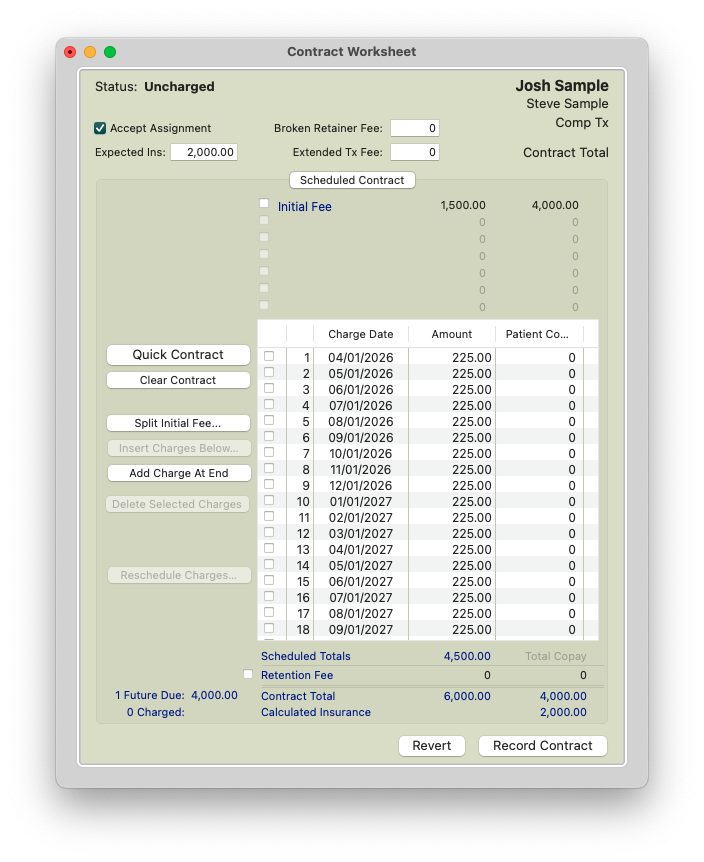
- You should now see both the left and right side of the contract worksheet.
- The left side will reflect the details you need to submit to insurance.
- The right side will reflect the details of how the patient will pay for the contract total between their Expected Insurance benefit, and their Initial Copayment Fee (Courtesies+downpayment).
- For a pay in full contract, the monthly Copayment Charge should reflect 0, and the number of Copayment Charges should reflect 1.


The LEFT side of the Quick Contract reflects the true contract total.
It is used to enter contract totals regardless of insurance. These are the numbers the insurance company will see on the claim form. The patient co-pay IS NOT entered on the left side.
- Total Contract: The total amount charged for treatment.
- Initial Fee: The amount charged in the initial claim. This number is typically between 20-30% of the total treatment fee. In the example above, it is $1500 - 25% of $6000.
- Charges are Made: The frequency of the contract charges (which can be used for claims).
- Monthly Charge: How much you will submit to insurance per month. Typically you want to enter the number of treatment months first; Tops Ortho will then auto-calculate the monthly amount.
- Other Charges: Not used at this time.
- First Charge Date: Tops Ortho calculates this date based on the date that the Quick Contract is created. If the next month is more than three weeks away, the first payment will be scheduled for the that month. If the next month is less than three weeks away, Tops Ortho will schedule the first payment for the following month.
The RIGHT side of the Quick Contract is for entering Patient Copayment totals based on their expected insurance.
- Expected Insurance: The expected insurance benefit. Note: This may be less than the Initial Fee entered for insurance on the left side of the contract worksheet.
- Initial Copayment Fee: The amount charged to the patient to initiate treatment. This number should be the sum of what the patient is paying AND discounts they receive.
-
Using the example screenshot above, if the patient has a contract for $6000 but insurance is expected to pay $2000, the patient is responsible for the remaining $4000 as their copay amount. If the patient chooses to pay in full, the remaining $4000 of the contract can be charged out as the initial fee in the Copay column.
An office may offer to the patient a 3% discount if the patient pays in full. While the patient still owes the $4000 represented by the initial fee, the office allows the patient to pay $3880 which reflects the 3% courtesy off of the $4000. The office then should post a $120 (-) Account Adjustment for a Paid in Full discount. Between the patient's payment and the courtesy, the $4000 initial fee has now been paid.
-
- Monthly Copayment Charge: How much you will charge the patient per month. With a pay in full scenario, there should be no monthly copayment charge.
-
Number of Copayment Charges: How many months patient will pay.
Note: This does not have to match the number of charges to insurance on the left side. With a pay in full scenario, the number reflected should be 1. There is only 1 fee charged, the initial fee.
- Click OK.
-
Verify all numbers are accurate.
- Click Record Contract.
Initiating the Contract
Charging out a contract with insurance should be initiated on the date of initial placement.
Tops Tip: When entering details in the New Transactions window, always use the Tab key to advance to new fields.
- Go to Action > New Transaction or press Command T to open the New Transactions window.
- Confirm you have the correct patient and account holder listed in the New Transactions window.
-
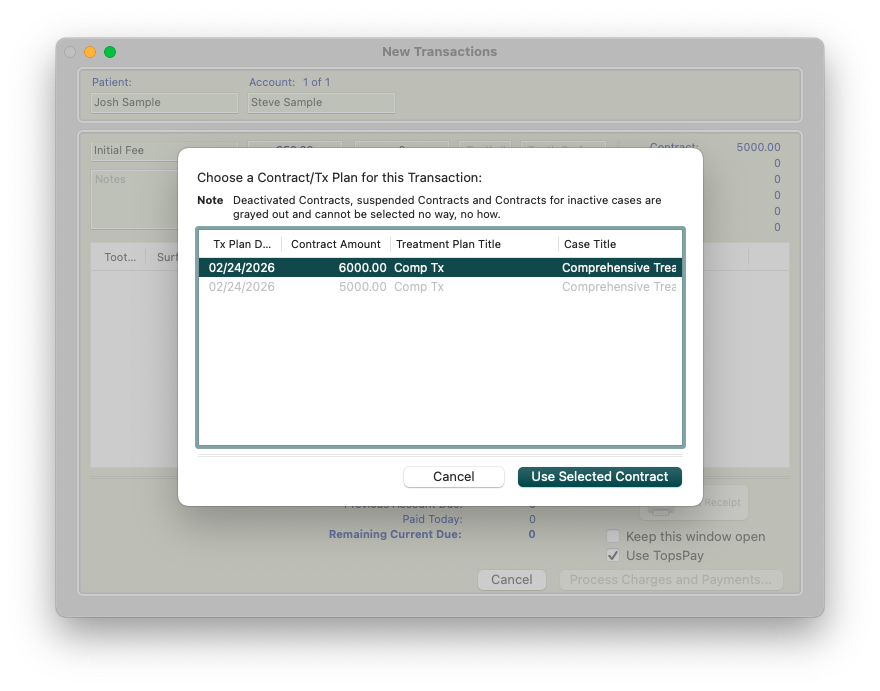
Select Initial Fee for the Payment/fee type, and choose the recorded contract you wish to activate. Click Use Selected Contract.
- Enter your note and click the tab key.
- Review and click the Process Charges and Payments button.
- ALWAYS review your financial snapshot for accuracy before clicking the Process Charges and Payments button.
- The initial fee cannot be voided nor can the date be changed once the fee has been processed.
- If you need to remove a transaction from the Transaction window, highlight the fee and use Command-Delete or Edit>Clear to remove it without needing to cancel the transaction window.

-
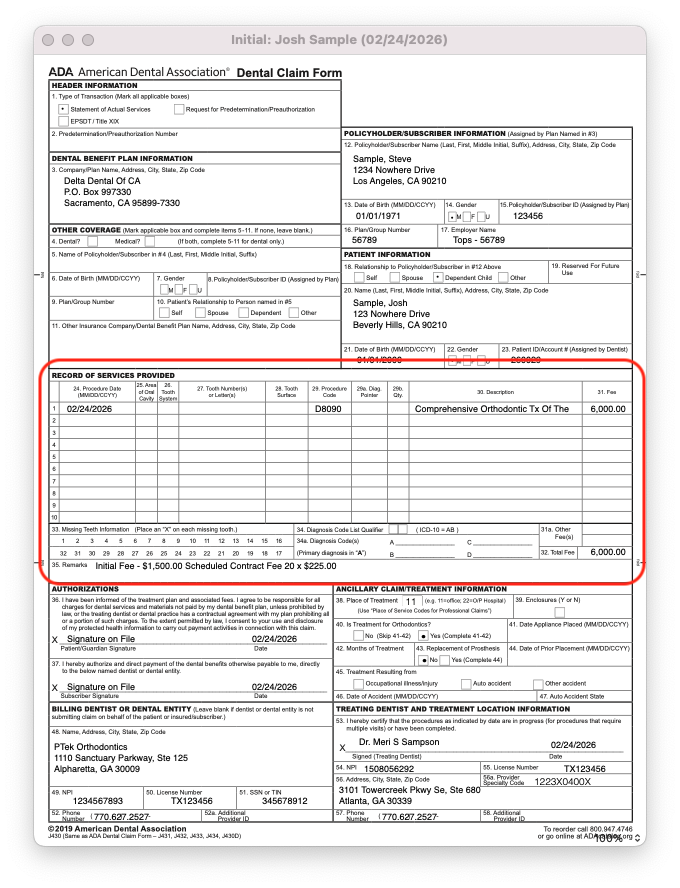
The claim generates successfully for the patient's insurance.
- Active contracts will show one or two dots next to the contract total.
- Contracts without insurance will display one dot.
- Contracts with insurance will display two dots.
- Deactivated contracts will display a dash.


- The patient now can pay the Due Now
- Post the a (-) Account adjustment>Paid-in-Full Discount for the 3% courtesy.
- Post the patient's $3880 payment.
