Custom Clinical View and Window Size
Custom Clinical View
When working with the Clinical view of a patient's chart, depending on your role, you may like one view over another. As an example, if you are a Treatment Coordinator, you may prefer a split view of Dx/Tx view in the upper section and the Treatment Notes in the lower section. If you are a clinical assistant, you may prefer to view the tooth chart in the upper section and the treatment notes in the lower section. An orthodontist may prefer the Treatment Phase information in the upper section and the Treatment Notes in the lower.
Whatever your preference, you can adjust the window settings on your computer to always open the Clinical tab to the view you prefer.
-
Open a patient's chart to the clinical view you prefer.
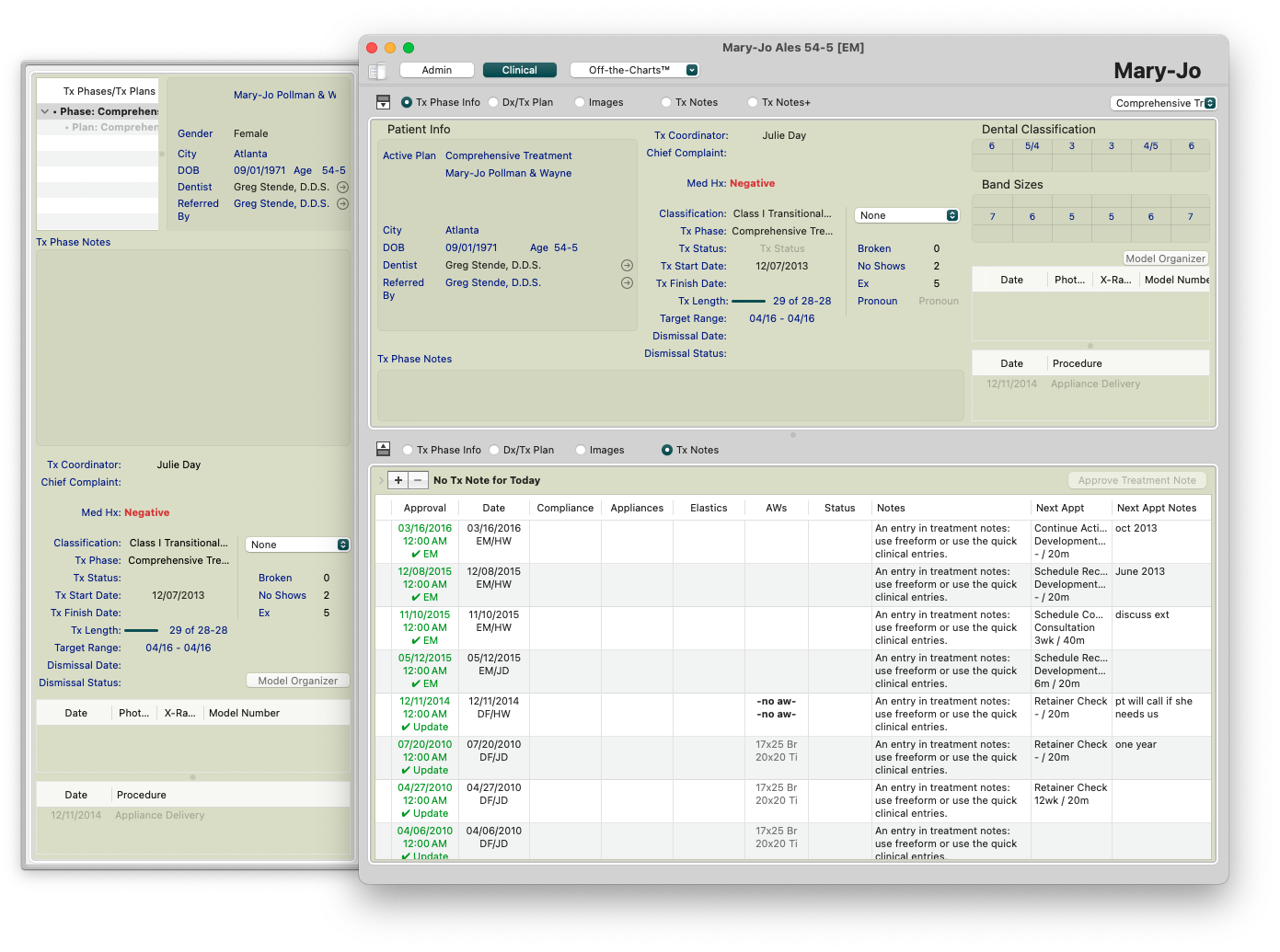
- From the Tops Ortho menu bar, select Window>Save Clinical View

Custom Window Size
Depending on your role within the practice, you may have several windows open at once, or one window. This may dictate how large you want Tops to open your patient charts and reports when initiated. Easily set your preferred window size from Windows menu in the Tops Ortho menu bar.
- Open the chart and adjust to the desired size.
-
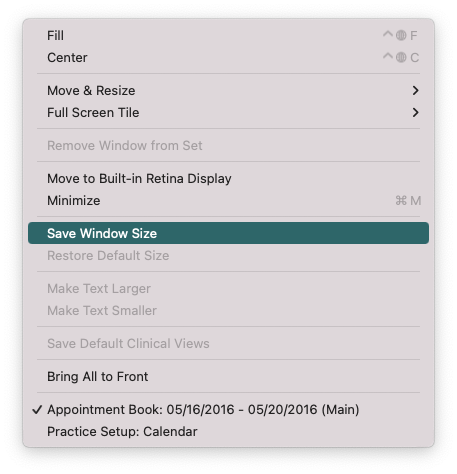
From the Tops Ortho menu bar, select Window>Save Window Size