
Emailing a Letter
Sending a letter or receipt through Tops? You have options!
- Open the letter or the receipt that needs to be emailed.
- Use any of the following options to open the email dialog window
| File>Email | Command-Shift-E | Right-Click |
|
|
|
|


- Choose the recipients.
- Check the box next to each recipient's name.
-
Click Other Addressee if another individual - account holder, patient or referrer - needs to receive the document as well. Search the contact and click OK.
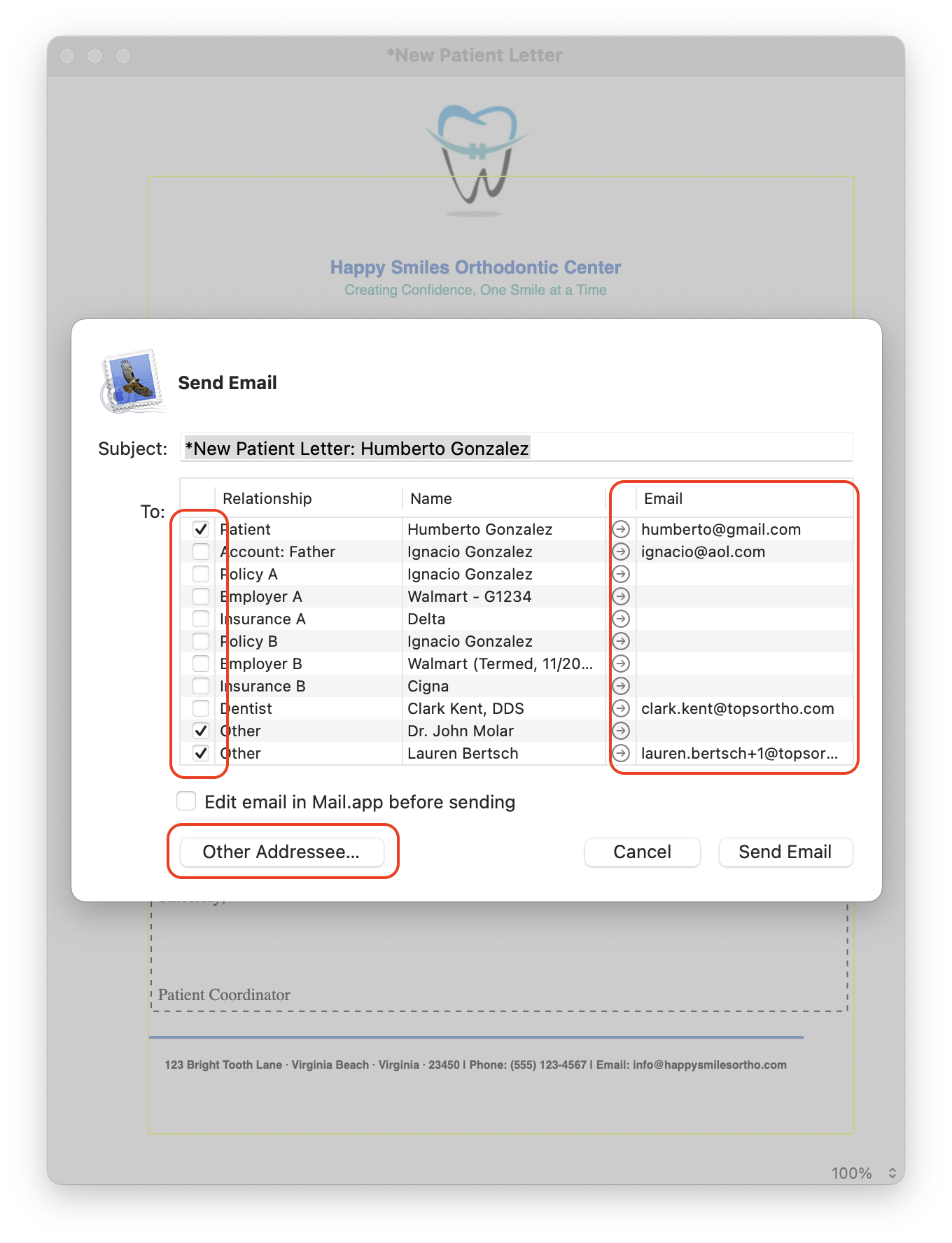
- From the email dialog box that opens, you have two options to send the email
- Option 1 - Directly through Tops. This option is available if you have your Outgoing Mail Server configured on your Tops server.
- Option 2 - From the Mail.app on the workstation. The Mail.app needs to be configured with at least one email account on the workstation being used to successfully send the email.
| Directly through Tops | From the Mail.app |
|---|---|
|
|
|


Sending the Email Directly Through Tops
- If you have your Outgoing Mail Server configured on your server, then emailing directly from Tops can be done from any workstation without additional configuration. Please reference the article Outgoing Mail Server Configuration at the bottom of this page.
- In the email dialog box, Make sure to uncheck the the box Edit email in Mail.app before sending.
-
Click the Send Email button
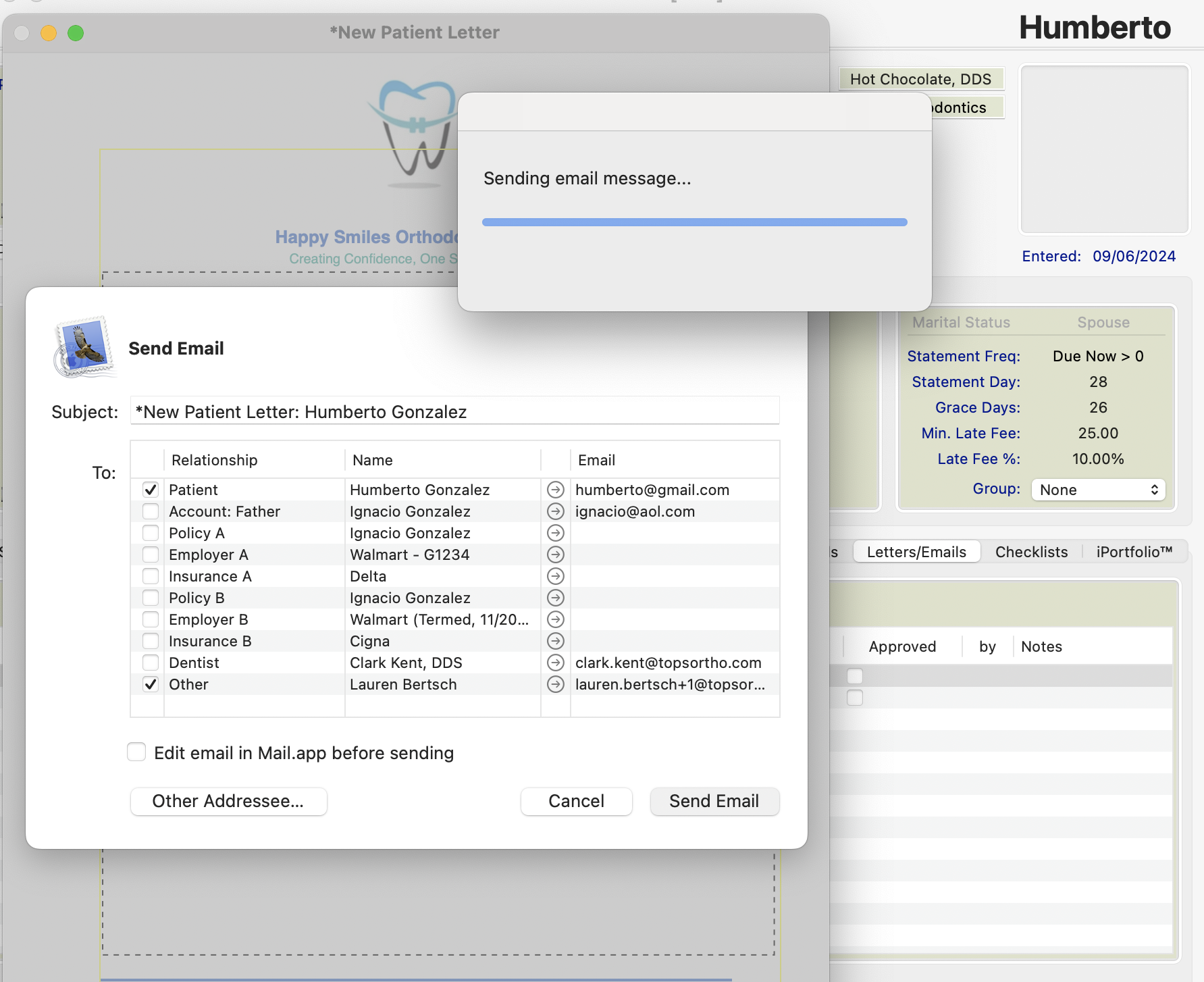
- Tops will send the letter or receipt to the selected recipient(s).
-
The letter will be marked as emailed in the patient chart reflecting the date, the method of email and the staff member's initials.
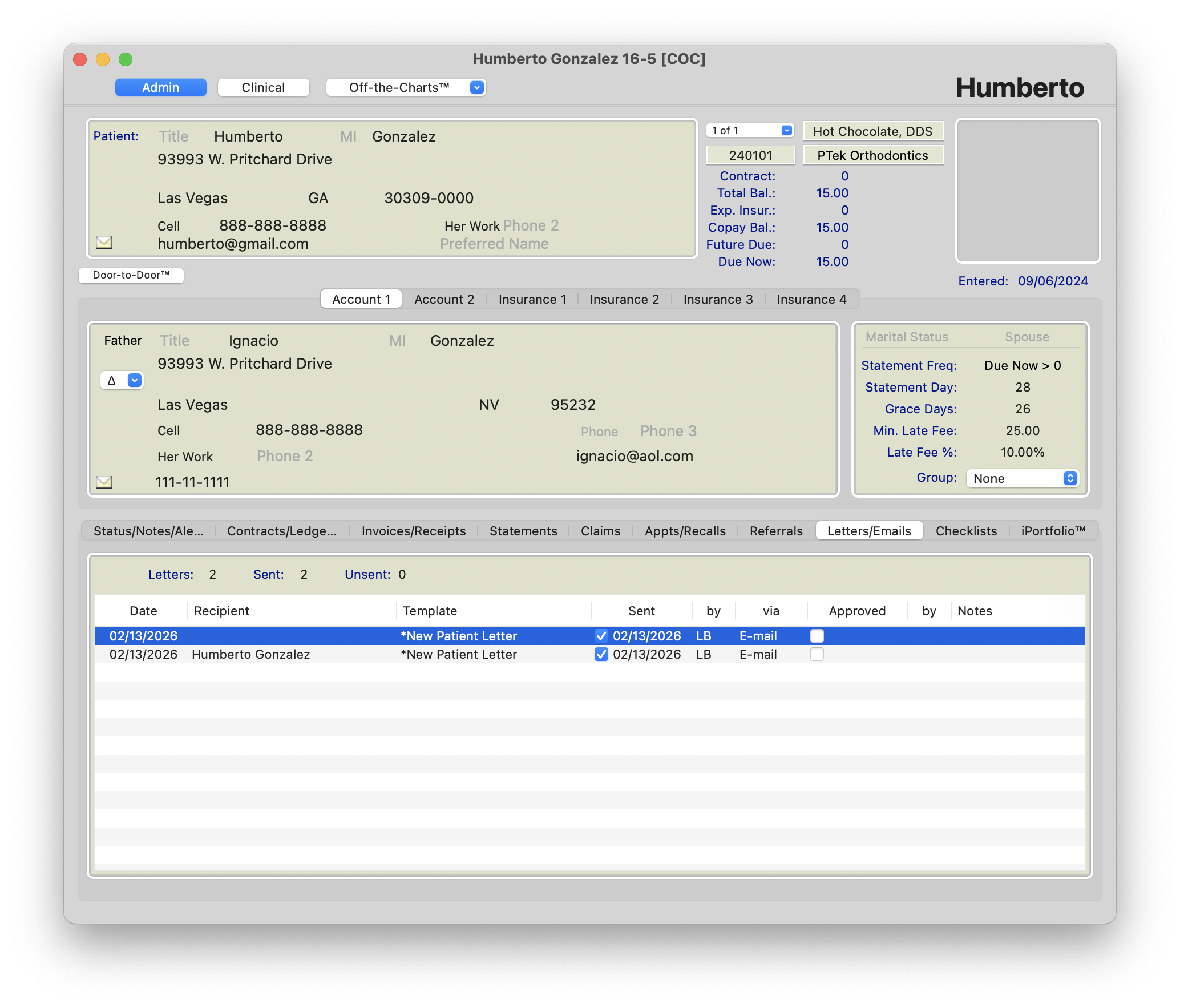
-
The email will be send from the email address listed in your outgoing server configuration and contain the custom subject, letter/receipt name, the message attachment and a message text of Please see the attached PDF file.
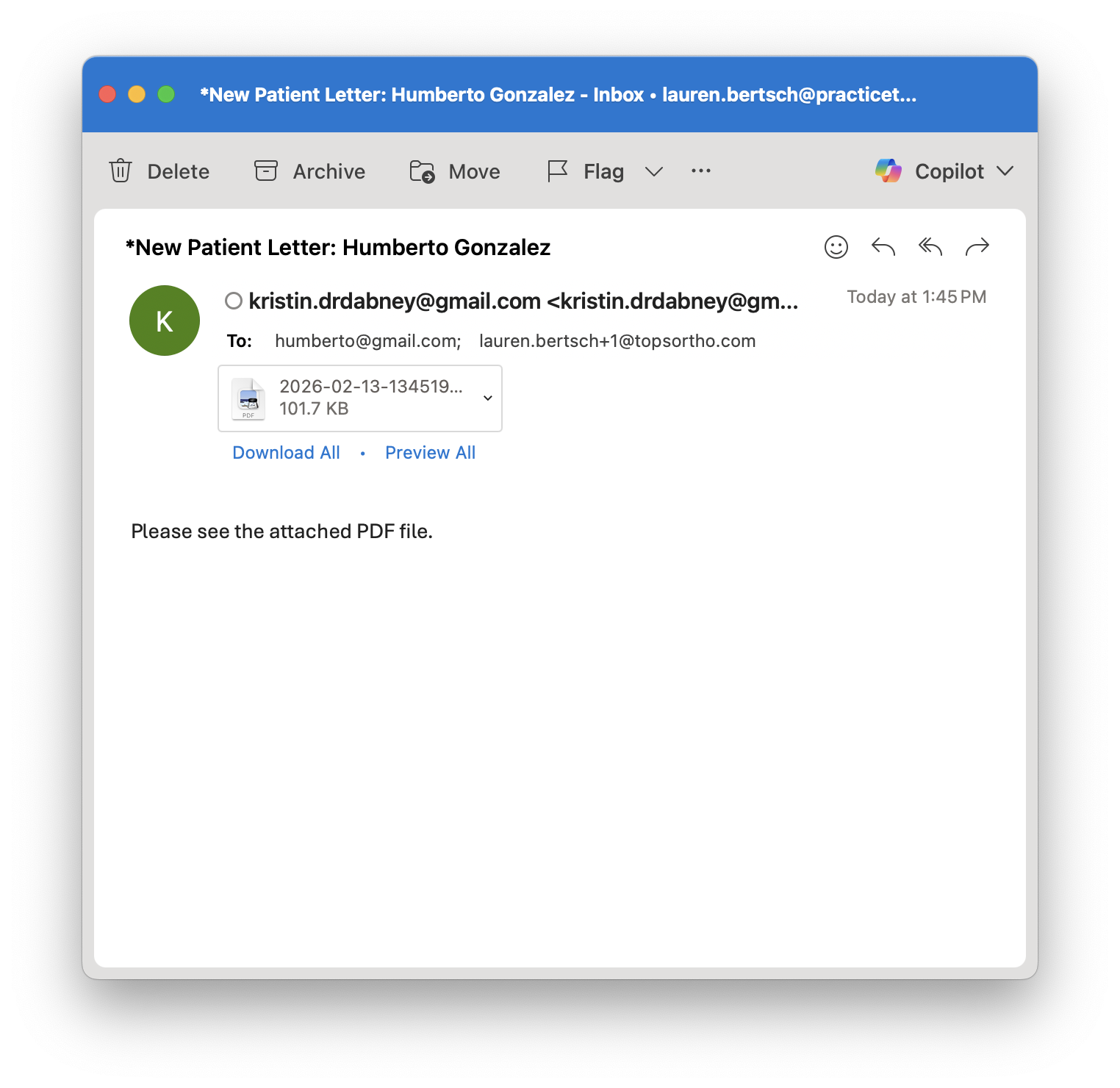
Sending an email from the Mail.app
- To send the email using your Mail.app, check the box Edit email in Mail.app before sending.
- Click the button Send Email
-
Tops will automatically open the Mail.app on your workstation and initiate a new message with the email account configured in the Mail.app. Tops will append the selected letter or receipt to the open, unsent message within your Mail.app and populate the selected recipient(s).
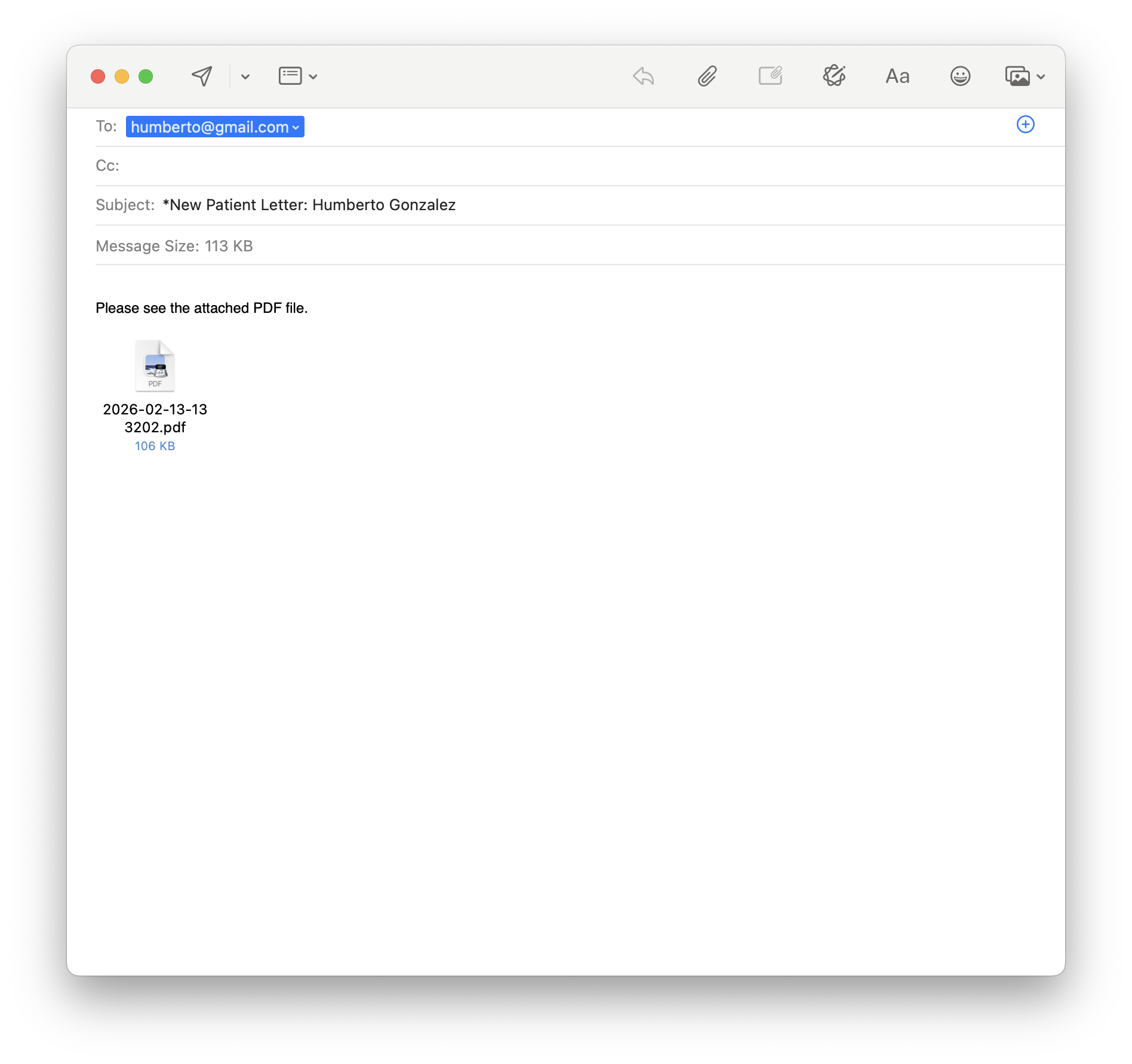
-
From the Mail.app, you can now include additional email recipients if necessary, then attach additional documents or images, and customize the subject and contents of the email.
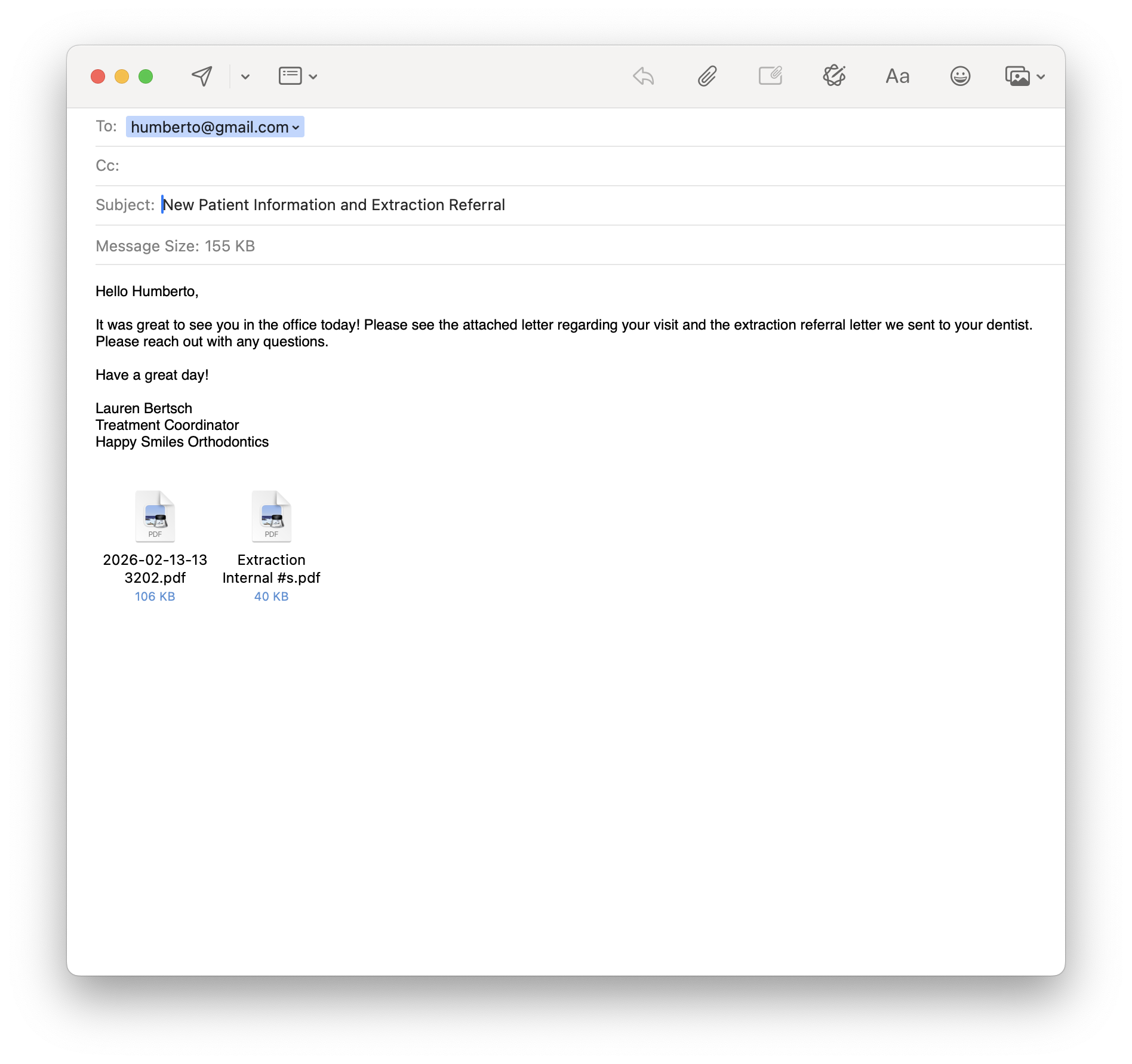
- At this point, Tops assumes you will send the email, and will mark the email as sent, via the email method.

Mail.app Configuration
The Mail.app is configured per workstation.
- For the Mail.app option to work, you'll need to make sure that the workstation being used has the Mail.app configured with an email account.
- Mail User Guide - https://support.apple.com/guide/mail/welcome/mac
- Add email accounts to Mail on Mac - https://support.apple.com/guide/mail/add-email-accounts-mail35803/mac
- Allow Automation of the Mail.app for TopsOrtho on each workstation.
-
Ventura macOS and newer
Go to Apple>System Settings>Privacy and Security>Automation. Toggle on the Mail.app under Tops to allow Automation.
-
Monterey macOS and earlier
Go to Apple>System Preference>Security and Privact>Automation. Check the Mail.app under Tops to allow Automation.
-
|
|
|


Video: Posting a Letter to a Patient's Chart