
CoPay and Insurance Ledger Notes
There are times when a payment, arrangement or adjustment needs further explaining, or a payment to an insurance ledger needs further clarification. Did you know that you have the option to post a Ledger Note or an Insurance Ledger Note directly to the patient's copay or insurance ledger? It's easy and accessible from the New Transactions window.
Once an Insurance Ledger Note or a Ledger Note has posted to a ledger, it cannot be changed. You are unable to Change the Date or Void the transaction from the Financial Day Sheet.
Post an Insurance Ledger Note
- Initiate the New Transactions window from Action>New Transaction or simply using the shortcut Command-T.
- Search the patient name or confirm the correct patient name appears.
- For the Fee/Payment Type field, begin typing Insurance Ledger Note to select the transaction type. Click the Tab key on your keyboard to display the policy holder options and Notes field.

- Select the correct Policy Holder/Employer Policy combination and click the Tab key to advance to the Notes field.
- Enter the Insurance Ledger Note
- Tab out of the Notes field and click the Add Transactions To Tops button

- The Insurance Ledger Note can be seen both in the Insurance Ledger and in the Combined Ledger.


Post a Ledger Note
- Initiate the New Transactions window from Action>New Transaction or simply using the shortcut Command-T.
- Search the patient name or confirm the correct patient name appears.
- For the Fee/Payment Type field, begin typing Ledger Note to select the transaction type. Click the Tab button on your keyboard and tab through the fields until the Note can be entered. Do not enter any fee amount.

- Enter the Ledger Note, click tab and select the Process Charges and Payment button.

-
The Ledger Note can be seen both in the Copayment Ledger and in the Combined Ledger.
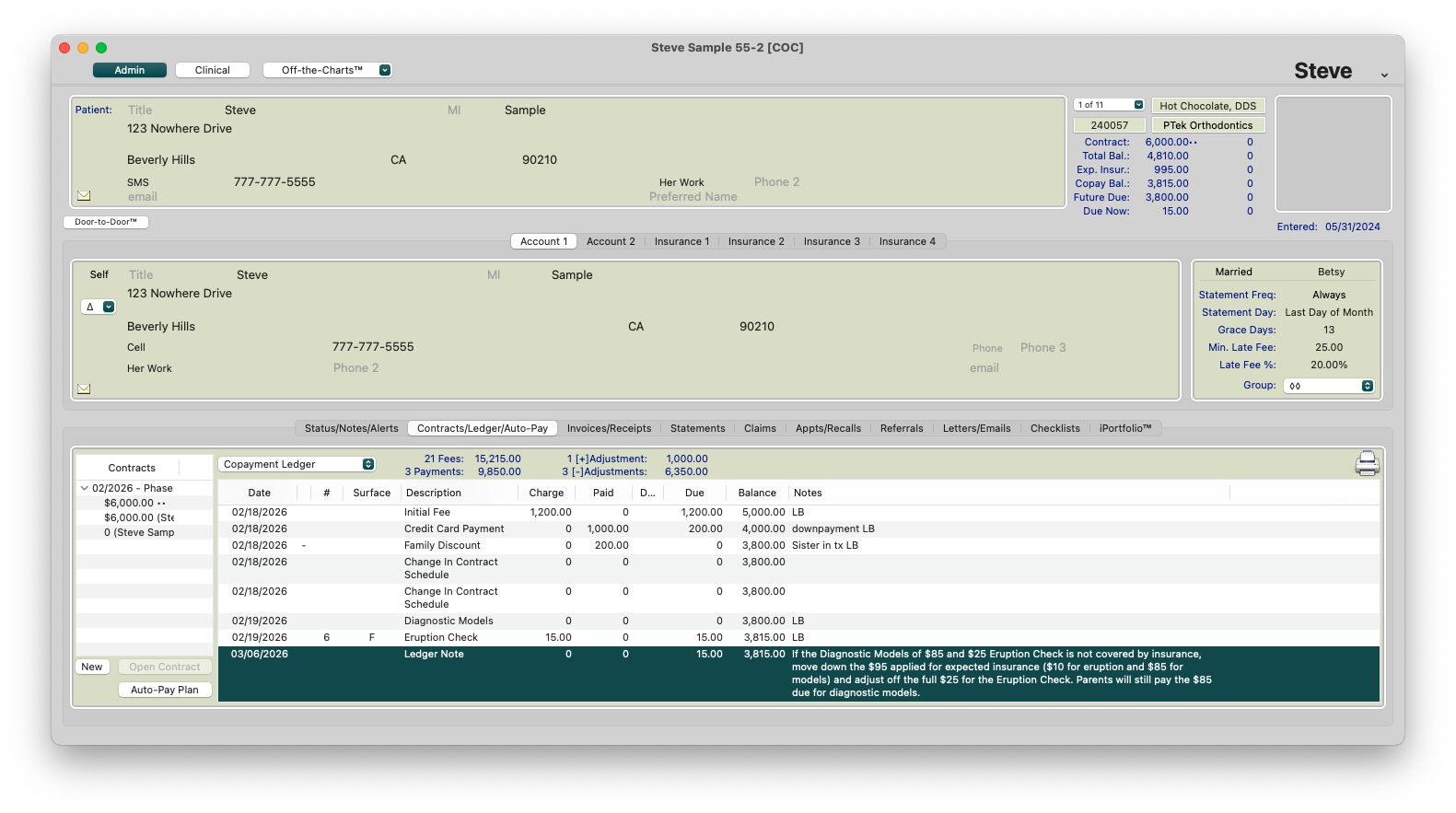
Copayment Ledger
