
Unlink Patient Charts
There are times when a patient needs to be linked or unlinked from an Account Holder.
Do any of these examples sound familiar?
- The patient was accidentally linked to the wrong account holder
- An existing account holder was not located when the patient's chart was originally created; hence a duplicate account holder was created.
- A patient is no longer a minor, and needs to have the previous account holder removed. The patient now needs to be the account holder as they are an adult.
- A patient previously was linked to an account holder. The relationship should no longer exist due to a change in family circumstances.
What do you do when you need to change the account holder?
There are two scenarios that will dictate whether you can change the account holder or not. Read below for more information.
Scenario 1: No financials have posted - the straightforward approach
If there are no financials tied to the patient and the account holder, including the action of clicking to open the contract worksheet, then the account holder can be changed.
-
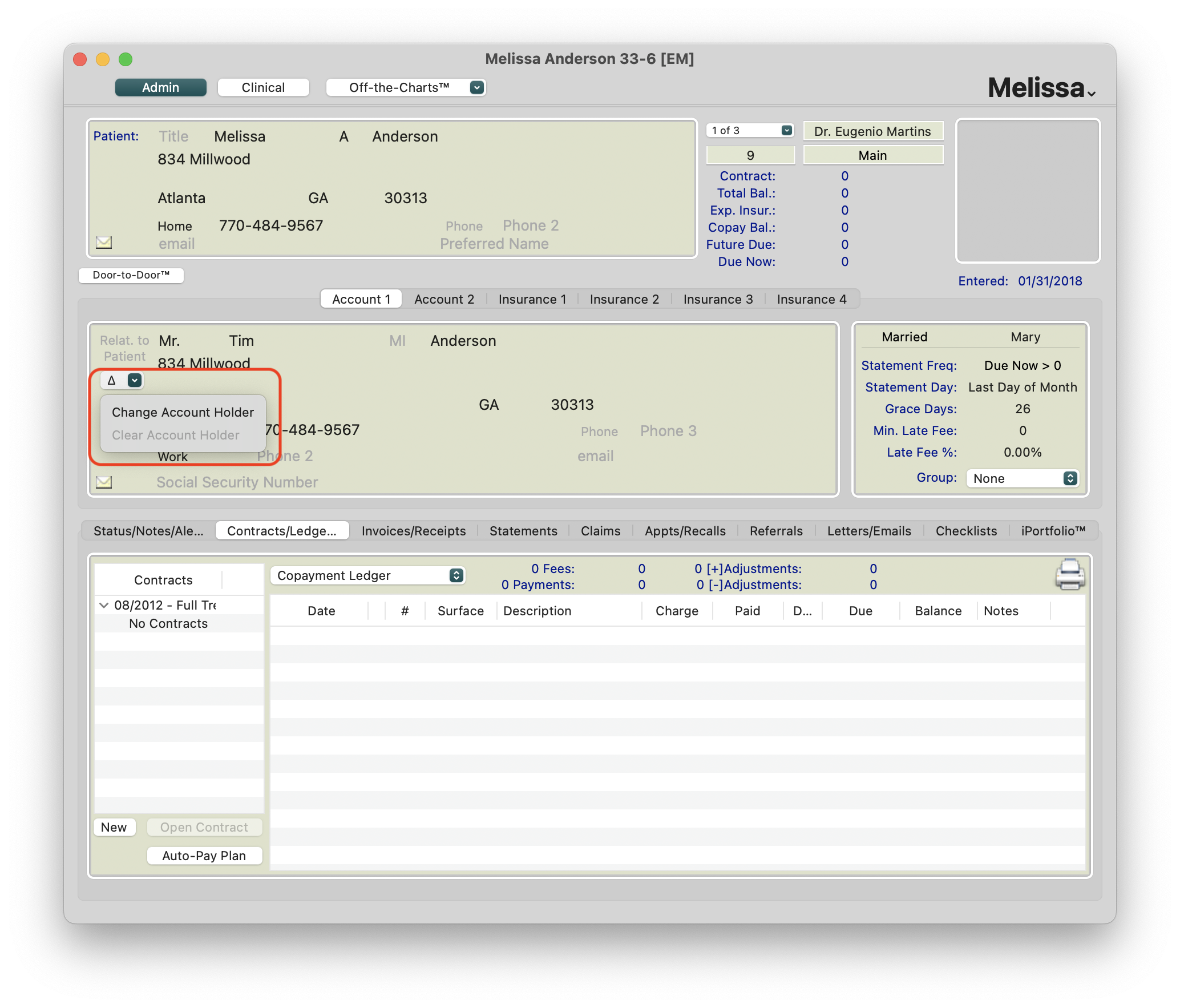
Select the delta symbol next to the account holder name and choose to Change Account Holder
-
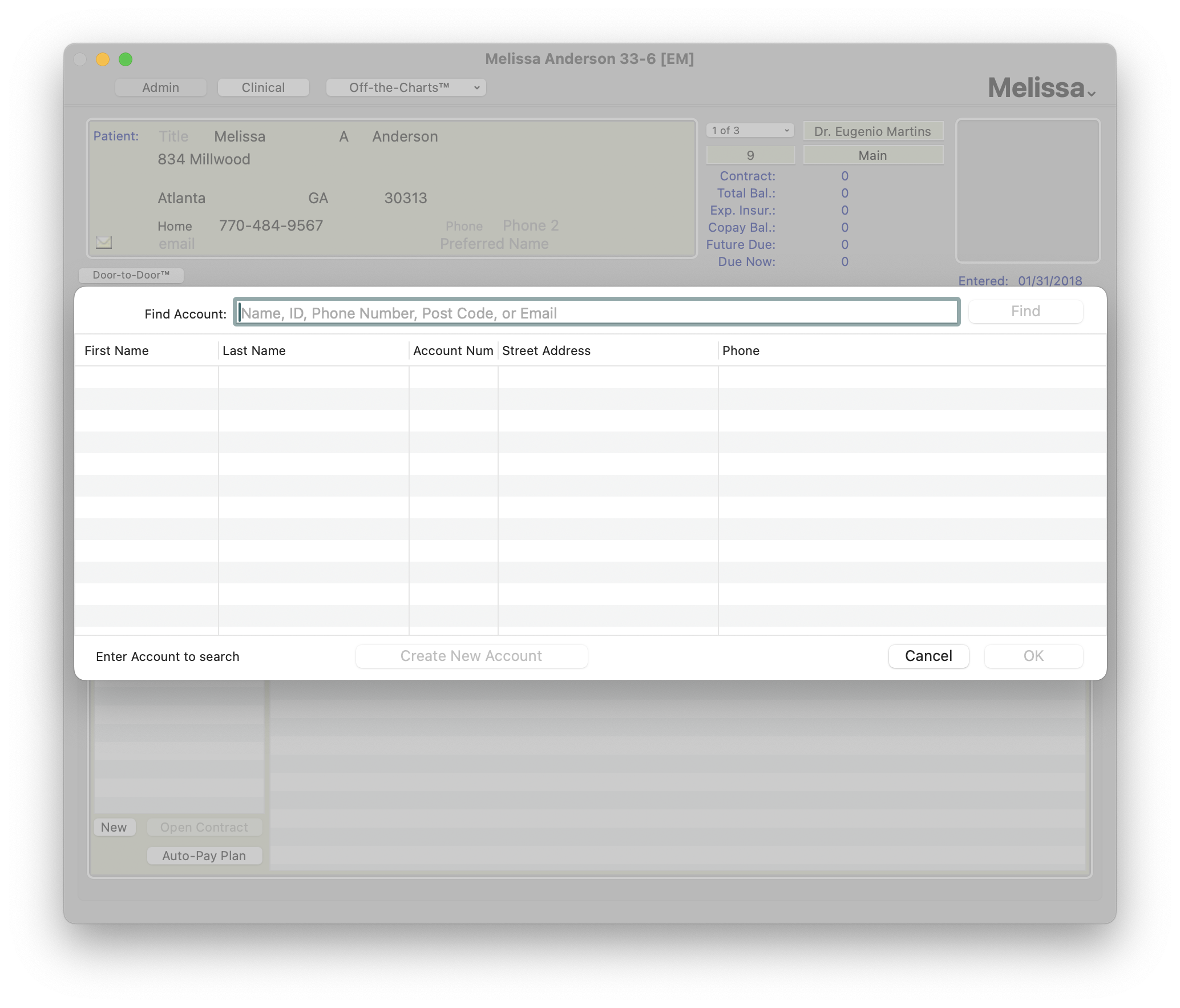
Search for the correct Account Holder
-
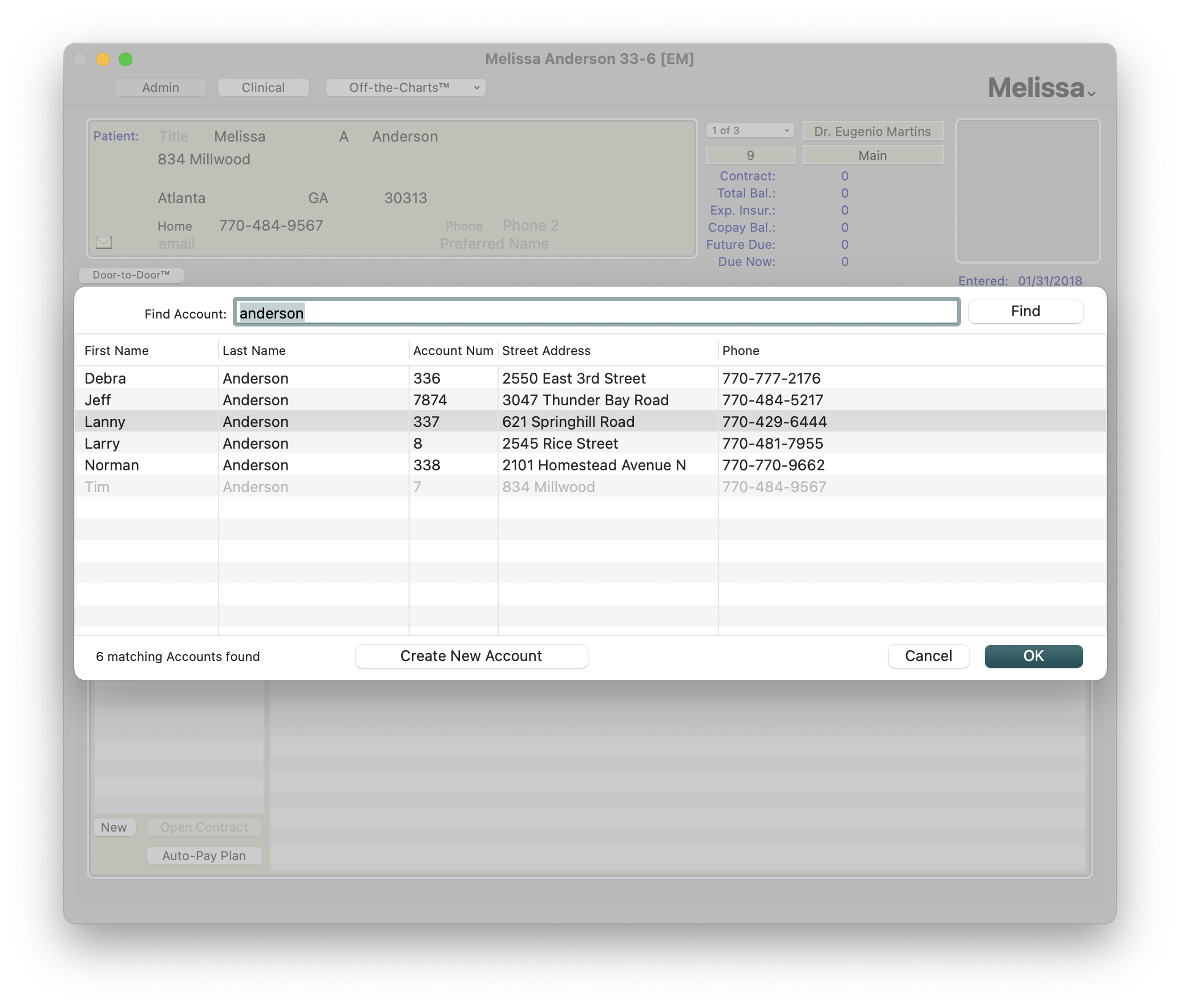
Select the Account Holder from the displayed list or click the button to Create New Account.
-
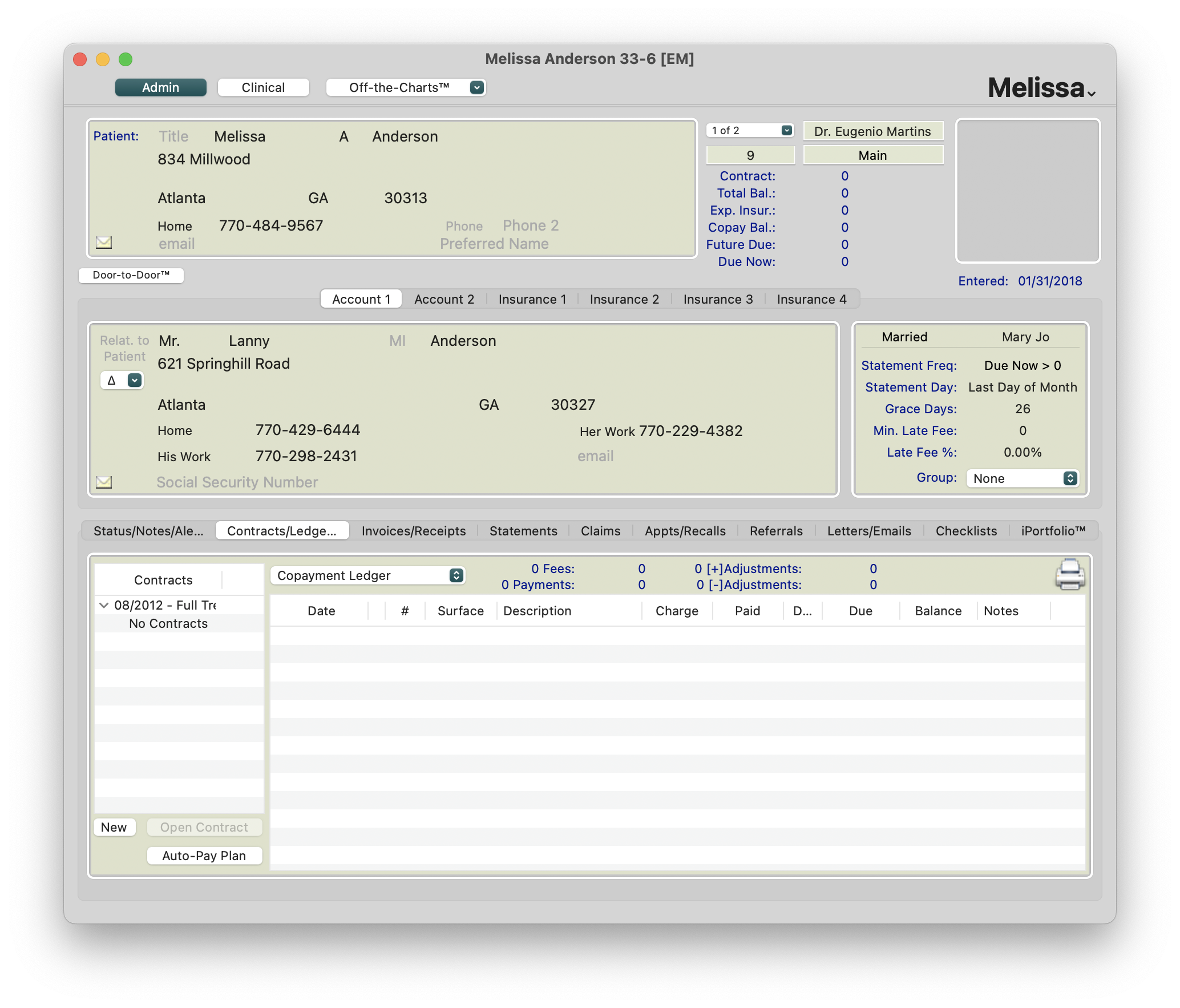
The new Account Holder should now be linked, along with any other patients who share the same account holder record.
Scenario 2: Financials are linked or posted to a patient's ledger
Whether a contract has been opened or recorded, charges have posted or you have collected and posted a payment, financials are now part of the patient's record with the specific account holder and the account holder cannot be changed. You are unable to change the account holder because there is now historical, financial information linked.
We DO NOT RECOMMEND you change the account holder's name. This compromises the integrity of the patient's chart including any linked family members.

Now what? You have options!
Option 1: Add a second Account Holder in Account 2
- Click on Account 2
- Search and link or create a new Account Holder.
- Make a financial alert that all financials for the patient must be posted to Account 2
Pros
- Historical financials associated with Account 1 are available for reference
- Account 2 can now be used for posting financials, creating an auto-pay plan and eliminates the need to create a new, duplicate patient chart
- Any patients linked to the new account holder listed in Account 2 are now visible and accessible from the patient's chart.
Cons
- Posting transactions in error to Account 1 becomes a greater possibility if careful attention is not paid when using the transaction window.
- If an un-related Account holder or an Account holder that the patient no longer is associated with is listed in Account 1, the patient's chart will always reflect the association.

Option 2: Create a duplicate of the patient's chart
- In the existing patient's chart, precede the patient first name and last name with XX
- Create a new chart for the patient, reflecting the correct Account Holder
- Create a new account holder or choose the correct existing account holder
- Update the patient status, Tx start date, end date and any treatment details to reflect their current phase details.
- If applicable, record a contract and activate it to reflect their current balance and future due, using adjustments to transfer the charge or credit balance in the due now.
-
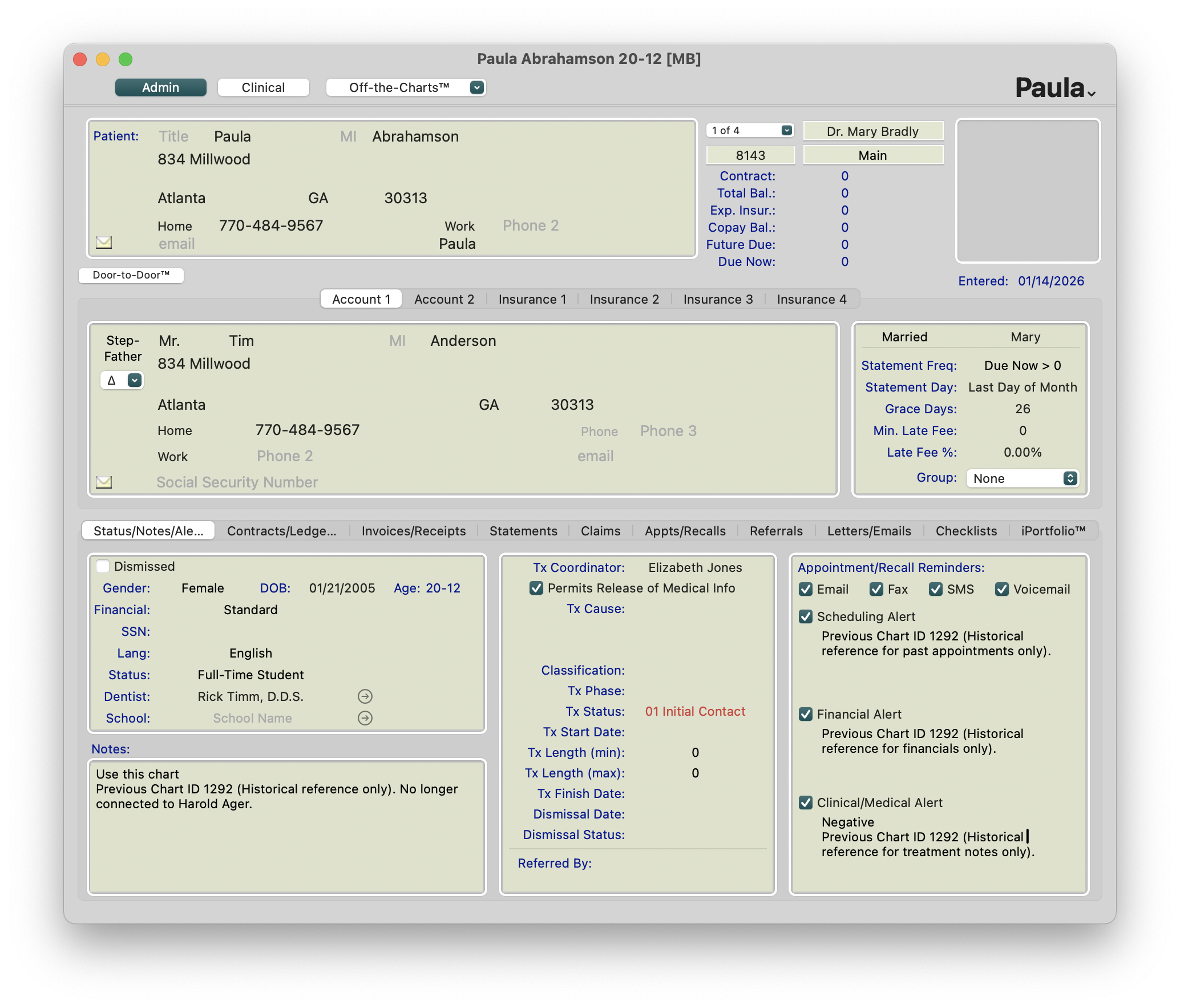
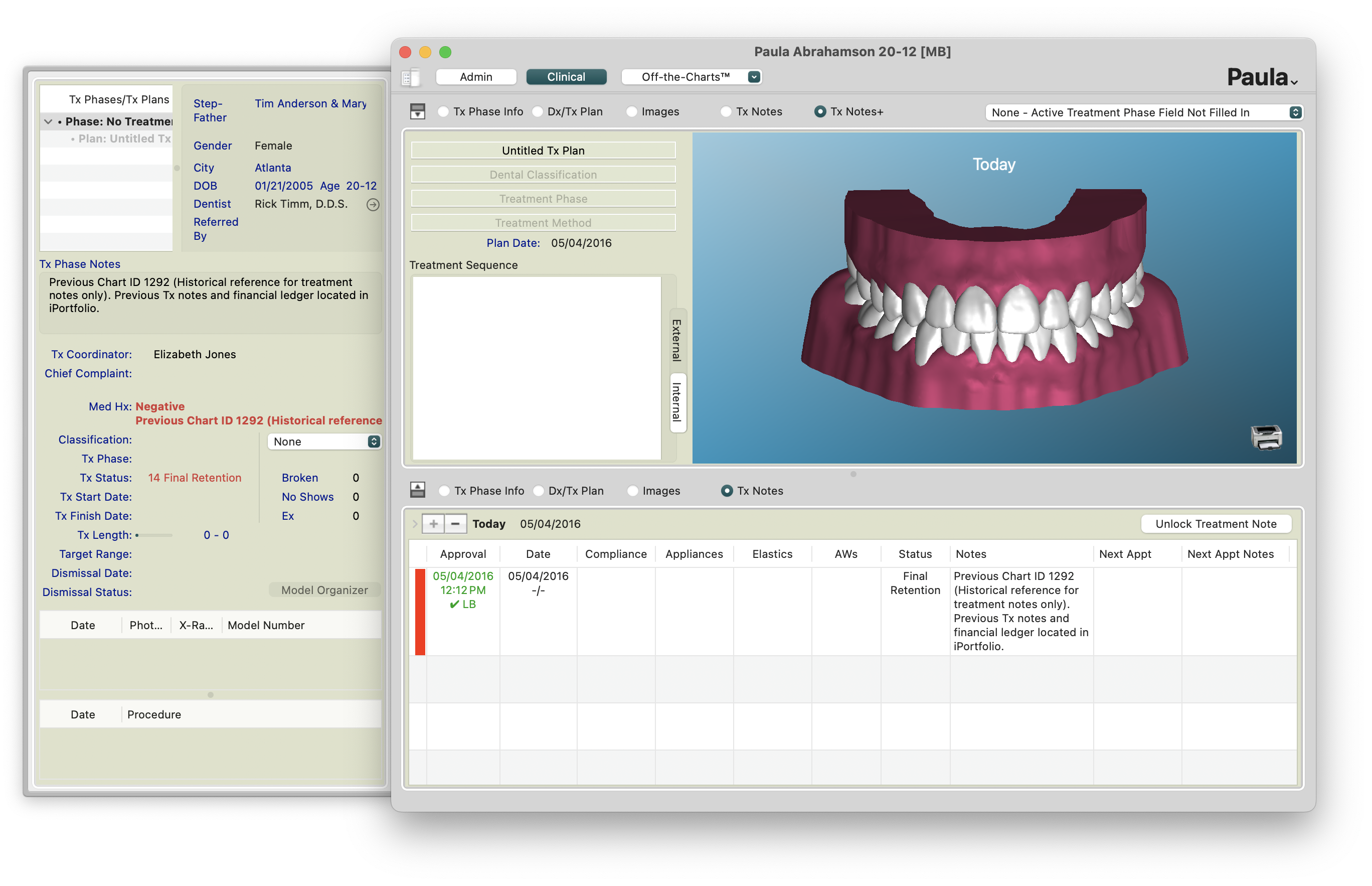
Reference the old chart ID in the new patient chart in Notes, Scheduling Notes, Financial Notes and Treatment notes
- If applicable, in the old chart, deactivate the active contract and/or adjust off any balance as a transfer credit or charge to the new patient's chart.
-
In the old chart, save as a PDF the financial history and clinical notes to place into the new chart's iPortfolio.
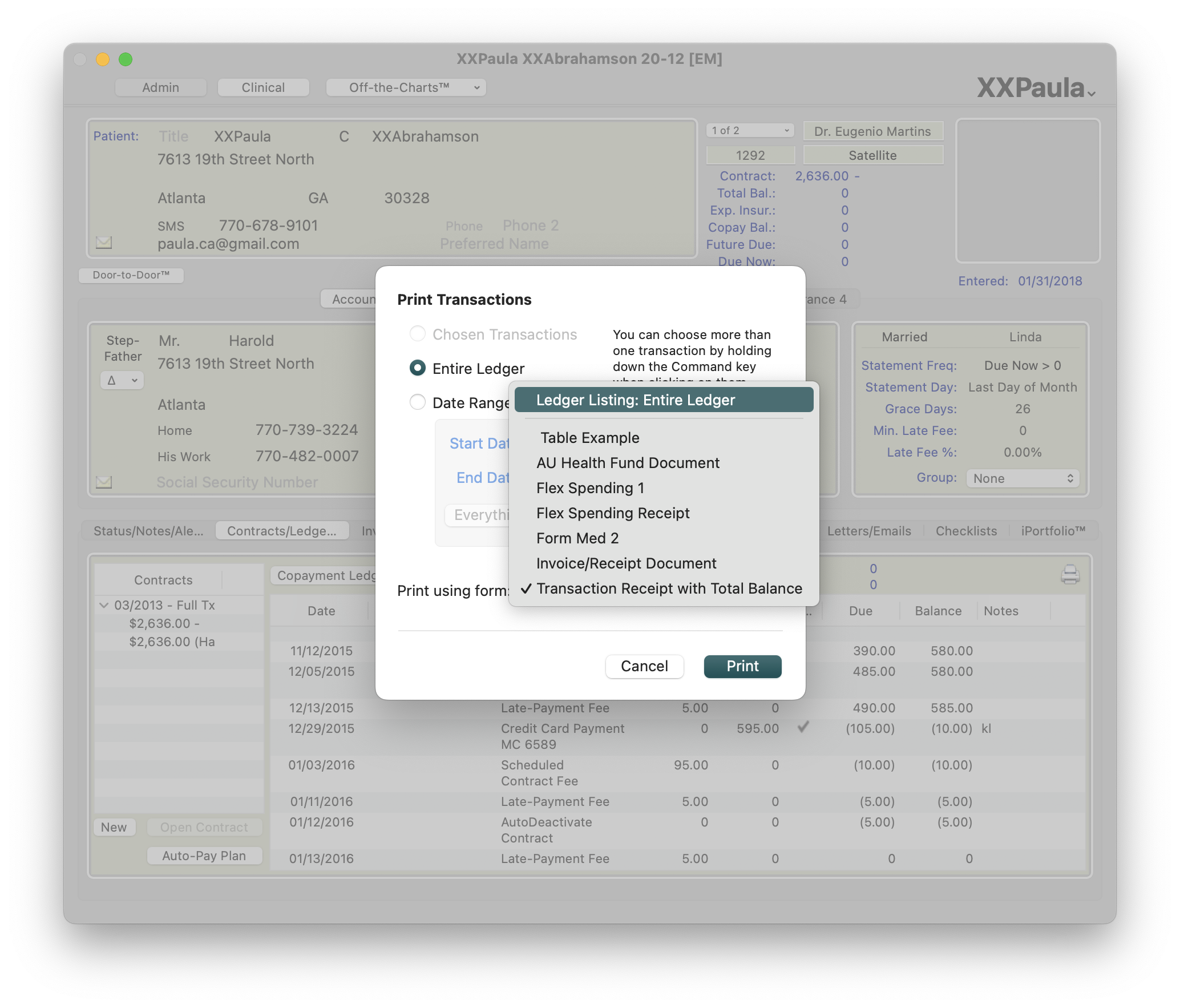
Print ledger listing and Save as a PDF
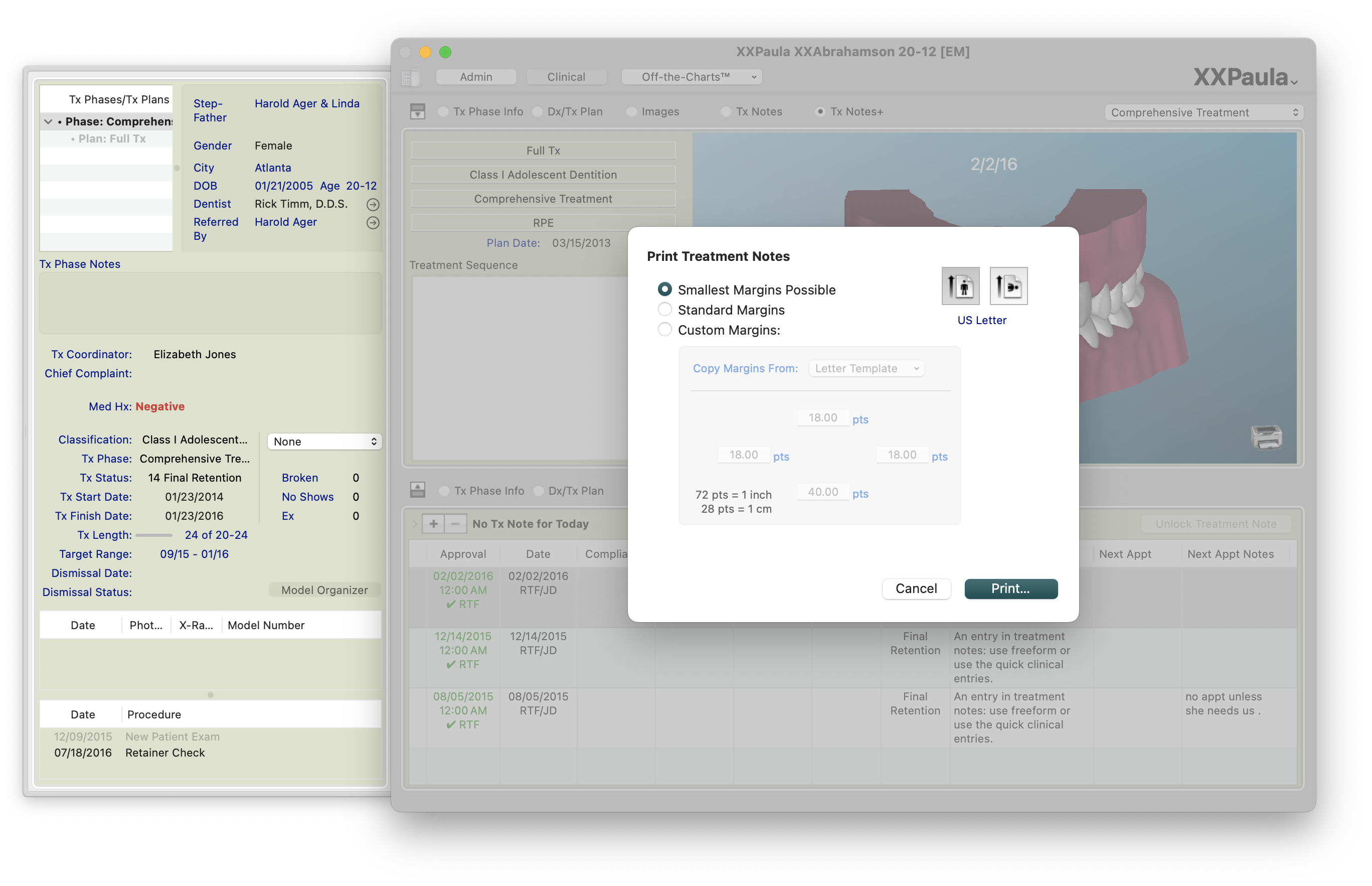
Command-P to print Treatment Notes and Save as a PDF
- In the old chart, reference the new chart ID in the Notes, Scheduling Notes, Financial Notes and Treatment notes.


🍿 Watch a Video