
Adding a Link to a Letter Template
Adding a Hyperlink to a Letter, Receipt or Statement Template
- Make sure you have the full URL that needs to be hyperlinked within your template. This could be something like http://www.topsOrtho.com.
- Copy and paste that website information into a document - Word, Pages (or any other program or application that will create the hyperlink). If you just copy and paste the website onto template, it does not produce the link so this step is important.
3. After you type the link in Pages, right click on the link and choose Edit Link

- Select the Display: name and replace with your desired display name which will be reflected in the letter.

- The link should now display the newly named Display name.

- Select and copy (Command-C) the link/display name and paste (Command-P) into a text box on the receipt, statement or letter template. Make sure the copied link is highlighted on your template. See example below.

- From the Tops Ortho menu bar, select the Format menu. With the link highlighted, use the font palette to make the link blue and underlined. The link looks like it is already blue and underlined on the template but when you add it to a letter or statement, it is black. By making the link blue and underlined, it makes it easy for the patient to see that this is an actual link they can click on.
|
|
|


- Test the new template.
- Generate a new Statement, Receipt or Letter.
- Press Command-P or File>Print to open the print menu window.
-
Use the option to open the file as a PDF in Preview. See below.
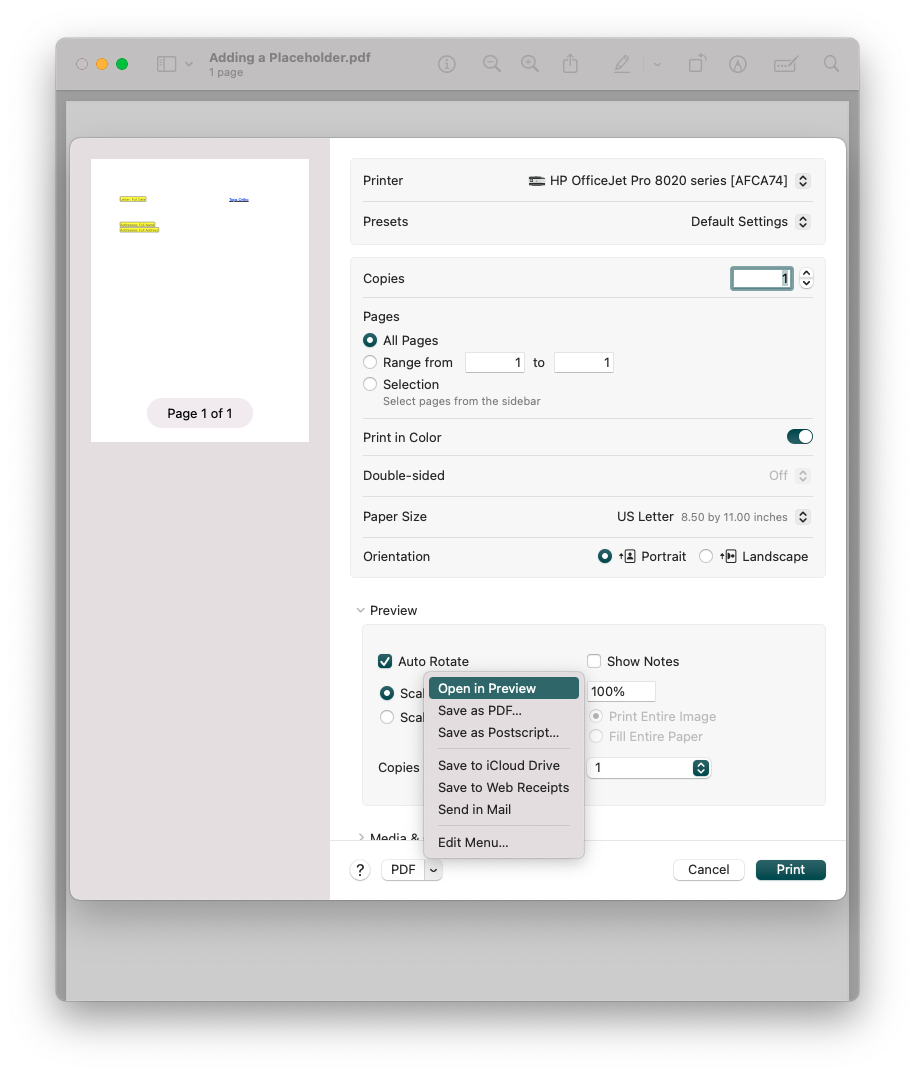
- Click on the Hyperlink in the Preview window of the letter to verify that it will take you to the website.
