
Correcting a Contract (No Insurance)
If you've opened this article, chances are you either activated a contract by mistake or activated a contract that was set up incorrectly. Before adjusting the contract, deleting charges, or deactivating the contract, follow the steps below to determine the best course of action.
Step 1: Review the Contract Status
The contract status will determine what changes can still be made.
Uncharged
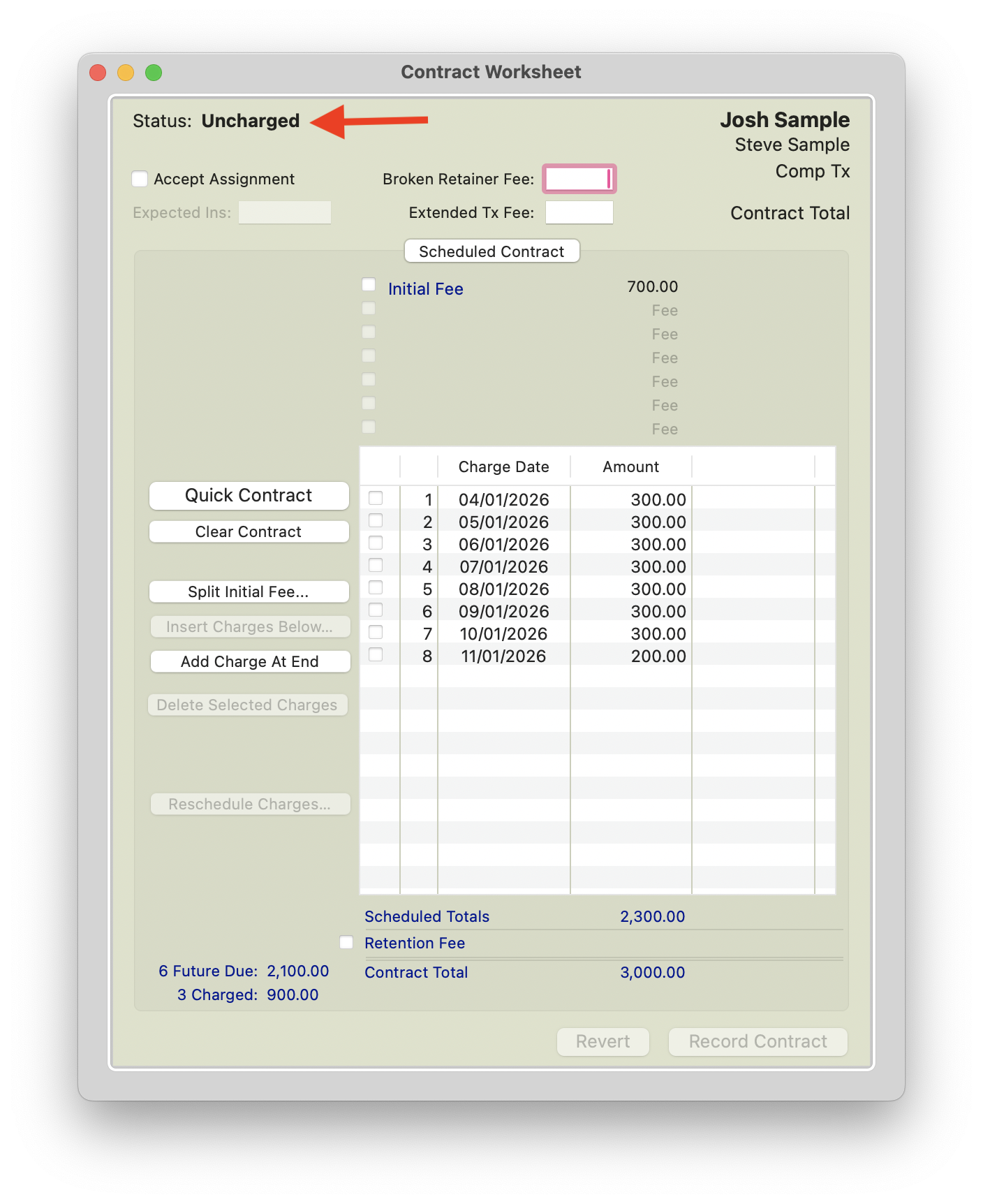
If a contract status shows as Uncharged, the contract has not yet been activated and contract details can still be modified.
Active
If a contract shows a status of Active, the contract has already been activated. Review the contract details carefully to determine what corrections can still be made and whether additional adjustments are necessary.
Step 2: Contract Type - Created with Insurance or Without?
The appropriate solution will depend on whether the contract includes insurance. If you see two columns in the contract worksheet, then head on over to this page - Correcting a Contract With Insurance. The screenshot above represents a contract created without Insurance.
Step 3: Review the Initial Fee Amount
The initial fee is often the most important factor to consider when correcting an activated contract.
- The Initial Fee activates the contract and cannot be voided from the Financial Day Sheet after it has been charged nor can the date be changed. Because of this, it is important to review the contract carefully before making any corrections.
- The Initial Fee also determines the how much remains of the contract to be allocated in monthly charges.
Step 4: Click your Scenario or Guidance for Next Steps
Scenario 1: Initial Fee Charged is Too Low
Scenario 2: Initial Fee Charged is Too high
Scenario 3: Future Charges Need Adjusting
Scenario 4: Adjust Paid Ahead or Past Due Balance
When it May be Best to Create a New Contract
Scenario 1: Initial Fee Charged is Too Low
Example: The patient made a down payment of $1000, but the contract was activated with an initial fee of $500.
| Contract Details | Amount |
| Contract Total | $6000 |
| Initial Fee Charged | $500 |
| Future Charges | 19 future charges of $300 |
| Correct Initial Fee | $1000 |
| Difference | $500 |
Error: The initial fee should have been $1,000 but $500 was charged.
Because the contract has already been activated, the initial fee cannot simply be changed. Instead, you will need to add the missing $500 charge while keeping the total contract amount at $6,000.
|
|
Option 1:
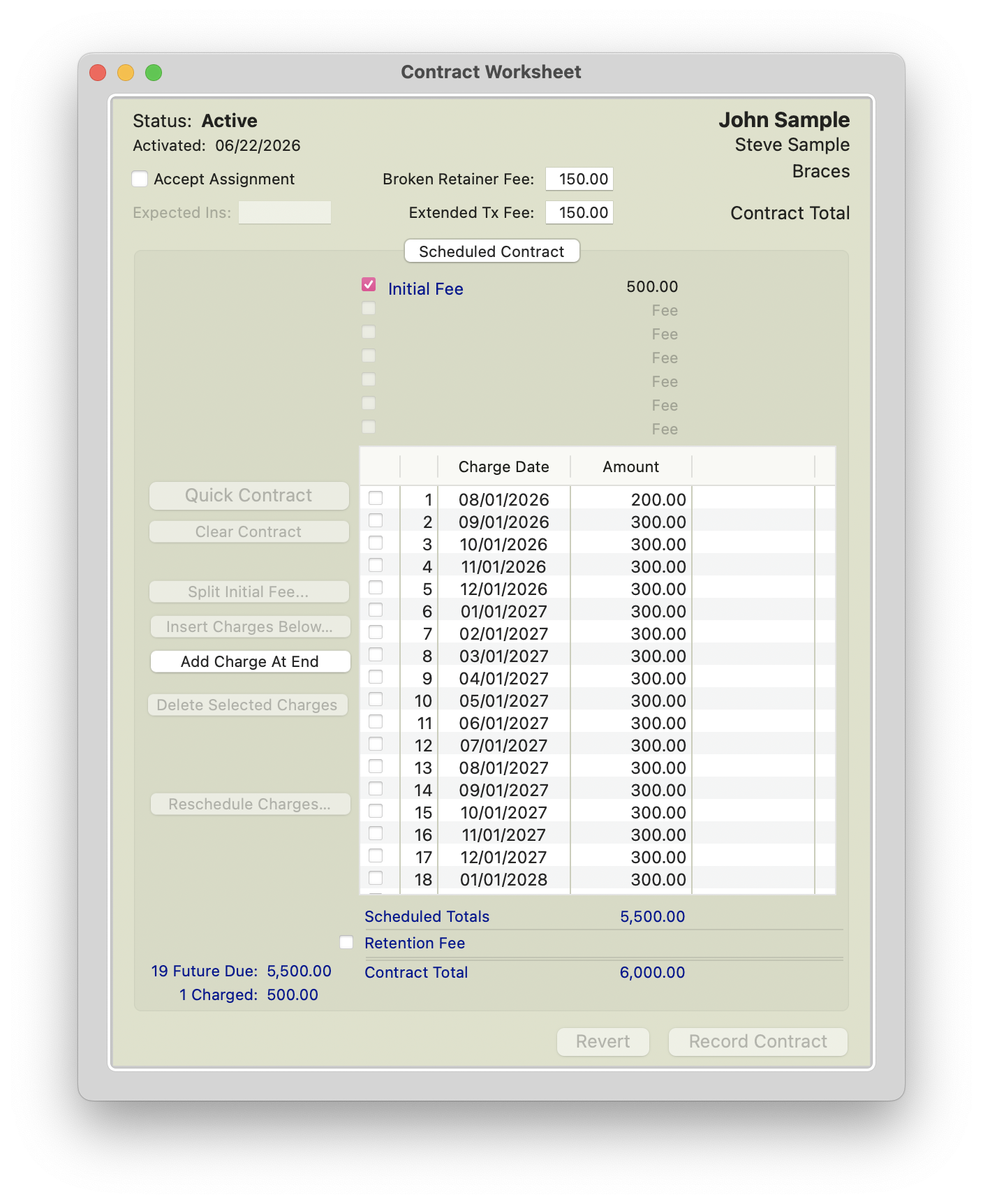
- Add an Undated Charge for the remaining $500.
- Select an appropriate fee from the fee schedule, such as:
- Miscellaneous
- Appliance Placement Fee
- Another custom fee type used by your practice
- Since an additional $500 is being added to the contract with the undated charge, reduce future scheduled monthly payments by a total of $500 to keep the contract total at $6,000.
- Click Record Contract
- Press Command-T and charge the undated fee to the patient's ledger.

|

|
Option 2: Add a Scheduled Charge
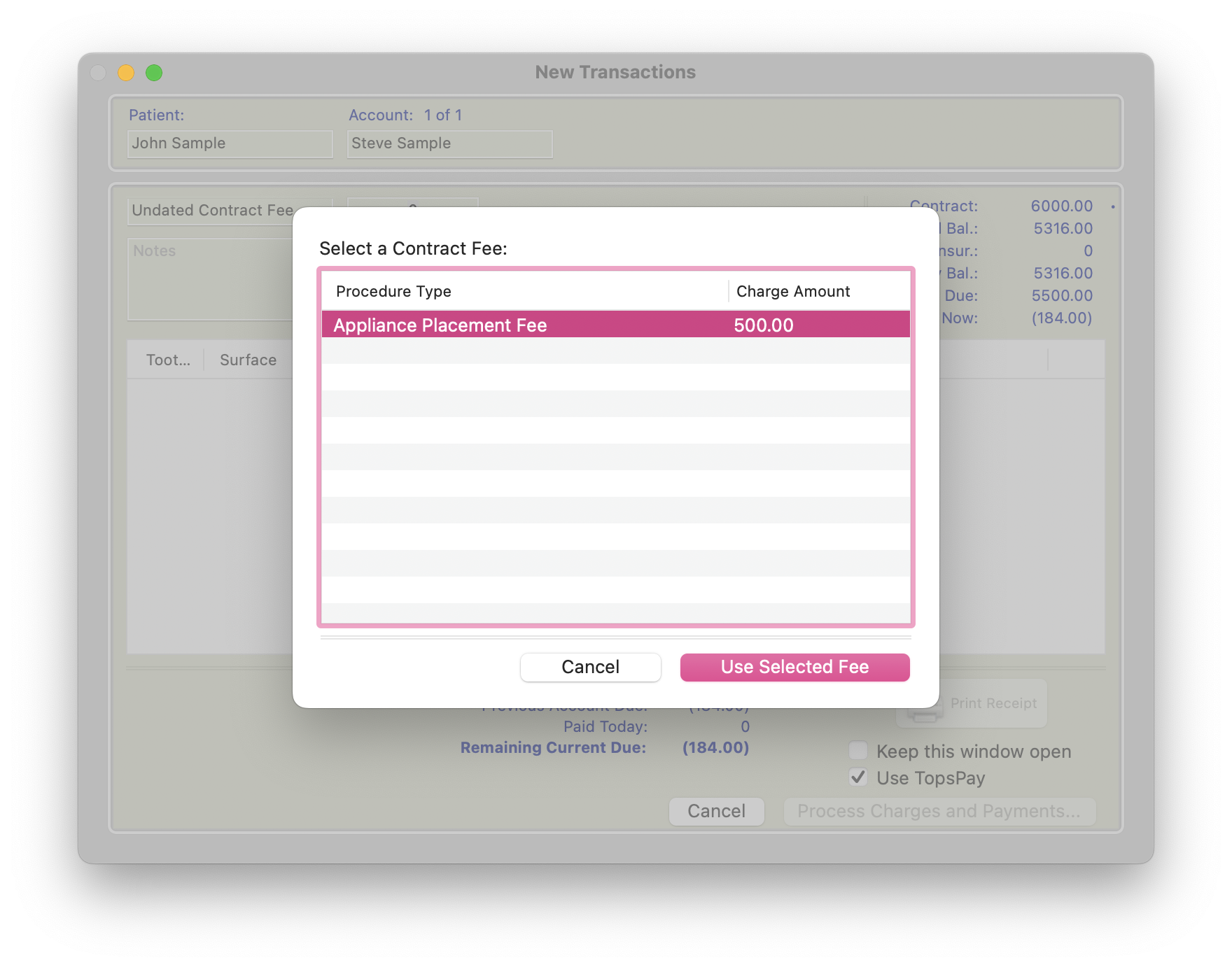
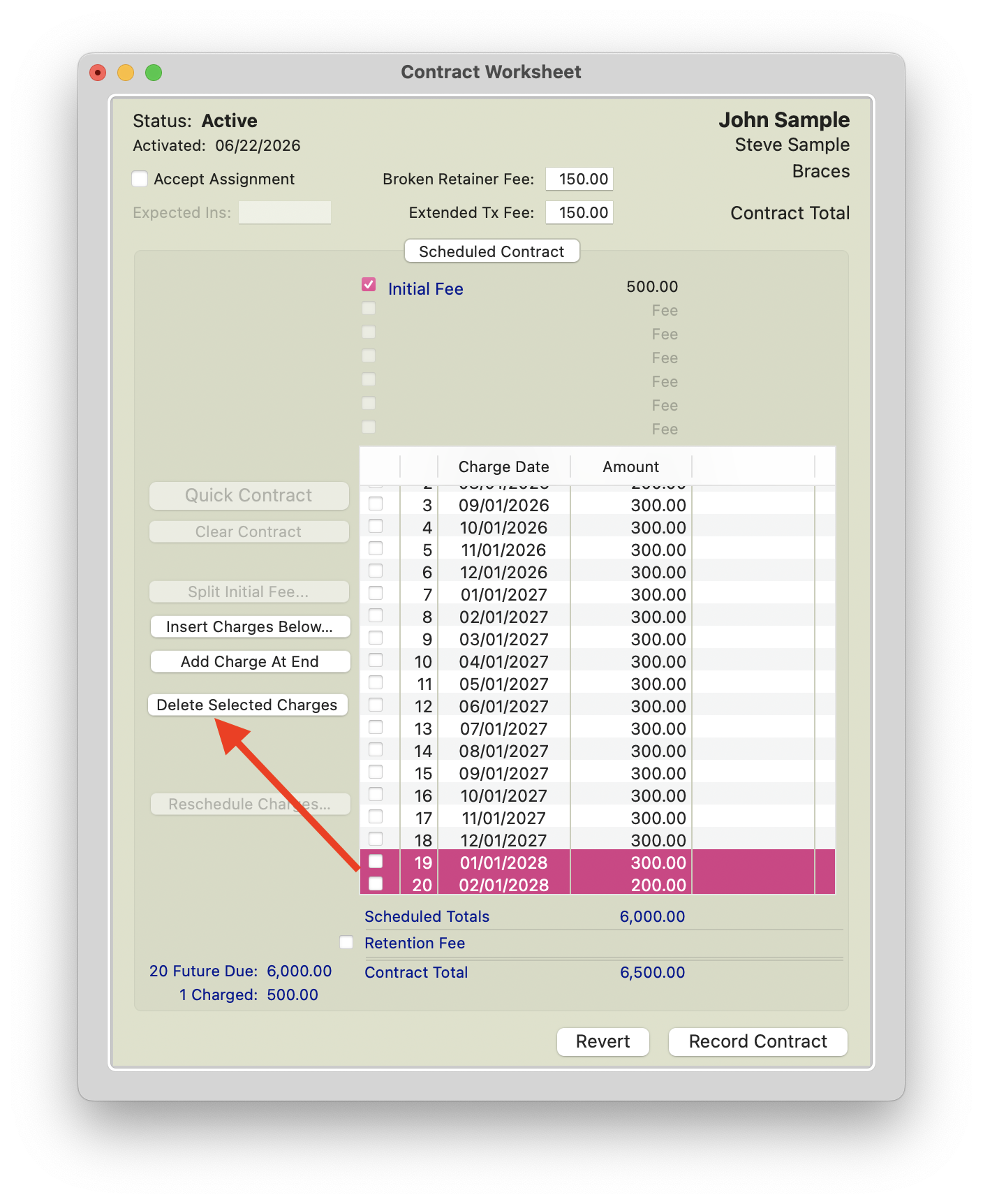
- Add a scheduled charge for the following day in the amount of $500.
- Since an additional $500 is being added to the contract worksheet, reduce future scheduled monthly payments by a total of $500 to keep the contract total at $6,000.
- Click Record Contract.
- The additional fee will automatically post to the patient's ledger during rollover.
|
|
|
What the Patient Will See
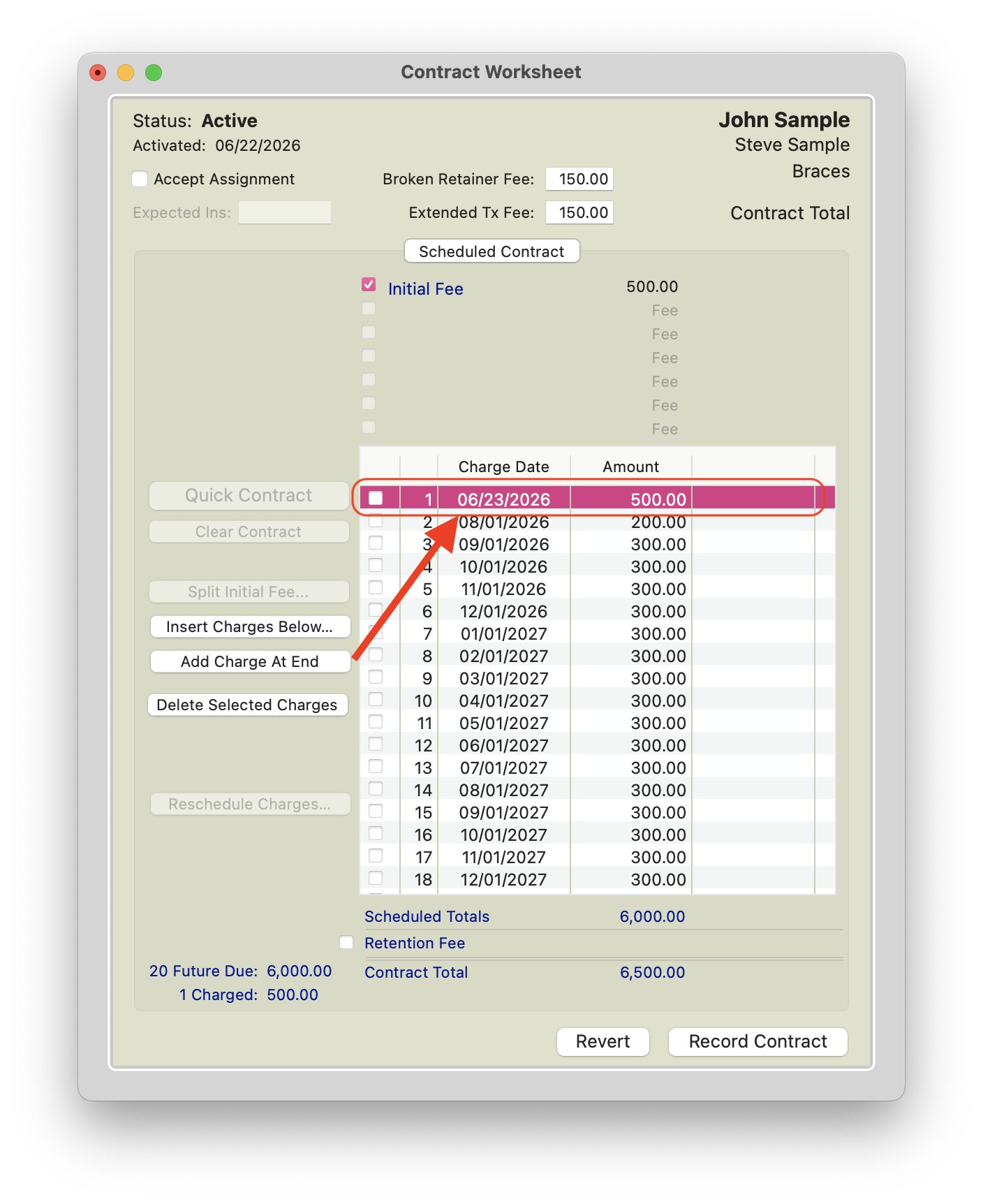
The patient's ledger will reflect an additional $500 charge to account for the amount that was not included in the initial fee.
If the patient paid the intended $1000 down payment, their account balance and payment history will still accurately reflect the payment received. The adjustment simply ensures that the contract charges match the agreed-upon contract structure.
Depending on which correction method was used:
- Option 1 (Undated Charge): The additional $500 will appear on the ledger immediately once the charge is posted.
- Option 2 (Scheduled Charge): The additional $500 will appear on the ledger when the scheduled charge posts during rollover.
Because future monthly payments were reduced by a total of $500, the patient will not be overcharged over the life of the contract. Any associated AutoPay Plan schedule will remain aligned with the updated contract charges and payment schedule.
Result
This correction allows the practice to recover the portion of the initial fee that was missed when the contract was activated.
By adding the missing $500 and reducing future monthly payments by the same amount:
- The contract total remains $6000.
- The patient's ledger accurately reflects the agreed-upon financial arrangement.
- The patient is not overcharged.
- Future scheduled payments continue according to the revised payment schedule.
Once the adjustment has been made and the contract has been recorded, the contract should continue normally with the updated monthly payment amounts.
Scenario 2: Initial Fee Charged is Too High
Example: The patient made a down payment of $300, but the contract was activated with an initial fee of $500.
| Contract Details | Amount |
| Contract Total | $6000 |
| Initial Fee Charged | $500 |
| Future Charges | 19 Future Charges of $300 |
| Correct Initial Fee | $300 |
| Difference | $200 |
Error: The initial fee should have been $300 but $500 was charged.
Because the initial fee has already charged out, the $500 cannot be voided from the Financial Day Sheet. Instead, adjust the first scheduled monthly charge to account for the extra $200 that was charged upfront.
Steps:
- Review the initial fee that was charged.
- Confirm that the initial fee was charged for $500 instead of the correct amount of $300.
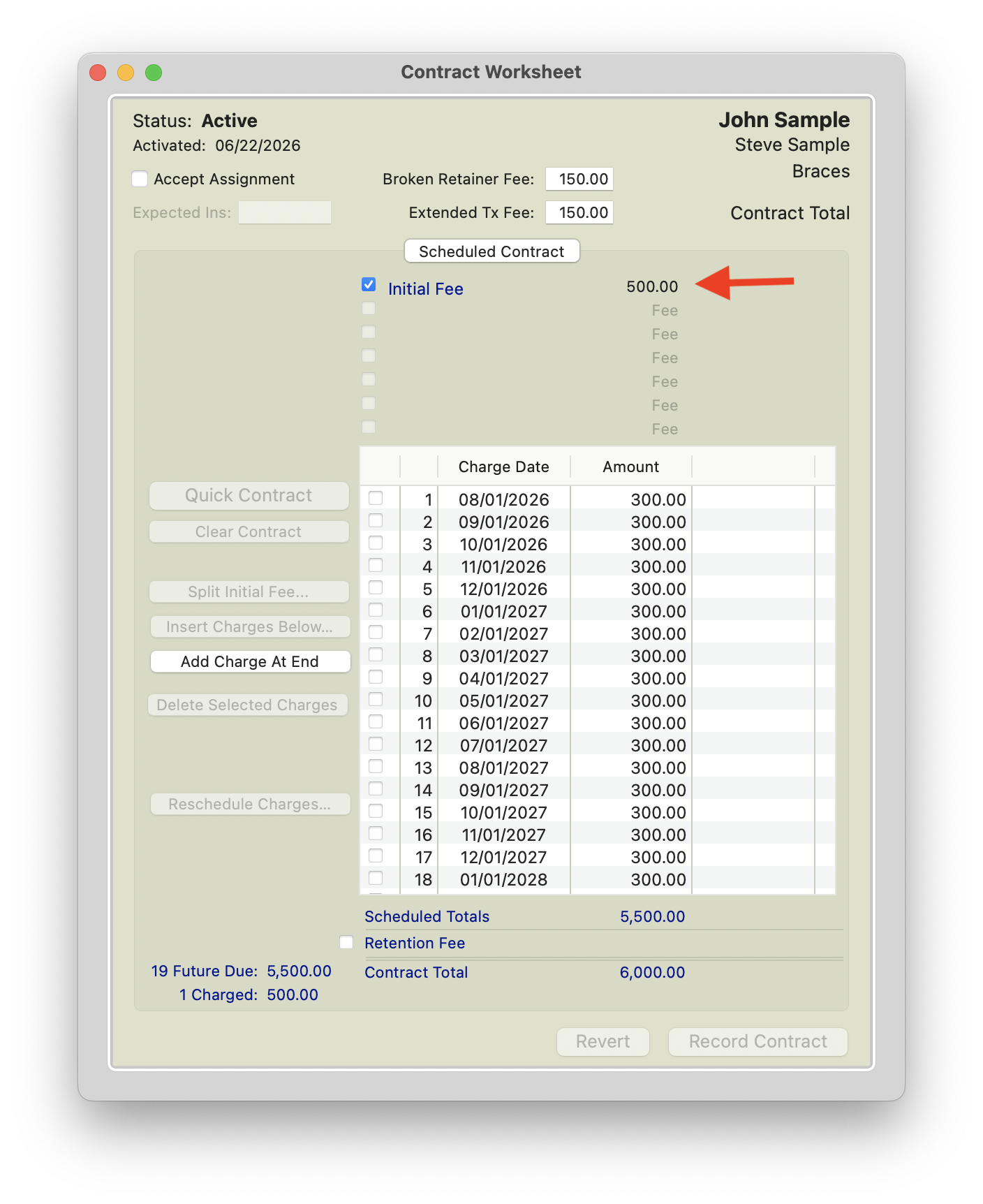
- Adjust the first scheduled monthly charge by reducing it from $300 to $100.
- This accounts for the extra $200 that already charged from contract with the initial fee.
-
The patient will still be responsible for a $300 down payment and $300 monthly payments going forward.
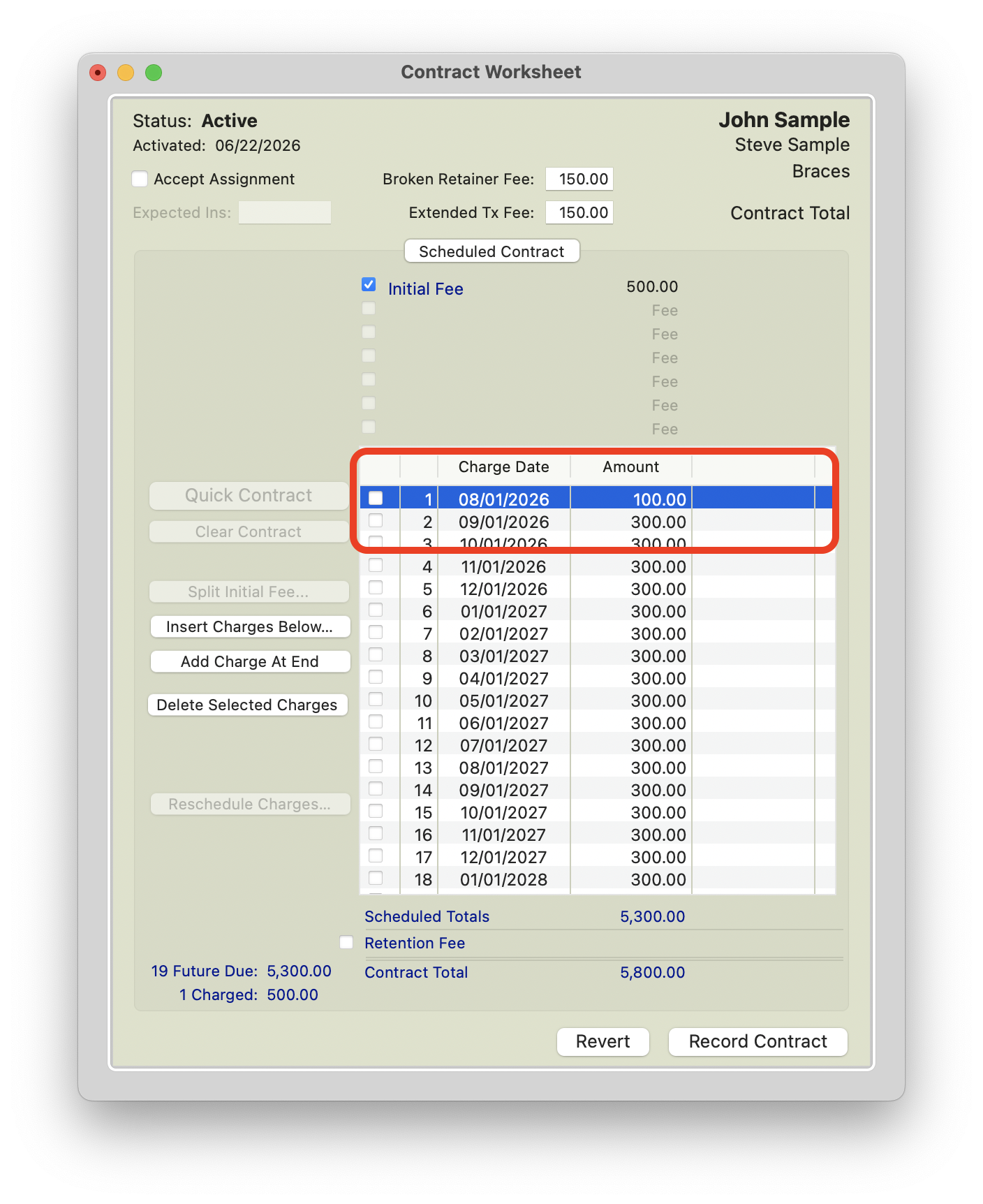
Modify first monthly charge
- Increase the final scheduled charge by $200.
- This ensures the contract total remains unchanged.
- For example, if the final scheduled charge was originally $100, update it to $300.

|

|
Click Record Contract
What the Patient Will See
When the patient makes their initial payment of $300, the ledger will still show a Due Now amount of $200, because $500 was charged to the ledger.
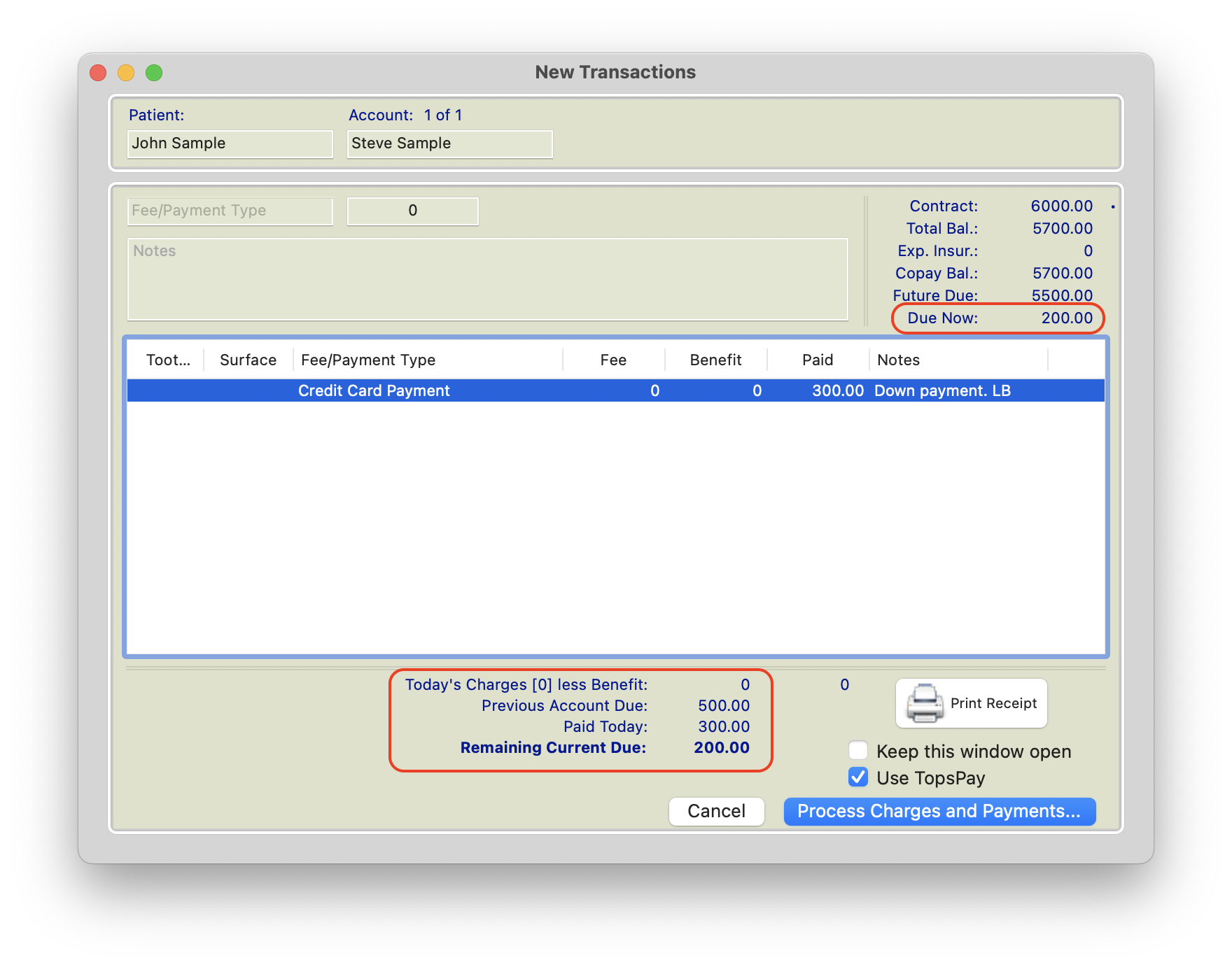
On the first scheduled monthly charge date, only the remaining $100 will charge out. This completes the first regular $300 monthly amount by combining:
- $200 already charged upfront
- $100 charged on the first scheduled monthly date
After that first scheduled monthly charge, the rest of the contract should continue as expected with regular $300 monthly charges. Any associated AutoPay Plan schedule will remain aligned with the updated contract charges and payment schedule.
Result
This correction allows the contract to remain at the correct total while accounting for the amount that was charged too early. The patient still pays the intended $300 down payment and the $300 monthly payment, but the first monthly charge is reduced to offset the extra $200 included in the initial fee.
Scenario 3: Future Charges Need Adjusting
There are times when a practice needs to update a patient’s future scheduled charges. This may be necessary because:
- The patient’s payment amount has changed.
- The scheduled charge dates do not align with the patient’s payment date.
- The office wants to better align the payment schedule with the patient’s financial arrangement.
Example: The patient has 16 future charges of $300 on the 1st of every month with a final charge of $200. The patient has requested to pay $250 on the 15th of each month, and the practice wants the scheduled charges to match the patient's payment schedule.
| Contract Details | Amount |
| Contract Total | $6000 |
| Initial Fee Charged | $1000 |
| Future Charges | 17 Future Charges of $300; Final Charge of $200 |
| Correct Monthly Charge | 19 Future Charges of $250 |
| Correct Monthly Charge Date | 15th of each month |
Important
Before making any changes, note the Contract Total.
Unless you are intentionally increasing or decreasing the contract amount, the total of all scheduled charges must remain equal to the original contract value.
Steps
- Double-click each scheduled charge date and update it to the desired date.
- Press Tab or double-click the Amount field to edit the scheduled charge amount.
- Continue updating each future scheduled charge as needed.
- Review all charge dates, scheduled amounts, and the total contract value to ensure they are correct.
- Click Record Contract.

|

|
Pro Tip: If many future charges need to be updated, it may be quicker to recreate them instead of editing each one individually.
- Update the first charge date and amount that should remain.
- Highlight the remaining scheduled charges.
- Click Delete Selected Charges
- Click Insert Charges Below
- Enter the new monthly payment amount and the number of charges to create.
- If necessary, adjust the final scheduled charge so the total of all charges equals the original contract value.

|

|

|

|
Result
The patient’s future scheduled charges will now align with the agreed-upon payment amount and payment date while preserving the original contract value. Any associated AutoPay schedule can then be updated to match the revised payment schedule, ensuring the patient’s payments and scheduled charges remain in sync.
Scenario 4: Paid Ahead Balances and Past Due Balances Need Adjusting
Need help? We've got you covered.
The articles below provide step-by-step instructions for correcting paid ahead and past due balances.
When it May be Best to Create a New Contract
While many contract errors can be corrected, there are times when making multiple adjustments becomes more complicated than creating a new contract.
If the contract has numerous errors, the treatment fee distribution is significantly incorrect, or you are no longer confident that the contract accurately reflects the intended financial arrangement, it may be best to deactivate the contract and create a new one.
For instructions on deactivating a contract, reference the articles listed at the bottom of this page.
After the contract has been deactivated:
- Create a negative (-) Account Adjustment for the full contract amount.
- Navigate to the Clinical tab of the patient's chart.
- From the Treatment Plan drop-down in the upper-left corner of the chart, create a new treatment plan.
-
Update the new treatment plan so it is an exact duplicate of the original treatment plan.
Pro Tip: To make comparing the two treatment plans easier, enable the split view in the Clinical tab. Select the new treatment plan in the top pane and the original treatment plan in the bottom pane. This allows you to compare the plans side by side and verify that all treatment details match before creating the new contract.
- Make the new treatment plan the active treatment plan.
- Create a new contract using the corrected treatment plan.
Taking the time to create a new contract can often be the cleanest solution when extensive corrections are needed. It helps ensure that the treatment plan, contract structure, patient payment schedule, and insurance calculations are all accurate from the start.