
Send an Email Campaign in TopsDPX
Practices with full TopsDPX can send targeted email campaigns to patients and referrers! It's a great way to send newsletters, marketing flyers and announcements.
Create a Campaign
- Go to Comm > Tops Reminders.
-
Go to Products > Campaigns > Templates or Campaigns>Templates
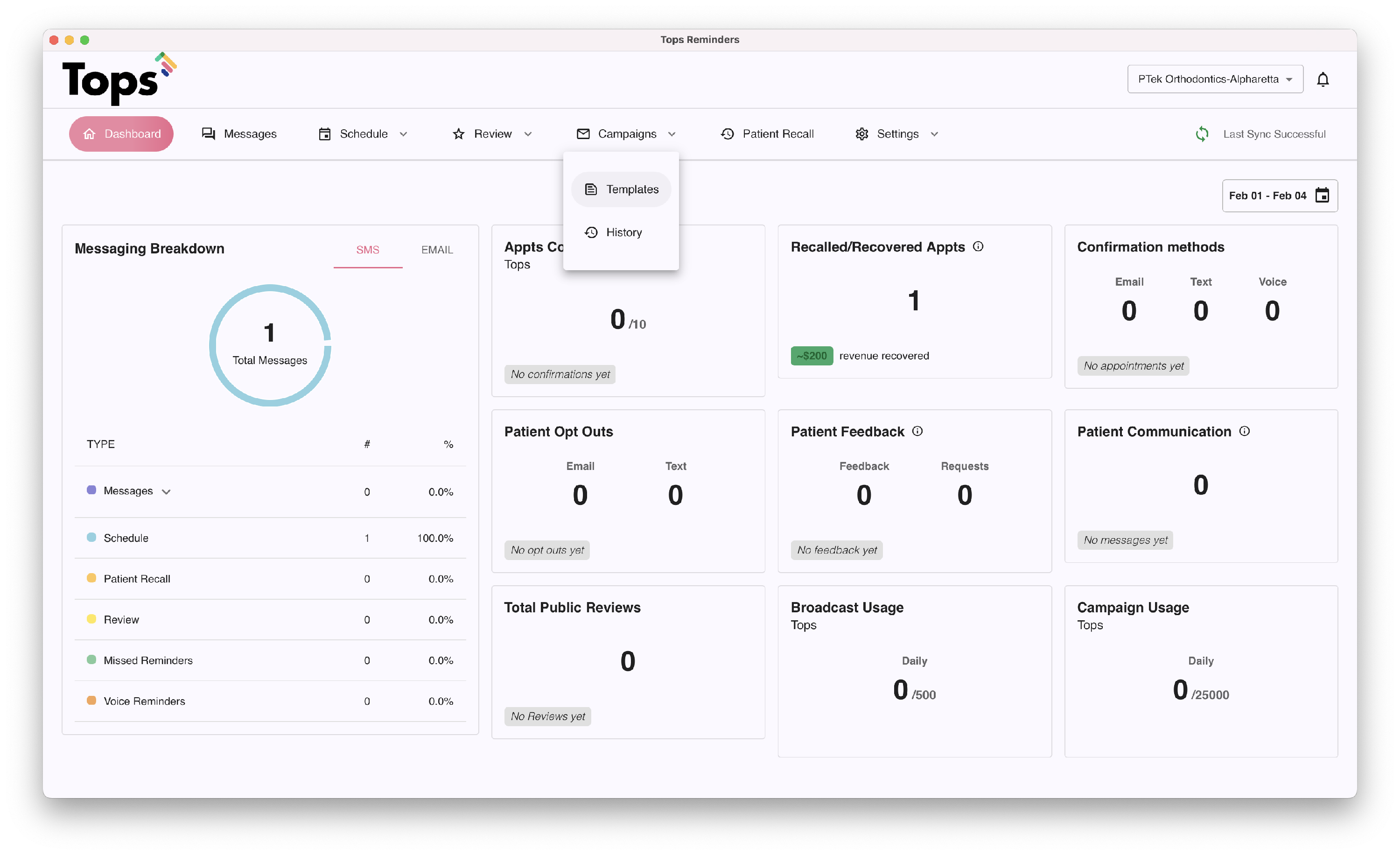
- Next, select a template. TopsDPX offers default templates that you can personalize.
- Choose a default template by clicking Select. Note: The images in the default templates cannot be changed.
- Click New Template if you wish to create your own custom template.

-
A Create Campaign or Custom Template Campaign window displays.
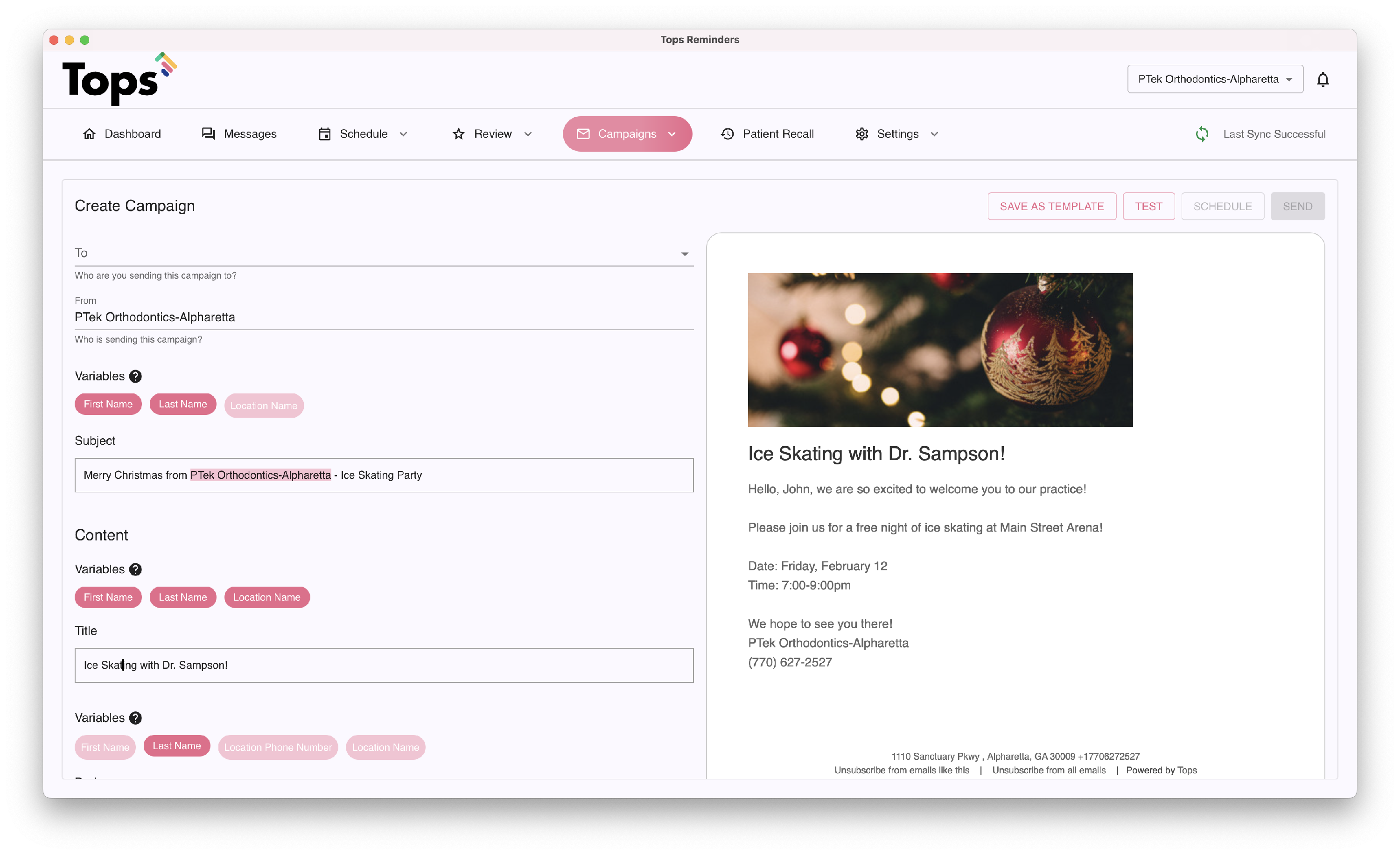
- Select your recipient list - Who are you sending the campaign to?
- Enter how you want the Sender to display in the From field
- Enter a Subject. You can leave the default or customize. Click the pink Variables to insert them into the Subject line.
- Enter a Title. You can leave the default or customize. Click the pink Variables to insert them into the Title.
- Compose the Body of the email. Click the pink Variables to insert them into the message. Use the toolbar to change spacing, font and styles. Click the image icon to add a picture.
|
|
|


- Review the preview on the right of the window to confirm your email looks the way you want it. When you are satisfied, click Save as Template on the top right.
- Give the template a name and click Save.

Send your campaign:
- Go to Comm > Tops Reminders > Email Campaigns > My Campaigns.
- Choose your desired template by clicking Select.

-
Click in the To field; a dropdown menu will display. Your options are:
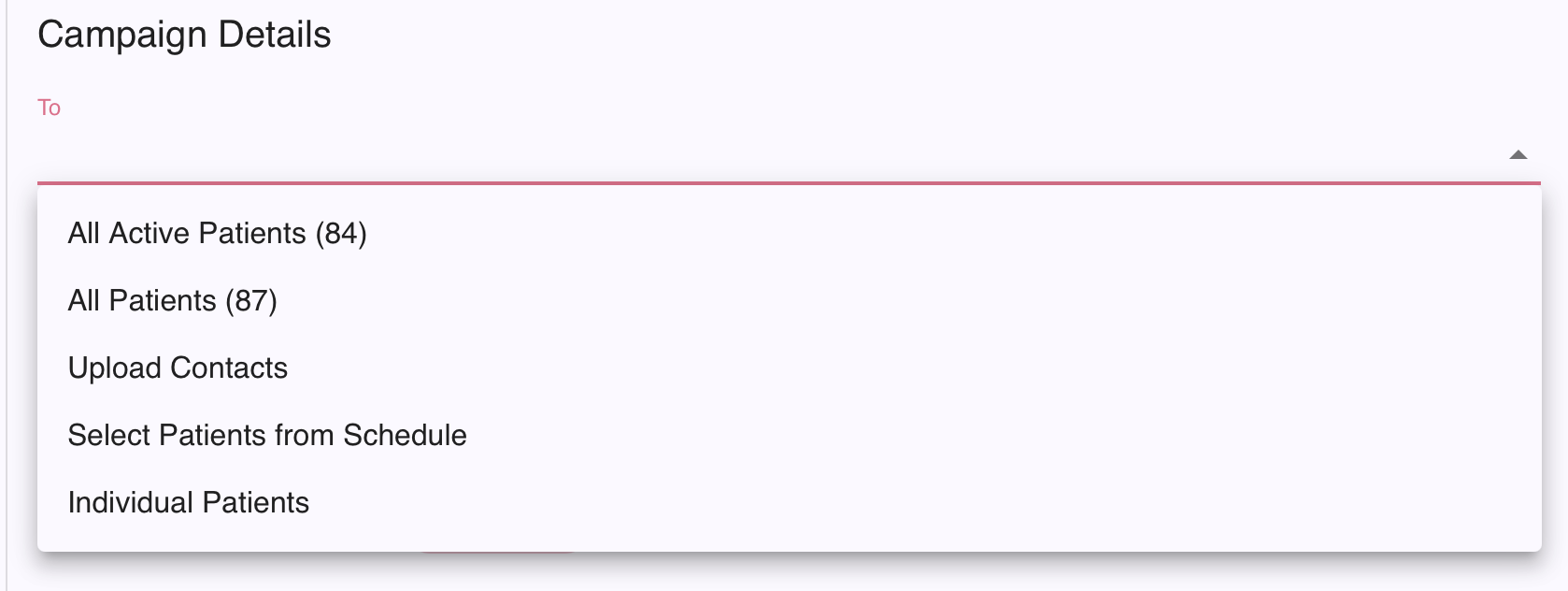
- All Active Patients: This option will select all patients that have had a past/future appointment load to TopsDPX and will only select those with an Active status. Patients Dismissed in Tops are not updated in TopsDPX as inactive.
- All Patients: This option will select all patients that have had a past/future appointment load to TopsDPX and will not consider their status.
- Upload Contacts: This option gives you the ability to upload an Excel / CSV file of patients to receive the email campaign. If needed you can create a patient list from Tops and upload. See related article Create a Custom Contact List for TopsDPX below.
- Select Patients from Schedule: This option gives you the ability to send a message to segments of patients based on appointment date.
- Individual Patients: This option gives you the ability to search for patients one by one to add to the email campaign.
-
If you would like a preview of the email before sending to a large group, click Test on the top right. This will send a test email to the email/s on your account.

- When you are ready to send your campaign, there are two options:
-
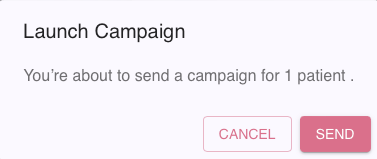
Click Send on the top right A window will display letting you know how many contacts will receive the campaign. Click Send again.
-
Click select Schedule to send automatically on a scheduled date.
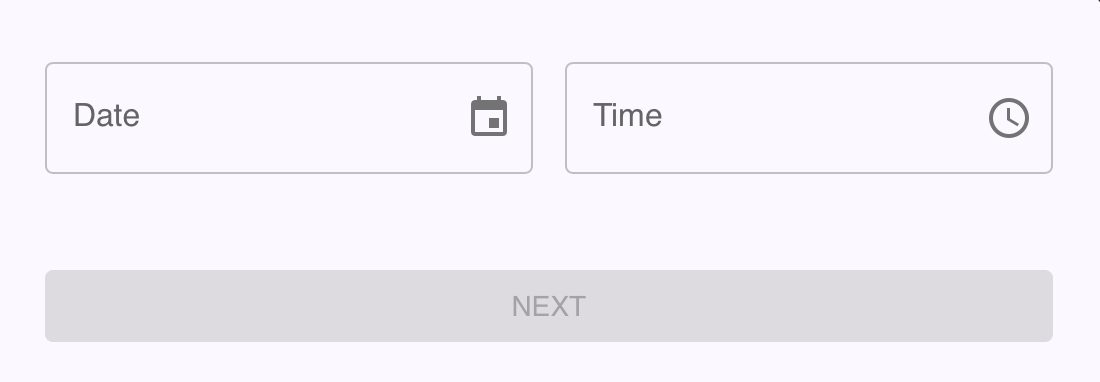
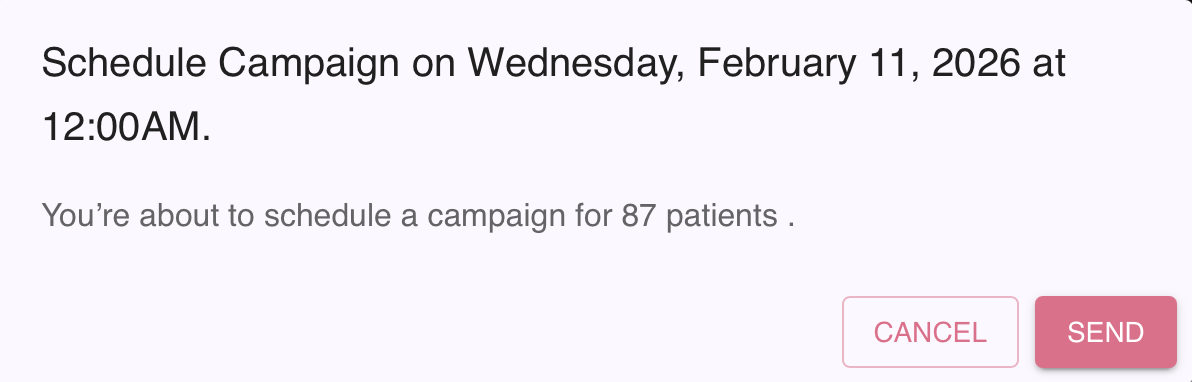
-
- That's it! The message is out or in a pending status!
Review your Campaign
From Campaign>Review History, you can review pending and Sent campaigns
- Tops provides visibility to you Sent, Delivered and Open Status

- You can easily Replicate, Preview and even Stop pending campaigns.

Stopping a Campaign
If you choose to Stop a campaign, Tops will provide you the ability to confirm the action.
- Choose Stop from the dropdown next to the pending campaign

- Confirm you want to the Stop Campaign.

- Upon refreshing the view from Campaign>Review History, the campaign will not reflect as cancelled.

Tops Tips
- Creating a custom recipient list? See the article listed below on a custom contact list.
- If you are unable to delete a saved custom template or a logo, please contact Tops Support.
- If you need to add a logo for a custom template, add your logo under Settings>Location Details.

