
TopsPay ACH Declines in Tops
How do I handle an autopay plan that reflects a Declined status for an ACH payment?
There are times when an ACH Payment will decline within Tops. A declined ACH in Tops is handled differently than an ACH payment that has been reversed. Below are the details you need to know on how to review and handle the declined payment.
Step 1 - Locate the declined auto-pay plan
Tops will represent the failed ACH payment similar to how a failed Debit or Credit card would be represented. You can access the auto-pay plan from two areas:
-
From the patient's chart, in Contracts and Ledgers, the Auto-Pay Plan button will appear Red.
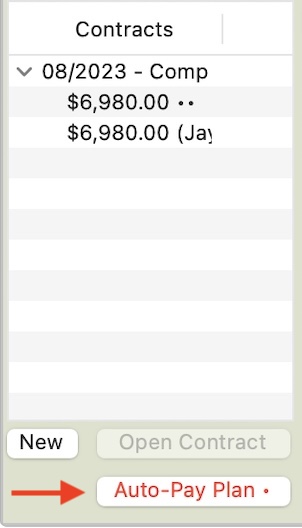
Click the Auto-pay plan button to open
-
From Matrix>Auto-Pay Plans, the failed ACH charge will also appear on the TopsPay Decline report:

Matrix>Auto-Pay Plans>Declined Auto-Pay Payments 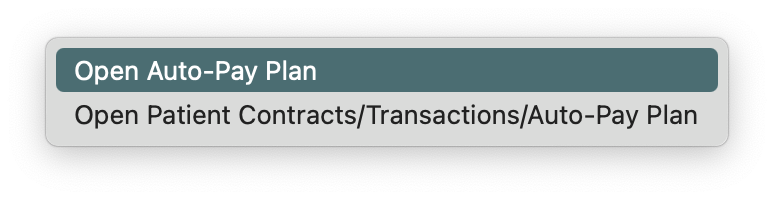
Right-clic a declined plan and select Open Auto-Pay Plan
Step 2 - Review and Update the Banking Details
In the auto-pay plan, the failed ACH scheduled payment will be red
Unlock the account details in the auto-pay plan, review the account and routing details, and update the incorrect information.

Step 3 - Update the Auto-Pay Plan
Option 1: Once the account information has been updated, the practice will need to deactivate the Autopay Plan, delete the failed payment, record/activate the new plan and charge the failed payment as a one-time payment using the updated ACH details.
Option 2: Once the account information has been updated, the practice will need to deactivate the Autopay Plan, delete the failed payment, add a new scheduled payment for a future date, and record/activate the new plan.
Does an ACH ever decline in the Transaction window?
Yes, it is possible. In the Transaction Window, the error will show and the ACH payment will not be possible. The practice will need to update the ACH details and re-attempt the one-time payment.
An ACH Failed Charge will generally have one of these error codes:
140: Invalid Account/ Verification Error
701: Invalid Routing Number
702: Invalid Account Number
How does a failed ACH payment appear in the TopsPay Portal?
To view the error associated with a declined ACH payment, go to Reports>TopsPay Portal>Payments
The image below represents what it will look like when a bank payment fails these initial validations. Notice the red “Failed Charge” bubble and the red error message “702: Invalid Account Number.”

An ACH Failed Charge will generally have one of these error codes:
140: Invalid Account/ Verification Error
701: Invalid Routing Number
702: Invalid Account Number
What causes an ACH to fail in the transaction window or with an auto-pay plan?
- TopsPay has implemented an ACH Validation Tool which offers enhanced parameters, including additional bank account validations, immediately at the time of payment, reducing clawbacks and returns.
- With our current processor, select validations occur immediately at the payment gateway level, causing invalid bank account and routing numbers to be identified and rejected at the time of payment. This validation reduces the number of ACH clawbacks for ACH payments, saving time and money in resolving clawed back payments for these reasons.
- This validation only covers certain aspects of bank account (ACH) validations. Transactions may fail after this initial validation for other reasons, such as insufficient funds (NSF), as they move through the ACH network. Failed transactions that pass the ACH Validation Tool reflect as Voids.
See the articles referenced below - Understand TopsPay Reversals and Reversed ACH Payments.