
Posting a Letter
Create a New Letter or Form
From the Action menu, use the Letters/Forms option to generate patient letters, financial agreements, referral letters, image galleries, and other document templates. Letters are created from templates and automatically populate information from the patient’s chart using merge fields.
Create a New Letter
- Open the patient’s chart.
-
Press Command-L Command-L.
or
Select Action > New Letter/Form…
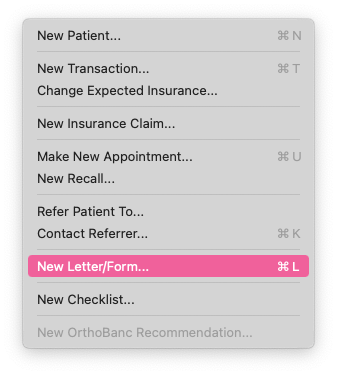
- In the Letters and Forms window:
-
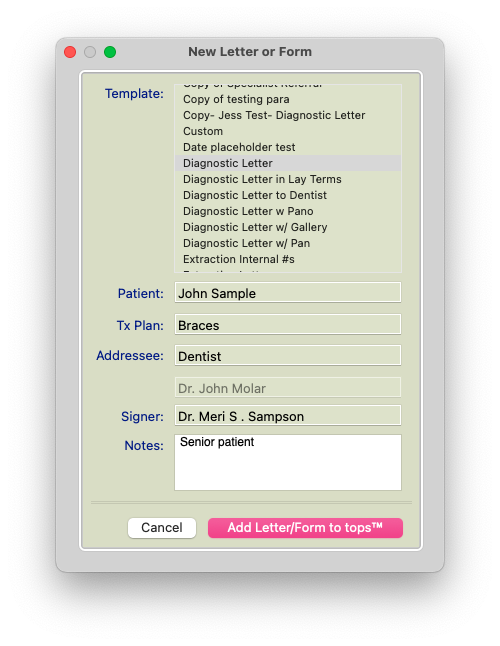
Select the desired letter template.
Press Tab to move through each required field.
Complete the required information, which may include:
- Patient
- Treatment Plan (when required)
- Addressee
- Signer
-
Internal Notes (optional)
-
- Click Add Letter/Form to Tops
- The letter opens and automatically populates available patient information from the selected template.
Edit the Letter (Optional)
Before saving the letter, you can make any necessary changes, including:
- Edit text within the letter.
- Modify images referenced by the template.
- Reposition or resize images and objects.
- Add additional pages if needed.
To edit text:
-
Select the Letter Selection tool.
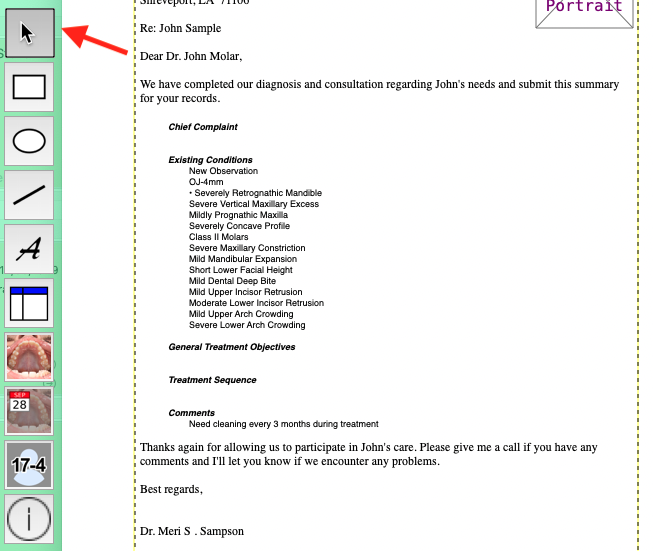
- Double-click inside a text box.
-
Make your changes.
Save the Letter
- Press Command-S to save your work at any time.
When you’re finished:
-
Press Command-W
or
- Click the red close button in the upper-left corner of the letter window.
If changes have not been saved, Tops prompts you to save the letter before closing.
View Posted Letters
Generated letters are automatically posted to the patient’s Letters/Forms tab, where they can later be:
- Reviewed
- Approved
- Printed
- Emailed
- Deleted (if appropriate)
Helpful Keyboard Shortcuts
| Shortcut | Action |
|---|---|
| Command-L | Create a new Letter/Form |
| Tab | Advance to the next required field |
| Command-S | Save the current letter |
| Command-W | Close the letter |
| Command-5 | Open a patient’s Letters & Forms tab |
Important Considerations
- Some letter templates require a Treatment Plan because they pull information from treatment plan placeholders.
- Required fields vary depending on the selected template.
- Patient information is automatically merged into the letter using the template’s placeholders.
- Saving the letter posts it to the patient’s Letters/Forms tab. It is not automatically printed or emailed.
- Letters can be sent individually from the patient’s chart or in batches through Matrix>Letters & Forms.
- If a letter is not pulling the expected information, review the letter template in TopsOrtho>Practice Set-up>Letters/Forms. Verify that the appropriate placeholders have been added to the template and that the corresponding information exists in the patient’s chart.
🍿 Watch a Video or 🎬 Watch a Quick Tip
Want to learn more about creating and customizing letters? Visit our Webinars & Videos page in the Tops Knowledge Base for tutorials on creating letter templates, using placeholders, appending signatures, adding backgrounds, creating image galleries, and more.