
Adding a Card in TopsPay
Adding a Credit or Debit Card
When using TopsPay, you can save a credit or debit card to an account holder in one of two ways:
- From the New Transactions Window– Use this option when you are processing a payment and want to save the card at the same time.
- From the Auto-Payment Plan Worksheet – This worksheet serves two purposes:
- Set up an AutoPay plan.
- Save a credit or debit card to an account holder's profile for future use.
- If you are only saving a card, enter the card information and click Create Card. You do not need to create a Quick Plan or click Record.
From the Transaction Window
- Open the Transaction Window using Command-T or Action>New Transaction
- Verify the patient name and select the appropriate account holder
- Select Credit Card or Debit Card as a Payment type.
- Complete the transaction details, including the payment amount, tabbing through each required field.
- Click Add Transaction Through Tops
- When the TopsPay payment screen opens, select Use New Card.

- Enter in the credit or debit card details
- Select Save Payment Information for Future use.
- Click Create Card
Result: The card is saved to the selected account holder's profile, and the payment is processed.
From the AutoPay Plan Worksheet
- Open the patient's chart by pressing Command-1 or View>Patient Info.
- Select the appropriate Account Holder (Account 1 or Account 2)
- From the Contracts and Ledgers tab, click Auto-Pay Plan in the Contract column.
- From Credit Card Processed Through:, select TopsPay
- Press Tab to advance to each required field.

The TopsPay payment screen will appear.
- Enter credit card details
- Click Create Card.

Result: The card is saved to the selected account holder's profile. It is available for future point-of-sale payments in the New Transaction Window and can also be selected for use with an AutoPay plan.
Viewing Existing Cards on File
To view existing cards on file for an account holder, follow the steps below.
- Open the patient's chart by pressing Command-1 selecting View>Patient Info
- Select the appropriate Account Holder (Account 1 or Account 2)
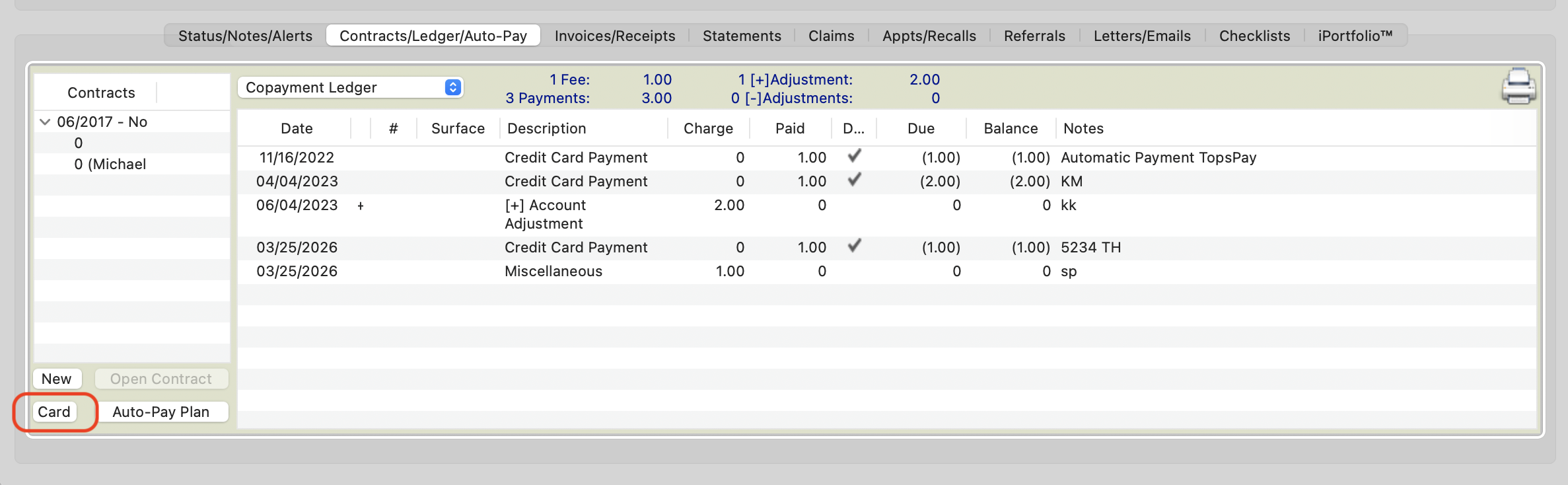
- Open the Contracts/Ledgers tab.
-
In the lower section of the Contract column, click Card.
-
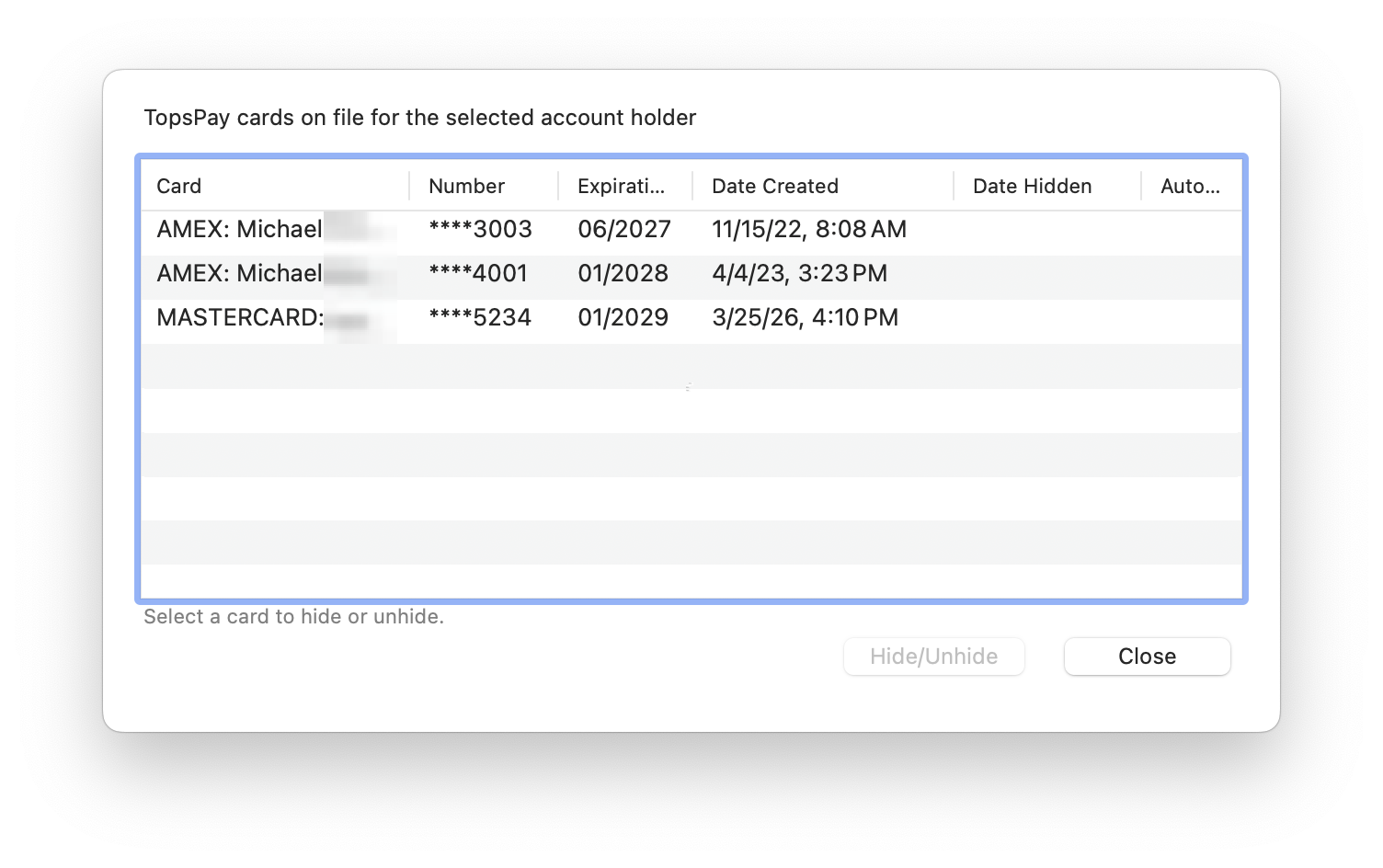
A list of all cards associated with the selected account holder will appear, including if the card is being used for an AutoPay plan.
Need to hide or unhide a listed credit card? Reference the article below on Hiding A Card in TopsPay.