
Managing Decreased Insurance Benefits or When a Patient Loses Insurance
If a patient's expected insurance benefit decreases after the contract has been activated, you'll need to update the contract so the patient's remaining financial responsibility accurately reflects the reduced insurance contribution.
Common scenarios include:
- The patient's insurance coverage terminates.
- The patient changes insurance plans.
- The insurance carrier determines orthodontic treatment is not covered.
- The patient's lifetime orthodontic benefit is lower than originally estimated.
- The insurance carrier approves a lower benefit than expected.
Pro Tip: Before making any changes, verify the patient's remaining insurance benefit with the insurance carrier. Confirm that all expected insurance payments have been received and that the reduced benefit amount is accurate
Choose the Appropriate Workflow
Use the workflow that best matches your situation.
If the Contract is No Longer Active
If the Contract is Active
If the patient's contract is still active, do not use Action>Change Expected Insurance.
Instead, update the Contract Worksheet so the patient's remaining payment schedule reflects the reduced insurance benefit while keeping the original Contract Total unchanged.
Note: The first time you perform this process, Tops recommends contacting Support (770-627-2527). Once you've completed it with a Support representative, this article can serve as a reference for future adjustments.
- Open the patient's chart.
- Navigate to View>Patient Info (Command-I).
- Select the Contracts/Ledgers tab.
- Double-click on the contract you wish to edit.
- Review the Expected Insurance and Calculated Insurance amounts.

In this example, William's contract was originally created assuming an insurance benefit of $1,500. After verification, the expected insurance benefit is only $750.
- Determine the new payment schedule
- Discuss the updated insurance benefit with the patient or responsible party.
- Determine whether they would prefer to:
- Keep the same monthly payment amount and extend the payment schedule, or
- Increase their monthly payment amount to maintain the original payoff schedule.
In this example, William's mother chose to increase the monthly copay from $197.91 to $225.00.
Update the Copay Schedule
- Double-click the next scheduled copay charge.
-
Enter the new copay amount.

- Continue updating each remaining future copay charge.

While making these changes:
- Edit only the patient's future copay amounts.
- Do not modify the insurance amounts shown in the middle column.
As the patient's copay amounts increase, the Calculated Insurance amount in the lower-right corner of the Contract Worksheet will decrease automatically.

Continue adjusting the remaining copay charges until the Calculated Insurance amount equals the insurance benefit you actually expect to receive. In some cases, this amount may be zero. The expected insurance/calculated insurance should be the total of insurance payments to date and any additional payments expected.
If Additional Copay Charges are Needed
Depending on the reduction in insurance benefits, you may need to add additional copay charges beyond the existing payment schedule.
If the number of copay charges exceeds the number of Amount charges:
- Add the additional copay charge(s) as needed. Use the Add Charges at End button or Insert Charges Below button.
- IMPORTANT: Set the corresponding Amount column value to $0.00. This prevents the Contract Total from increasing.
In William's example, one additional copay charge of $100.00 was added to reduce the Calculated Insurance to $750 while keeping the original Contract Total of $6,500 unchanged.

Save the Contract
Once the payment schedule is complete:
- Click Record Contract
-
When prompted to update the Expected Insurance to match the new Calculated Insurance amount, click Change.

- The patient's Expected Insurance balance will update to reflect the revised insurance benefit.


If the Contract is No Longer Active
If the patient's contract has already been deactivated, you cannot adjust the Contract Worksheet. Instead, you'll need to update the Expected Insurance balance to reflect the reduced insurance benefit.
Update the Expected Insurance
- Open the patient's chart.
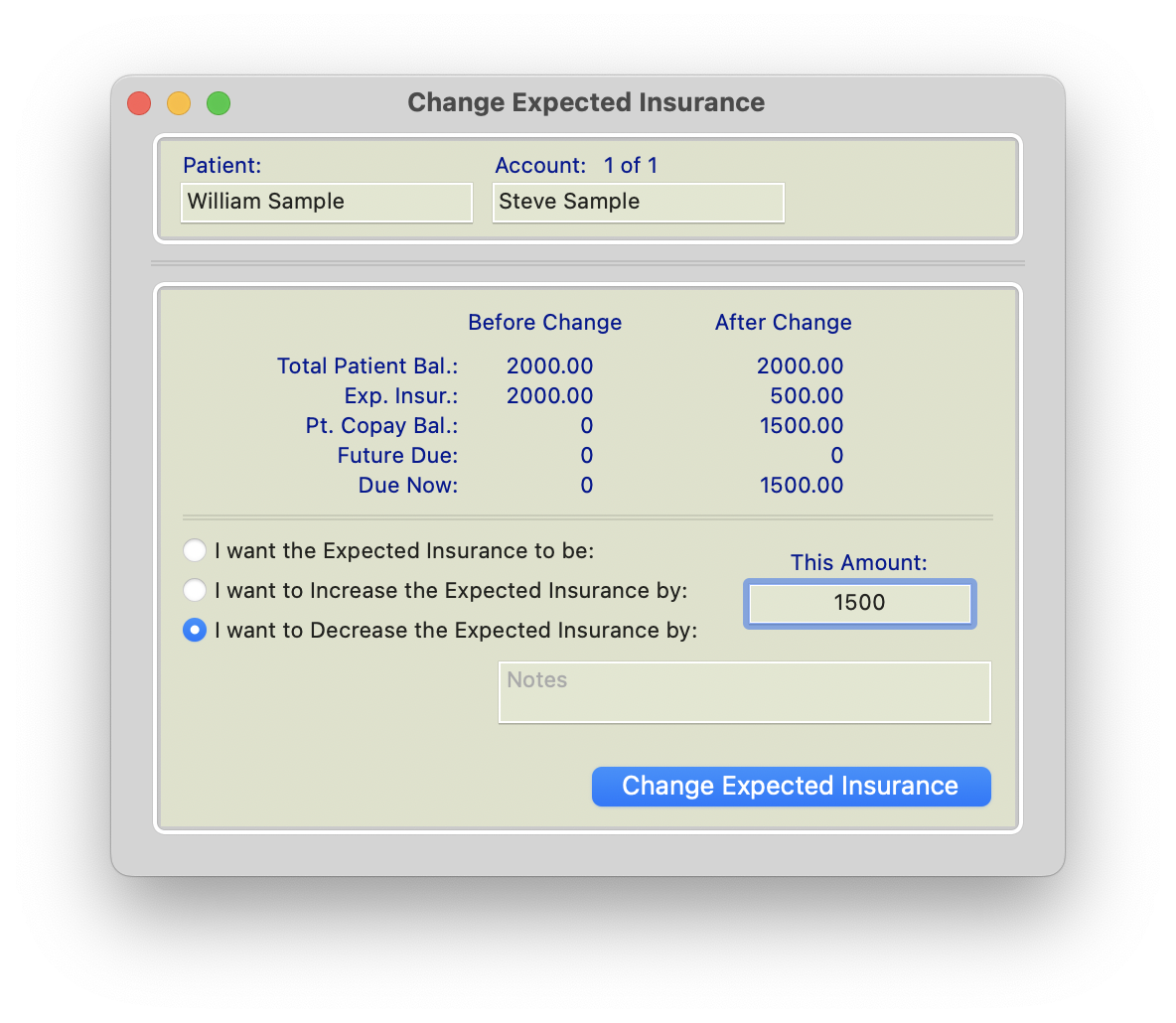
- Navigate to Action>Change Expected Insurance.
- Reduce (Decrease) the Expected Insurance amount by the portion of the insurance benefit that will no longer be received.
- If the patient is no longer expected to receive any additional insurance payments, set the Expected Insurance amount to $0.
- Click Change Expected Insurance.
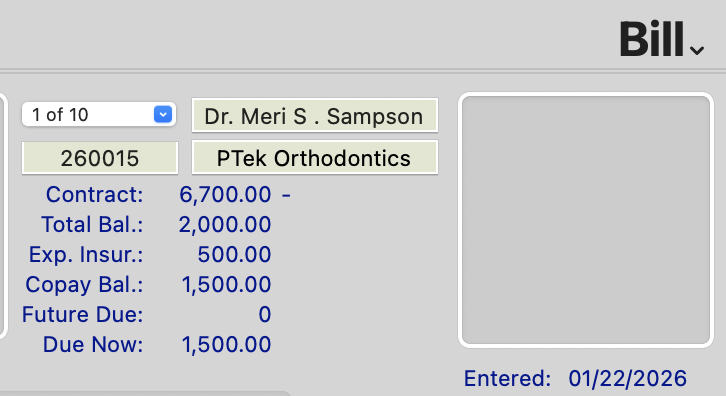
Reducing the Expected Insurance transfers the unpaid insurance balance to the patient's Due Now balance, making the patient responsible for the remaining balance.
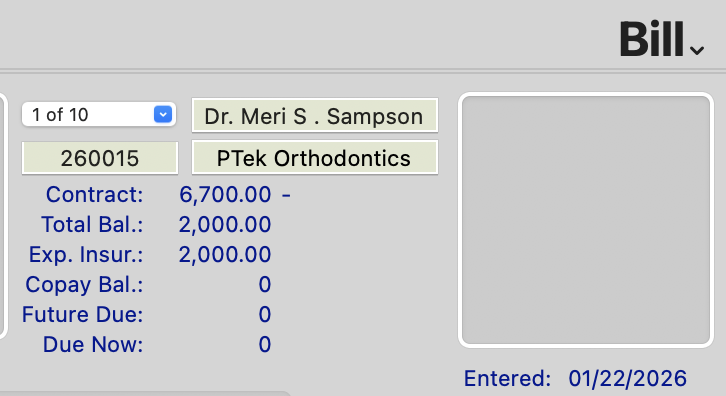
In the example below, William Sample was originally expected to receive $2000 in insurance benefits. After receiving additional information from the insurance carrier, the practice determined that only $500 would be paid.
Because William's contract had already been deactivated and he had paid his original copayment amount, the practice reduced the Expected Insurance from $2000 to $500. The remaining $1500 was transferred to the patient's Due Now balance.
| Before the Change | After the Change |
|---|---|
|
|
|
|
|
|
Collect the Remaining Balance
After updating the Expected Insurance:
- Review the patient's new Due Now balance.
- Discuss repayment options with the patient or responsible party.
- If needed, create a new payment plan to allow the patient to pay the remaining balance over time.
Important: Once a contract has been deactivated, the Contract Worksheet can no longer be used to redistribute future payments. Any insurance amount that will no longer be received must be removed from Expected Insurance and transferred to the patient's Due Now balance. The remaining balance should then be managed through a new payment arrangement.
Rule of Thumb
| If Insurance Decreases | Result |
|---|---|
| Increase future patient copay amounts (or extend the payment schedule). | The Calculated Insurance amount decreases. |
| The patient's remaining responsibility increases. | The Contract Total remains unchanged. |