
Managing Increased Insurance Benefits and Insurance Credits
When a patient's insurance benefit increases or an insurance credit accumulates, the appropriate next steps depend on the patient's contract status and how the credit should be handled.
Consider the following before making any adjustments:
- Is the patient's contract still active or has it been deactivated?
- Was the contract created with Accept Assignment?
- Should the insurance credit be applied to the patient's remaining balance, transferred to another family member, refunded, or returned to the insurance carrier?
Common scenarios include:
- Insurance payments exceeded the original Expected Insurance amount, creating an insurance credit.
- The patient's insurance benefits have increased.
- The patient obtained new insurance coverage after treatment began.
- The practice needs to increase the patient's Expected Insurance amount.
- An insurance credit needs to be applied to the patient's balance.
- An insurance credit needs to be transferred to another family member.
- The insurance carrier overpaid the claim and the credit should be refunded or returned.
Pro Tip: Before making any adjustments, always verify that the insurance credit is valid. Review the patient's Insurance Ledger to confirm the credit is not the result of a duplicate payment, an incorrectly posted payment, or another posting error.
Choose the Appropriate Workflow
Use the workflow that best matches your situation.
If the Contract is Active - Use this workflow when the patient's contract is active and future contract charges remain.
If the Contract is No Longer Active - Use this workflow when the patient's contract has already been completed or deactivated.
Refund the Insurance Credit to the Patient - Use this workflow when the patient has no remaining balance and requests a refund.
Transfer the Credit to a Family Member - Use this workflow when the patient wants the available insurance credit applied to another family member's account.
Refund the Insurance Due to Overpayment - Use this workflow when the insurance carrier has overpaid and the funds should be returned to the carrier.
If the Contract is Active
If the patient's contract is still active, do not use Action>Change Expected Insurance to increase the patient's Expected Insurance balance.
Instead, update the contract worksheet so the patient's future copay amounts reflect the increased insurance benefit while keeping the original contract total unchanged.
This process automatically updates both the Calculated Insurance and Expected Insurance amounts.
Note: The first time you perform this process, Tops recommends contacting Support (770-627-2527). Once you've completed it with a Support representative, this article can serve as a reference for future updates.
- Open the patient's chart; go to View > Patient Info or press Command I.
- Click on the Contracts/Ledgers tab.
- Double-click on the contract you wish to edit.
- In our example, patient Jules Jones started with an insurance benefit of $1000. She now has a $1500 benefit. We now need the Expected Insurance and the Calculated Insurance to show $1500 in her contract worksheet:

- Discuss the updated insurance benefit with the patient or responsible party. Determine whether they would prefer to:
- Keep the same monthly payment amount and pay off the contract sooner, or
- Reduce their monthly payment amount and maintain the remaining payment schedule.
- In this example, Jules' insurance benefit increased from $1,000 to $1,500. Her mother chose to reduce the monthly copay from $250.00 to $230.00.
- Do not use Action>Change Expected Insurance for an active contract. Instead, update the patient's payment schedule within the Contract Worksheet.
- Double-click the next scheduled copay charge and enter the new copay amount.
- Continue editing each remaining future copay charge as needed.
- Edit only the patient's future copay amounts.
- Do not modify the insurance amounts displayed in the middle column.
- As you reduce the patient's future copay amounts, the Calculated Insurance amount in the lower-right corner of the Contract Worksheet will increase automatically.
- Continue adjusting the remaining copay charges until the Calculated Insurance amount equals the total insurance benefit you actually expect to receive.
- Throughout the process, verify that the Contract Total remains unchanged. The goal is to redistribute the remaining financial responsibility between the patient and the insurance carrier—not to change the total cost of treatment.

- In Jules's case, we had to make the last copay charge $210.00 to make the Calculated Insurance reflect as $1500. Note how the Contract Total remains at its original $6580. This is very important!
- When you are satisfied with your changes, click Record Contract.
- This window will come up; don't be scared! This is Tops asking you if you meant to change the expected/calculated insurance, and if you want the Expected Insurance on the top left to change to match your new Calculated Insurance number. Go ahead and click Change.

- You will now notice that the blue snapshot to the left of the patient's picture reflects the new expected insurance amount. Good job!

Important
The Contract Total should never change during this process.
Your goal is to redistribute the patient's remaining financial responsibility, not change the overall cost of treatment. Continue adjusting future copay amounts until the Calculated Insurance equals the amount you expect to receive from insurance, while confirming the Contract Total remains unchanged.
If the Contract is No Longer Active
If the patient’s contract is no longer active, you won't be able to adjust the contract worksheet. Follow these steps:
Adjust the Expected Insurance
- Navigate to Action>Change Expected Insurance
- If the patient has an insurance credit:
- Increase the Expected Insurance amount by the credit amount, or by the portion of the credit you want to apply to the patient’s Due Now balance.
- Alternatively, you can set the Expected Insurance amount to $0 to apply the entire available credit.
- This action transfers the selected credit amount from Expected Insurance to the patient’s Due Now balance.
- If the patient has obtained new insurance coverage or expects future insurance payments:
- Wait until insurance payments are received and the Expected Insurance balance reflects a credit.
- Once a credit exists in Expected Insurance, follow the steps above to transfer the credit to the patient’s account balance.
Refunding the Insurance Credit to the Patient
If the Expected Insurance accumulates a credit, and there is no patient's balance to apply the credit, the patient may simply request to have the additional insurance payment collected applied as a refund.
- Navigate to Action>Change Expected Insurance
- Move the credit to the patient's due now.
- Increase the Expected Insurance amount by the credit amount, or by the portion of the credit you want to apply to the patient’s Due Now balance.
- Alternatively, you can set the Expected Insurance amount to $0 to apply the entire available credit.
- This action transfers the selected credit amount from Expected Insurance to the patient’s Due Now balance.
- Refund the credit to the patient
- Action>New Transaction (Command-T)
- If you are a TopsPay customer, uncheck Use TopsPay
- Select (+) Adjustment
-
Choose Refund to Patient
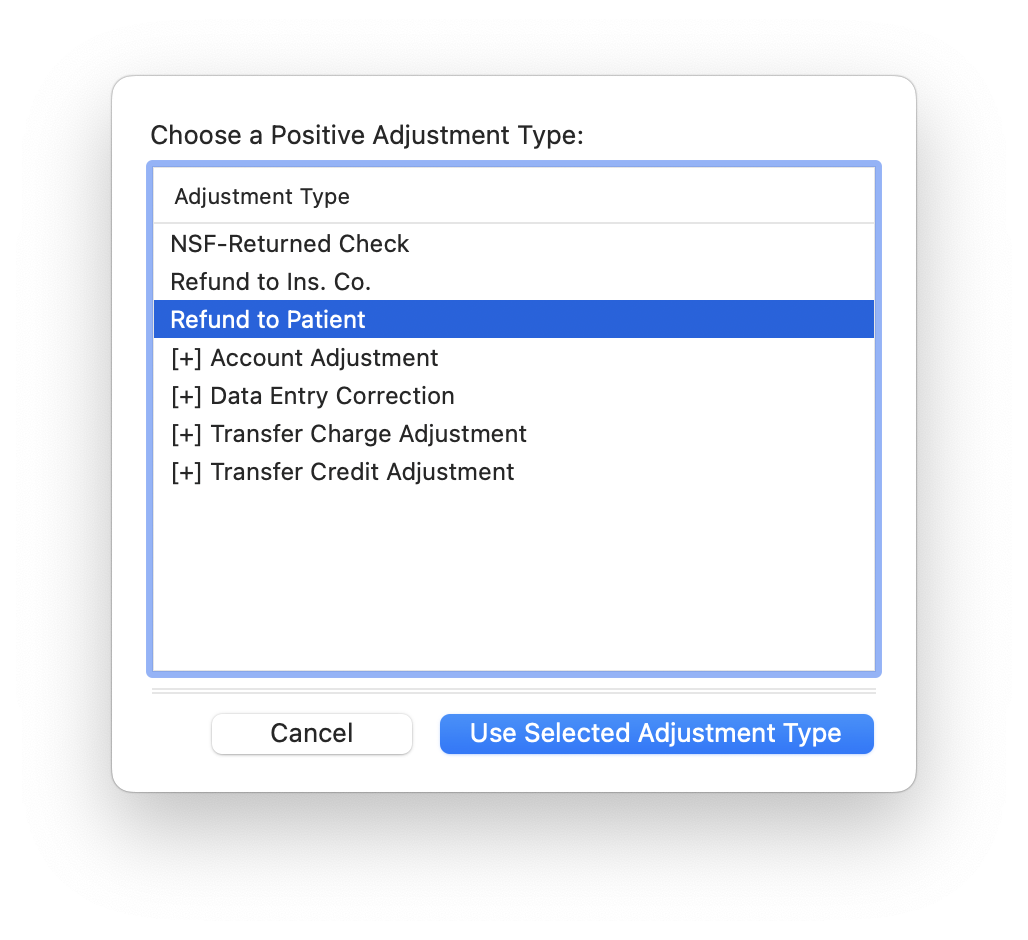
- Enter in the amount and in the notes, Tops recommends documenting the Check # or method of refund.
- Action>New Transaction (Command-T)
Transfer the Insurance Credit to a Family Member
If the Expected Insurance accumulates a credit, and there is no patient's balance to apply the credit, the patient may request to transfer the insurance credit to another family member in treatment.
- Navigate to Action>Change Expected Insurance
- Move the credit to the patient's due now.
- Increase the Expected Insurance amount by the credit amount, or by the portion of the credit you want to apply to the patient’s Due Now balance.
- Alternatively, you can set the Expected Insurance amount to $0 to apply the entire available credit.
- This action transfers the selected credit amount from Expected Insurance to the patient’s Due Now balance.
- Refund the credit to the patient
- Action>New Transaction (Command-T)
- If you are a TopsPay customer, uncheck Use TopsPay
- Select (+) Adjustment
- Choose (+) Transfer Credit
-
Enter in the amount and in the notes. Tops recommends documenting which family member received the credit.
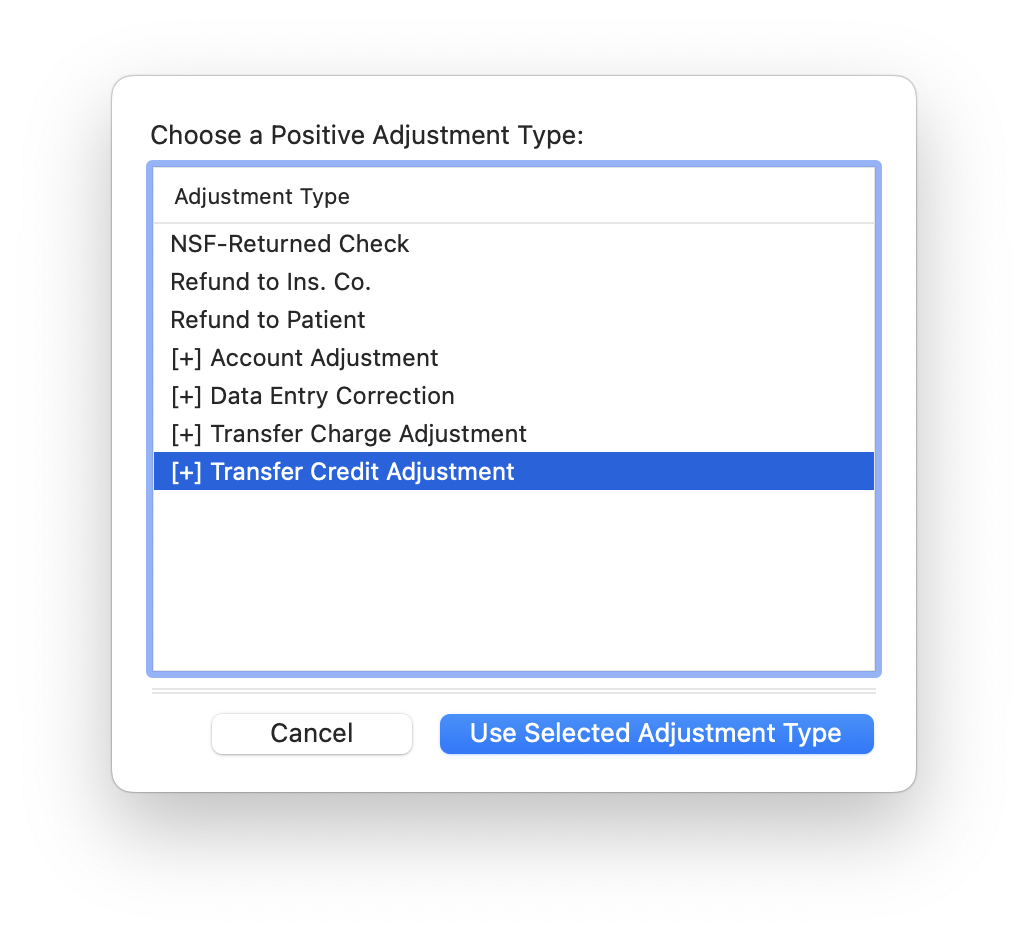
- Action>New Transaction (Command-T)
- Open the family member's chart receiving the credit.
- Post a (-) Account Adjustment
- Select (-) Transfer Credit Adjustment
-
Enter in the amount and in the notes. Tops recommends documenting which family member transferred the credit.
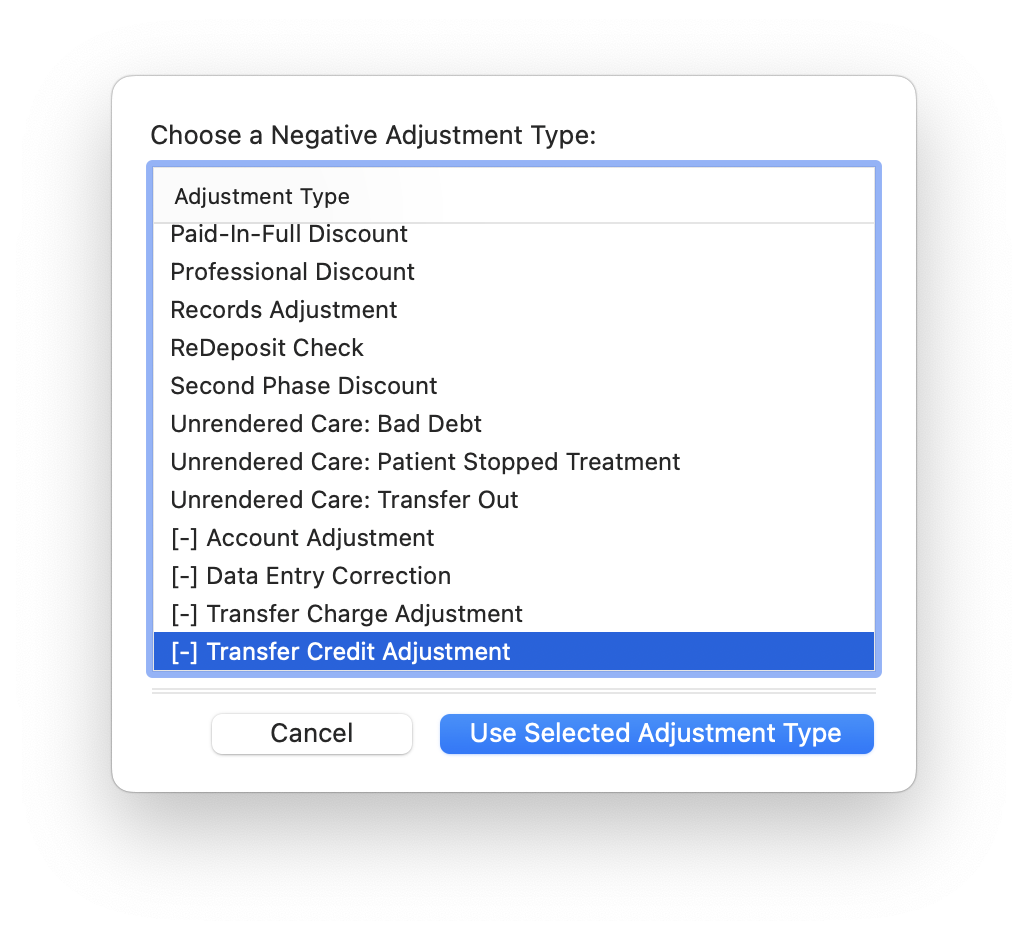
Rule of Thumb
| If Insurance Increases | Result |
|---|---|
| Decrease future patient copay amounts (or reduce the number of payments). | The Calculated Insurance amount increases. |
| The patient's remaining responsibility decreases. | The Contract Total remains unchanged. |