Patient Recalls in TopsDPX
What is a Patient Recall?
A Patient Recall in TopsDPX is a reminder sent to a patient letting them know that they need to schedule their next appointment.
How does TopsDPX know to send a recall reminder to a patient?
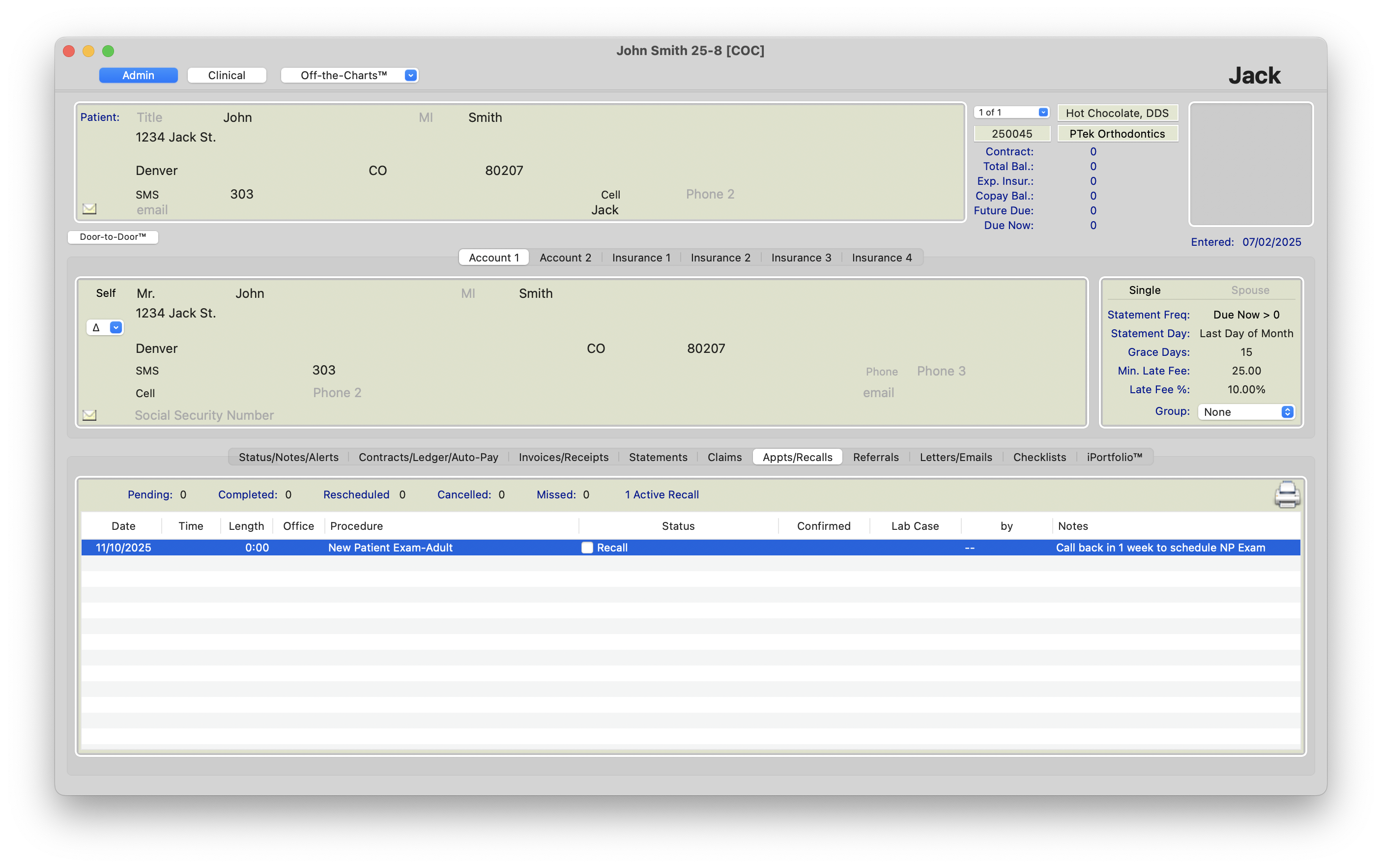
If a patient has not scheduled their next appointment, a staff member will typically create a recall in Tops Ortho indicating their next appointment timing and appointment type. Tops uploads to TopsDPX open recalls for patients to notify them that they have an upcoming or past due appointment that needs to be scheduled. See below for an example open recall.
Customing Patient Recall Reminders
You can customize your TopsDPX Patient Recall settings at any time! Here's how:
- Go to Comm > Tops Reminders.
-
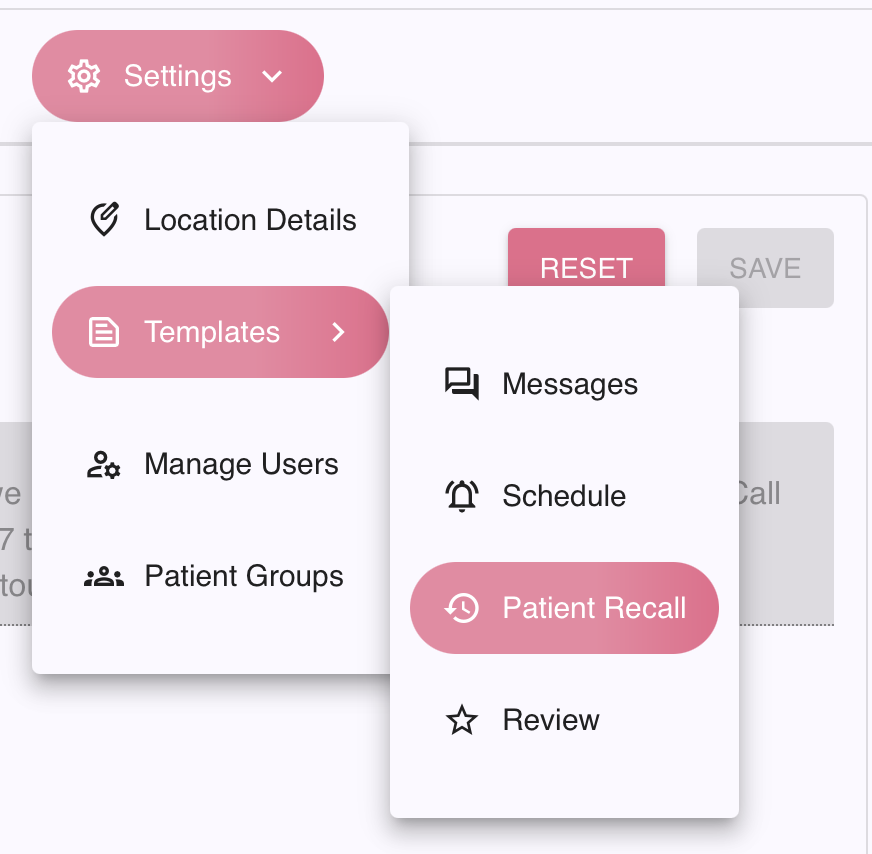
Go to Settings > Templates > Patient Recall
Customizing Content
To update the specifics of your text and/or email message for the Patient Recall reminder, click the recall type (Text or Email) under each Patient Recall template to view and modify the message.
Click the Save button if any changes are made.

Customizing Contact Methods and Timing
On the left side of the window, there are two Patient Recall templates available to use - an Upcoming Due Recall and a Past Due Recall. Click the ⚙️ gear wheel icon next to the title of each recall to update the settings and types of notifications you prefer for each recall. If changes are made, click the Save button.

Update to a recognizable name for your internal reference
Contact Methods
Contact Method option include Text and Email.
- To remove a contact method, uncheck the contact method and click the Save button. Tops will prompt you to confirm the changes.
- To add a contact method, uncheck the contact method and click the Save button. Tops will prompt you to confirm the changes.
- Tops Tip: If adding a contact method, make sure to customize or review the content of the individual and family methods.
Timing
- How far in advance of an open recall do you want Tops to send the Upcoming Recall reminder? The default is 30 days. (Maximum of 30 days)
- How far after the recall date has passed do you want Tops to send a Past Due Recall reminder? The default is 1 day.
Recall Check
- Skip check for recent appts before sending recall message - When a user toggles “Skip check for recent appointment before sending recall message", the system will ignore any future or past appointments that a patient might have, therefore, the recall message will be sent regardless.

-
Limit how far in the future to check for existing appointments - Once a user selects this box, they will be provided with 2 selectable fields:
-
The minimum value you can choose on these fields is “1” . If the value needs to be less than one, then select the “skip check” option.
- How long in the past the system should look for an appointment
- How long in the future the system should look for an appointment (Maximum of 30 days)
-

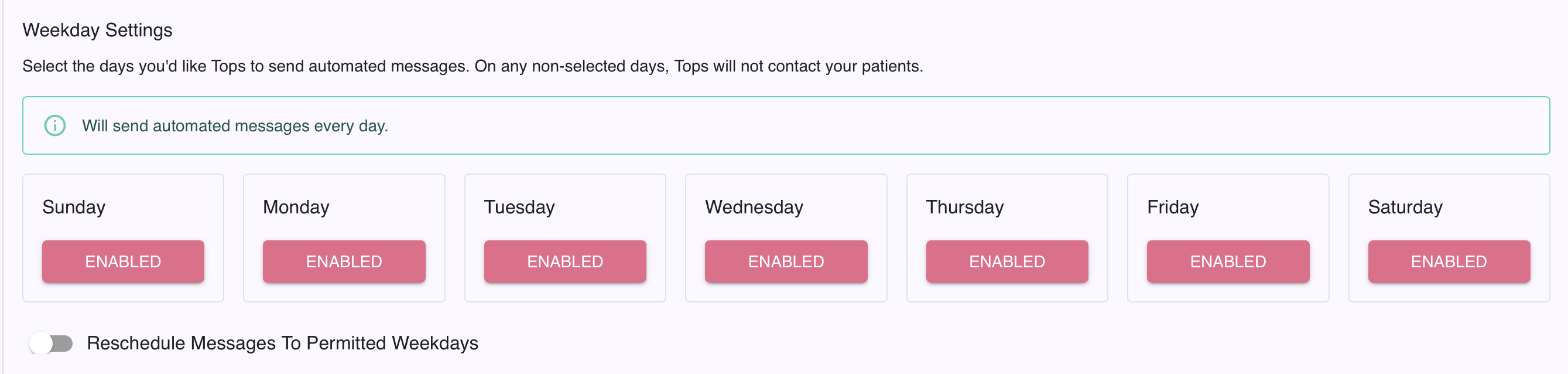
Weekday Settings
Unless you do not want messages to send to patients on certain days, we advise to have all days enabled.
Choose to automate or manually send your Patient Recalls
Patient Recalls are sent if there is an open recall for a patient that meets the criteria of your Patient Recall settings. You can choose to either have Tops automatically send a queued Patient Recall message or to have a staff member send the recall message manually.
- Go to Comm > Tops Reminders.
- Go to Settings > Templates > Patient Recall
- On the left side of the Patient Recall window, click the gear ⚙️ next to Manage Settings.
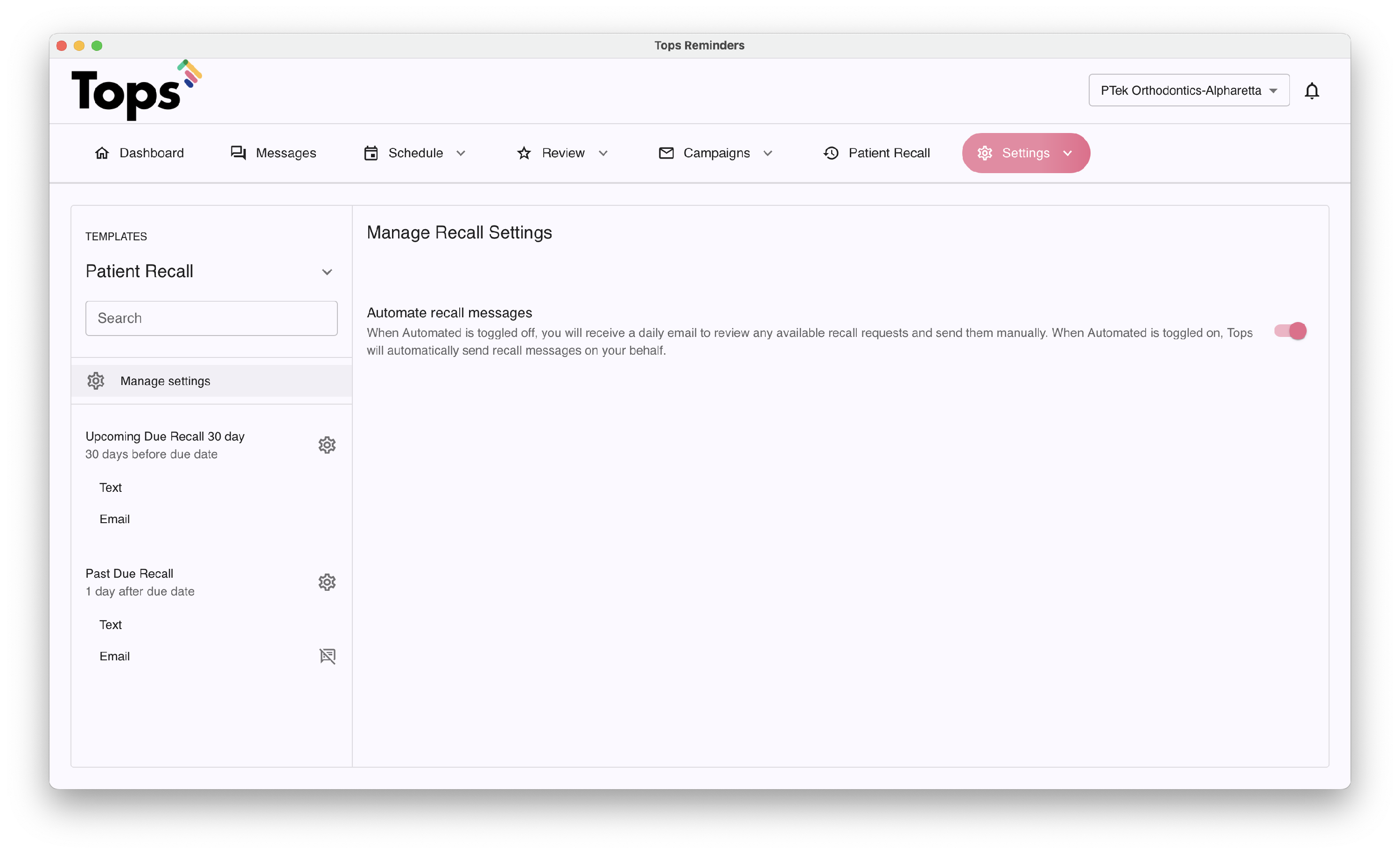
- Toggle the option to Automate recall message either on or off.
- Toggle On - TopsDPX will automatically send your queued recall reminders towards the end of the business day.
- Toggle Off - TopsDPX will not automatically send your queued recall reminders.
How to manage queued Patient Recalls
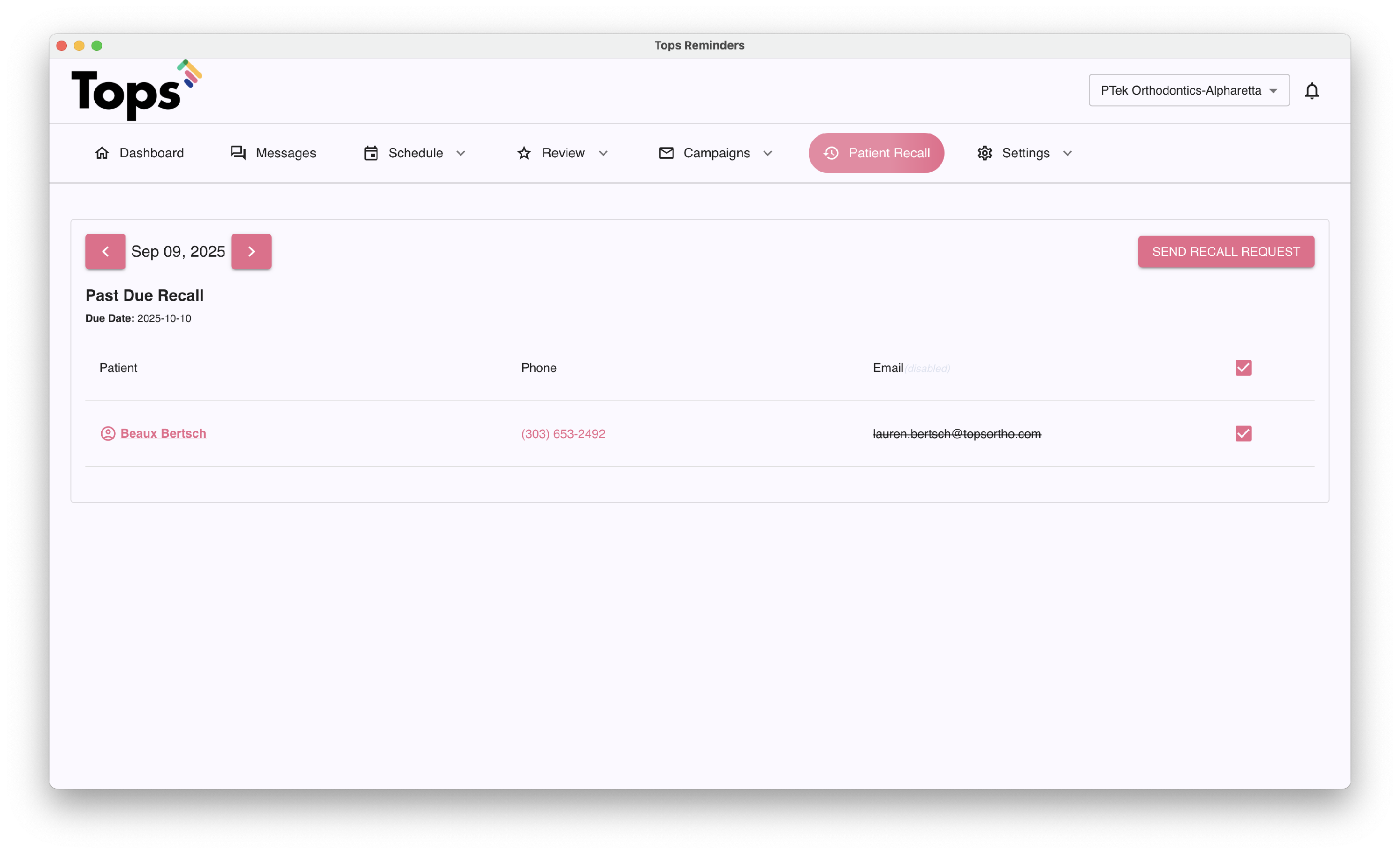
Whether you have Tops automatically sending your patient recalls, or you have selected to manually send Patient Recalls, you can view your queued Patient Recalls by going to Comm>Tops Reminders>Patient Recalls.
- If automation is enabled: You have the ability to uncheck a queued recall if you prefer the recipient not receive it. At the end of the day, TopsDPX will automatically send any recalls that remain checked √. Note: Queued recall reminders can generally be unchecked around 3pm EST.
- Click the arrows on either side of the date to review past dates and what recalls were sent.
- If automation is disabled: You have the ability to uncheck a queued recall if you prefer the recipient not receive it, but Tops will not automatically send the remaining selected recall reminders automatically. To send the remaining, selected patient recalls, click the Send Recall Request button
- Click the back arrows on either side of the date to send queued, unset recalls from previous dates.