Creating Contracts with Lifetime Retainers
When a patient purchases a lifetime retainer package (LTR), there are several factors to consider before you enter the contract.
Will they be paying for the lifetime retainers upfront, or have you offered to include the cost of the package in their monthly payment plan?
Are you able to include the lifetime retainer package fee in the total contract value? If so, is it important to track your lifetime retainer transactions and amount?
Do you need to file a claim with insurance? If you include the lifetime retainer package with the contract, do you want to avoid including the fee in the total case fee?
Below are several scenarios and our suggestions, to help you navigate how to charge out your Lifetime Retainers.
Scenario 1: Patient pay the lifetime retainer fee up front.
Scenario 2: The patient needs to pay for the lifetime retainer fee as part of their monthly installments and the contract can be increased to reflect the fee.
Scenario 3: The patient needs to pay for the lifetime retainer fee in their monthly installments but the contract should not reflect the lifetime retainer fee. Their down payment also covers the cost of the lifetime retainers.
Scenario 4: The patient needs to pay for the lifetime retainers in their monthly installments, but the contract should not reflect the lifetime retainer fee. Their down payment does not cover the cost of the lifetime retainers.
Scenario 5: The patient needs to pay for the lifetime retainer fee in their monthly installments, the contract should not reflect the lifetime retainer fee and the patient has insurance.
Scenario 6: The patient needs to pay for the lifetime retainer fee in their monthly installments, the contract can be increased to reflect the lifetime retainer fee but insurance should receive the claim without the lifetime retainer fee.
Scenario 1: Patient Pays LTR fee Up Front
Let's be honest. Ideally, receiving payment for the lifetime retainer package up front would be the best and easiest way.
- Add Lifetime Retainer (LTR) Package to your fee schedule in Tops Ortho>Practice Set-up>Fee Schedule. See the related article on fee schedules at the bottom of this page.
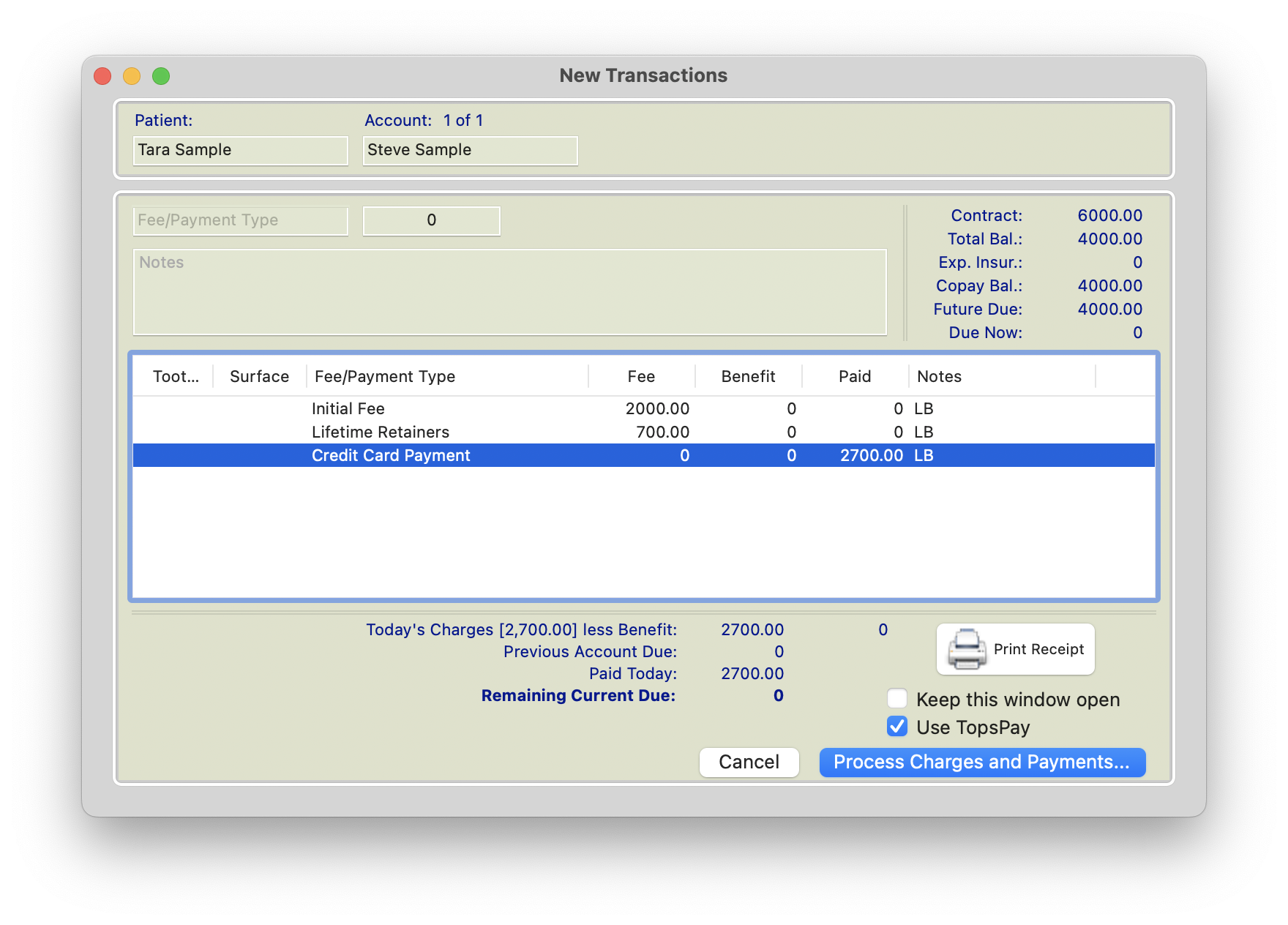
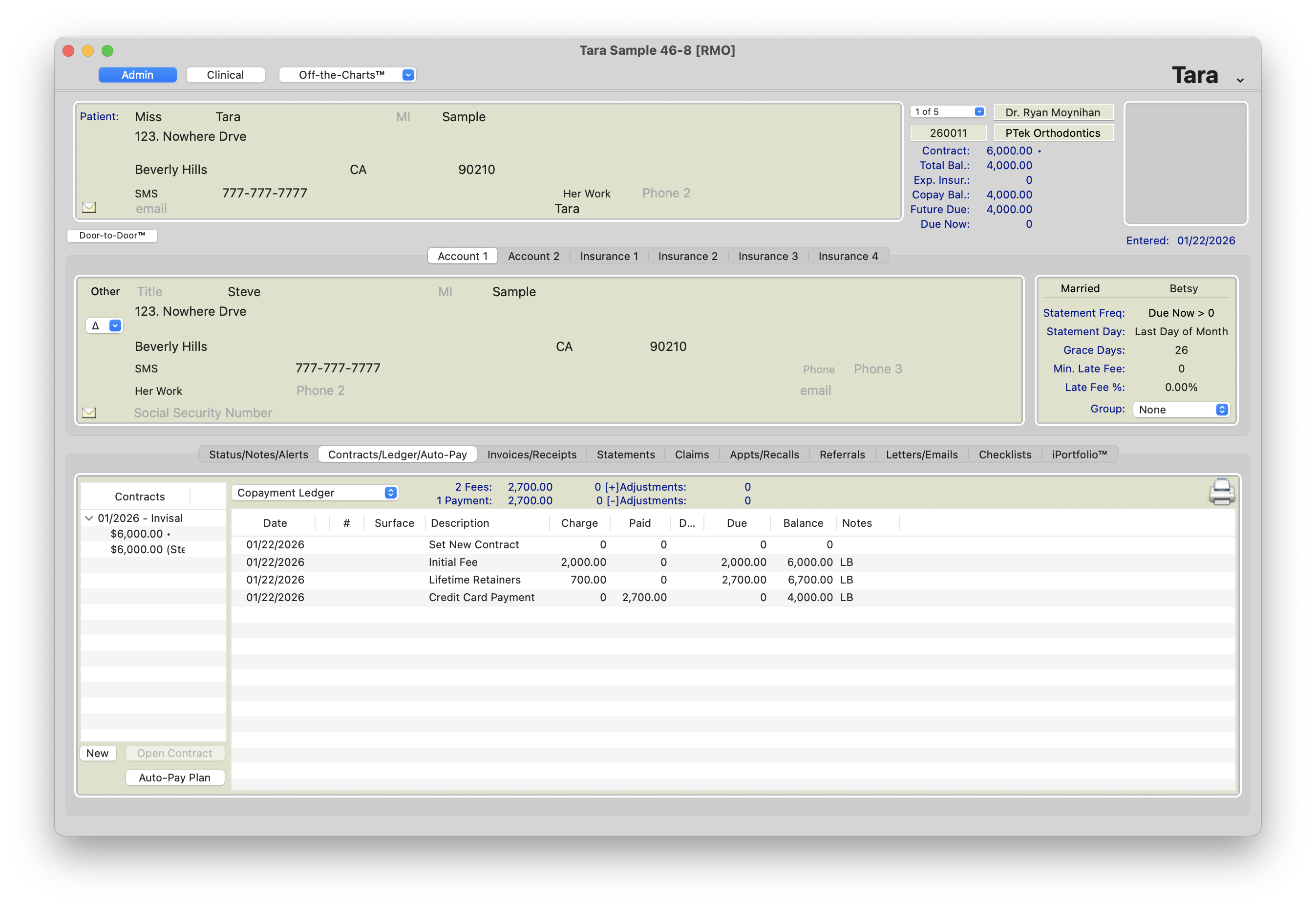
- Use the Transaction window (Command-T) to post the LTR fee to the patient's ledger.
- Collect payment immediately from the patient and post it to their ledge
|
|
|
But....it's not always this easy.
Scenario 2: The patient needs to pay for the Lifetime Retainer program as part of their monthly installments. The doctor is ok including the fee in the contract total..
- Add Lifetime Retainer (LTR) Package to your fee schedule in Tops Ortho>Practice Set-up>Fee Schedule. See the related article on fee schedules at the bottom of this page.
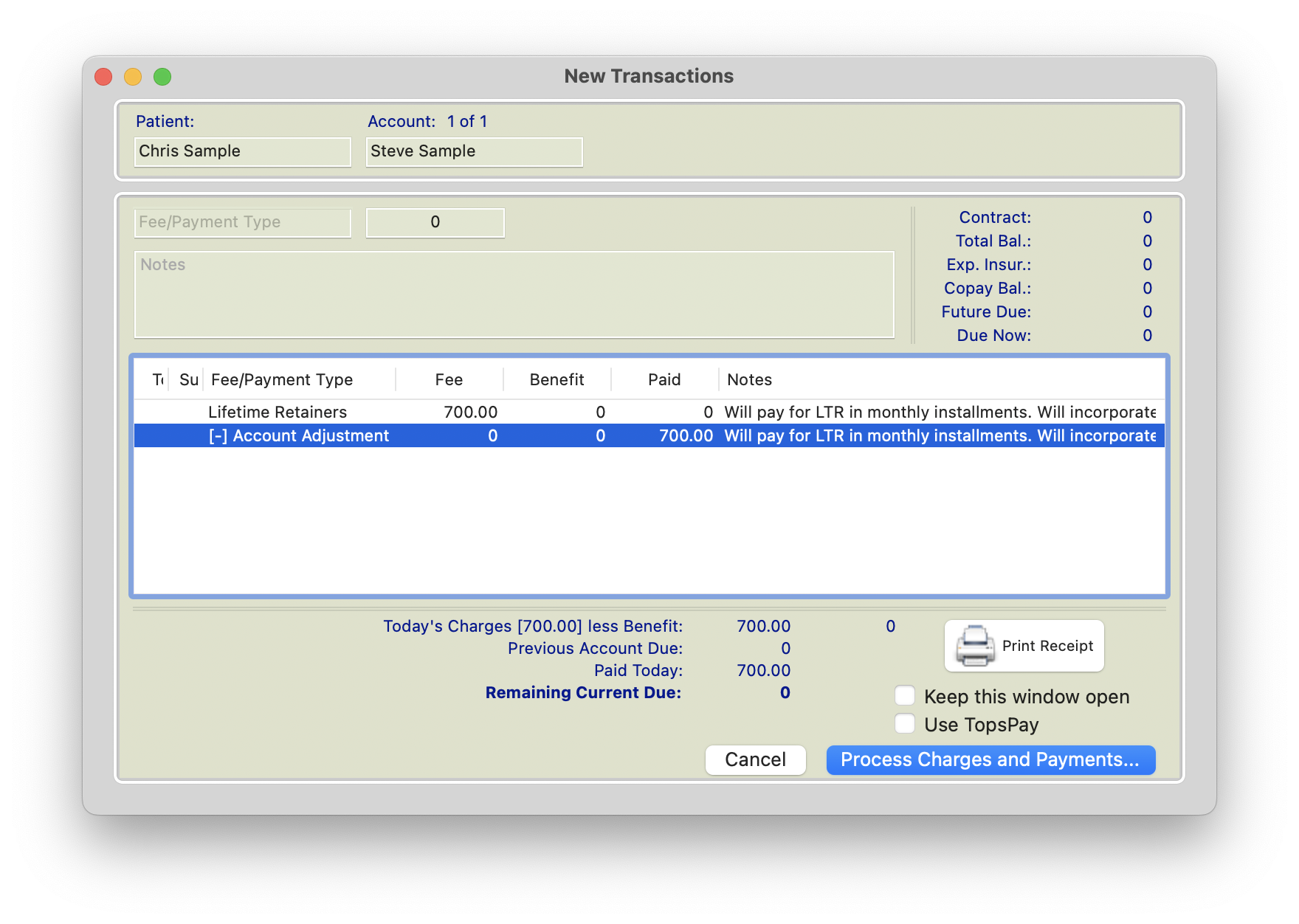
- Use the Transaction window (Command-T) to post the LTR fee to the patient's ledger.
- Post a (-) adjustment with a note indicating that the LTRs are included in the Contract.
-
Alternatively, to avoid posting an adjustment, you can choose to post the LTR fee as $0 and include in the note that the $X LTR fee was included in the contract total for treatment.
-
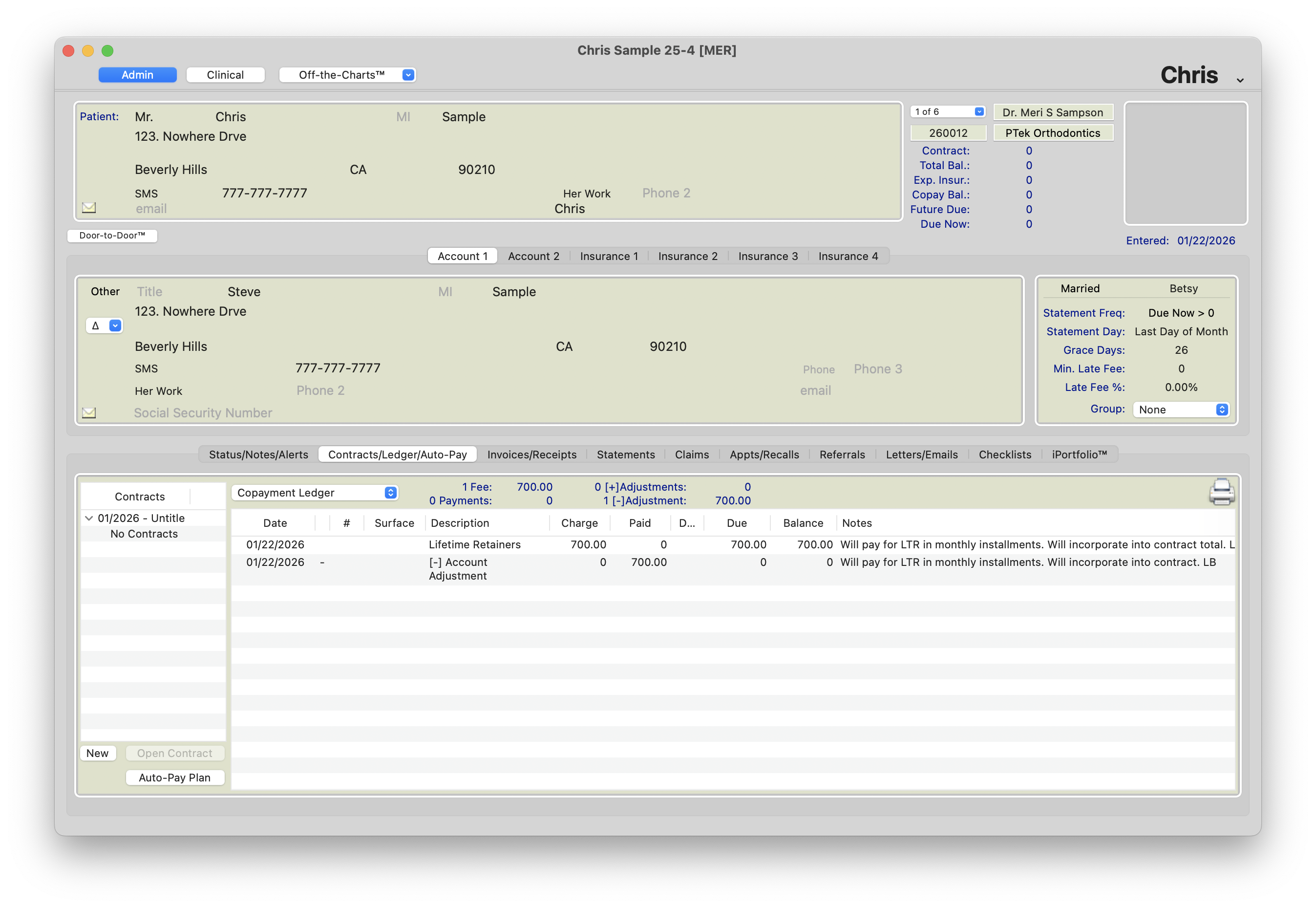
-
Create the contract to reflect a total that includes the cost of the lifetime retainer package. For step-by-step assistance with entering a contract, visit the article reference at the bottom of this page titled Create a Contract Without Insurance.
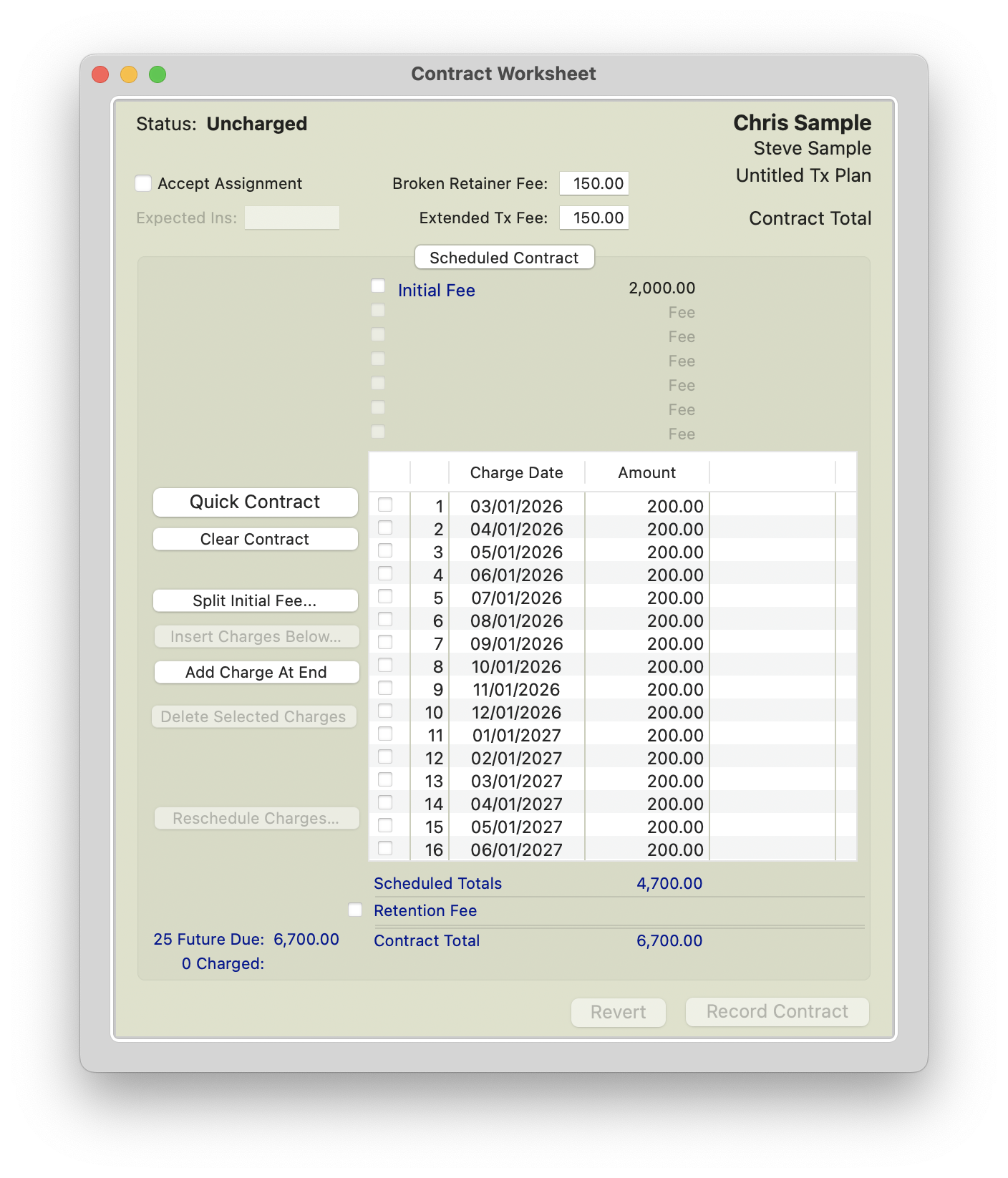
-
Record the contract and charge out the initial fee.
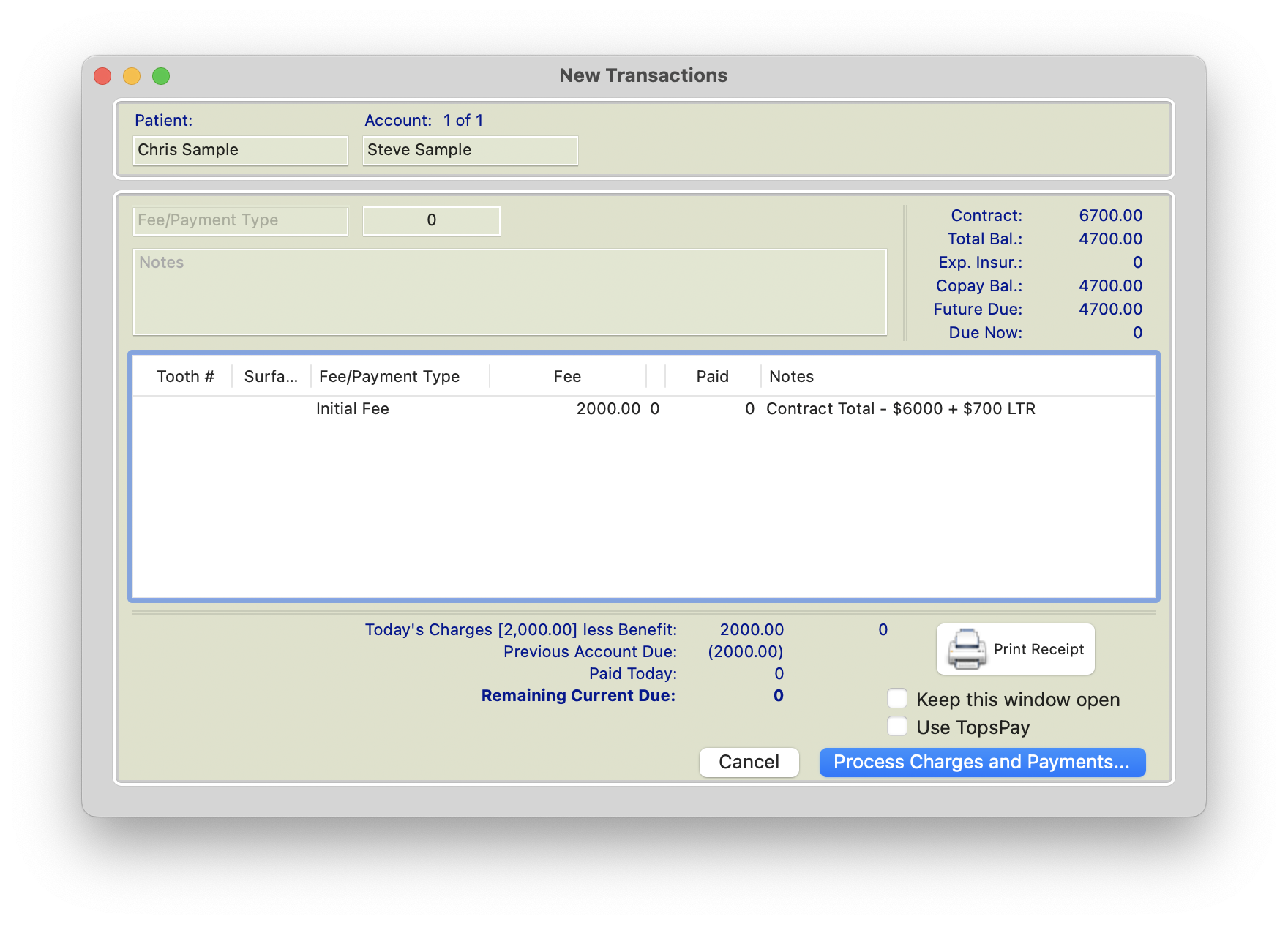
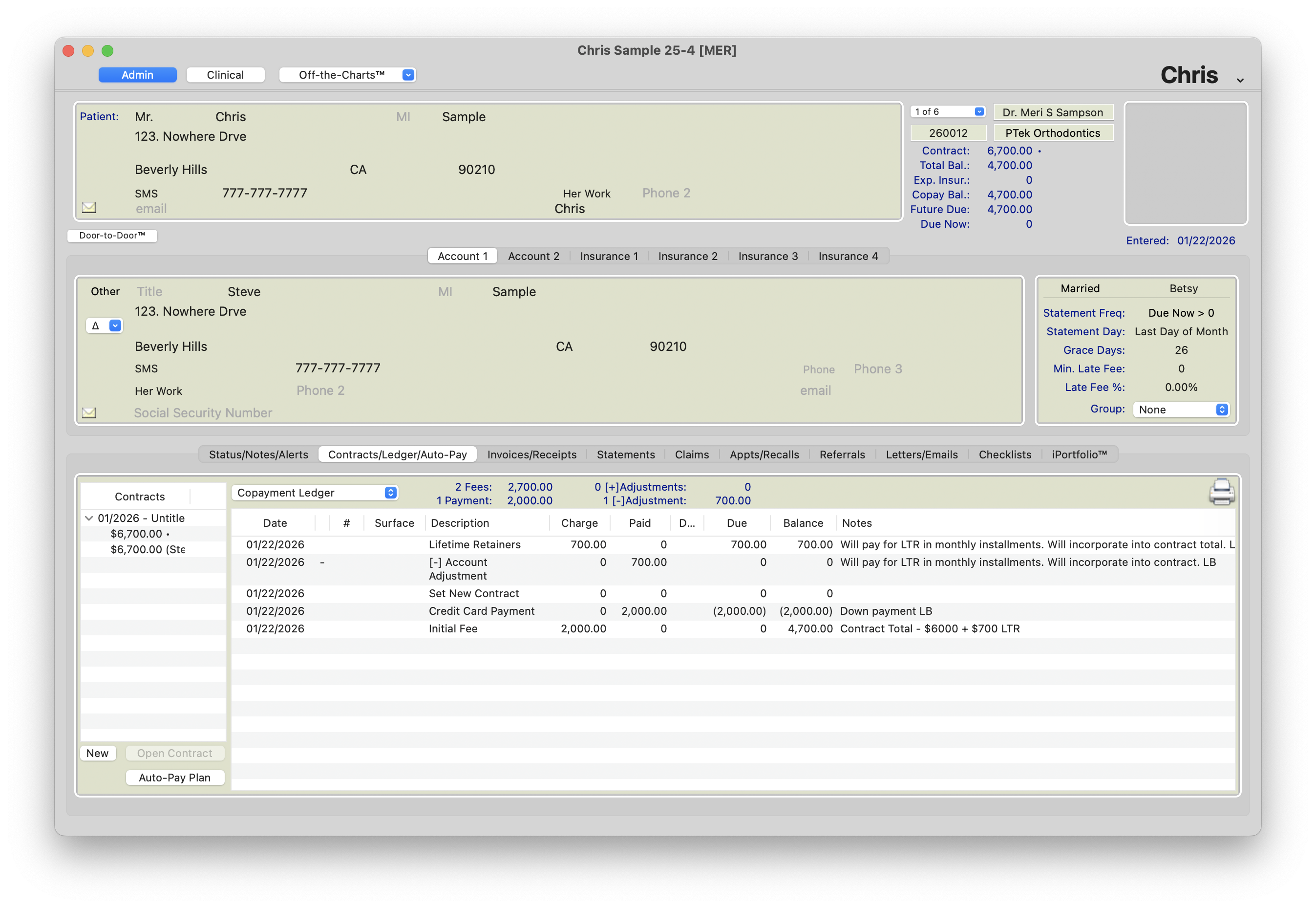
- Don't forget to create the auto-pay plan! For help with creating an Auto-Pay Plan, see the referenced article below titled Auto-Pay Plans.
Scenario 3: The patient needs to pay for the lifetime retainers in their monthly installments but the contract should not reflect the lifetime retainer fee. Their down payment also covers the cost of the lifetime retainers.
- Add Lifetime Retainer (LTR) Package to your fee schedule in Tops Ortho>Practice Set-up>Fee Schedule.
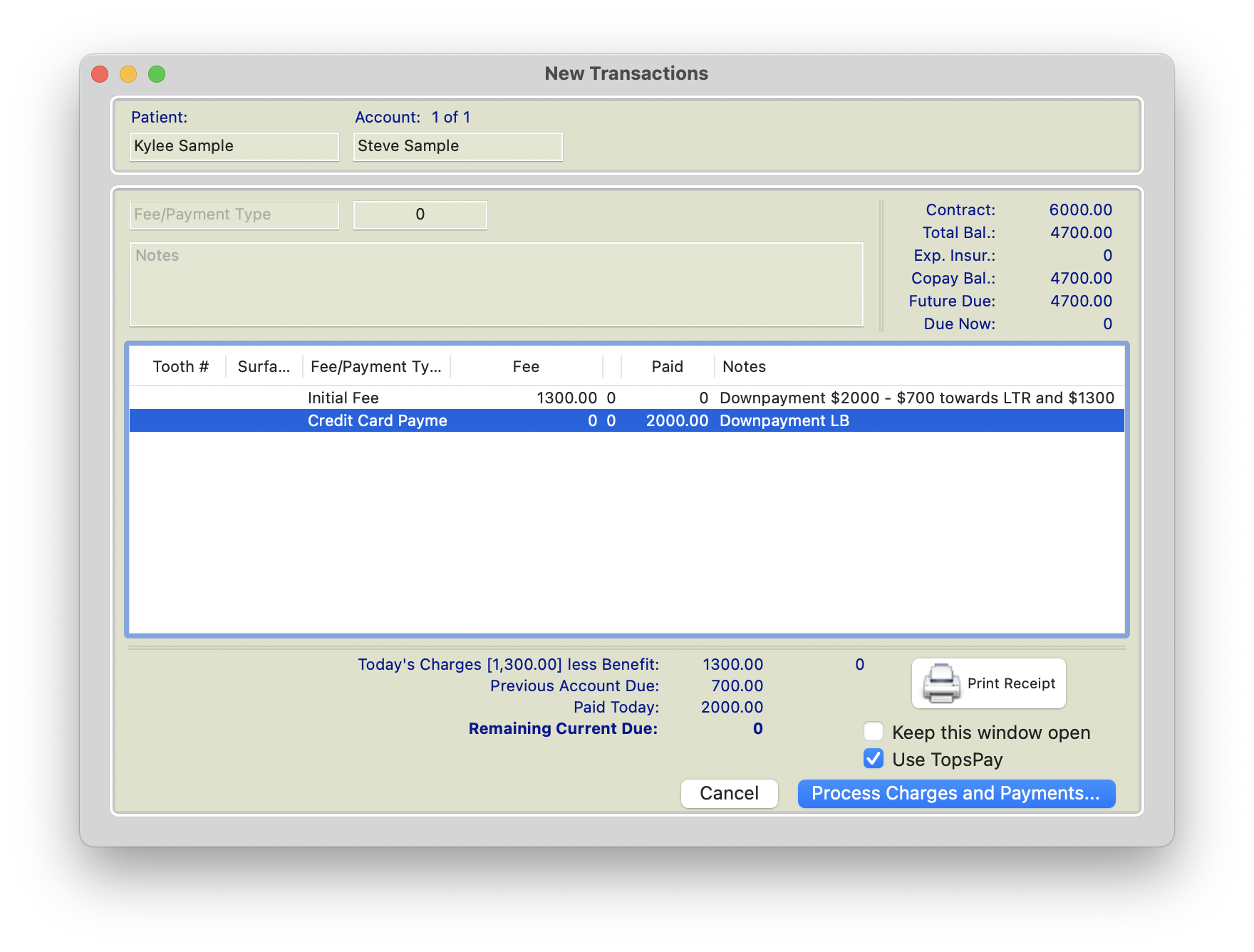
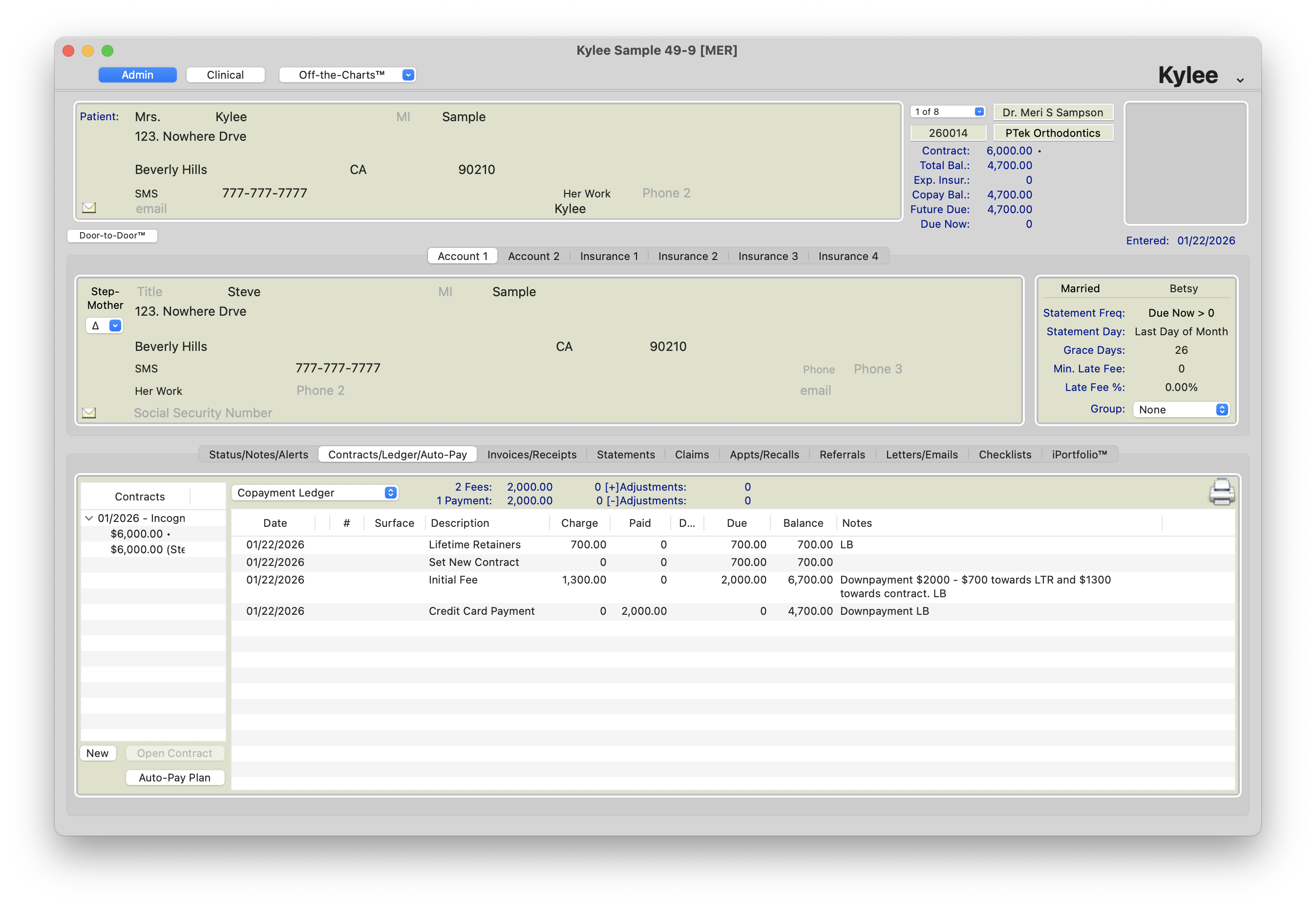
- Use the Transaction window (Command-T) to post the LTR fee to the patient's ledger.
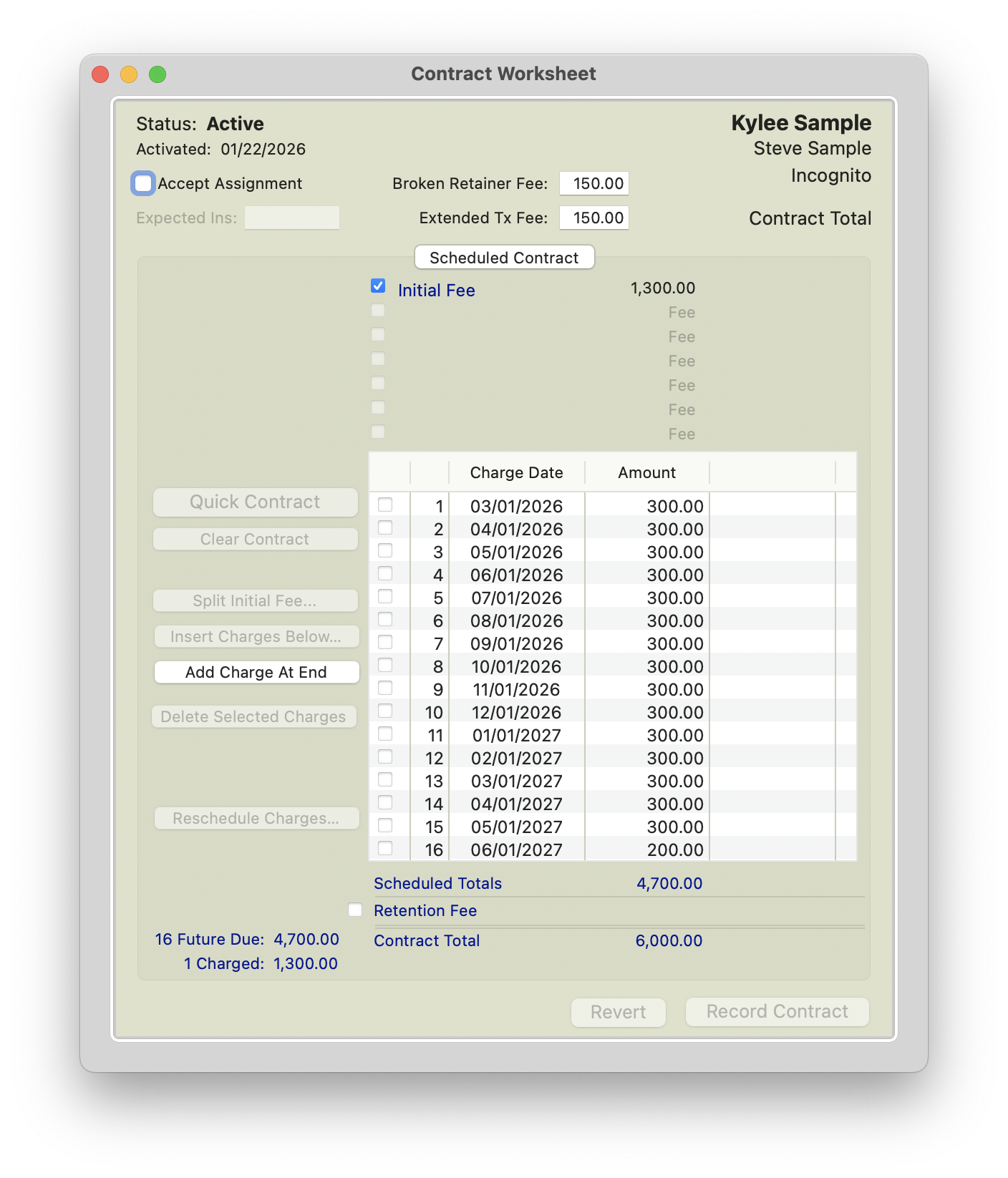
- Create the contract for the treatment, but do not include the additional cost of the lifetime retainer package. Please reference the article below titled Create a Contract Without Insurance.
-
Since the patient's downpayment for treatment covers the cost of the lifetime retainer package, then calculate the initial fee in the contract using the following method:
(Initial Fee = Patient Down Payment + Courtesies - Lifetime Retainer Package fee)
-
Charge out the initial fee and post the payment. Between the lifetime retainer fee and the initial fee, the total should reflect the amount being collected from the patient as a downpayment.
In the example below, the contract is for $6000. The lifetime retainer fee is $700. The patient is paying a downpayment of $2000. The initial fee of $1300 ($1300 = $2000 downpayment - $700 LTR fee)
-
Don't forget to create the auto-pay plan! For help with creating an Auto-Pay Plan, see the referenced article below titled Auto-Pay Plans.
Scenario 4: The patient needs to pay for the lifetime retainers in their monthly installments, but the contract should not reflect the lifetime retainer fee. Their down payment does not cover the cost of the lifetime retainers.
- Add Lifetime Retainer (LTR) Package to your fee schedule in Tops Ortho>Practice Set-up>Fee Schedule.
- Use the Transaction window (Command-T) to post the LTR fee to the patient's ledger.
- Create the contract for the treatment, but do not include the additional cost of the lifetime retainer package. Please reference the article below titled Create a Contract Without Insurance.
- Since the patient's due now reflects the fee for the Lifetime Retainer program, you'll need to have their autopay plan set up for the contract total plus the cost of the lifetime retainers.
- The patient's monthly payments from their autopay plan should be scheduled to begin before the contract monthly charges are scheduled to post. This allows the patient to start "chipping away" at the LTR fee sitting in their due now. Once the patient has completed paying the amount due for the lifetime retainers, the scheduled periodic charges from the contract should begin posting..
- In the example below, the contract is for $6000. The patient's downpayment is $500. And the office has posted an LTR fee of $700.
-
The autopay plan is created to start collecting payments in February that will apply towards the due now of $700.
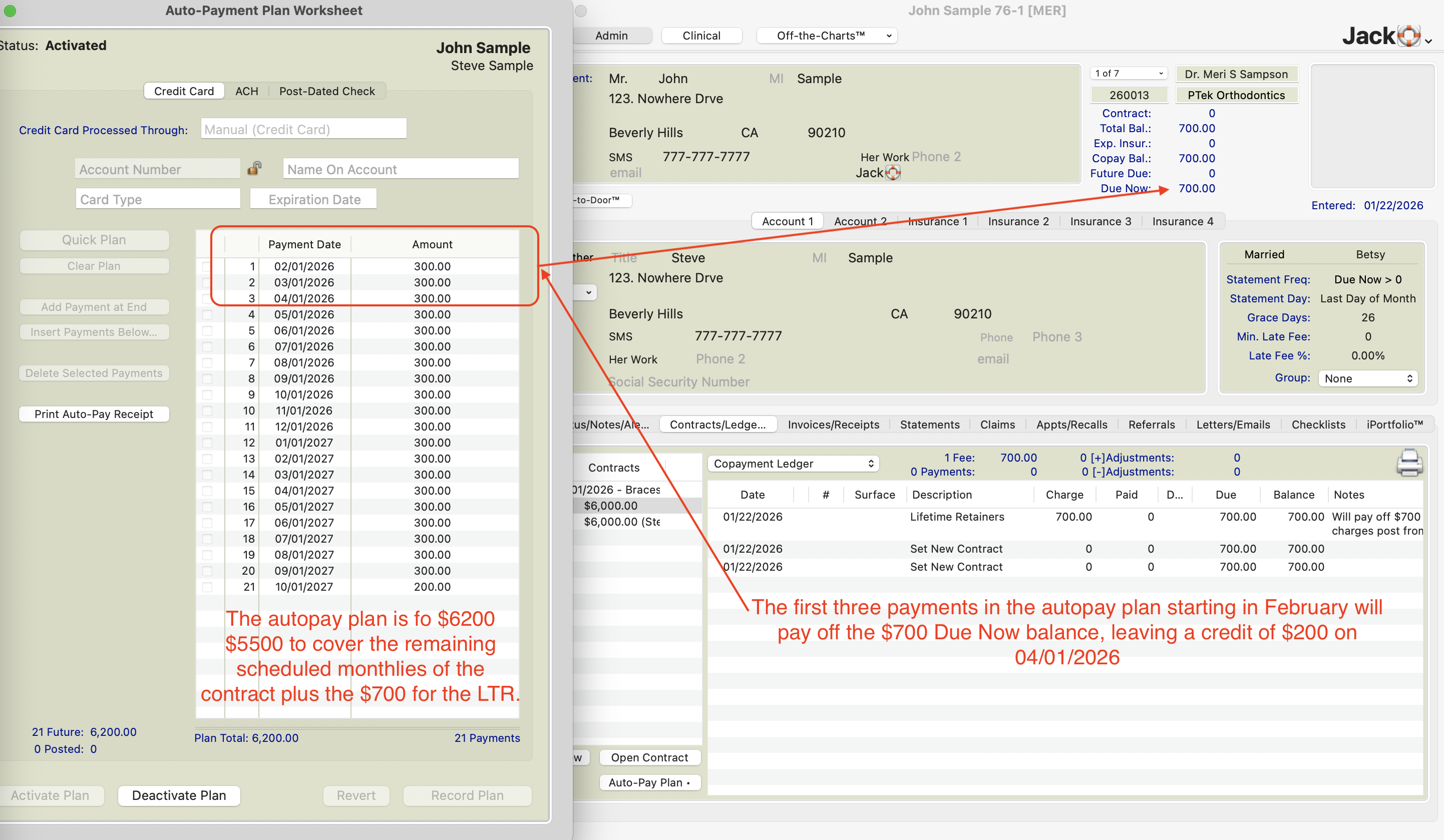
- As of 4/1/2026, the patient will have paid $900 towards their $700 Due Now, leaving a credit in their Due Now on 4/1/2026 in the amount of $200.
-
The contract is scheduled to begin charging out the remaining $5500 of the $6000 contract on 4/1/2026 Because the patient has a $200 credit in their due now from their $300 April payment , the first contract charge should only be $200. The remaining months will match the patient's autopay plan.
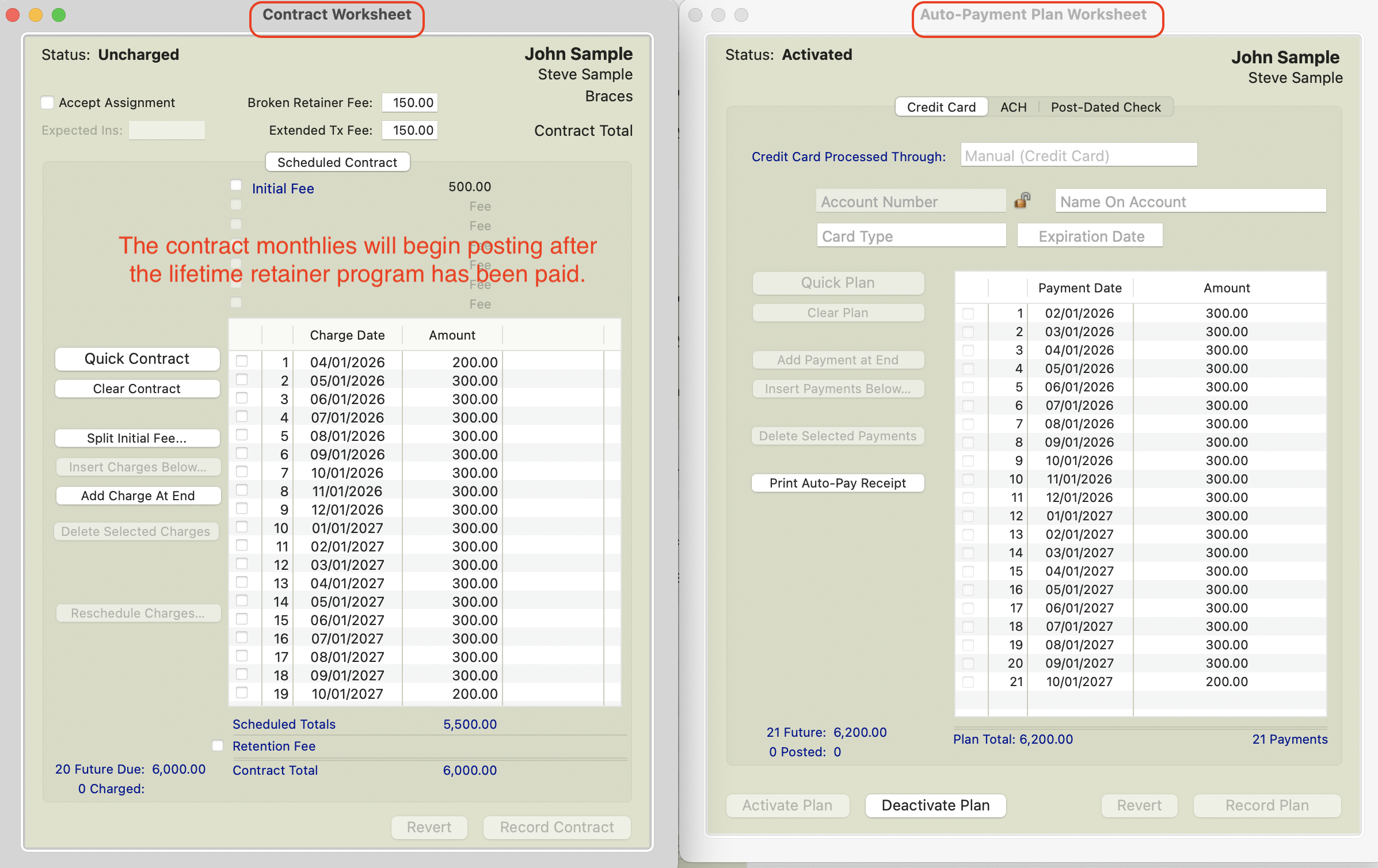
Contract worksheet compared to AutoPay Plan worksheet
-
- Don't forget to create the auto-pay plan! For help with creating an Auto-Pay Plan, see the referenced article below titled Auto-Pay Plans.
Scenario 5: The patient needs to pay for the lifetime retainer fee in their monthly installments, the contract should not reflect the lifetime retainer fee and the patient has insurance.
Reference the article below titled Creating a Contract with Insurance. You will accept assignment in the contract worksheet. In the copay column, follow the steps in scenario 3 or 4 depending on your situation.
Scenario 6: The patient needs to pay for the lifetime retainer fee in their monthly installments, the contract can be increased to reflect the lifetime retainer fee but insurance should receive the claim without the lifetime retainer fee.
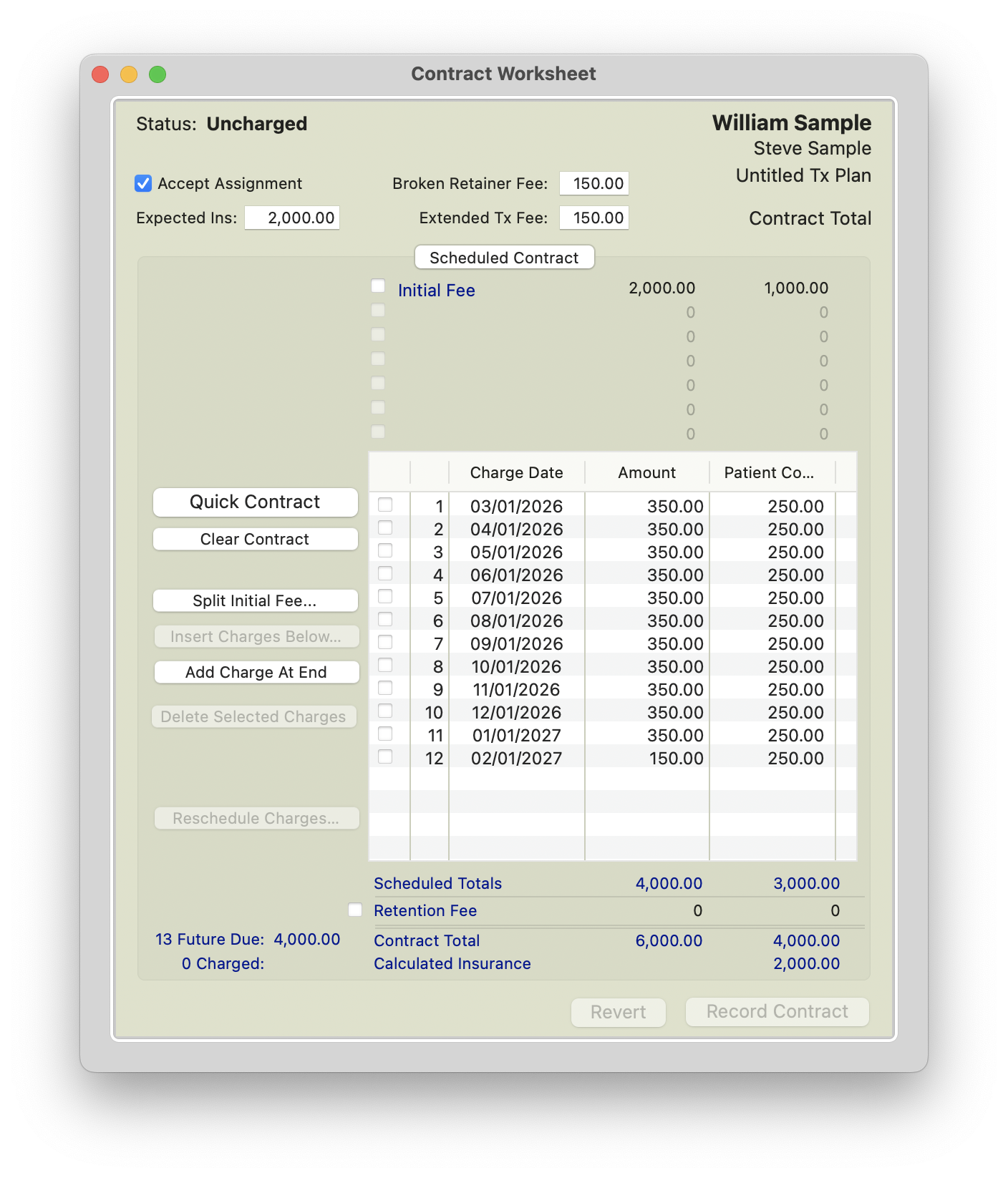
In the example below, the contract is $6000 and the additional lifetime retainer fee will increase the contract to $6700.
- From the contract worksheet, enter the contract with insurance as you would normally without the lifetime retainer fee. The copay monthlies will NOT match what was agreed upon with the patient (at this point).
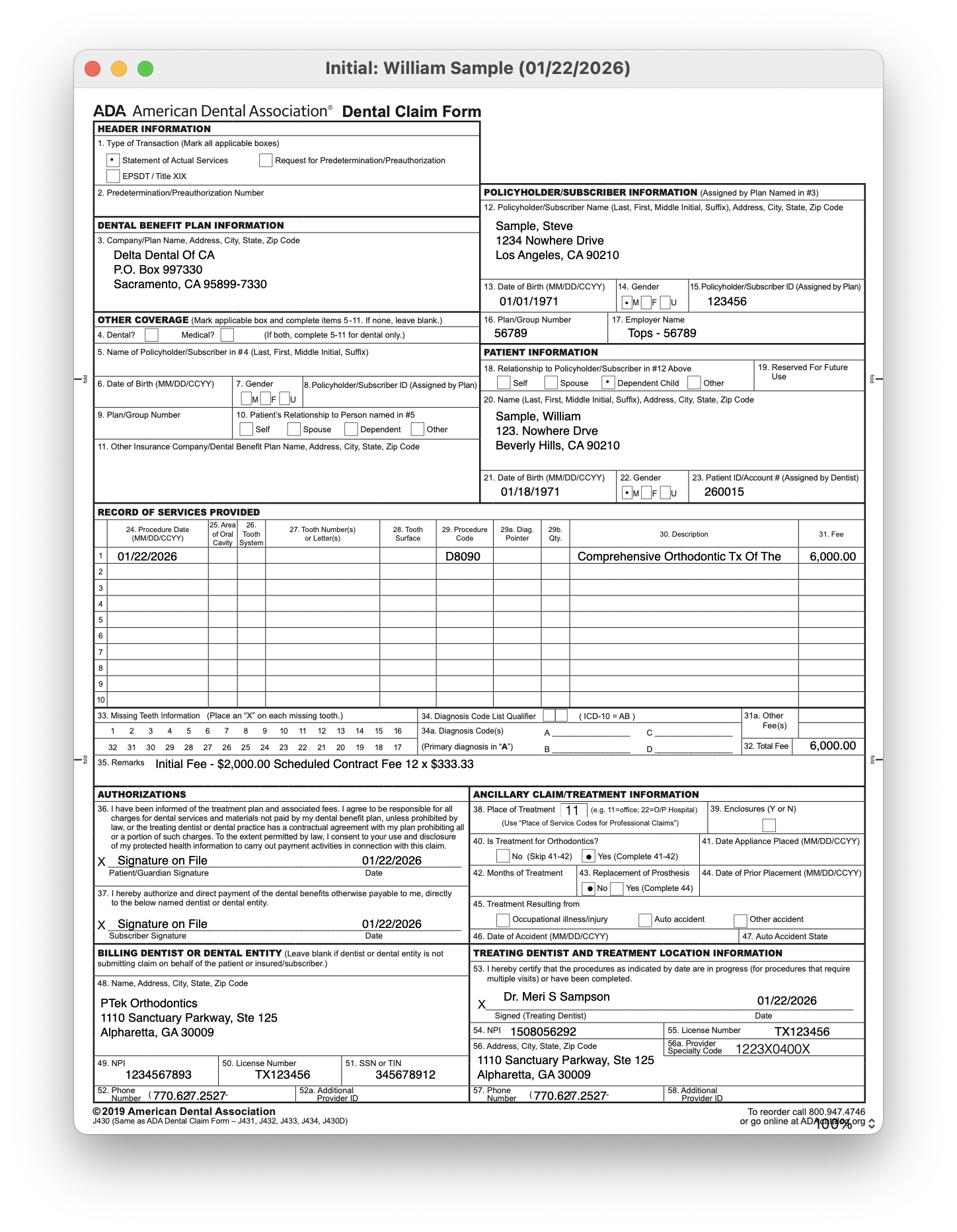
- Record the contract and charge out the initial fee to create the initial claim. The initial claim will show the contract amount prior to adding in LTR.
|
|
|
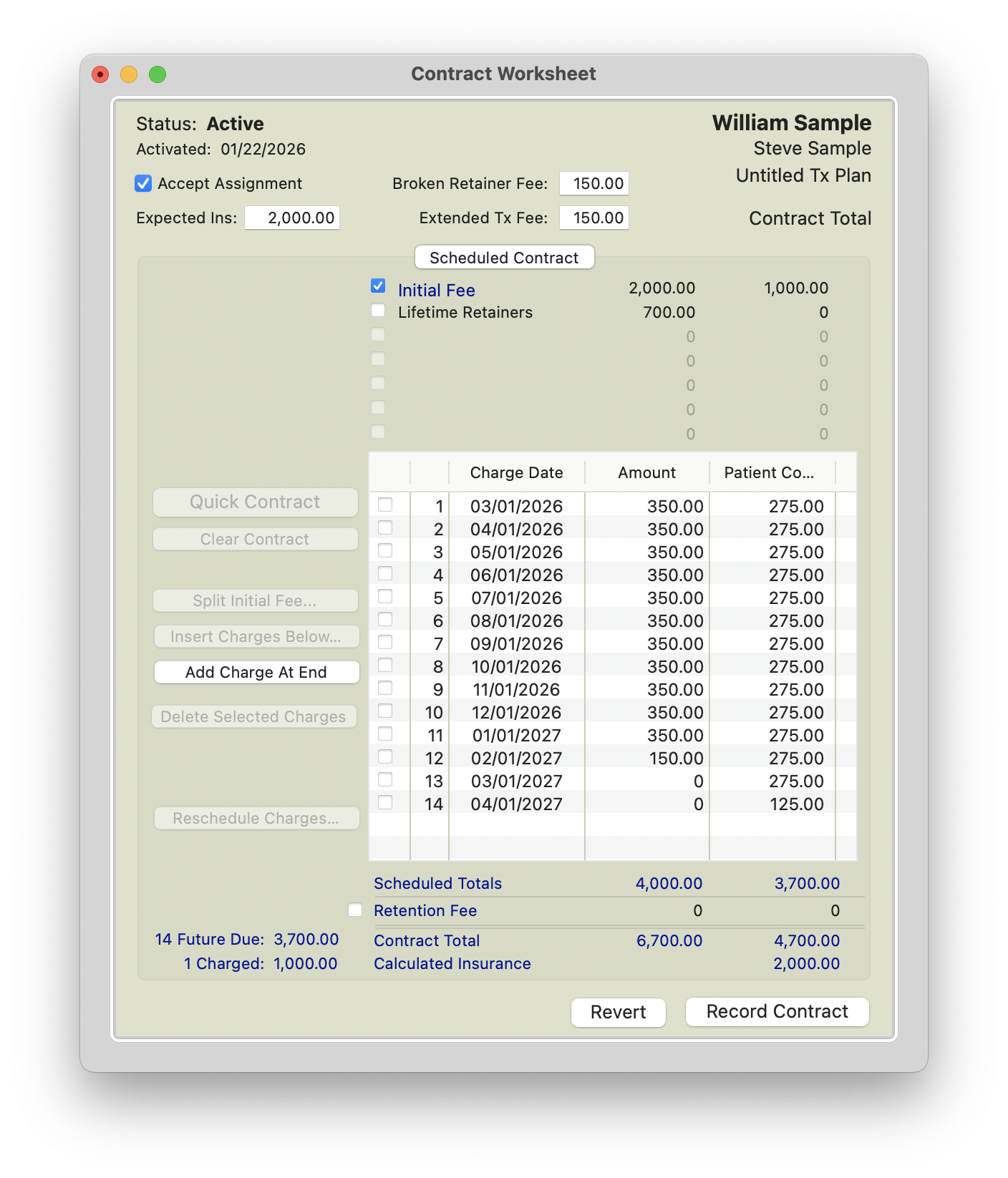
- Open the contract worksheet add LifeTime Retainers as an Undated charge. Enter the full amount for the LTR in the Amount column; in the Patient Copay column, do not enter an amount on the line for the Lifetime Reatiners. Instead, update the patient’s monthly charges to reflect the correct monthly amounts that include the fee for the LifeTime Retainers.
-
Record the contract. Expected Insurance and Calculated Insurance should match. The contract amount has now increased.
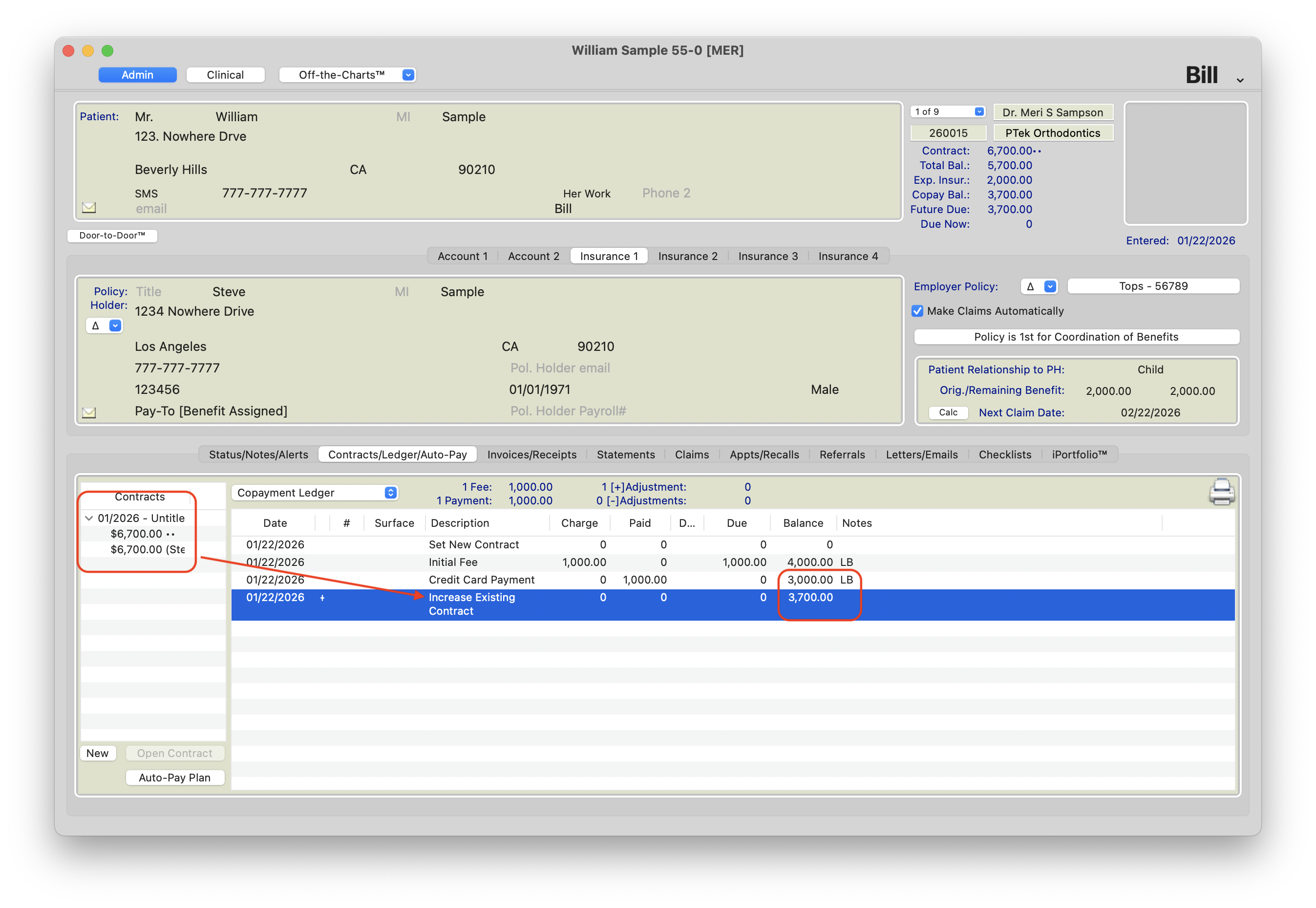
-
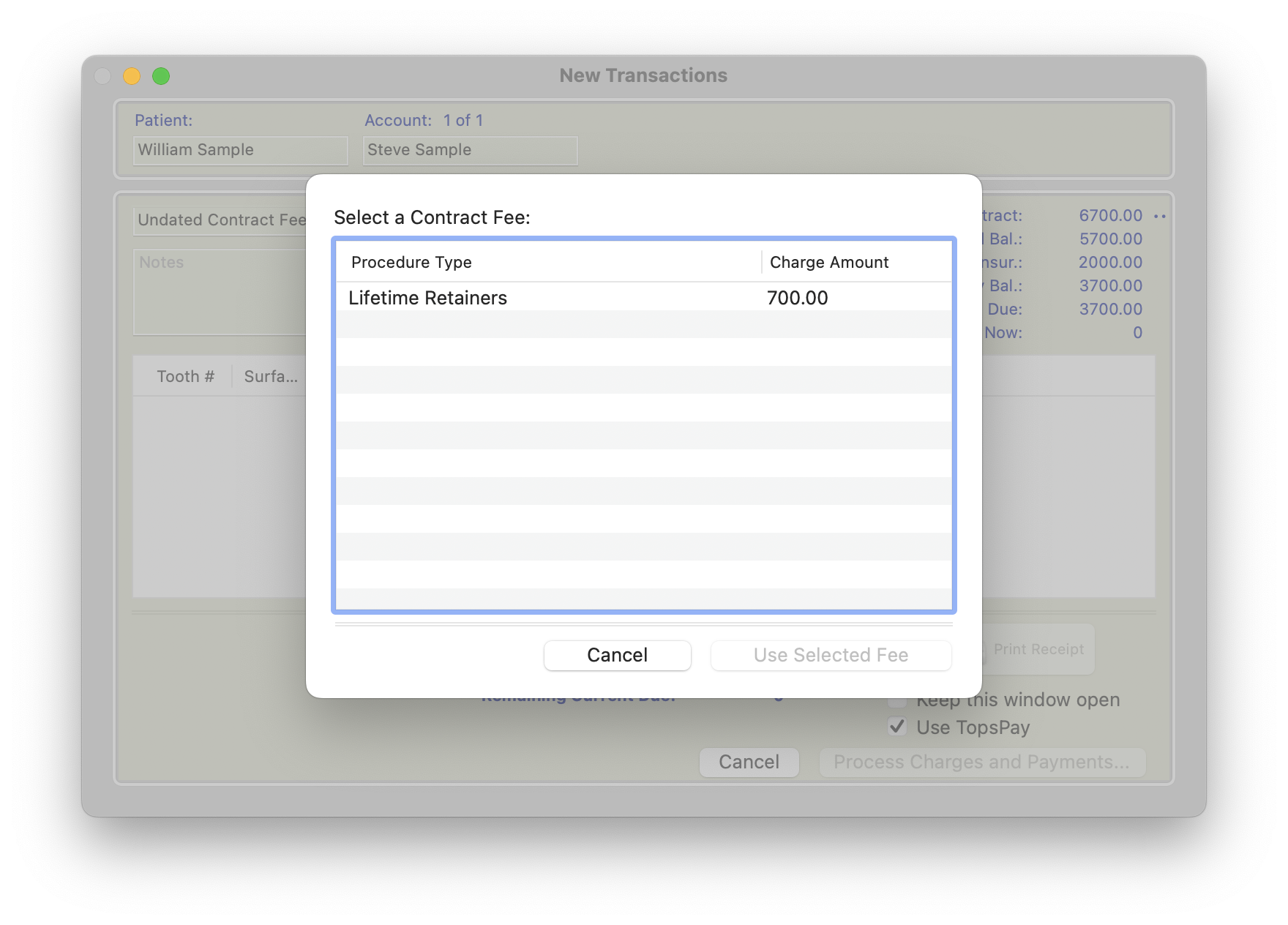
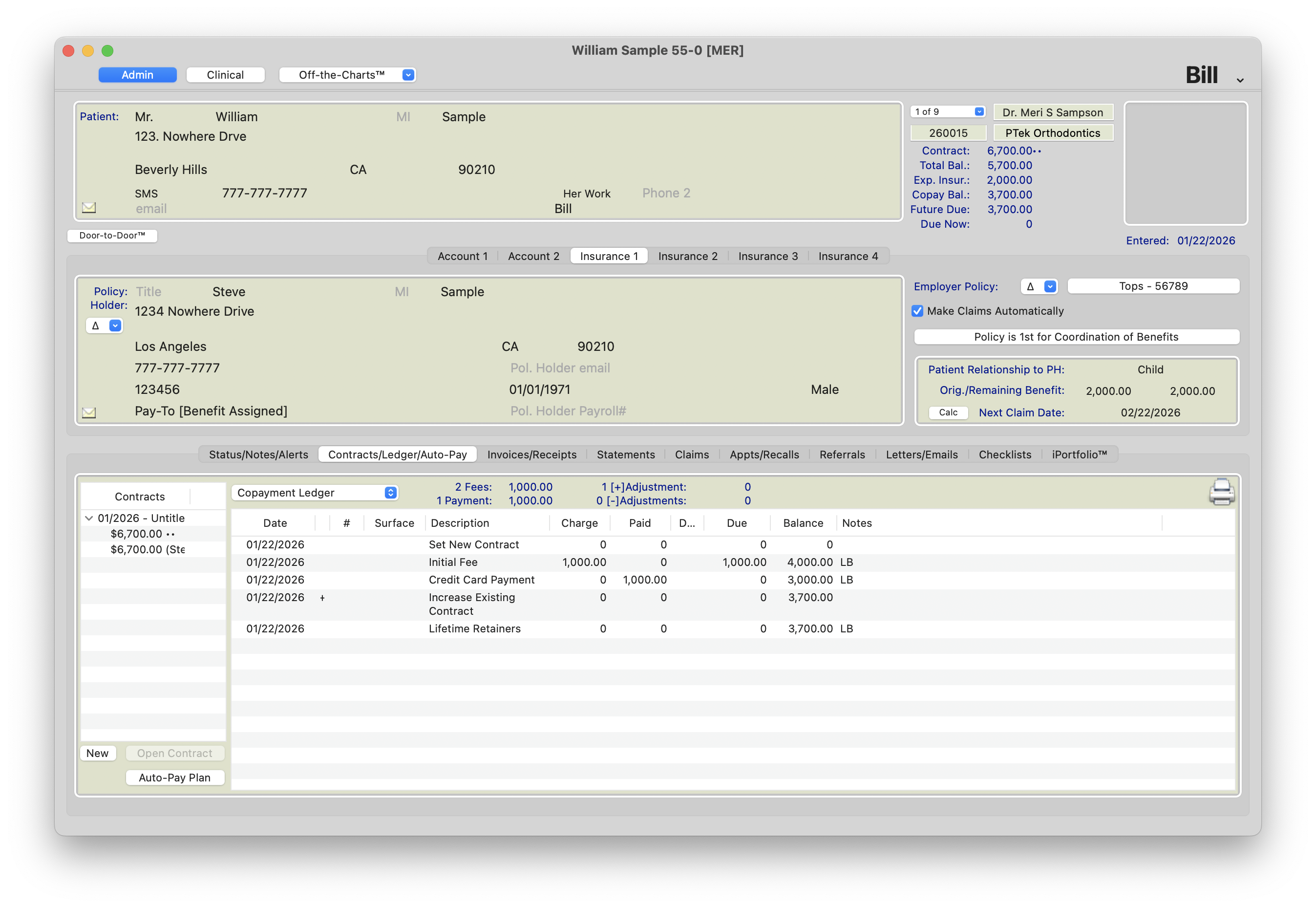
If LifeTIme Retainers need to be tracked, the practice has the option to charge out the undated charge by pressing Command-T->Undated Charge and select LifeTime Retainers. The amount will not appear on the patient’s ledger, but will charge out as part of the contract fee on the Financial Day Sheet and Transaction Audit Trail.
- Don't forget to create the auto-pay plan! For help with creating an Auto-Pay Plan, see the referenced article below titled Auto-Pay Plans.
Tops Tips for Reporting and Tracking
Reports
Need a report for your LifeTime retainers? No problem! Because each scenario detailed above involves recording the LTR fee as a transaction in the ledger, you can easily track how many Lifetime Retainer packages are elected by your patients in multiple Tops reports.
- Transactions of Type

- Fees by Month Summary

Tracking
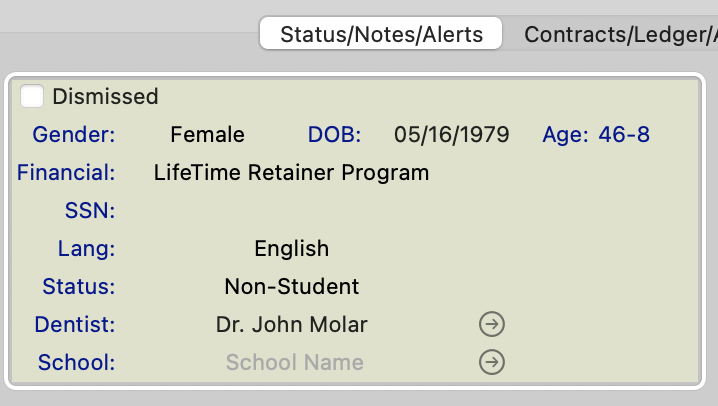
- Create a Financial label in Tops Ortho>Practice Set-up>Labels>Financial titled Lifetime Retainer Program. When a patient elects and pays for the program, update the Financial status to reflect the program.
- Add an emojii in the patient's Preferred Name field to easily identify if a patient has the lifetime retainer program.
|
|
|