
Create a Contract Without Insurance
When a patient does not have insurance and chooses to pay for treatment through a down payment and monthly installments, Tops allows you to create a Treatment Contract that distributes their financial responsibility between an Initial Fee and scheduled monthly charges.
The Initial Fee represents the amount charged at the beginning of treatment. It may include the patient's upfront payment and any applicable discounts or courtesies offered by the practice. The remaining contract balance is distributed across future monthly charges based on the agreed-upon financial arrangements.
How the Initial Fee is satisfied depends on the practice's financial arrangements with the patient. The practice may choose to offer upfront discounts or courtesies, or the patient may be responsible for the entire amount. The Initial Fee can be satisfied through patient payments, applicable courtesies, or a combination of both.
Keep in mind: Charging the Initial Fee and collecting the payment are two separate actions. Once the Initial Fee is charged, the amount will appear in the patient's Due Now balance, even if payment has not yet been collected. Conversely, if the patient pays in advance, their payment will appear as a credit in Due Now until the contract is activated and the Initial Fee is charged.
When Should the Contract Be Activated?
Even when a patient does not have insurance, it's best to activate the Treatment Contract on the date of initial appliance placement.
Why does this matter? If the patient provides insurance information later and the practice needs to submit a claim, the procedure date generated in Box 24 will reflect the contract activation date.
Activating the contract on the date treatment actually begins helps ensure the procedure date on future insurance claims matches the patient's Treatment Start Date.
Before Activating the Treatment Contract
Tops Tip: We recommend recording the contract first and waiting to activate it until the patient's payment has been collected and they are ready to begin treatment.
Even when financial arrangements have been confirmed, patients may change their minds about how they want to pay. For example, a patient who originally agreed to pay in full may decide to use their HSA card to make monthly payments instead.
By collecting payment before activating the contract, the practice has an opportunity to make any necessary changes to the payment arrangements before the Initial Fee is charged.
Remember: Once the Initial Fee has been charged, it cannot be modified, deleted, or voided. Ideally, contract activation should coincide with the initial placement of appliances.
Creating and Recording a Contract
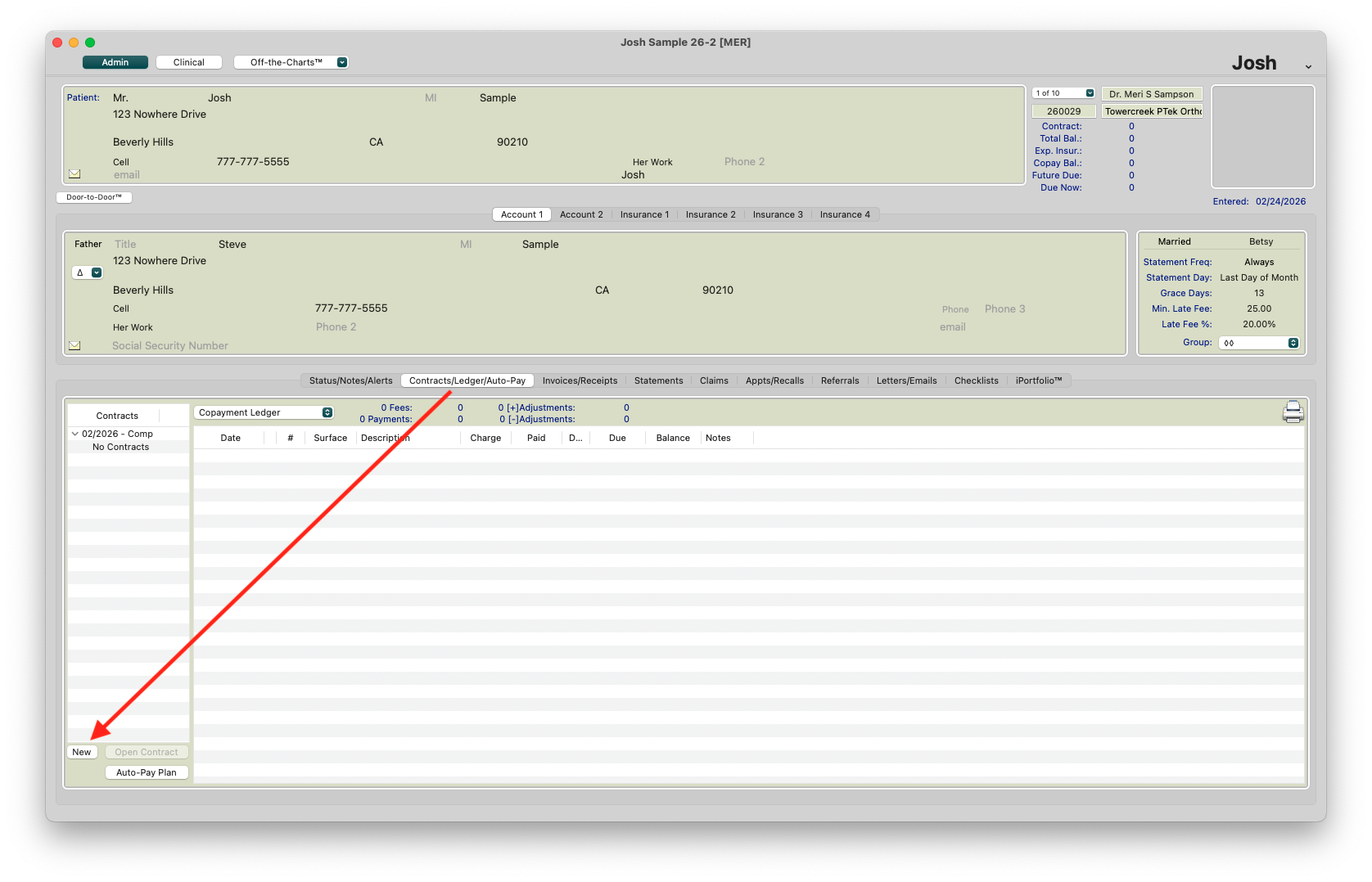
Treatment Contracts are created and recorded in the Contracts/Ledgers tab of the patient's chart. Before beginning, make sure you're working with the correct Treatment Phase and Treatment Plan.
- Open the patient's chart; go to View > Patient Info or press Command I.
- Click the Contracts/Ledgers tab.
-
Click New and select the appropriate Treatment Plan.
-
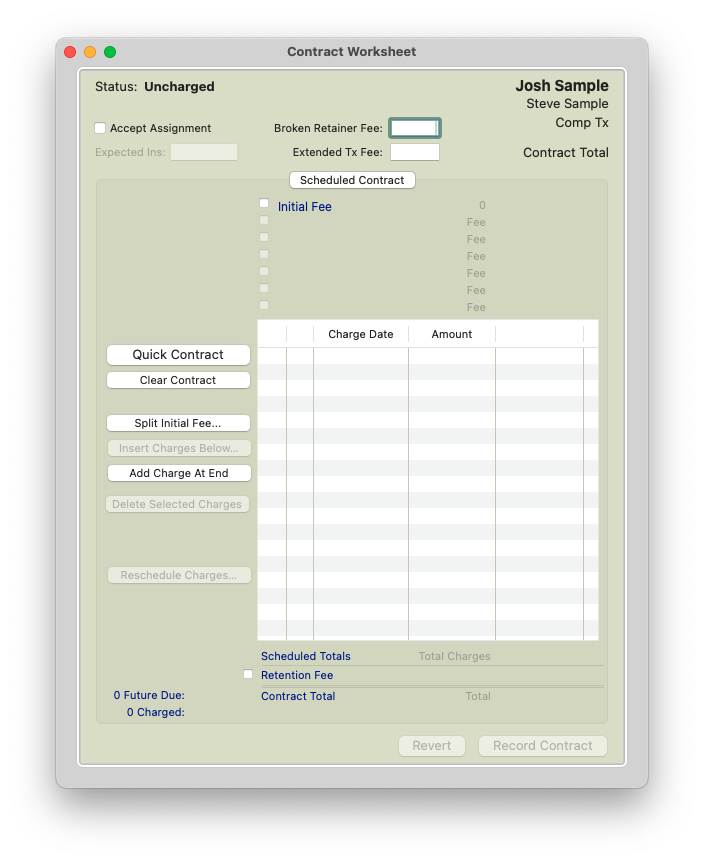
The Contract Worksheet displays
-
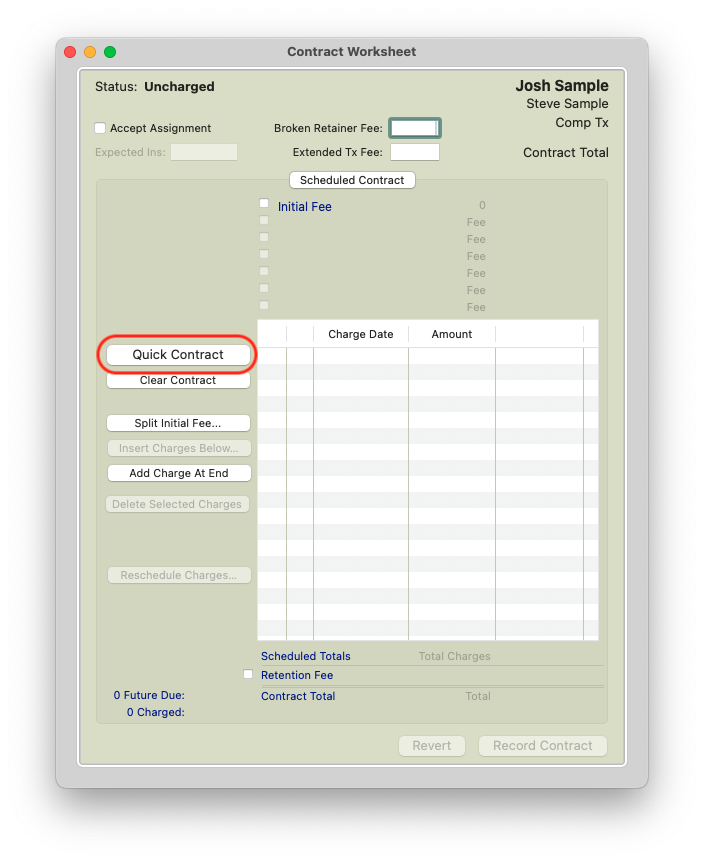
Click the Quick Contract button. The Quick Contract displays.
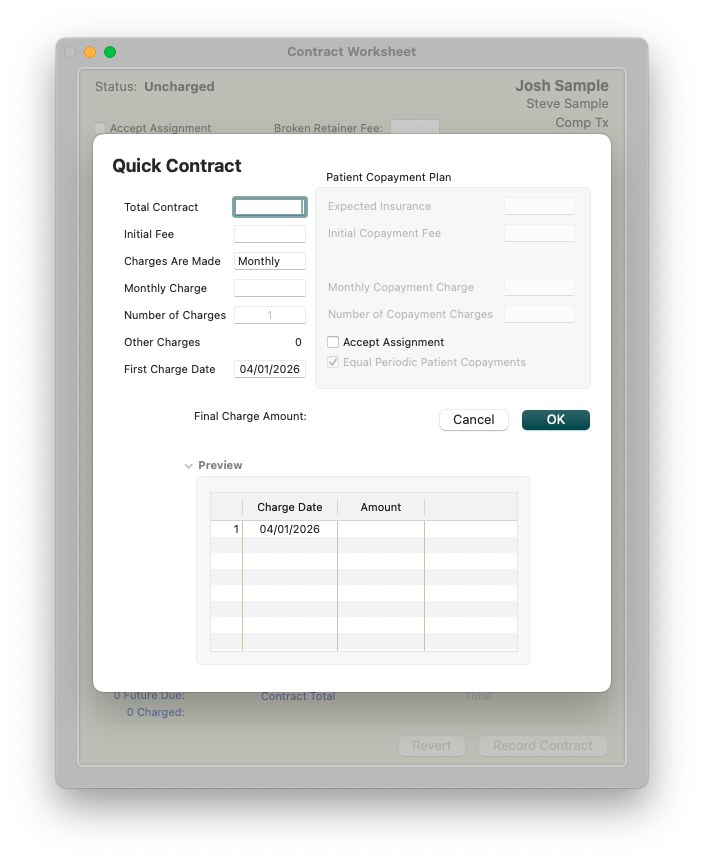
- Complete the fields:
- Total Contract: The total amount charged for treatment.
- Initial Fee: The amount charged to initiate treatment. This number should be the sum of what the patient is paying AND discounts they receive. For example, if the patient is paying $1000 for her down payment and she receives a $200 family discount, the Initial Fee will be $1200.
- Charges are Made: The frequency of the contract charges.
- Monthly Charge: How much you will charge the patient per month. You can enter an amount and Tops Ortho will auto-calculate the number of charges.
- Other Charges: Not used at this time.
-
First Charge Date: Tops Ortho calculates this date based on the date that the Quick Contract is created. If the next month is more than three weeks away, the first payment will be scheduled for the that month. If the next month is less than three weeks away, Tops Ortho will schedule the first payment for the following month.


The final month's charge may be slightly different due to rounding up or down.
- Click OK.
-
Verify all numbers are accurate.

- Click Record Contract.

Initializing the Contract
- When you are ready to activate the contract, go to Action > New Transaction or press Command T.
- Select Initial Fee and select the recorded contract amount and treatment plan you wish to activate. Click Use Selected Contract.
- Enter your note and click Process Charges and Payments.


- Active contracts will show one or two dots next to the contract total.
- Contracts without insurance will display one dot.
- Contracts with insurance will display two dots.
- Deactivated contracts will display a dash.


🍿 Watch a Video
Creating Non-Insurance Basic Financial Contracts