
Appointment Analysis from the Reports menu
Within the Reports menu, there are several reports that can assist with analyzing your appointment types.
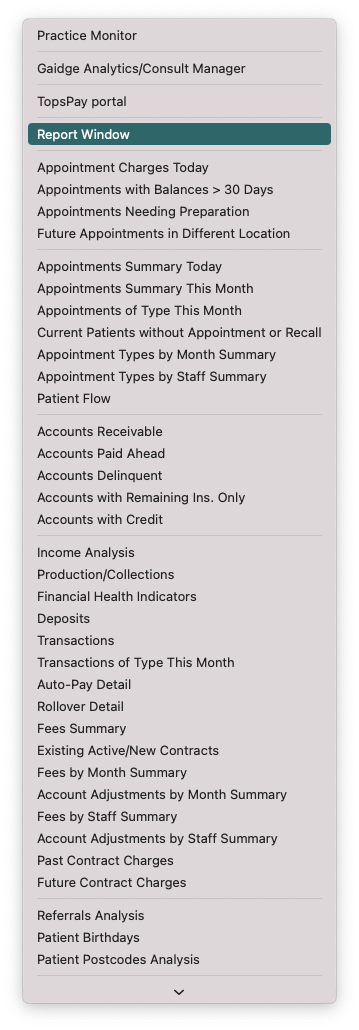
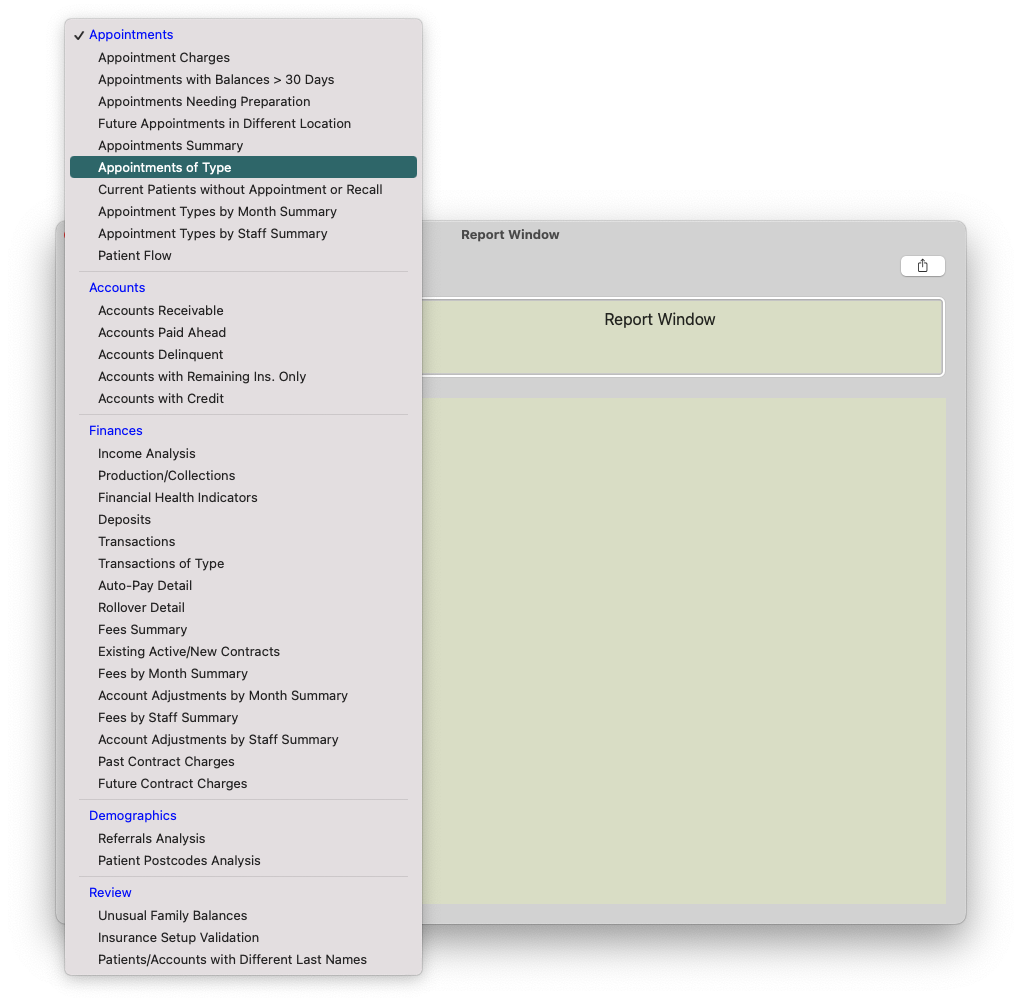
Tops Tip: From the Reports menu, we suggest you select the Reports Window to open a separate reporting window that divide the Reports menu into sections.
|
|
|
Appointment Charges
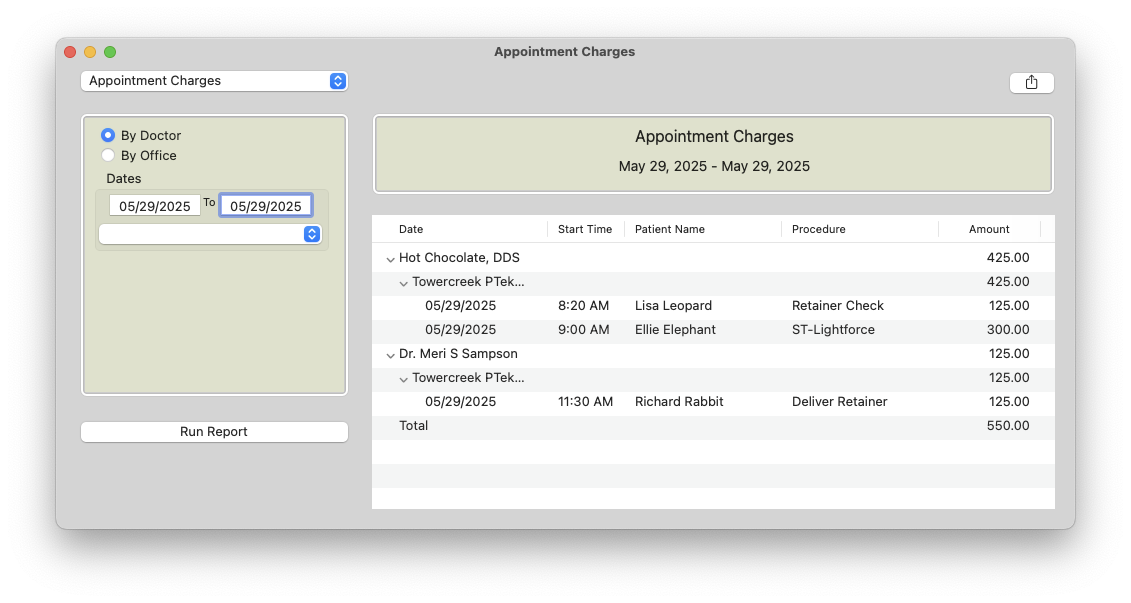
Allows for planning to charge patients for specific procedures not associated with a contract or contract fees. Displays patients that have a procedure scheduled with a corresponding charge for today
- Go to Reports > Appointment Charges Today.
-
From the report window, select the date/date range for which you are preparing.
- Helpful Features
- Sortable columns
- Hot clickable to the appointment book
- Double-click on appointment and add to grid notes if desired
- Can show future charges that are on the appointment book
-
Pulls information from Tops Ortho>Practice Set-up>Calendar>Fee Schedule>Fee>Expected Charge

- Suggested Uses
- Front desk knows to charge the displayed amount to the patient following their appointment
- Can be compared with the Financial Day Sheet at the end of the day to verify all charges posted as expected
Appointments with Balances > 30 Days
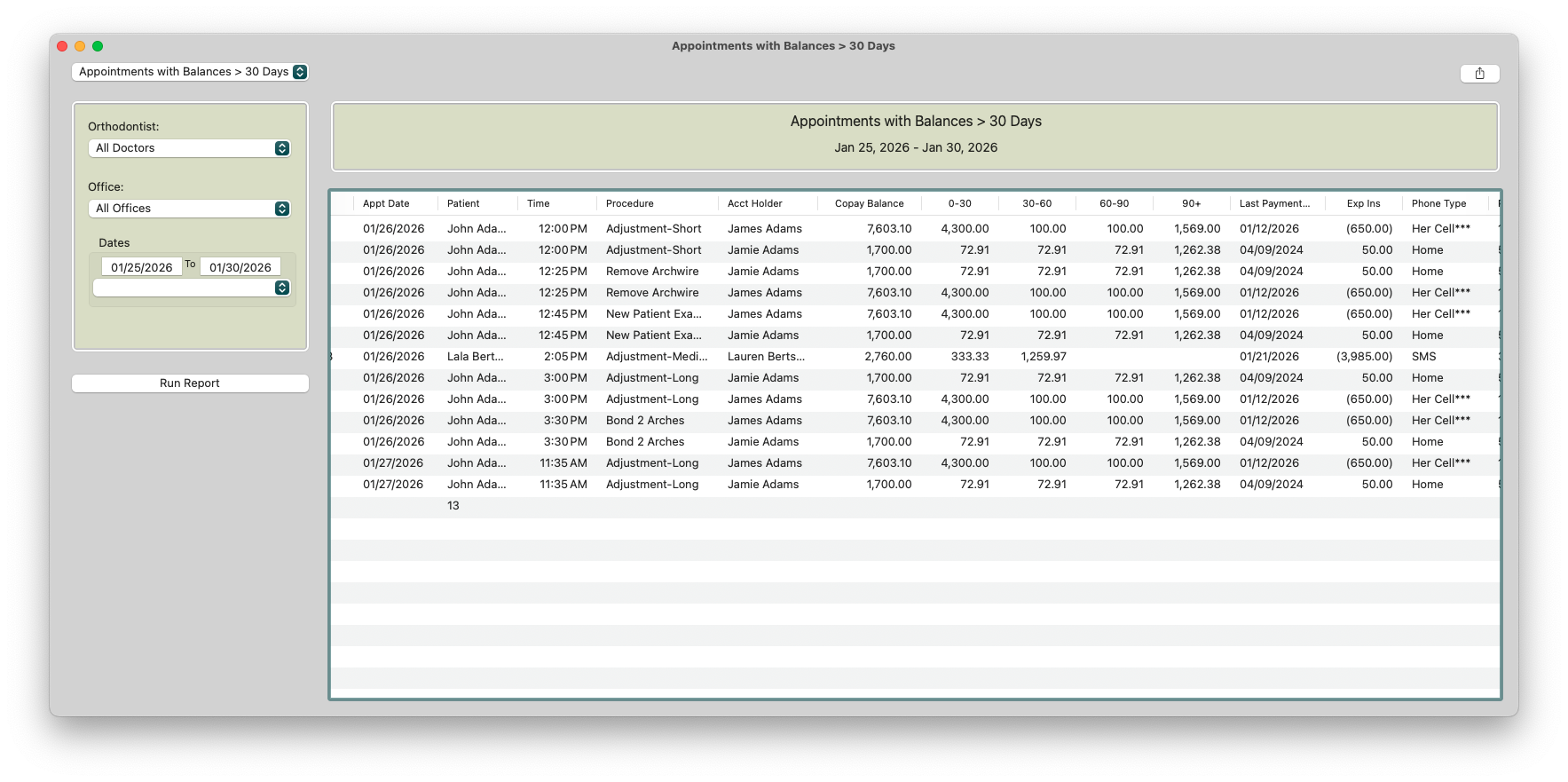
Lists all appointments for a specified date range that has an account due now greater than $0. Helps to identify those patients being seen that need financial attention
- Go to Reports > Appointments with Balances > 30 Days.
-
From the report window, select the date/date range for which you are preparing.
- Helpful Features
- Hot Clickable
-
Sortable Columns
- Suggested Uses
- Make it easy to alert the patient and the front desk of appointments that need financial attention
- To view each patient from the report, double-click on the patient’s name.
- When the Patient Information window opens, select the Appt/Recalls tab and double-click on the Appointment.
- From the Appointment Book, double-click the Appointment to open the Appointment Information window.
-
Place a checkmark in the Requires Staff Attention checkbox. It may also be helpful to place an emojii 💰or financial note in the Grid notes for visual reference that a balance needs to be paid. When the patient checks in, they will receive a prompt to go to the front desk to discuss financials.
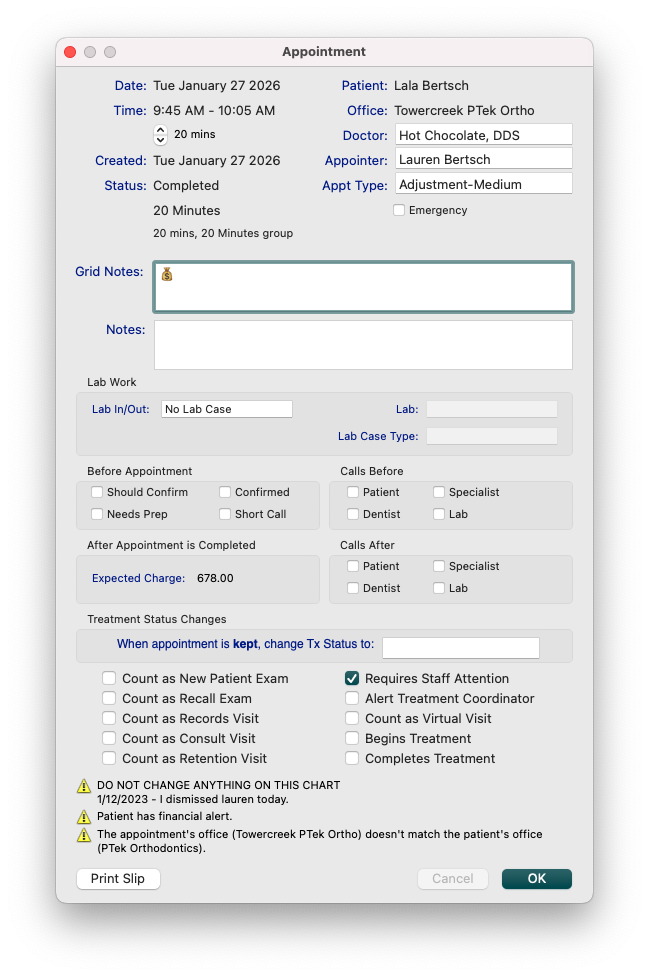
- Have the list open at the front desk to identify patients that need financial attention
- Make it easy to alert the patient and the front desk of appointments that need financial attention
Appointments Needing Preparation
Lists all appointments for a specified date range with “Needs Prep” checked in the Appointment Confirmation window
- Go to Reports > Appointments Needing Preparation
- From the report window, select the date/date range for which you are preparing.
|
|
|
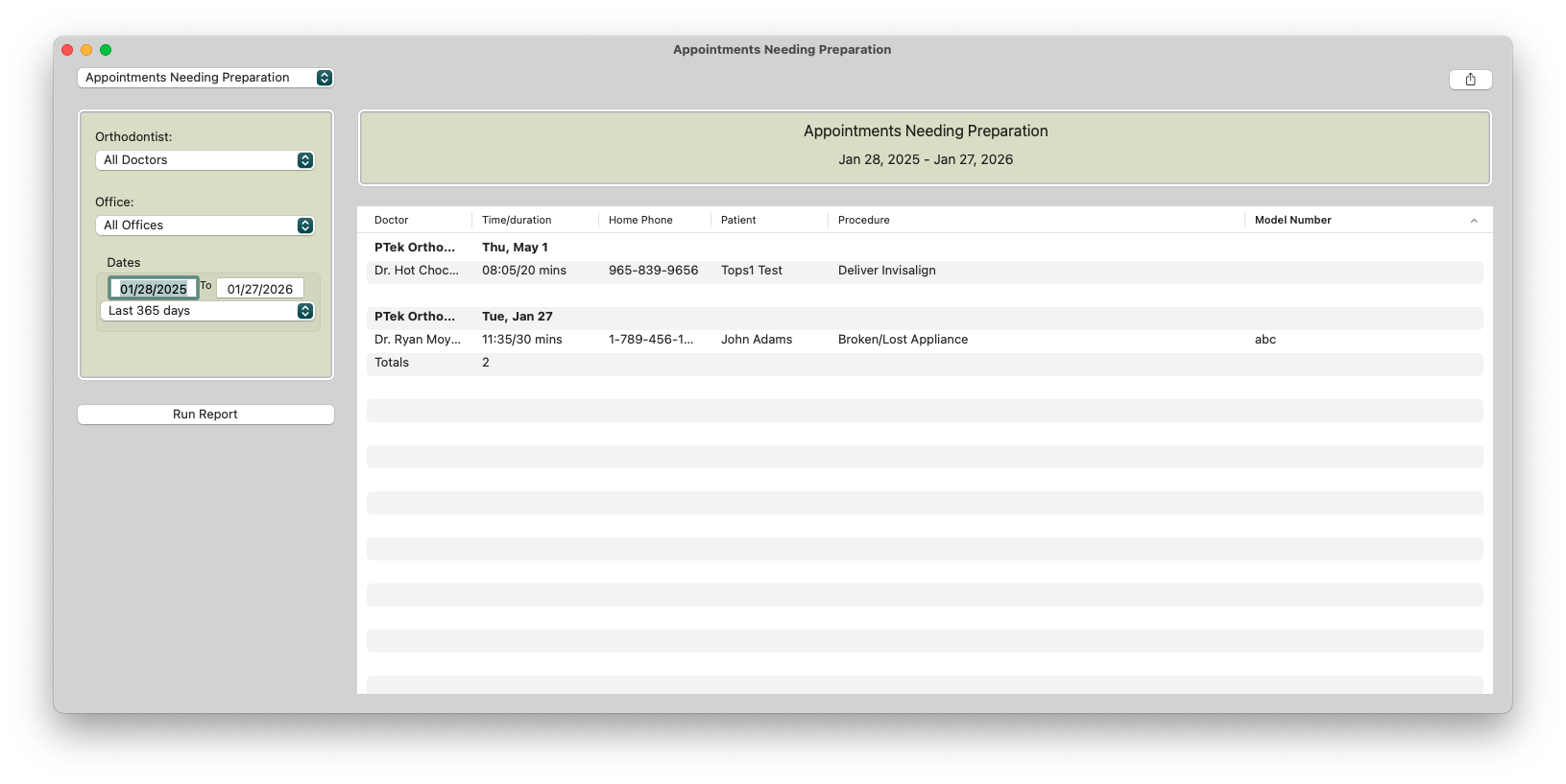
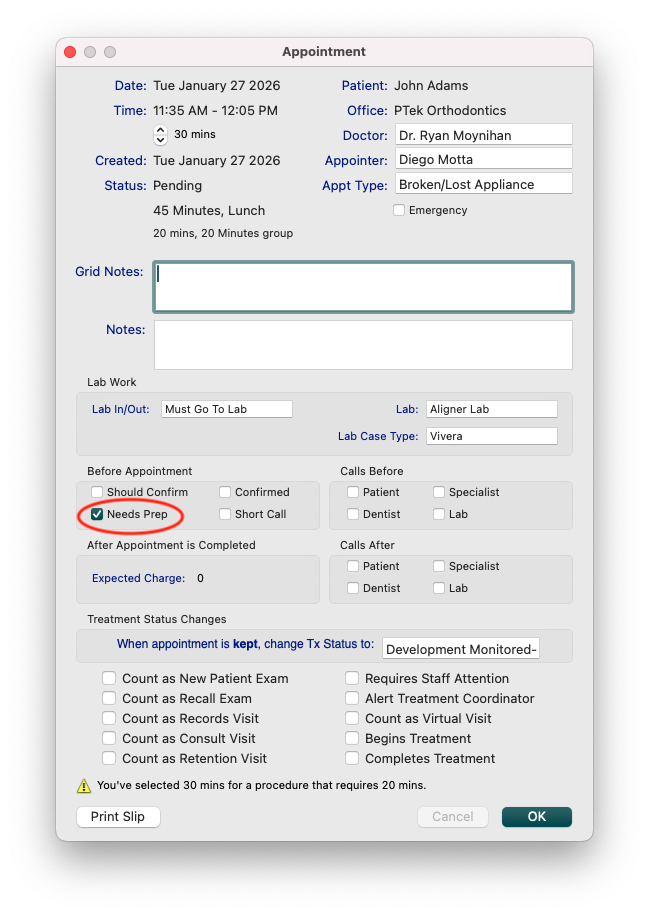
- Helpful Features
- Hot Clickable
- Sortable Columns
- Suggested Uses
- Use in tandem with your Appointments List when tracking lab work. Please reference the article at the bottom of this page.
Future Appointments in Different Location
Lists all appointments for a specified date range where the appointment’s office location is different from the office location assigned to the patient.
- Go to Reports > Future Appointments in Different Location
- From the report window, select the date/date range for which you are preparing.
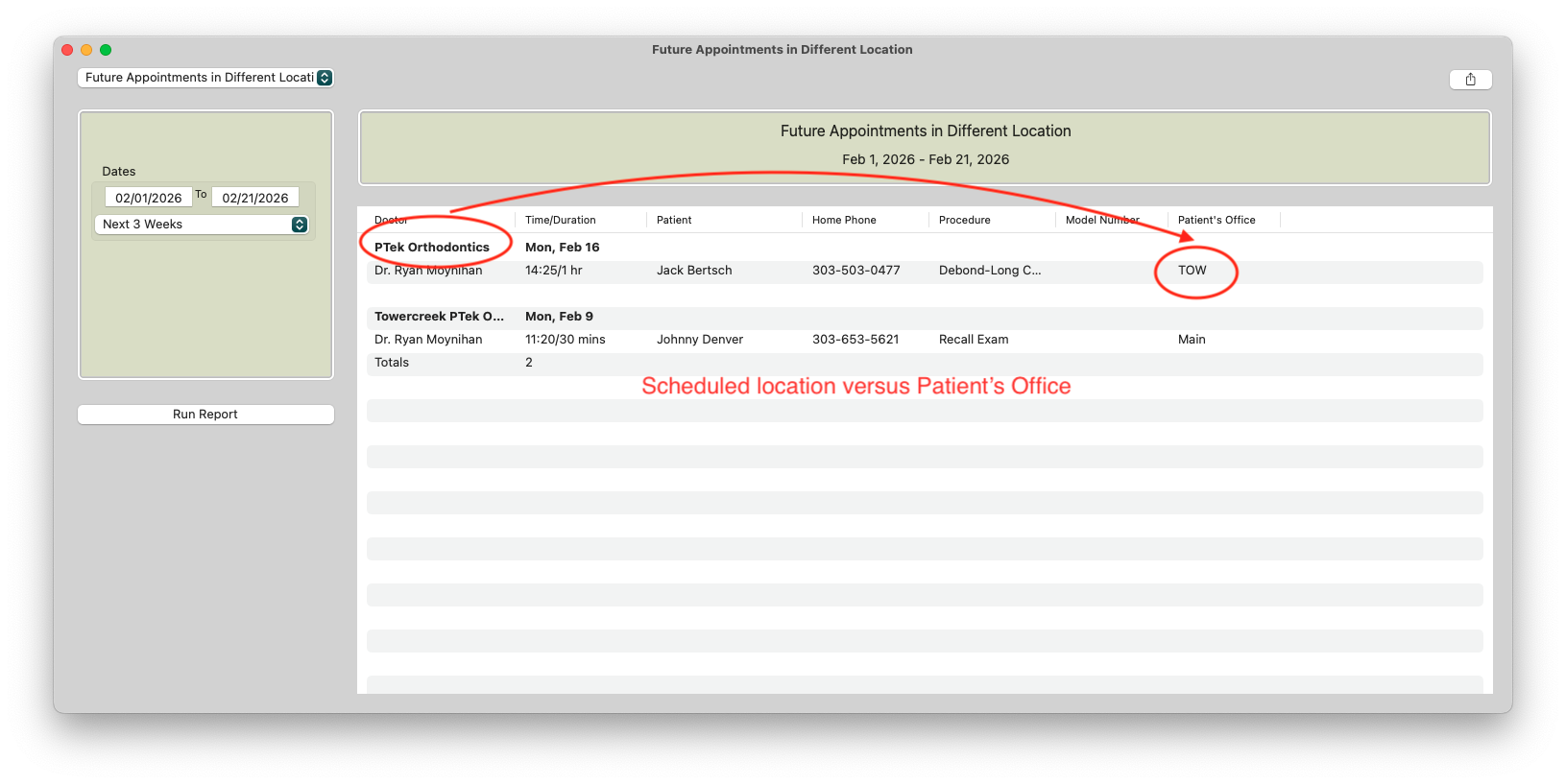
- Helpful Features
- Hot Clickable
- Sortable Columns
- Suggested Uses
- Helpful in pulling models, appliances, and charts for transport to another office location
- Displays the doctor assigned to the scheduled patient
- Helps identify any errors with scheduling at the incorrect location
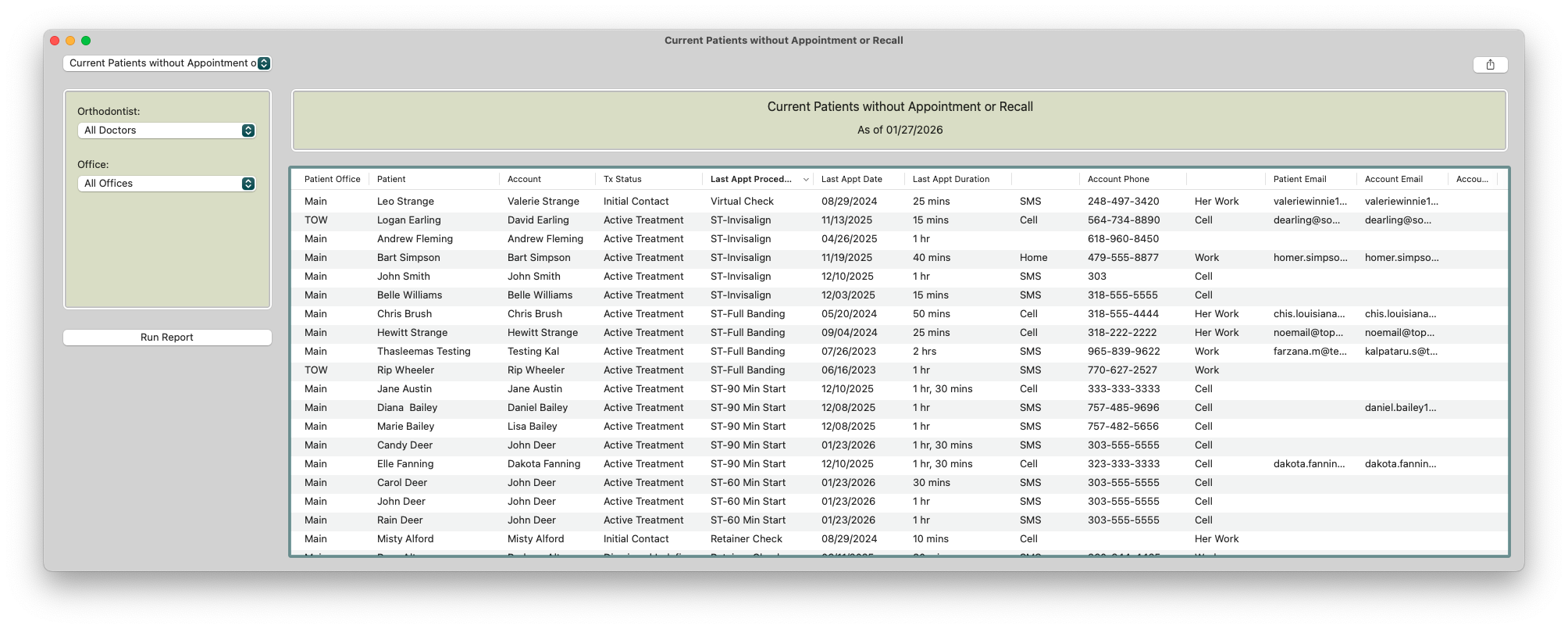
Current Patients Without Appointment or Recall
Any current patient that does not have a future appointment or recall.
- Go to Reports>Current Patients Without Appointment or Recall
- From the report window, select the date/date range for which you are preparing.
- Helpful Features
- Sortable columns
- Hot clickable to Patient Information
- Suggested Uses
- Helpful in tracking patients that are considered “lost” and allows you to contact account holders to aid in scheduling an appointment
- Please reference the more in-depth article at the bottom of this page.
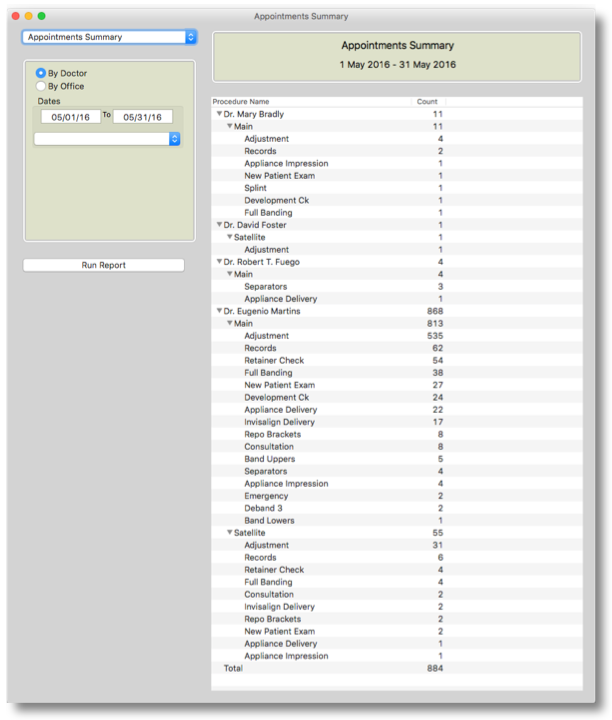
Appointments Summary
Summary of scheduled clinical procedures for today or a given time period
- Go to Reports >Appointment Summary
- From the report window, select the date/date range for which you are preparing.

|
|
- Helpful Features
- Sortable by Doctor or office
- Suggested Uses
- View the total number of procedure types scheduled for a given time period
- Allows statistical evidence for making changes to scheduler
- Determine the number of New Patient Exams for a given period
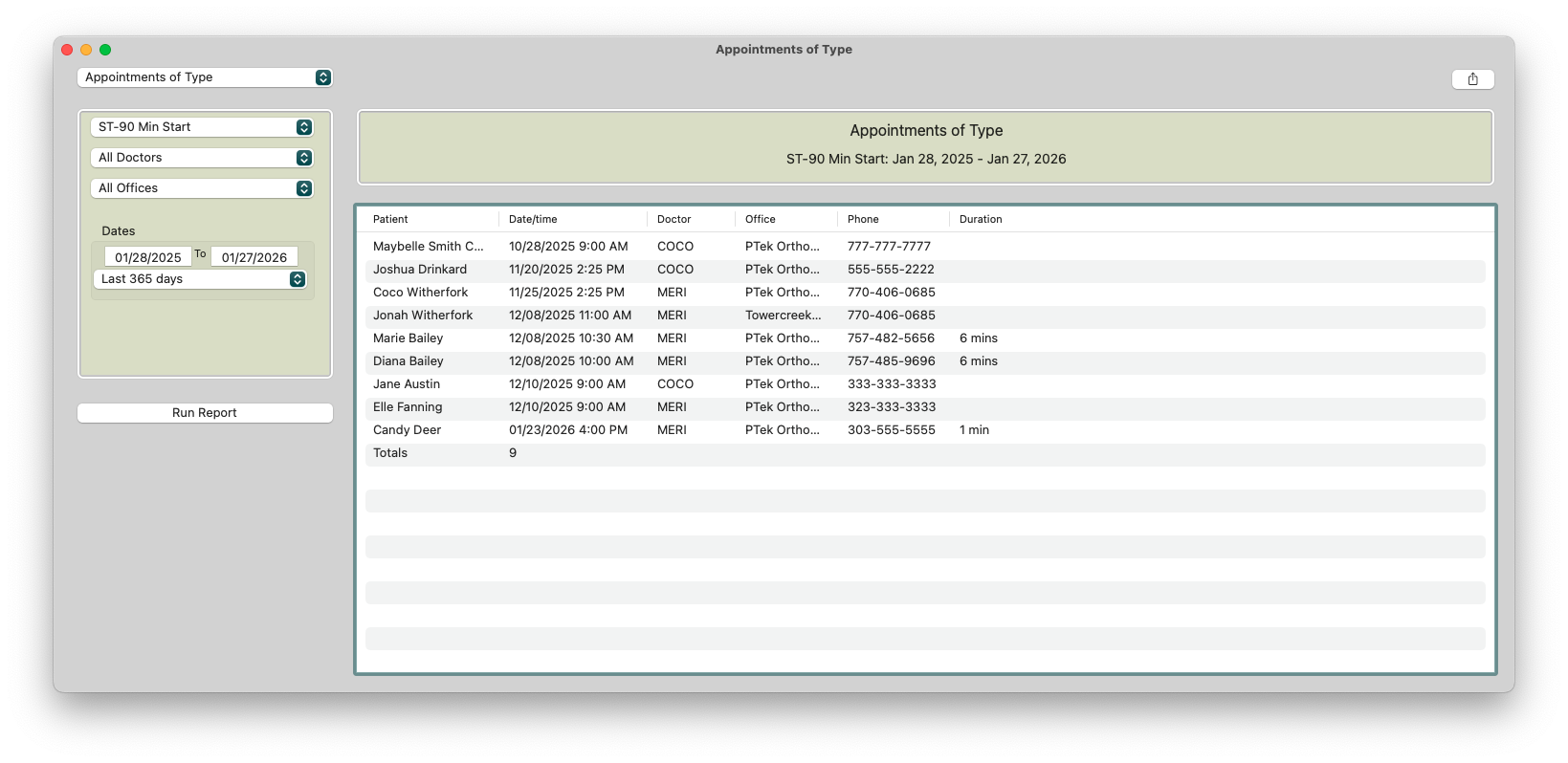
Appointments of Type This Month
Appointments of Type This Month displays patients that have an appointment scheduled this month for the procedure type selected.
The report displays patient name, appointment dates, the doctor, the location, the patient's phone number and the appointment duration (if it was completed appointment)
- Go to Reports >Appointments of Type This Month
- From the report window, select the date/date range for which you are preparing.
- Helpful Features
- Custom Date Range, including dates in the future.
- Sortable columns
- Hot clickable to Patient Information window
- Suggested Uses
- Confirm or prepare for crucial appointments
- Letter verification. Sort by consultations and new patient exams, create Letter list and see if letter have been sent.
- Review completed appointment durations to adjust the duration of appointment types and allotted time within a group on the schedule template.
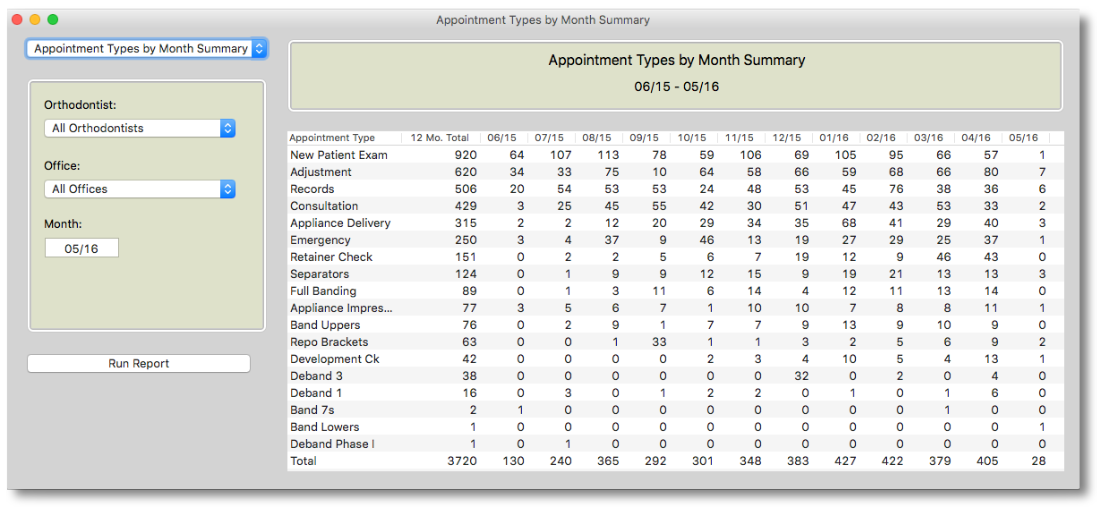
Appointment Types by Month
Lists all appointment types for a 12 month period. Starts 12 months prior to the month specified.
- Go to Reports >Appointment Types by Month
- From the report window, select the ending month and year
- Helpful Features
- Sortable columns
- Filterable by doctor or office
- Suggested Uses
- View the total number of procedure types scheduled by month
- Allows statistical evidence for making changes to scheduler
- Determine the number of New Patient Exams month over month
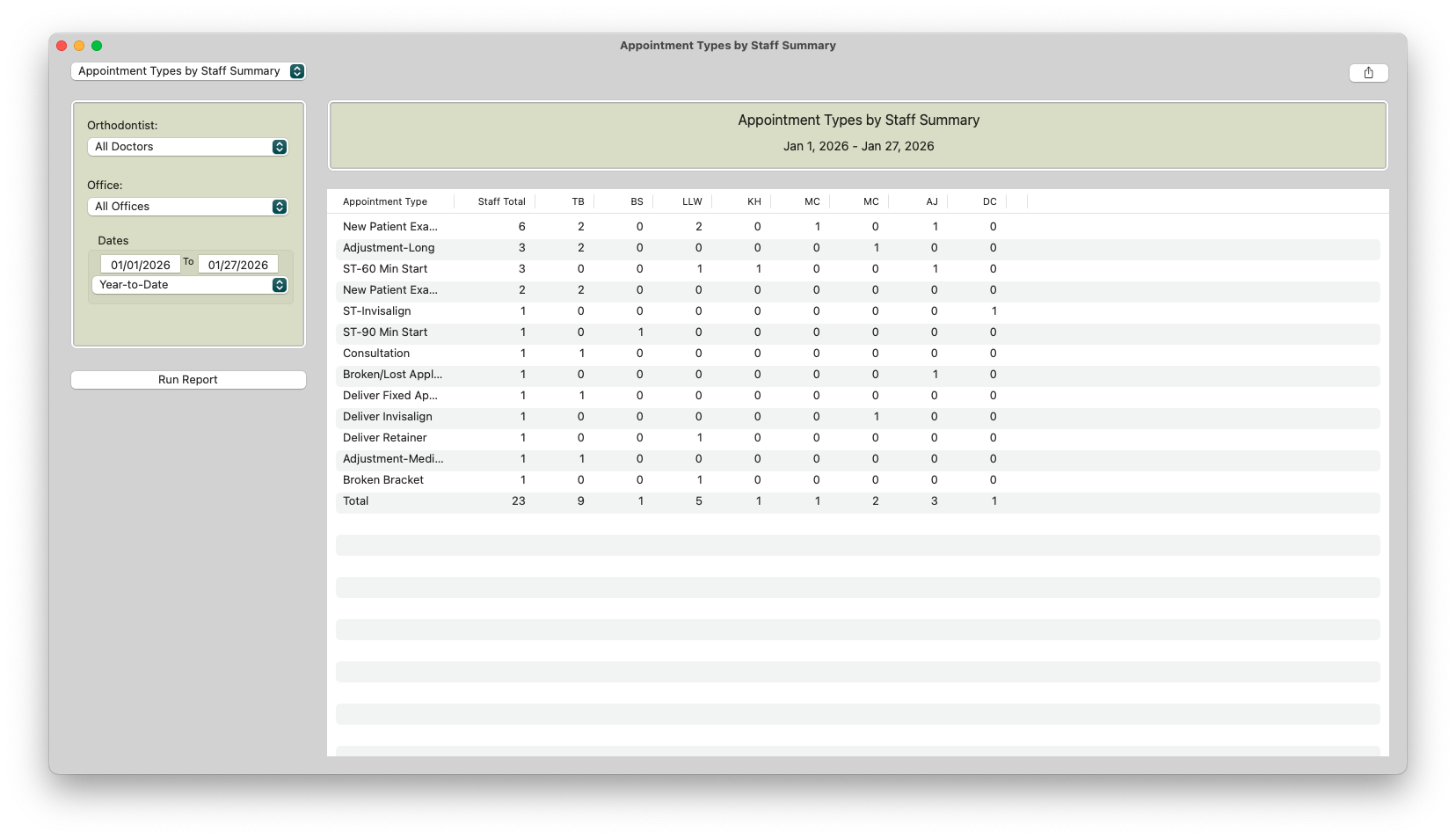
Appointment Types by Staff
List all appointment types and the clinical staff member listed in the treatment notes.
- Go to Reports >Appointment Types by Staff
- From the report window, select the date/date range for which you are preparing.
- Helpful Features
- Sortable columns
- Filterable by doctor or office
- Suggested Uses
- Identify staff members who need more training in certain appointment types
- Identify staff members who may repeatedly avoid certain appointment types
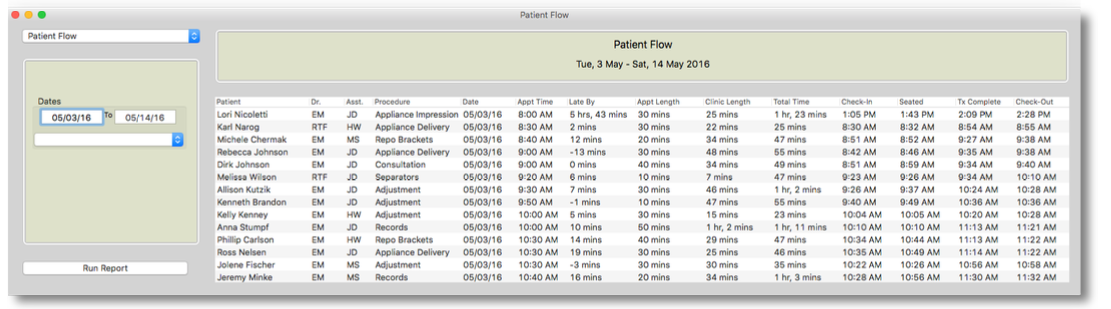
Patient Flow
Lists the time details of all appointments completed in a given date range.
- Go to Reports >Appointment Types by Staff
-
From the report window, select the date/date range for which you are preparing.
- Features
- Sortable Columns
- Suggested Uses
- Helpful in analyzing on-time performance in the practice
