The Deposit Slip and Deposit Report
Deposit Slip
The Deposit Slip shows all money undeposited, divided in tabs by payment type (check, cash, credit, debit).
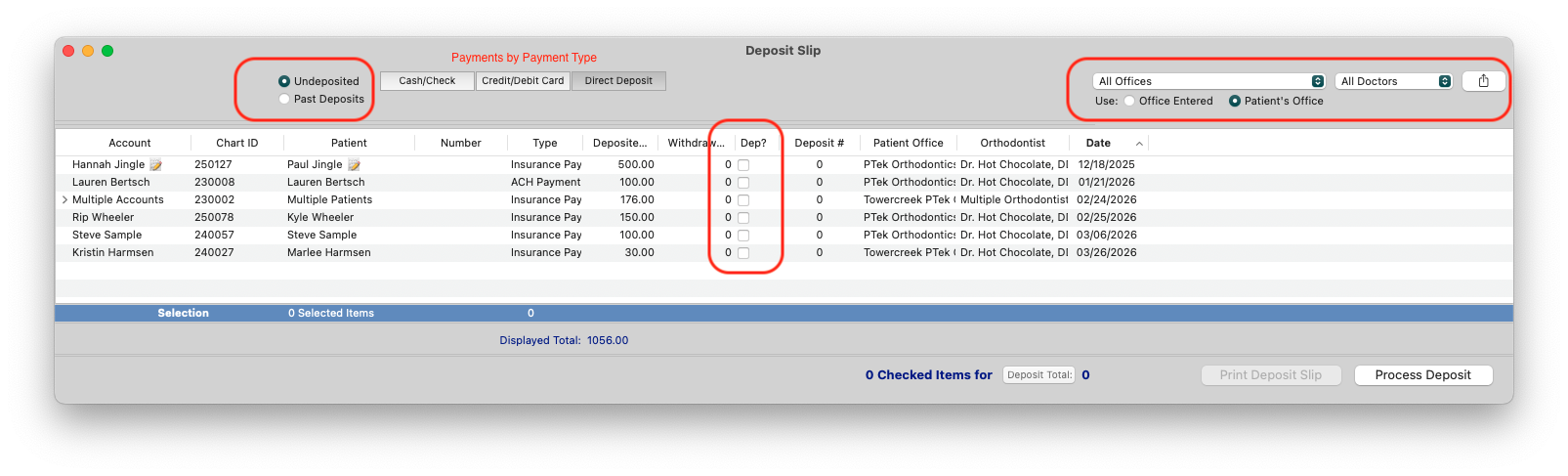
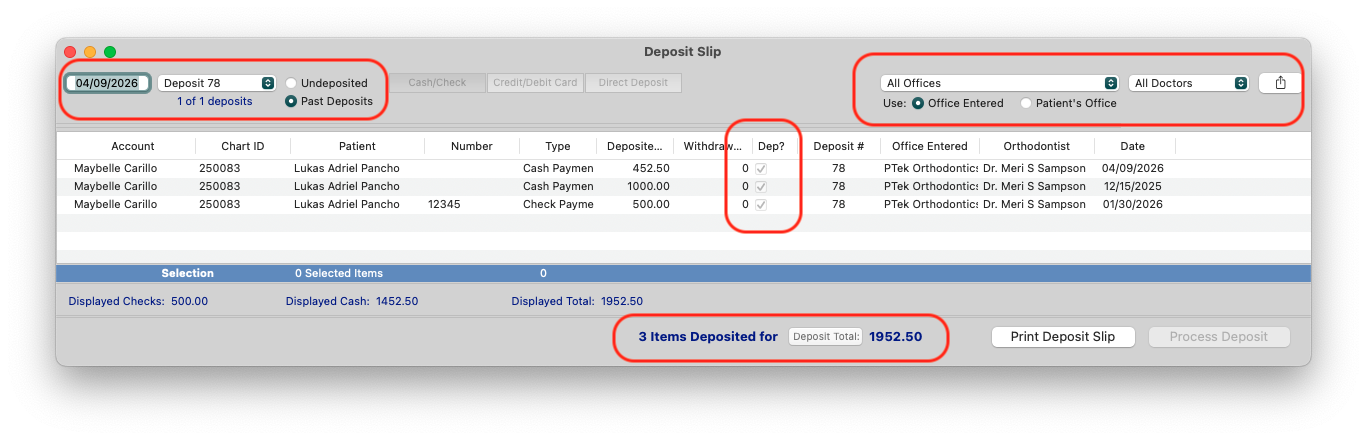
The Deposit Slip can also reflect all payments deposited by date and by batch (Deposit ID). To identify batched deposits and review the payment details, select the Undeposited radio button, update the date, and use the drop-down menu to select the Deposit #. Additional filters include Office, Doctor and reflecting the patient's office or the office where the payment was entered.
Viewing your Deposit Slip
- Go to Matrix > Deposit Slip.
- Payments will display by the categories of Cash/Check, Credit/Debit Card and Direct Deposit.
- Click the Type heading to group all like payment types.
- Move down the list and verify the following:
- All cash and checks are present.
- All credit/debit cards processed successfully.
- All direct deposits were successful.
- Only mark the Dep? box for payments that were received by the practice. TopsPay payments cannot be marked as deposited. Please see the auto-reconciliation note below.
- When you are done, click Process Deposit.
-
Any payments that were not actually received, such as missing checks or declined credit card payments, will need to be voided from the Financial Day Sheet. See the related article, Void a Transaction, below.
In the example deposit slip below, the payments for patients Anna Katherine and Amy were declined. Therefore, the practice did not check off the payments for deposit.

Non-TopsPay Payments
Whatever your protocol for depositing funds, you will use the deposit slip for reconciling non-TopsPay transactions.
- Money is given to your practice as payment for services. The Financial Day Sheet displays all payments that you posted to ledgers today. The deposit slip will show money that you need to reconcile as successfully processed or collected.
- The Deposit Slip shows all money undeposited, divided in tabs by payment type (check, cash, credit, debit).
- For non-TopsPay transactions, use the deposit slip to verify that you deposited the money and place a checkmark in the Dep? column
- Click the Process Deposit button in the lower right-hand corner of the Deposit Slip window.
- The selected and deposited payments can be viewed as a Past Deposit from the Deposit Slip or by access Reports>Deposit.
TopsPay Transactions cannot be manually deposited. They are auto-reconciled.
TopsPay Payments
- Deposit Slip: Auto reconciliation
- Tops will automatically deposit the TopsPay transactions once Tops receives confirmation from Stax the payment has been funded.
- If TopsPay payments are on your Deposit slip as undeposited, they have yet to be funded and cannot be checked to manually deposit by your staff.
- Once batched and funded, the transactions will automatically fall off the list of undeposited payments and move to a Deposited, Deposit Slip.
- To view any TopsPay deposits from the day, review the Deposit Report. (see below)
Deposit Report
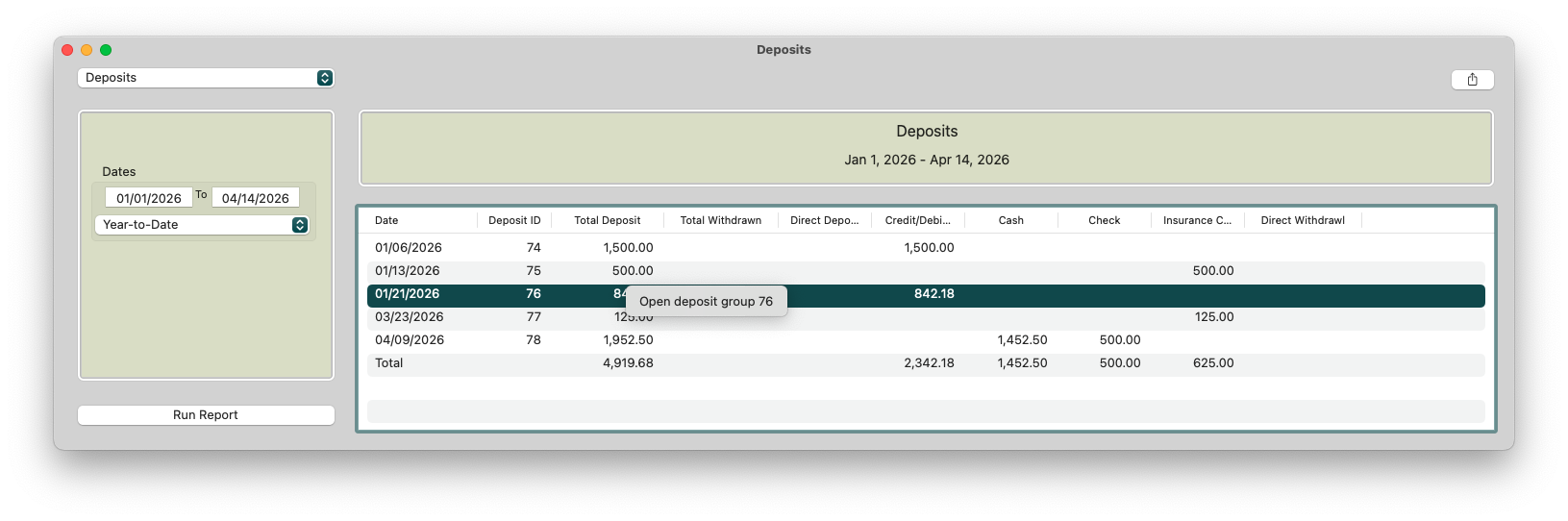
The Deposit Report shows the amounts deposited by deposit ID, date and amounts by type, according to a date range. (Reports>Deposit).
- Use the Deposit Report to reconcile bank records
- Use the Deposit Report to reconcile your TopsPay deposits. To view your TopsPay deposits, go to Reports>TopsPay Portal. From within the TopsPay portal, navigate to Reports>Deposit Report.
- Use the Deposit Report to view all deposit slips that have been deposited.
- The deposit report is a list of all deposited payments, by Deposit ID, across all locations.
- Clicking on a deposit group allows you to expand and view all payments that are part of the deposit.