
Access the TopsPay Portal
The TopsPay Portal allows you to view payment activity, reports, and transaction details outside of the patient chart.
On This Page
Features of the TopsPay Portal
Access the TopsPay Portal from within Tops
Access the TopsPay Portal from a Web Browser
Features of the TopsPay portal
TopsPay Portal User Guide: TopsPay User Portal
- Location Dropdown: Switch between merchant locations.
- Dashboard: View a summary of Gross Sales, Net Sales, and Total Refunds for a selected date range.
- Reports: Access detailed reports for activity within a selected date range, including Deposits, Reconciliation, Fee Statements, and more.
- Payments: Review all payment attempts by Tops account holder name, including successful, declined, voided, and refunded transactions. For failed payments, the response from the financial institution is displayed (e.g., Do Not Honor, Insufficient Funds, Pick Up Card, Account Closed).
- Disputes: View individual patient payment disputes and associated response deadlines once a dispute has been initiated.
- Settings: Manage account details, including banking information, team settings, branding for manually sent receipts, and notification email recipients (failures, disputes, and refunds).

Access the TopsPay portal from within Tops
- Go to Reports
-
Select TopsPay portal
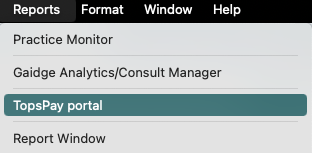
The portal will open in a new window. Log in using your Single Sign-On (SSO) credentials.
If you cannot access the portal:
- Your staff permissions may need to be updated.
- Your SSO credentials may not be set up.
- Your System Encryption key may need installing.
- You may need to update your MacOS.
Requirements:
- Initial set-up is configured by Tops Onboarding or Tops Support.
- Single Sign-on must be configured using only the activation email address as the username and password provided by Tops.
-
To add, remove or modify a staff member's access to the TopsPay portal, click the knowledge base article below:
Single Sign-on - Add, Duplicate, Edit or Remove a Staff Member
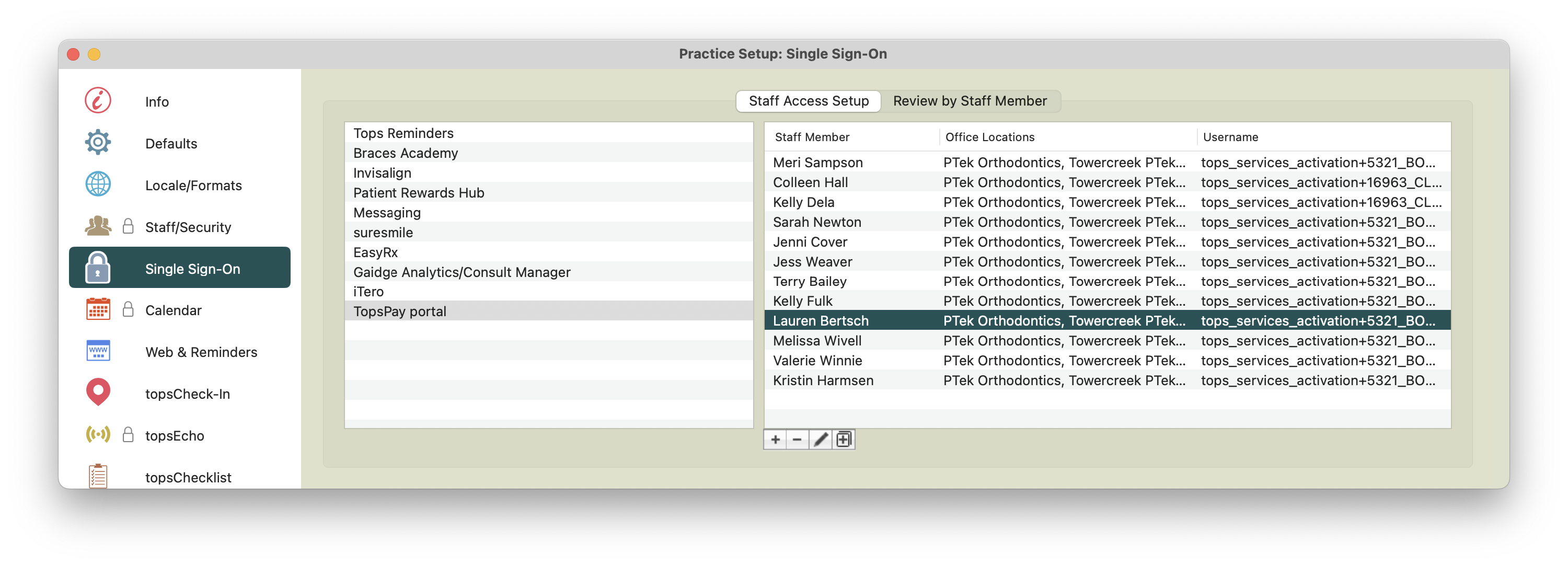
- Ensure the System Encryption Key is installed on every workstation that needs access to the TopsPay portal.
-
To install the system encryption key on a workstation, click the knowledge base article below:
Install the System Encryption Key on a Workstation
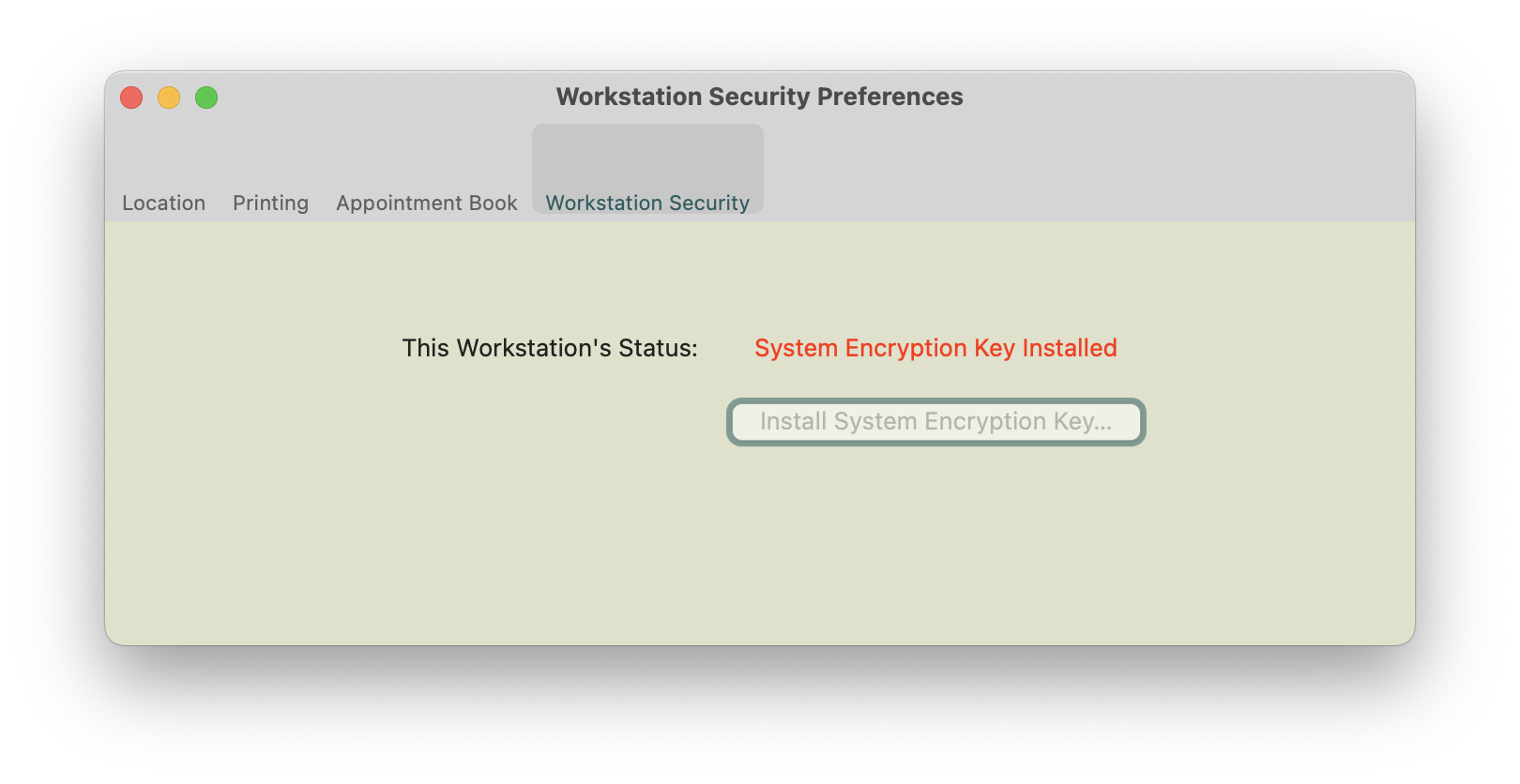
-
- Provide staff members permissions to allow access to the TopsPay portal.

-
Upgrade to the minimum macOS - Ventura 13.0.
Apple>About this Mac
Access the TopsPay portal from a web browser
There are times when you need to access the TopsPay portal from a web browser.
To do so, you will need to establish additional user accounts in the Team Settings of your TopsPay portal. These user credentials should be used for web-browser access only and should not be added to Single Sign-on within Tops.
Web browser access can be helpful with the following:
- Exporting and printing reports from the TopsPay portal
- Accessing the TopsPay portal from a workstation that does not have Tops installed.
Step 1: Access the TopsPay portal from Tops
- Login to the TopsPay portal from Tops
Step 2: Add the new Team Member
- Click Settings
- Click Team Settings

- Click the button Add Team Member
- Add Team Member name, email address, and password. Note: the email address must be a unique email address
-
Assign a role

- Click the Save button.
Step 3: Email Tops Support to link locations
*This step is only required if you have multiple merchant locations and the team member needs access to all merchant locations.
Email [email protected] the name and email address of thel team member(s). Request that the team member be added to all or specific locations.