
Post a One-Time ACH Payment With TopsPay
Need to collect a down payment or a payment for miscellaneous charges?
Use TopsPay to process one-time ACH payments directly from the patient's chart! You can select an ACH account already on file or enter new banking information when processing the payment.
Process a One-Time ACH Payment
- Open the patient's chart and go to View > Patient Info... , or press Command+I
- Open the New Transactions window by going to Action > New Transaction, or press Command+T.
- Confirm that Use TopsPay is checked in the lower-right corner.
- In the Fee/Payment Type field, select ACH Payment and press Tab.
- Enter the payment amount.
- Add a note in the Notes field, if applicable.
- Click Process Charges and Payments.
Tops Tip: Processing a paper check as an ACH payment? Include the check details in the Notes field so your team has a reference to the original payment information.
A new window will open with two options:
- Use ACH account on file for account holder
- Use new ACH account
Option 1: Use an ACH Account Already on File
If the account holder has previously saved ACH information:
- Select Use ACH account on file for account holder.
- Use the dropdown menu to select the appropriate ACH account.
- Review the selected account information.
- Click Use ACH to process the payment.
-
If you select Use new ACH account, determine if you wish to save the payment information for future use. If not, remove the checkmark from this box.
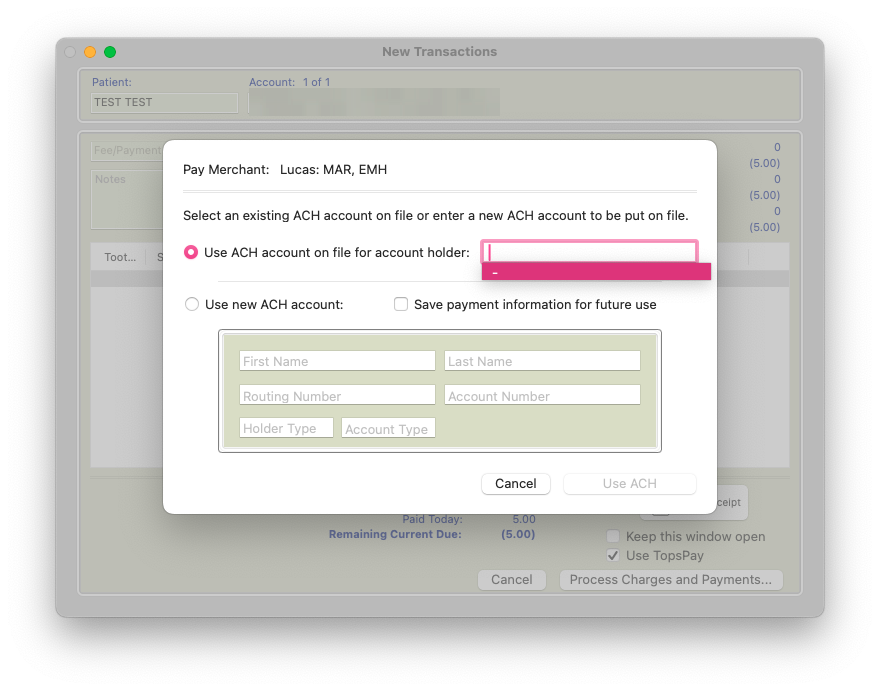
If no ACH account is available, select Use new ACH account instead.
Note: ACH details entered into an auto-pay plan are not saved to be used in the one-time transaction window.
Option 2: Enter a New ACH Account
If the account holder does not have an ACH account on file or wants to use a different account:
- Select Use new ACH account.
-
Decide whether to select Save payment information for future use. If the account should not be saved, remove the checkmark.
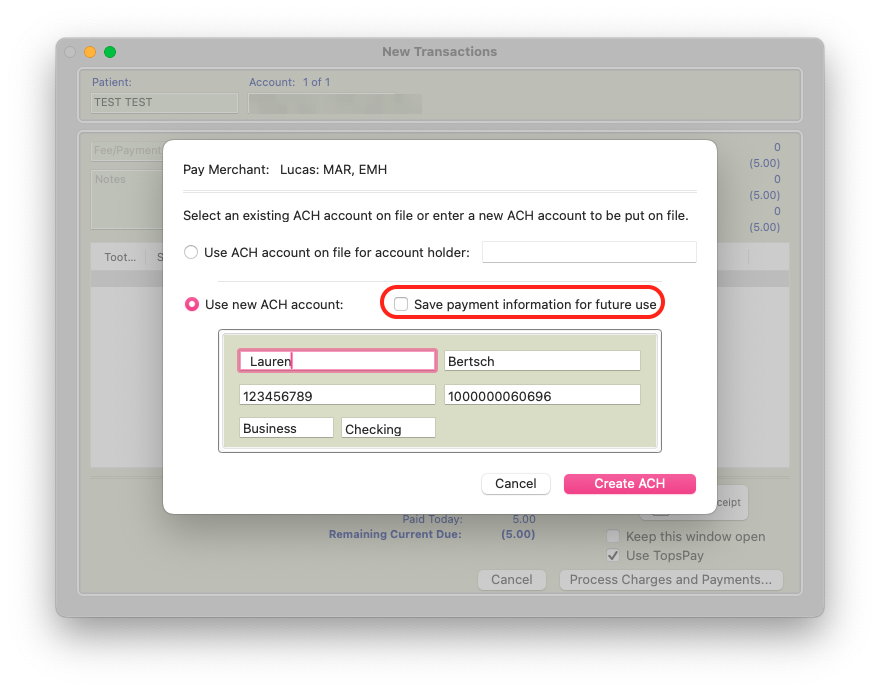
- Enter the required account holder and banking information.
- Carefully review the information for accuracy.
- Click Create ACH to process the payment.
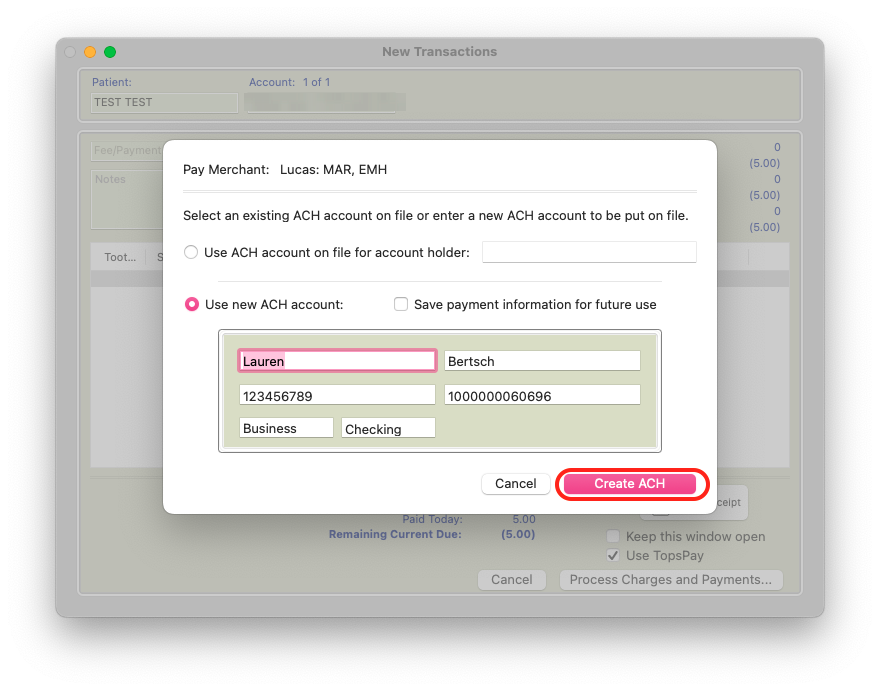
Once the payment is processed, the ACH payment automatically posts tot eh patient's ledger.
Important! ACH payments take time to clear!
Think of an ACH payment much like accepting a paper check. Even though the payment posts to the patient's ledger immediately, that doesn't mean the funds have cleared the patient's financial institution.
Unlike a credit card transaction, ACH processing does not immediately confirm that sufficient funds are available.
Here are a few things to keep in mind:
- Allow 7-10 business days to ensure the payment has fully cleared.
- TopsPay pre-funds the payment after approximately 5 days, but the funds may still be awaiting final settlement from the patient's financial institution.
- ACH payments can be returned for reasons such as insufficient funds, an invalid account number, or an account that does not accept ACH transactions.
If an ACH payment is returned, the processor will initiate a clawback, and a TopsPay Reversal transaction will be posted to the patient's ledger.
Tops Tip: Establish an office policy for handling returned ACH payments, including when to follow up with the patient and what alternative payment methods may be accepted.
Common Errors When Entering an ACH Account in TopsPay
Routing or Account Number is Incorrect
You won't receive an error related to the routing or account number in the one-time transaction window, but if there is an error, it will eventually be a voided payment.
ACH payments rely on accurate banking information. Even one incorrect digit can result in a returned payment.
Before submitting the payment:
- Verify the routing and account numbers. Whenever possible, request a voided check or written confirmation of the banking details provided by the account holder.
- Double-check the information. Review each digit carefully to avoid transposed numbers or other entry errors.
- Have a backup payment option available. Your practice should have a policy for handling returned or declined ACH payments.
Important: Once an ACH payment has been submitted, it is in transit to the financial institution. Incorrect banking information may result in a returned payment and a $15 fee assessed to your practice.
Tops Tip: ACH information entered when creating an Auto-Pay Plan is not automatically saved for use in the one-time ACH transaction window. If the account holder expects to use the same banking information for future one-time payments, make sure the information is saved through the appropriate one-time ACH payment workflow.
If the error continues after verifying the banking information with the account holder, contact Tops Support at 770.627.2527.
No pay merchant found for patient's office and orthodontist
Seeing the message "No pay merchant found for patient's office and orthodontist" when attempting to process an ACH payment?
This generally means the patient's assigned orthodontist and office combination does not have an associated TopsPay merchant configuration.
Here's what to review:
- Keep the ACH information available so it can be entered again if necessary.
- Click Cancel to close the ACH payment window.
- On the Admin side of the patient's chart, review the assigned Orthodontist and Office.
- Confirm that the patient's assigned orthodontist and office are correct.
If either assignment is incorrect, review the appropriate correction with your practice administrator.
Important: Do not change a patient's assigned orthodontist or office solely to process a payment. These assignments affect other areas of Tops, including insurance claim information and reporting.
If the patient's assignments are correct but the merchant configuration is missing, contact Tops Support to review the TopsPay enrollment and merchant setup before attempting the payment again.
Need Assistance?
If you're having trouble processing an ACH payment, Tops Support is here to help!
When contacting Support, include your name, practice name, and the practice's main phone number.
Tops Support
Phone: 770.627.2527
Text: 770.406.0685
Email: [email protected]