
Placeholders for Letter Templates
Ever wondered how to add or modify the yellow placeholders that pull information from the patient chart? It's easy!
When creating custom letter templates, only specific placeholder string values are supported. Template types each use different data sources, so the available placeholders vary by template type. For example:
- Letter templates use letter placeholders.
- Invoice and Receipt templates use placeholder string values specific to invoices and receipts.
- Statement templates use statement-specific string values.
Follow the steps below to learn how to add or modify placeholders used in letter templates.
Adding a Letter Placeholder
- From Tops Ortho>Practice Set-up>Letters/Forms, click the Letters tab and locate your template.
-
Double-click your letter template and select Edit Layout.
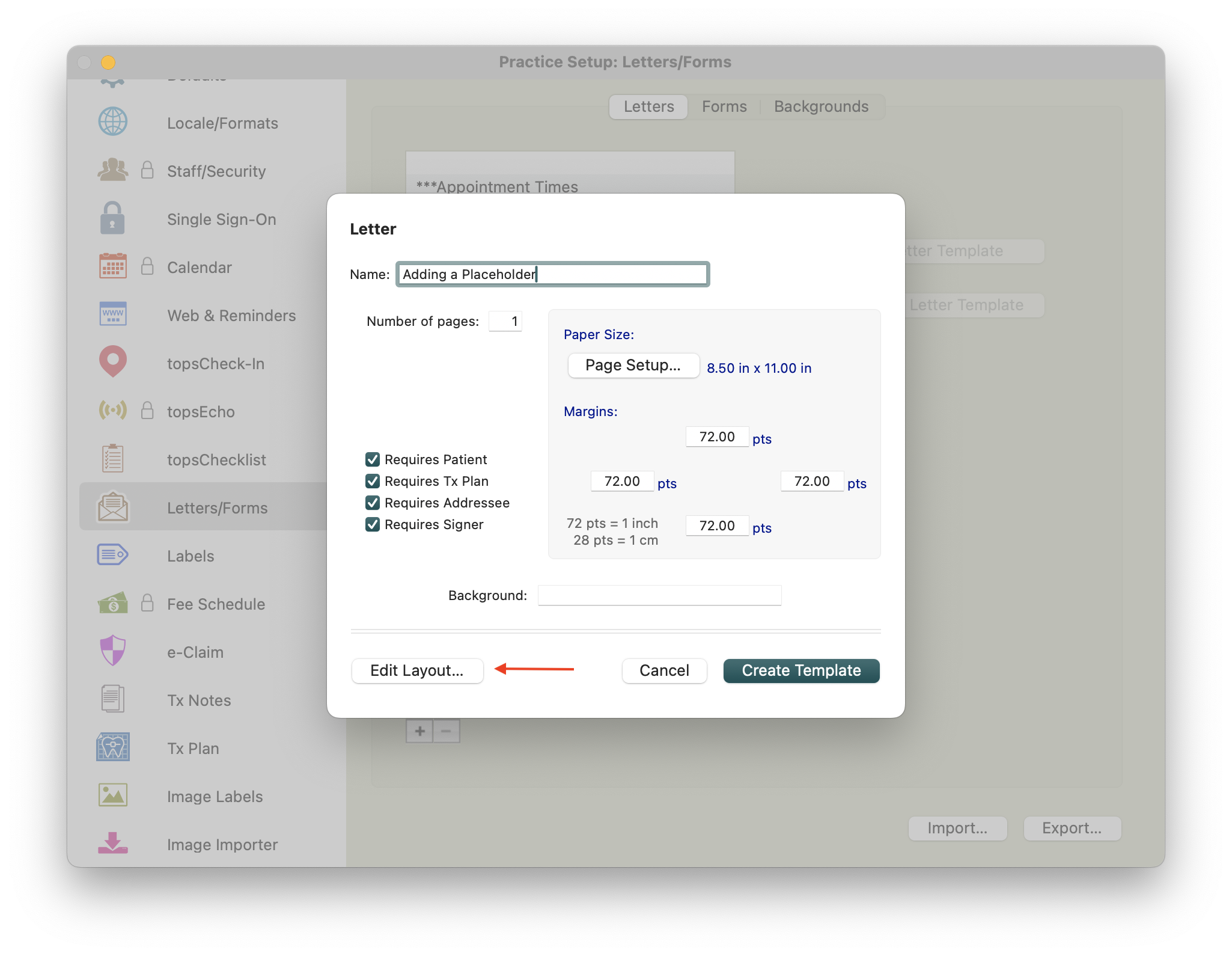
- Click the text box that you want to add placeholders. If you do not already have a text box, draw one with your Text Box tool. (You cannot add a placeholder unless there is a text box in which to place it.)
-
Go to Format > Show Placeholders. This will pull up a list of all available placeholders.

-
Click the Selection tool (the large arrow in the Letters toolbar) and click within a text box. Make sure your cursor is placed where you want the placeholder to appear.
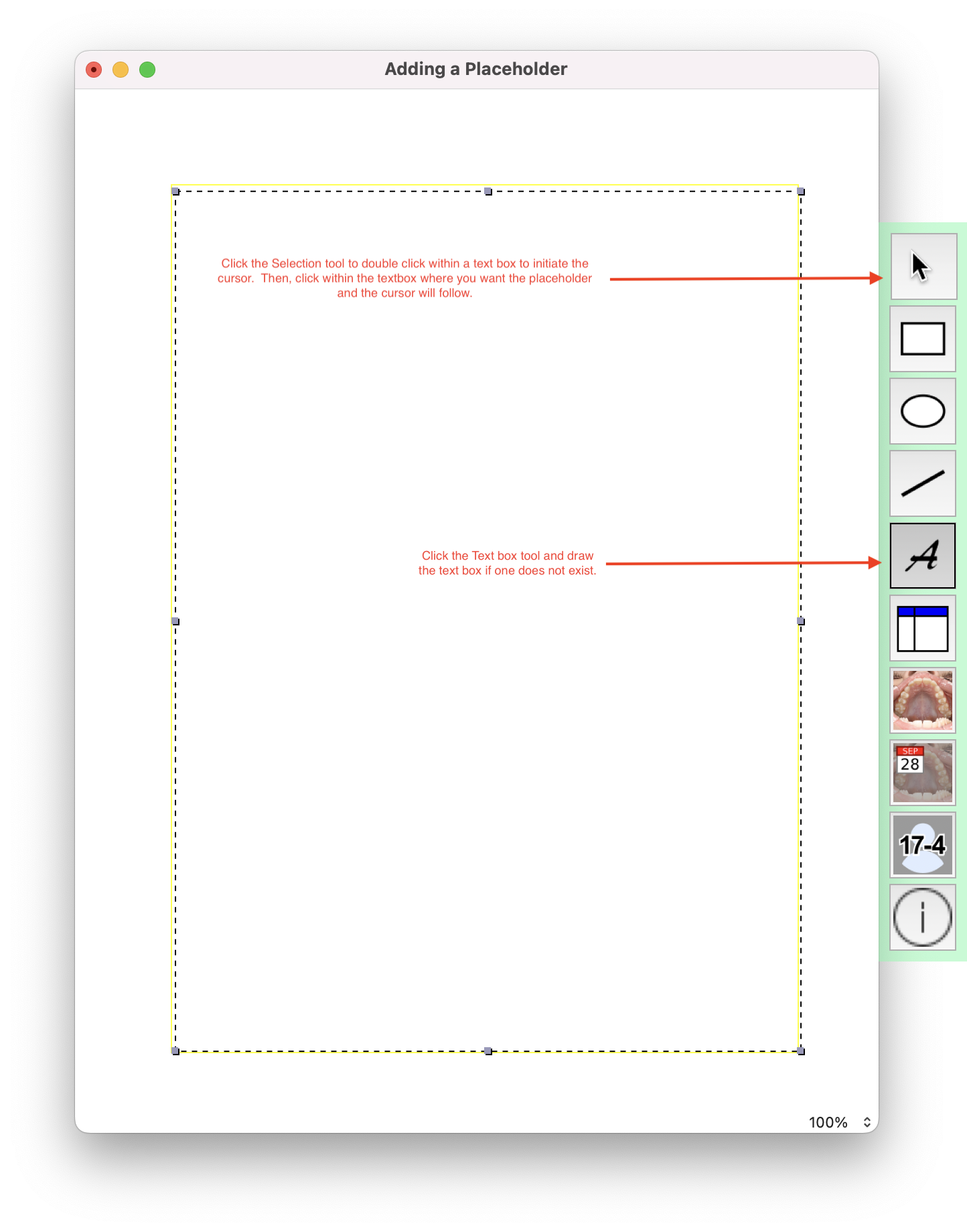
- Double-click your chosen placeholder to place it, OR click and drag the placeholder into the letter template.


Modifying a Placeholder
- Click the placeholder once to highlight the placeholder.
- Locate the placeholder you want to replace it with from the list of available placeholders, and double-click. The placeholder will be updated with the new selection.

🎬 Watch a Quick Tip