
Appointment Book Overview
The Patient Flow is the first item you should open at the start of your day. The second item you should open at the start of the day is your Appointment Book. This displays the patients that have appointments for today as well as in the future. You can display the appointments in a daily or weekly view and use specific tools to navigate. There are several ways to create an appointment. Each will be discussed later.
Opening the Appointment Book
Press Command-B or alternatively use the Tops Ortho menu selection below:
- From the Tops menu bar, select Day.
- Select Appointment Book in the dropdown menu.

Navigating through the Appointment Book
The upper part of the Appointment Book allows you to navigate through your schedule and to select other options. You can customize their Appointment Book display with the filter and function options in the header.

Below is how featuresof the header work within the appointment book:
-
The arrows move the display forward or backward by one day.

-
The single view versus column view buttons display the appointments by day or week view.
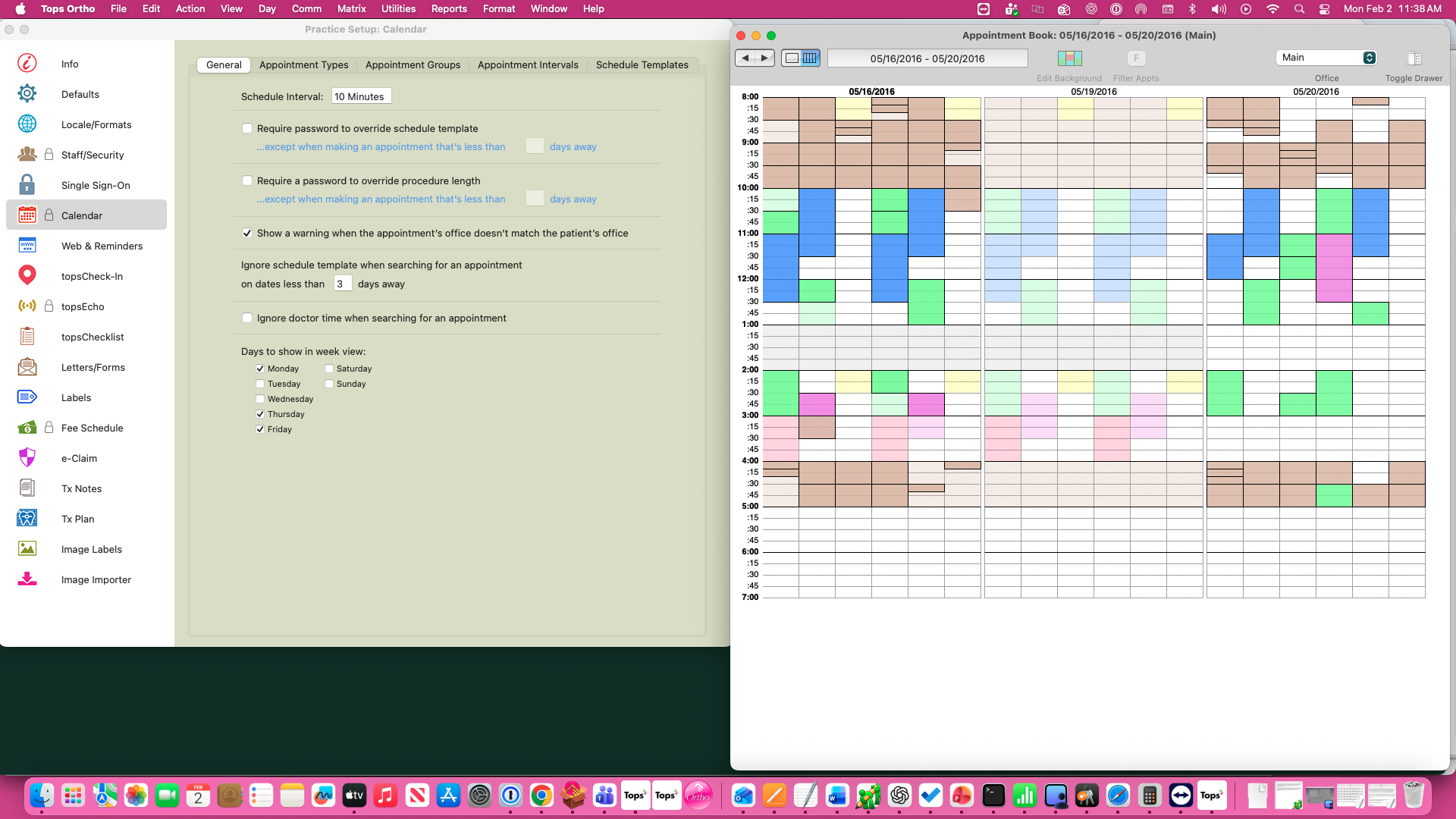
Within Tops Ortho>Practice Set-up>General, how many days visible in the week view is customizable.

-
The date field updates to display the current day, if using the day view, or display the week dates, if using the week view. Clicking the date displays a calendar. From the calendar, you can select any day you need to view past present or future dates.
Tops Tips: Use the Up Arrow on your keyboard to display the calendar. Press the Down Arrow key on your keyboard to go back to today when using the calendar or when viewing your Appointment Book.


|
|
|


-
The Edit Background button allows you to customize your template on the specific day - select a different template, close the day, open the day, adjust open or close time and add or remove columns. The Edit Background function is only allowed when set on the day view. Any edits to templates using this tool are not saved to be used or applied on future dates.

- The Filter Appts feature allows you to select the specific doctor(s) to display the appointments assigned to the selected doctor. The assigned appointments will be illuminated.

|
|
|
|


-
The Office field allows you to select the practice office to display.

- The Toggle Drawer icon opens/closes a drawer that provides information about the patient that has been selected within the appointment book.
|
|
|
|


- Schedule Options Double-click an appointment to access details of the appointment - the Appointment Info window. Right-click an appointment for a contexual list of options. e.g. Reschedule Appointment, Schedule New Appointment, View This Patient's Info.

|

|
-
The DT and BG buttons at the bottom of the schedule represent Doctor Time and Background

- Doctor Time - Clicking the DT button will show/hide the doctor’s time to the left of the Appointment Book.

|
|
|

- Background - Clicking the BG button will show/hide the template background.
| Before | After |

|
|

The Number of Appts displays the number of appointments for the day.
