
Enable and Disable Contact Methods for Automated Notifications in TopsDPX
With TopsDPX, automated notifications using Text are enabled by default. You can customize Confirmations, Reminders, Review Requests, and Patient Recalls by enabling or disabling individual contact methods (Text, Email, or Call) for each template.
- Enabled methods will queue and send based on the template’s settings.
- All configurations are applied per template and per location.
- Disabling a contact method prevents a notification for that contact method from sending.
Follow the steps below to enable or disable contact methods for an automated message:
- Login to Tops Ortho
- Go to Comm>Tops Reminders and enter your Tops password
- In the TopsDPX window, select Settings>Templates
- From the Template menu, choose from the Schedule, Patient Recall and Review menu to adjust templates within each.

-
From the left side of the window, click into the template column and scroll to locate the list of automated messages available.
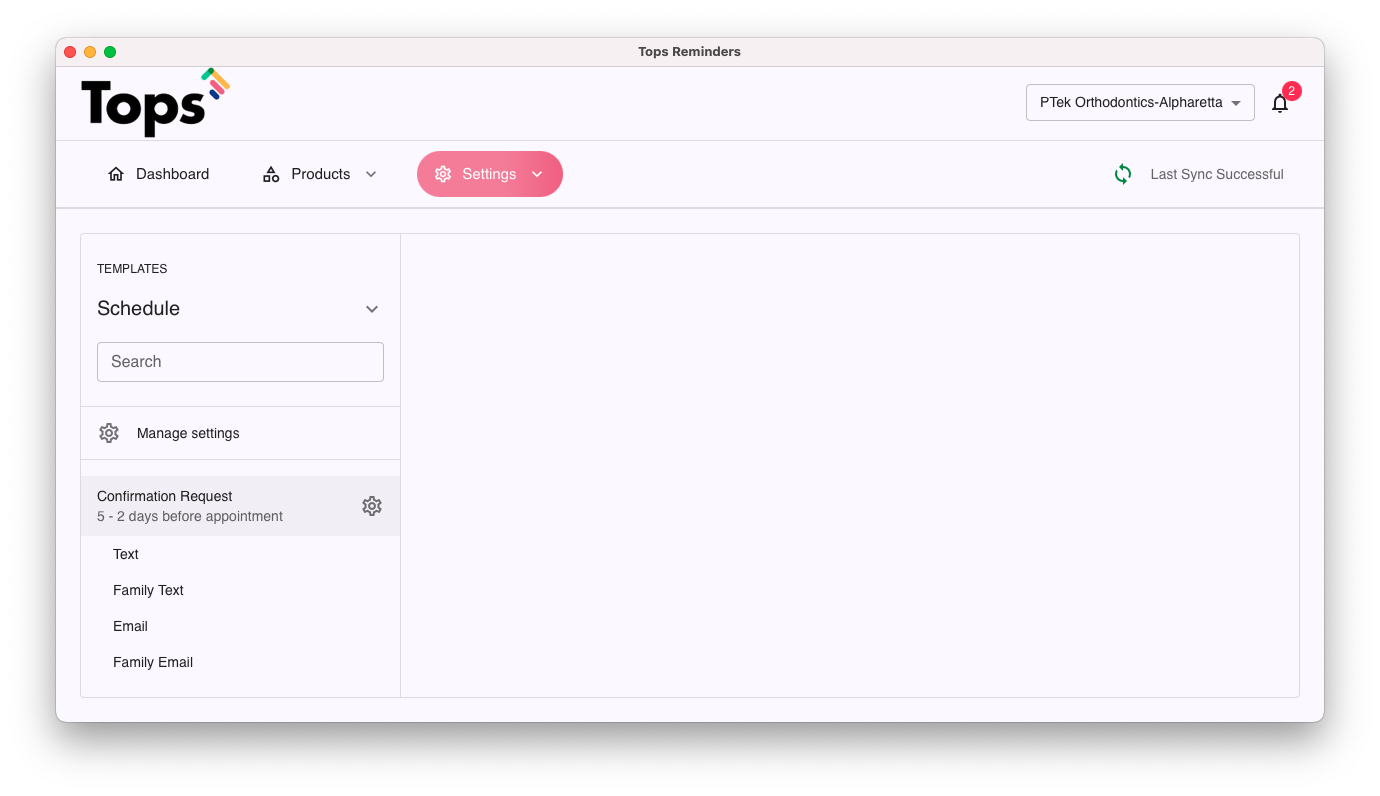
- Select the message template you want to modify.
- Click the ⚙️ gear icon to edit the template settings.

To adjust contact methods:
🔲 Uncheck a contact method to disable that message type. The system will not send the template using that contact method.
If no contact methods are selected, TopsDPX will not send that automated message at all.

☑️ Check a contact method to enable that message type.

- Click the Save button to save your changes!
The following templates are by default, enabled with the Text contact method.
| Schedule | Patient Recall | Review |
|---|---|---|
| Confirmation Request and Confirmation Reminder | Upcoming Recall Reminder | Review Request |
| Birthday Reminder | Past Due Recall Reminder |
|
| Missed Appointment |
|
|
| Appointment Reminders (3) |
|
|
Tops Tip:
If messages aren’t sending but you have the contact method enabled, below are some helpful troubleshooting suggestions:
- Verify that patients have valid contact details and have not opted out.
- Verify in the patient's chart they have the contact method enabled for Appointment Reminders/Recalls.
- Review any filters in the message settings to determine if the patient's appointment type applies.
- Built-in cool down periods may be preventing the message from sending. Review the article referenced below on cool down periods.