
TopsDPX Patient Records FAQ
Knowing how Tops and TopsDPX work in tandem to reflect patient contact details and preferences, for purposes of messaging patients and sending patients reminders, is important. Below is a list of helpful Q&A that will ensure that you are set up for success using TopsDPX for all patient communication.
Q: Can a patient have a preference whether they receive an automated notification by email or text?
A: Yes, you can identify a patient's preference for receiving their automated notifications like Reminders and Confirmations directly in their Tops chart in the Status/Notes/Alerts section.

Just remember, if their preference indicates email only, but you don't have an email reminder enabled in TopsDPX, then they will not receive a reminder. Click here for Managing a Patient's Recall and Reminder Preference
Q: How do I know what phone number in the patient chart is used to send automated text notifications like Reminders and Confirmations?
A: Phone logic is important to understand so that you can easily identify which phone number is being used for a patient's Reminder. Read this article on the logic behind the phone labels and what number is used for TopsDPX. TopsDPX Phone Label Logic. A brief summary is listed below.
-
It's preferred you use a single SMS label in a patient's chart to identify the phone number that should be used for their automated notifications.
Tops will search for the SMS label in this order:
Account 1->Account 2->Patient Level.
-
If Tops does not locate an SMS label in the patient's chart, Tops will search for a primary label - Cell, Mobile, His Cell, Her Cell.
Tops will search primary phone labels in this order:
Account 1->Account 2
-
As a final attempt, if the preferred SMS label is not located and a primary label is not located in Account 1 or Account 2, Tops will Tops will use the phone number located in the first phone field of the Patient Level.
Q: Can a patient have more than one phone number identified to receive automated notifications?
A: Yes! You will need to add the second phone number directly to their TopsDPX record. The phone number will not be uniquely identified in the patient's Tops chart or synched with the Tops chart after adding it to TopsDPX. The second phone number is maintained only in the individual patient's TopsDPX record. Please reference this article Add a Second SMS to TopsDPX
Q: How do I know what email address in the patient chart is used to send automated email notifications like Reminders and Confirmations?
A. Please reference this article for TopsDPX Email Logic. Tops will search the patient's chart in Tops for an email address, starting with Account 1, then Account 2 and finally the patient level, and will send to TopsDPX the first email located. For patients 18 and older, Tops will search starting at the patient level first for an email address.
Q: How can I manage patients who have opted out or want to opt out of specific message types?
A: Opting out can be initiated by the patient or can be initiated by the practice. The article Understanding the Opt Out List gives a thorough explanation of how the Opt Out feature works.
Patient Initiated: If a patient replies Stop, Cancel, Unsubscribe, StopAll, End or Quit, the patient will automatically be opted out from ALL text communications from the practice, including automated notifications. If a patient has opted out of all products, the practice cannot opt the patient back in to the products. The patient must reply START or UNSTOP to the original thread or the texting number to Opt back in.
Practice Initiated: The practice has the option to opt the patient out of specific communication types (i.e. birthday reminders).
Q: When I search for a patient, they do not appear. Why are they not listed?
A: TopsDPX is updated with patient records as patients begin to receive reminders from TopsDPX.
- TopsDPX does not import your entire patient database. A patient record is created in TopsDPX only when the patient has an upcoming appointment at the specific location (within 30 days) that queues a reminder or confirmation.
- If a patient record has not yet loaded, you can easily initiate a text to the patient or responsible party and save their contact details in the Messages tab of TopsDPX. Once a patient has an appointment upload to TopsDPX (up to 30 days out), as long as the phone number being used is the same as the one designated for their Reminders, the contact details will synch and a TopsDPX record will be created.

|

|

|
Q: If I need to update a patient's number for their automated reminders, where do I update it?
A: Update it in their Tops chart. Please reference TopsDPX Phone Label Logic to make sure you are updating the correct phone number.
Q: I updated a patient's phone number in Tops. Why does it not yet reflect the changes in TopsDPX?
A: Updates will sync at rollover once there’s a future appointment at the specific location.
- If a patient has a future appointment scheduled within 30 days, at rollover, any changes to their Tops chart (phone number, email address, sms/email preferences) will update in TopsDPX for the scheduled location
-
If a patient does not have an appointment scheduled within the next 30 days, the TopsDPX record will not update until the patient has a future appointment up to 30 days out.
Create a new contact record for the patient in TopsDPX, identifying it as the updated number for texting. When an appointment is scheduled or is within 30 days out, the record will synch as their TopsDPX record.
Example:
- John Denver reflects the phone number 303-555-1212 in his patient chart with an SMS label.
- John had an appointment 3/1/2026 and let the staff know upon checking out that his cell number has changed to 303-555-2222. All reminders should go to the new cell.
- The practice updated the patient's chart to reflect the updated number.
- John has a future appointment scheduled in 6 months, 9/1/2026.
- TopsDPX will not update John's new cell as his contact in TopsDPX until he has an appointment 30 days out, 8/2/2026.
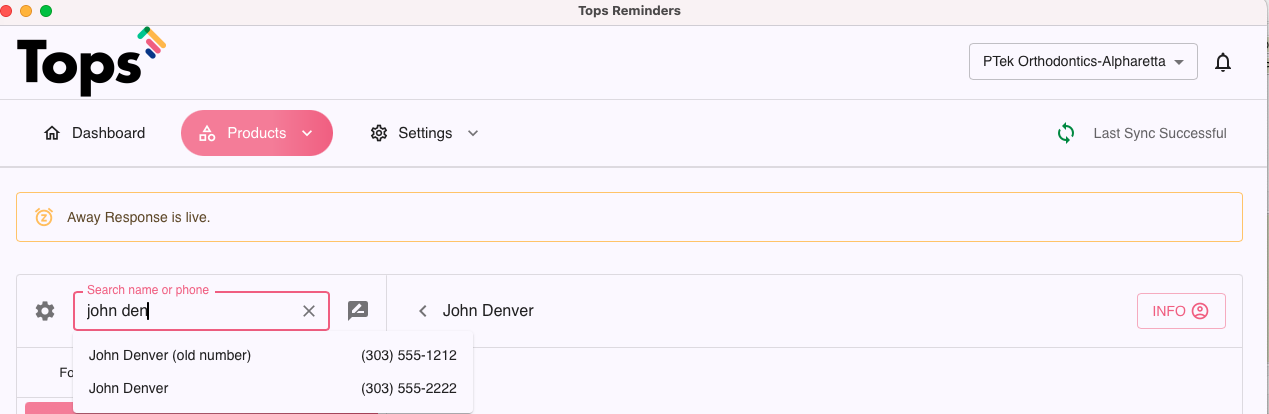
- In the meantime, the practice can create a new contact record in TopsDPX with the correct number and name the old record accordingly.
Q: I dismissed a patient in Tops but their TopsDPX record still reflects as Active. How can I reflect them as Inactive in TopsDPX?
A: With the introduction of TopsDPX, you may need to modify your workflow when a patient is dismissed if identifying their active and inactive status is important.
Upon dismissing a patient, if you want their TopsDPX record to reflect a status of Inactive, you will need to search for the patient in TopsDPX, click on their name to access their TopsDPX patient record, and update their status to Inactive. If the patient has had appointments at multiple locations, you will need to update their status in each location.
Don't forget - If you change their status to Inactive and they return as a current patient, make sure to update their status in TopsDPX as Active.
Status details may be important when using the following:
- Sending a broadcast text and selecting All Active Patients as your recipient list.
- Sending an email campaign and selecting All Active Patients as your recipient list.
- Creating Patient Groups and only including Active patients.
- Visually recognizing if linked patients to a phone number are active or inactive.

|

|
Q: A patient texted me an image. Am I able to save the image?
A: Below are the steps to save the image.
- Click the image to enlarge. Right-click and select "Copy Image."
- Open Preview and go to File>New From Clipboard.
- This will open the image in Preview so the office can print it or save it to place in iPortfolio.
Need more help? Try using our Tops Support AI Assistant, or contact Tops Customer Support for help.