
Resolving the "Invalid User" DentalXChange Validation Error
The “Invalid User” validation error is one of the most common issues encountered when electronically submitting claims from Tops. Fortunately, it’s usually easy to resolve. In most cases, the password stored in Tops no longer matches the password for your DentalXChange account. Follow the steps below to update your credentials and get back to submitting claims.
Problem
When submitting claims electronically from Tops, you may receive the following validation error:
Invalid User i.e. ( );
This error indicates that the DentalXChange username or password stored in Tops does not match the credentials currently associated with your DentalXChange account.
Why This Happens
In most cases, the DentalXChange password stored in Tops no longer matches the password for the same DentalXChange user account.
A common source of confusion is that many offices believe they have never changed their password. In reality, Tops can continue submitting claims successfully for months-or even years-using the same DentalXChange username and password, even if no one has logged into the DentalXChange website using those credentials.
The issue typically occurs when a staff member logs into the DentalXChange website using the same username and password that Tops uses for electronic claim submissions. If it’s been more than 90 days since those credentials were last used to access the website, DentalXChange may require the password to be changed before allowing the user to sign in. Tops has continued using the existing credentials to submit claims without interruption, but once the password is changed on the DentalXChange website, the password stored in Tops is no longer correct.
Until the updated password is entered in TopsOrtho > Practice Setup > eClaim, electronic claim submissions will fail with the “Invalid User” validation error.
If you know your DentalXChange Password
Verify and Update Your DentalXChange Credentials in Tops
- Open TopsOrtho > Practice Setup > eClaims.
- Verify that:
- The Login ID entered in Tops matched your DentalXChange username.
-
The Group ID entered in Tops matches your DentalXChange account number
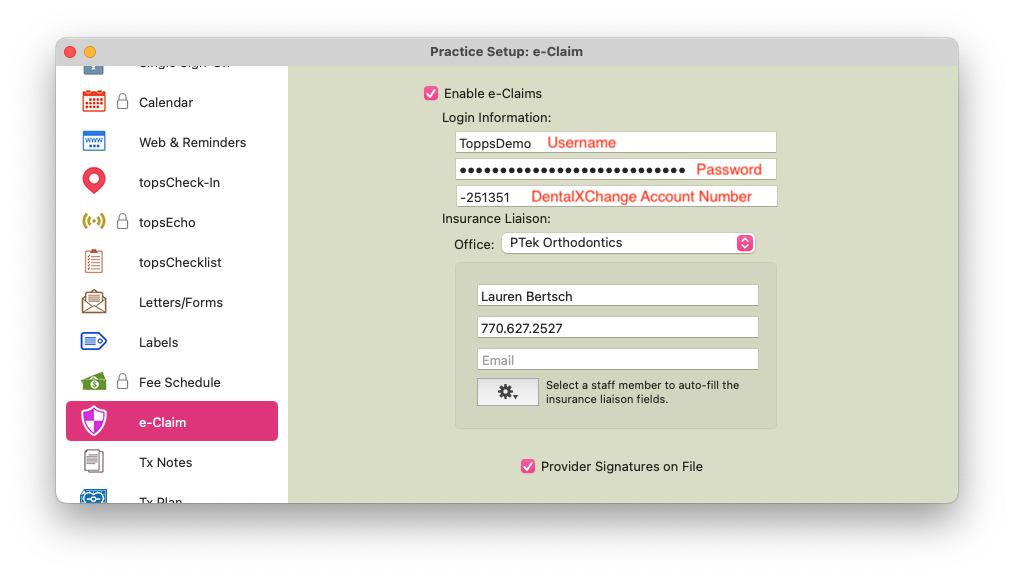
- Update the password field in Tops to the updated password used in DentalXChange.
- Return to Matrix>Claims and test sending an eclaim.
If You Don’t Know Your Password
If you don’t know your DentalXChange password, you can reset it through the DentalXChange website.
- Go to https://dentalxchange.com
- Click Login in the upper-right corner.
- Select Forgot your username or password?
- Enter the username and email address associated with your DentalXChange account.
- Follow the prompts to reset your password.
Once you’ve reset your password, return to TopsOrtho > Practice Setup > eClaims and update the password there as well.
Important: Claims cannot be submitted from Tops until the updated DentalXChange password has also been entered into Tops.
Recommended Best Practice: Create a Dedicated Tops User
To help prevent this error from interrupting claim submissions, we recommend creating a dedicated DentalXChange user that is used exclusively by Tops.
After logging into DentalXChange:
-
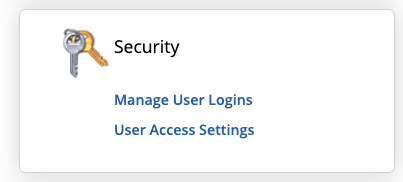
Click the Account menu in the upper-left corner.

-
Under the Security section, select Manage User Logins.
-
Click Add New User.

- Create a user with the following information:
- First Name: Tops
-
Last Name: Ortho
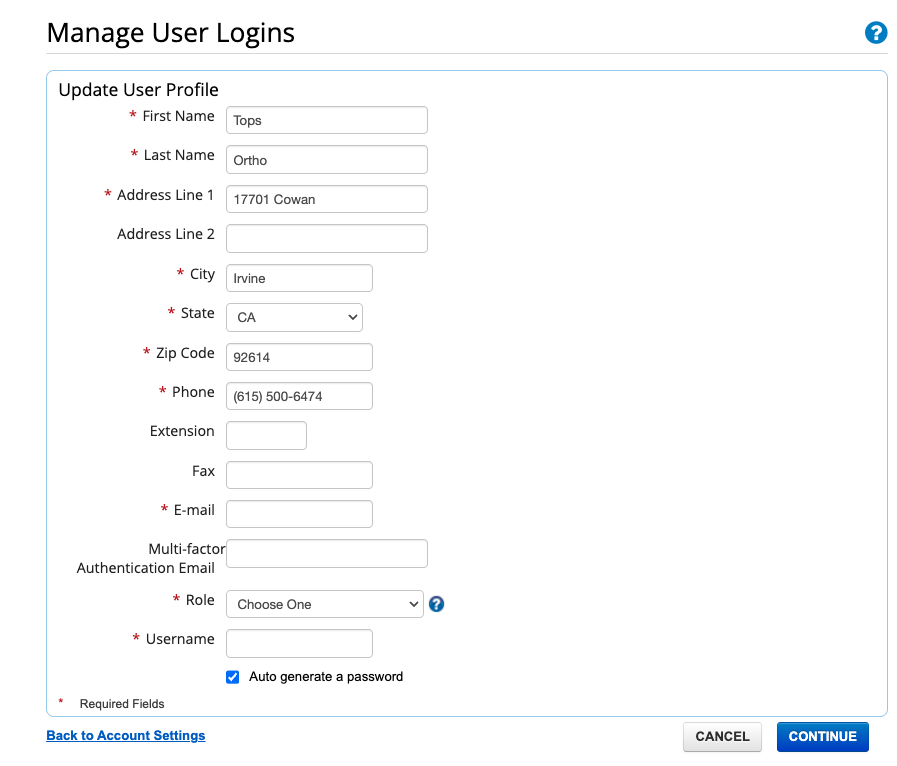
- Use this username and password exclusively in TopsOrtho > Practice Setup > eClaims.
Since this account is only used by Tops and not for logging into the DentalXChange website, office staff are much less likely to be prompted to change its password during routine browser logins. This helps prevent unexpected interruptions when electronically submitting claims.
Need Additional Help?
If you’ve verified your DentalXChange credentials in Tops and still receive the Invalid User validation error, contact Tops Support at 770-627-2527 for assistance.