
Understand the eClaims Process
Quick Access to Information On This Page
Understand the eClaims Process
What Claim Rejections Means in Tops
Understanding Types of Claim Rejections
What Claims Acceptance Means in Tops
What You Need to Get Started
The Quick List
If you are new to eClaims, start with these steps.
- Confirm that your practice has a DentalXChange account created directly with DentalXChange.
- Verify that the account is configured for the TopsRCM Bundle.
- Confirm that your Tops eClaims Agreement has been completed.
- Review provider and location information in Tops for accuracy. Contact Tops Support for assistance, if needed.
- Enable eClaims in Tops Ortho.
- Use the related Knowledge Base resources to complete setup and troubleshoot rejections.
The Comprehensive List
1. A DentalXChange Account
You must have an active DentalXChange account created directly with DentalXChange. Accounts accessed only through an insurance payer portal cannot be used for Tops eClaims.
Click here for more information:
Access Your Dental Exchange Account or Create a New DentalXChange Account
2. Proper DentalXChange Account Setup
Your DentalXChange account must be configured for the Tops RCM bundle and should not include a default provider.
Click here for more information:
DentalXChange Default Provider
Select TopsOrtho in DentalXChange
3. A Dedicated DentalXChange User for Tops
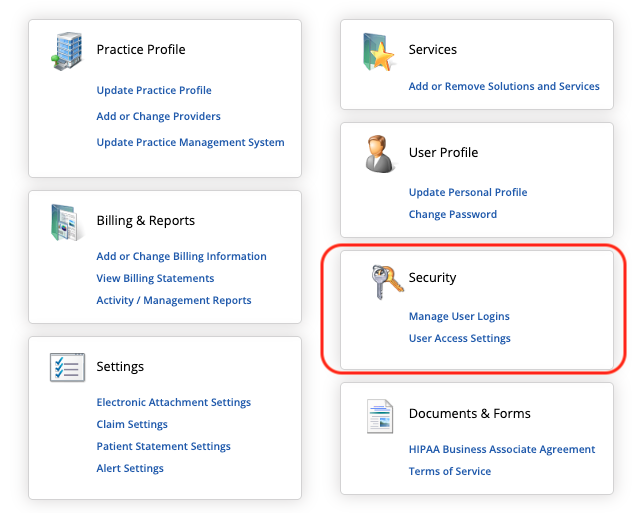
We recommend creating a dedicated DentalXChange user account specifically for use in Tops Ortho. This helps avoid interruptions caused by password changes or password resets tied to an individual user. If you do not have access to Security in your DentalXChange Account Settings, please reach out to Tops Customer Support for assistance.
4. A Signed eClaims Agreement
Your practice must have a signed Tops eClaims agreement on file before electronic claim submission can begin. If you are unsure, please contact Tops Customer Support.
5. Accurate Provider and Location Details in Tops
Before submitting claims, confirm that the following information is accurate in Tops for each provider and location:
- Rendering provider details
- Pay-to provider details
- Billing provider details
Accurate setup helps reduce submission issues and prevent avoidable rejections.
6. eClaims Enabled in Tops Ortho
Once you have a username and password, and have configured your DentalXChange account per the instructions above, follow the steps to Enable eClaims in Tops Ortho.
Understand the eClaims Process
Submitting claims electronically helps reduce manual work, speed up claim processing, and support faster payment. With Tops eClaims your practice can send claim information electronically instead of mailing claims, faxing them, or manually entering them on payer portals.
Tops partners with DentalXChange as the clearinghouse for eClaims submissions. When a claim is submitted through Tops, the claim data is sent electronically to DentalXChange, which then attempts to submit the claim to the appropriate insurance payer.
This process simplifies claim submission by reducing the need to log in to multiple payer websites or re-enter claim details outside of Tops.
How the eClaims Process Works
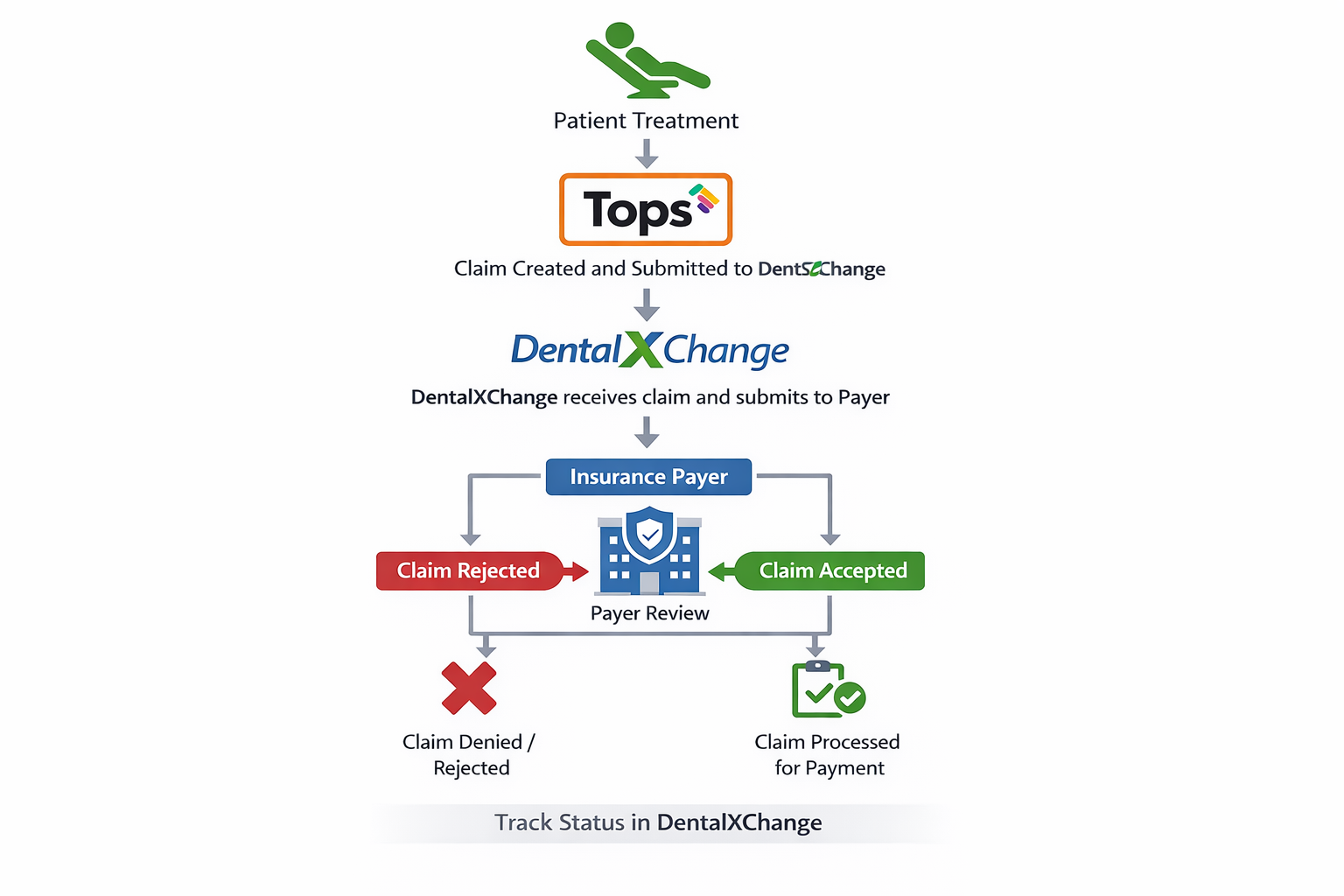
The eClaims workflow moves claim information from your practice to the insurance payer through the clearinghouse partner, DentalXChange.
eClaims Workflow
- A patient begins treatment with your practice.
- Insurance information is entered and the contract is activated in Tops.
- A claim is generated in Tops.
- The claim is reviewed by the practice and manually submitted electronically through the Claims Matrix in Tops.
- Tops sends the claim data to DentalXChange (clearinghouse).
- DentalXChange attempts to submit the claim to the insurance payer.
- The payer reviews the claim submission.
At that point, one of the following occurs:
- Payer rejects the claim– the claim is not accepted for processing.
- Payer accepts the claim– the claim proceeds to adjudication, where the payer processes the claim for payment or determines that the claim is denied.
Important:
Tops sends claims to DentalXChange, but claim tracking and detailed rejection information are reviewed in the DentalXChange portal.
What Claim Rejection Means in Tops
If a claim is rejected during the e-filing process in Tops, Tops is notifying you that the claim submission was not accepted by the clearinghouse.
This type of rejection occurs before the claim reaches the payer and is different from a payer adjudication result.
We provide resources to help you identify and resolve common causes of clearinghouse rejections. These may include:
- employer policy inaccuracies
- payer ID inaccuracies
- character limit issues
- claim formatting requirements
Use the related Knowledge Base articles linked below to better understand setup requirements, common rejection causes, and how to correct and resubmit the claim.
Understanding Types of Claim Rejections
Claim rejections can occur at different stages of the eClaims process. Understanding where the rejection occurred helps determine where to review the issue and how to resolve it.
| Rejection Type | Where You See It | What It Means | Where to Investigate |
|---|---|---|---|
| Clearinghouse Rejection | In Tops during the eFile process | The claim was not accepted by the clearinghouse and was not submitted to the payer. | Review and correct the claim details in Tops before resubmitting. |
| Payer Rejection | In DentalXChange | The payer did not accept the claim submission or it denied the submission after it was sent by the clearinghouse. | Review claim status and rejection details in DentalXChange and follow up with the payer if needed. |
What Claim Acceptance Means in Tops
When you submit a claim electronically in Tops, the acceptance or rejection message only reflects whether the claim was accepted by DentalXChange for submission.
This status does not mean the payer has accepted, process or paid the claim. It only confirms that the claim was successfully transmitted to the clearinghouse.
Where to Track Claim Status
After a claim has been successfully submitted to DentalXChange, claim tracking should be completed on the DentalXChange website.
DentalXChange is where your practice can search for claims and review their status throughout the submission process. This includes claims that are:
- rejected by the clearinghouse
- rejected by the payer
- accepted by the payer for processing
Claim status information in DentalXChange is updated based on responses received during the submission process.
In some cases, a claim may be rejected at the clearinghouse level before it is accepted by the payer. For example, if the payer cannot locate the subscriber ID provided on the claim, the payer cannot accept the claim for processing. These claims have an FCN number starting with the letter M.
When this occurs, the claim status will appear as rejected in DentalXChange because the subscriber information could not be validated. The payer could not accept the claim and will have no record of it. DentalXChange has the record and provides the reason for the rejection.
A claim's status, once accepted by DentalXChange, is not tracked in Tops and must be reviewed and resolved within the DentalXChange portal.
Monitoring claims through DentalXChange allows your practice to identify issues sooner and follow up with the payer more quickly, rather than waiting to receive an Explanation of Benefits (EOB) reflecting the rejection.