
TopsDPX Review Requests Basics
Use TopsDPX to send Review Requests to your happy patients! Review Requests allow patients to post public reviews on Google or Facebook as well as provide internal feedback for your practice.
Viewing and Updating the Review Request template
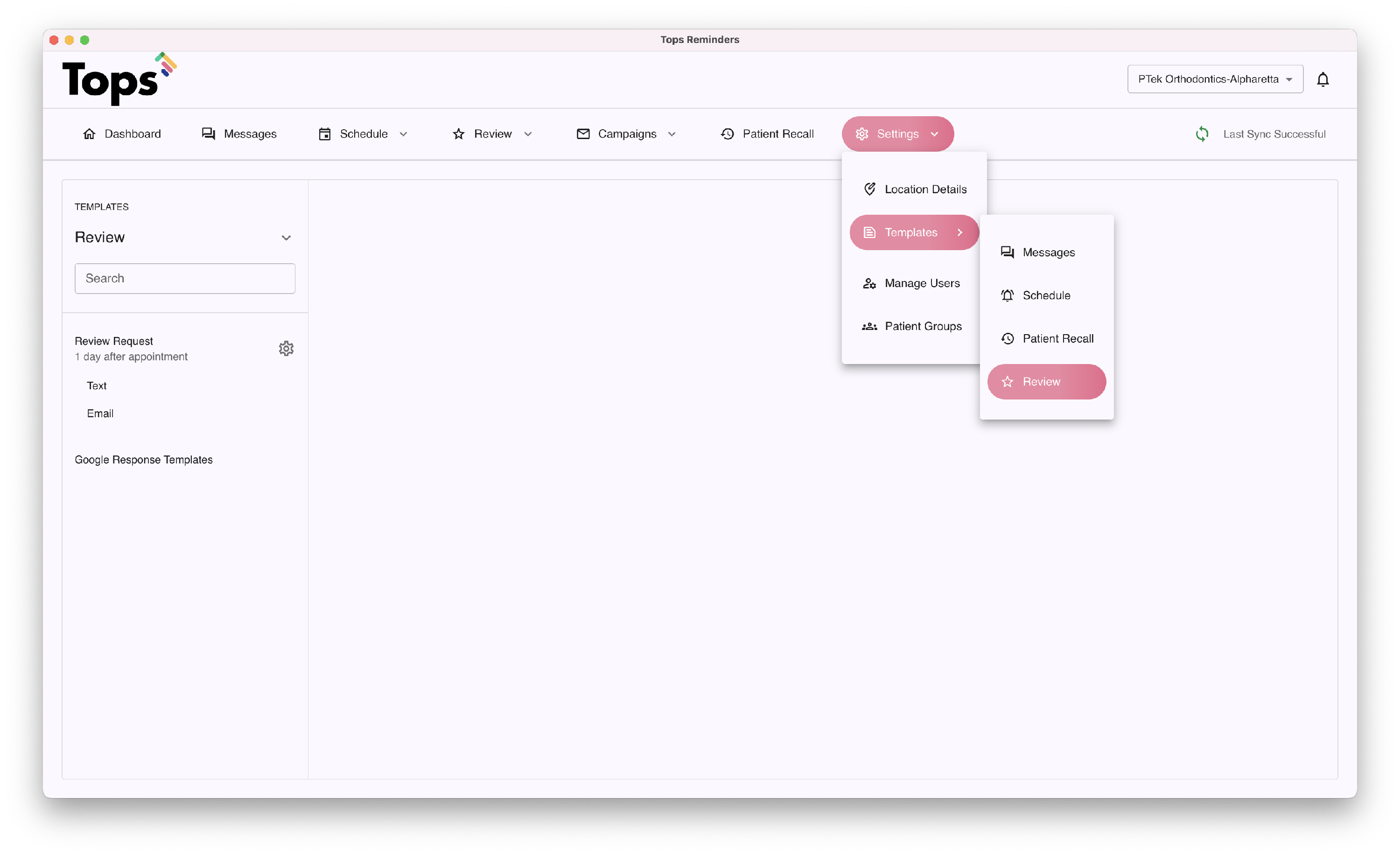
- Go to Comm > Tops Reminders.
-
Click Settings > Template>Schedule>Review.
Updating the Template Settings and Content
- Click on the gear wheel icon ⚙️ next the Review Request.
- Place checkmarks in the checkboxes for your desired delivery methods. You can send a Text, an Email, or both.
- Use the up/down arrow to set the number of hours or days. A review request can be sent no less than one day after a completed appointment.
-
Click on before or after in relation to the patient's appointment.
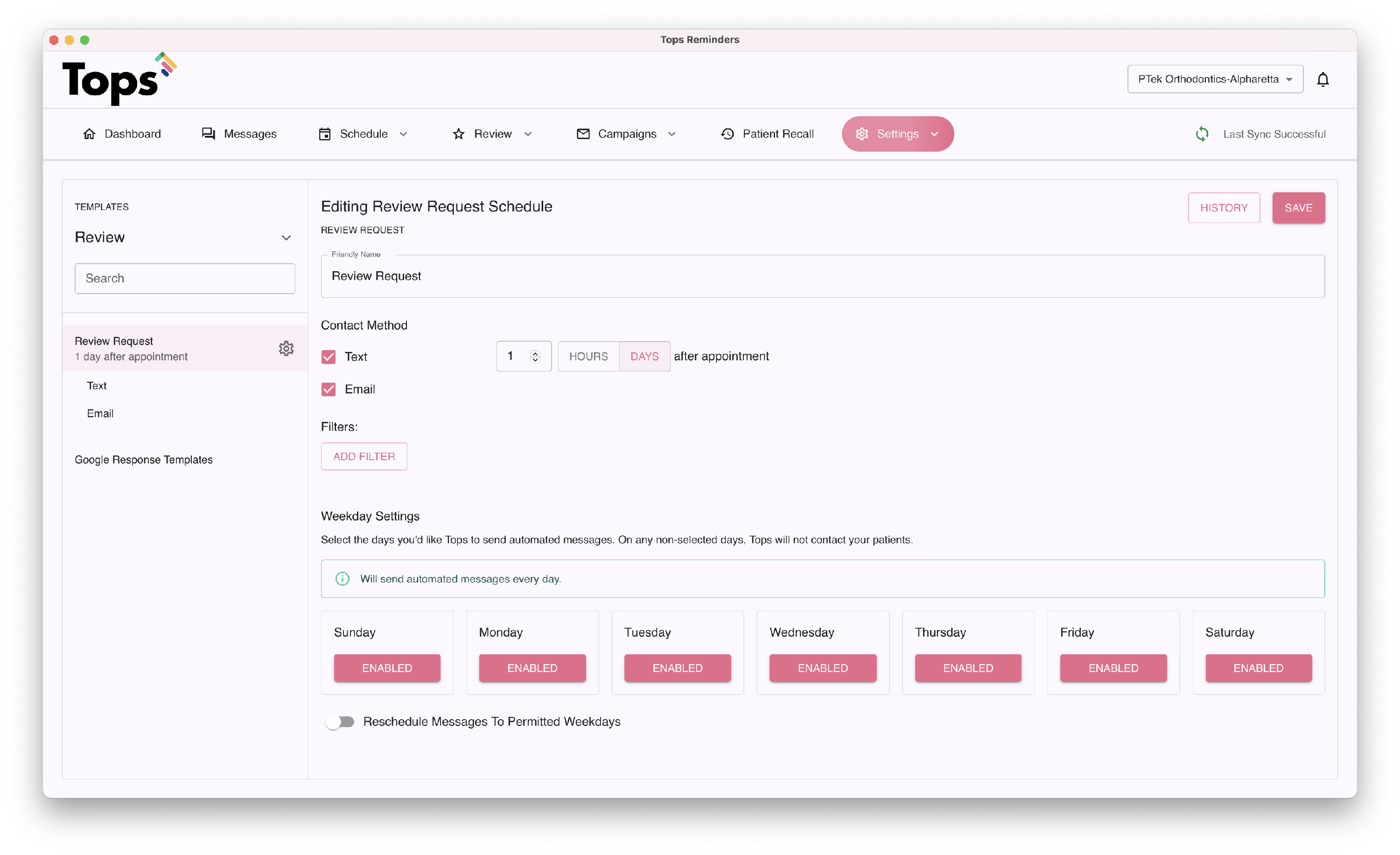
- To add a filter to send Review Requests to patients that complete a specific appointment type, click the Add Filter button.
- If you have not created at least one patient group containing appointment types, the Filter button will not be visible.
- To create Patient Groups or a Patient Group specifically for your Review Requests, visit the article referenced at the bottom of the page titled Create Patient Groups in TopsDPX.
- Up to five filters can be created.

- To create or modify the content of your Text or Email Review Request, click on Text or Email. Edit each template to your liking. If you want the patient to leave internal feedback or have the option to leave a review, don't forget to include the Request Link variable. Click Save when you are done.

Sending a Review Request
Send to Completed Appointments: Review Requests can be sent automatically or manually based on completed appointments. To learn more about how Review Requests can be sent based on complete appointments, please visit TopsDPX Automation Settings Explained
Send to an Individual: From Reviews>Overview, you can use the Quick Send feature. This feature allows you to manually enter a Contact Name and phone number/email, and it will also search your existing patients.

Send to Multiple - From Review>Feedback and Requests and from Review>Overview, you can send a review request to a group of individuals manually or by uploading a CSV file.
- From Review>Feedback and Requests, click the pink button to Send Requests Manually or Send Requests From CSV.

- From Review>Overview, use the Quick Send feature and select the Send Multiple button. This feature allows you to manually enter a list of recipients or upload a contact list.


If a patient has been recented based on the parameters set in Reviews>Settings, Tops will provide an alert.


What the Patient Receives
The patient receives a text from your practice with a link to leave a review and/or feedback.

When they click the link within the review request text, the link will open the screen below in a browser.

|

|
|---|
- Clicking the green button directs them to your Google or Facebook business site to "Write a Review" page.
-
Clicking the "How can we improve?" button allows the patient to provide internal feedback to your practice. This feedback is not public and will only be visible in Comm > Tops Reminders >Review > Feedback and Requests.
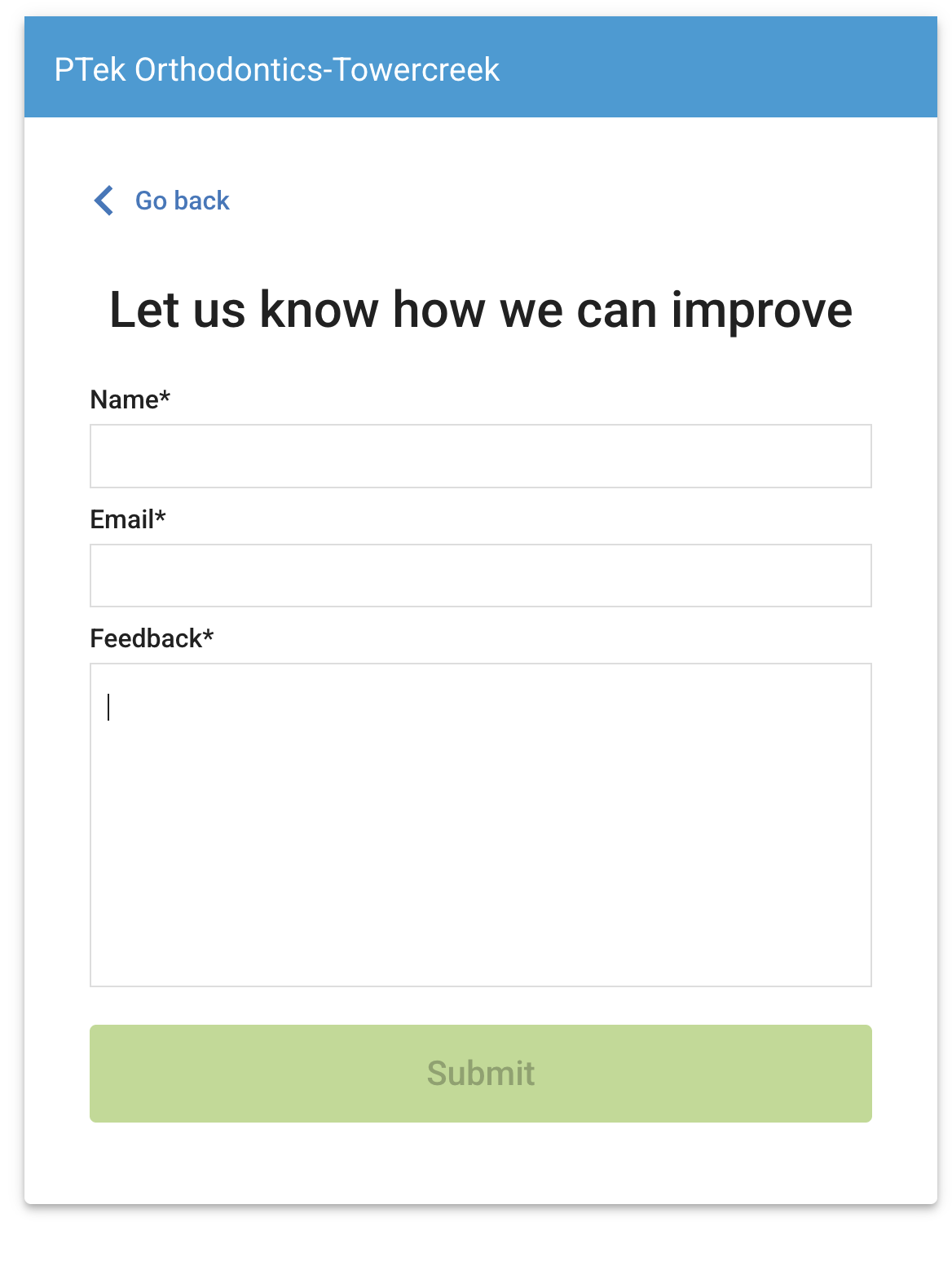
TopsDPX provides alternative landing pages based on how you want your patients to provide feedback if a review site is not included.
Example alternative configurations below. Please contact Tops Support for modifications to your default configuration.
|
|
|


The "How was your experience?" option allows the patient to provide a rating.
| ⭐️ Rating | Prompt | Information Collected |
|---|---|---|
| ⭐️ - Terrible | Let us know how we can improve | Name, email and feedback |
| ⭐️⭐️ - Meh | Let us know how we can improve | Name, email and feedback |
| ⭐️⭐️⭐️ - OK | Let us know how we can improve | Name, email and feedback |
| ⭐️⭐️⭐️⭐️ - Thumbs Up! | Let us know what we did well | Name, email and feedback |
| ⭐️⭐️⭐️⭐️⭐️ - Highly Recommended | Let us know what we did well | Name, email and feedback |
The "Would you recommend your experience" option allows the patient to provide a rating.
| Answer | Prompt | Information Collected |
|---|---|---|
| Yes | Let us know what we did well | Name, email and feedback |
| Not Really | Let us know how we can improve | Name, email and feedback |
Internal Feedback
Internal feedback provided through the review request can be viewed from visiting Review>Feedback & Requests


Testing the Review Request
We recommend sending yourself and other staff members a Review request.
- Go to Comm > Tops Reminders.
-
Depending on the width of your TopsDPX window, click Products > Review > Feedback & Requests or Review>Feedback & Requests
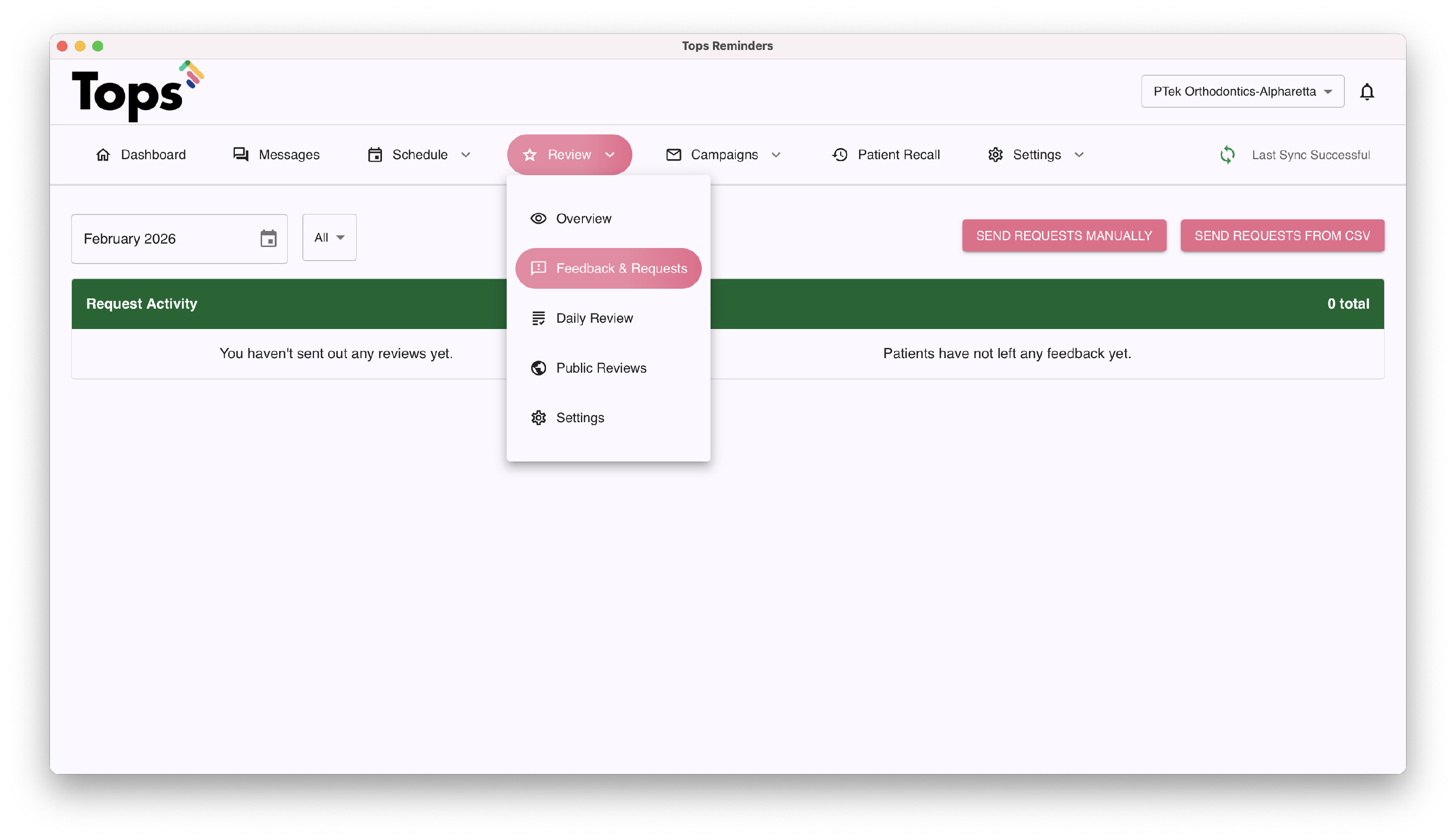
- In the top-right, click Send Requests Manually.
- Enter your name and phone number. You can send to multiple staff members, if desired. Note: the name that you enter here is the one that will appear in the text to the patient.
- Click Send 1 Review Request.

- You will receive via text an example of your Review Request.