
Understanding the ADA Claim Form in Tops Ortho
Understanding the ADA Claim Form in Tops Ortho
Ever wonder where the information on your ADA Claim Form comes from? Or why certain details appear differently when viewing a claim in Tops versus DentalXChange?
Let's break it down!
Tops uses information stored in your practice's database to populate patient claims, including insurance details, treatment information, and provider information.
Understanding how this information is used can help your team review claims, troubleshoot unexpected details, and ensure you're using the appropriate ADA Claim Form.
Understanding the Different ADA Claim Form Versions
Over the years, the American Dental Association (ADA) has updated its dental claim forms to better align with electronic claim reporting standards and accommodate additional insurance and treatment information.
As of Tops Ortho 9.13, the ADA 2024 Claim Form is available in Tops!
Here's a quick look at some of the differences between the claim form versions.
| Claim Form | What's Different? |
|---|---|
| ADA 2006 and 2012 | Earlier versions of the ADA Claim Form that served as the foundation for subsequent updates. |
| ADA 2019 | Includes updated gender options, including U (Unknown), and changes to Box 42, which was updated from Remaining Months of Treatment to Months of Treatment. Additional formatting and instructional changes help align the form with electronic dental claim reporting standards. |
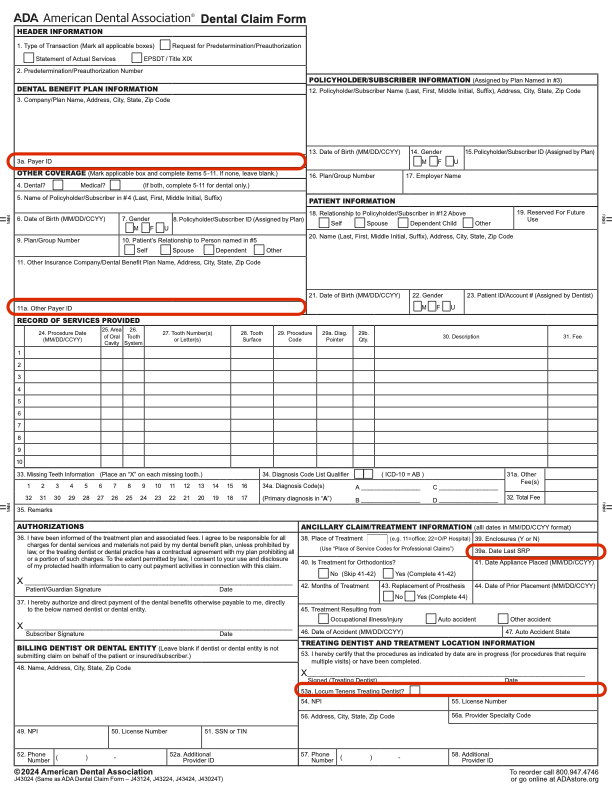
| ADA 2024 | Adds four new fields: 3a (Payer ID), 11a (Other Payer ID), 39a (Date Last SRP), and 53a (Locum Tenens Treating Dentist?) It also includes updated field labels and reporting instructions. |
Four New Fields on the ADA 2024 Claim Form
The ADA 2024 Claim Form introduces four additional fields to capture insurance and treatment information more accurately.
At this time, Boxes 39a and 53a are not automatically populated by Tops when generating a claim. If your insurance payer requires information in either of these fields, you have a few options:
- Print the claim and manually enter the required information before submitting it to the payer.
- Save the claim as a PDF and use a PDF editor to enter the required information.
- E-file the claim from Tops and, once the claim has been adjudicated by the payer (typically within approximately 3 days), make the necessary changes in DentalXChange and resubmit the claim.
| Box | Field | What's It For? |
|---|---|---|
| 3a | Payer ID | Identifies the primary insurance payer using its assigned Payer ID. Particularly helpful when printed claim forms are scanned or processed by a third-party claims processor. |
| 11a | Other Payer ID | Identifies the secondary or additional insurance payer when a patient has multiple insurance policies. Like Box 3a, this helps ensure accurate payer identification when printed claims are scanned or processed by a third party. |
| 39a | Date Last SRP | Records the date of the patient's most recent Scaling and Root Planing (SRP) procedure. Primarily used for periodontal treatment reporting. |
| 53a | Locum Tenens Treating Dentist? | Indicates whether treatment was provided by a temporary substitute dentist, also known as a locum tenens provider. |
While some of these fields may not be commonly used in orthodontic practices, they are part of the updated ADA Claim Form and may be relevant depending on the patient's treatment and insurance requirements.
A Few Other Differences Worth Knowing
Gender - Male, Female, Unknown
The newer ADA Claim Forms include an Unknown gender option. When a gender selection other than Male or Female is used in Tops, the claim form populates Unknown. To update gender preferences in Tops, go to TopsOrtho>Practice Set-up>Labels>Gender.
Box 42 - Months of Treatment
The wording of Box 42 has changed from Months of Treatment Remaining to Months of Treatment when the ADA moved to the 2019 claim form. Be sure to review the information populated in this field when generating orthodontic claims. If e-filing your claim with Tops, both details - Months of Treatment and Remaining Months of Treatment - are provided to DentalXChange.

|

|
Tops Tip: The addition of a field to the ADA Claim Form doesn't necessarily mean Tops automatically populates it. Always review the generated claim to confirm which information is available before printing or submitting it.
Which ADA Claim Form Should My Practice Use?
Always review the claim form associated with your claims and Employer Policies to ensure you're using the most recent appropriate ADA Claim Form available in Tops.
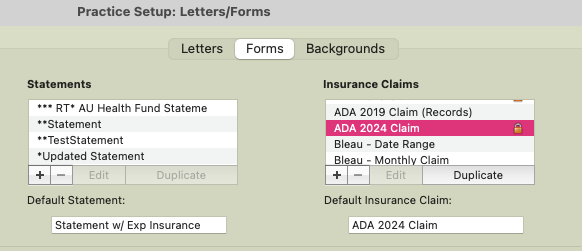
To update your default claim form, go to:
Tops Ortho > Practice Set-up > Letters/Forms > Forms
Change the Form on an Existing Claim
Need to update the claim form associated with an existing claim? You don't have to recreate the claim!
- Go to Matrix > Claims
- Locate the claim you want to update.
- Right-click and select Change Selected Claim's Form Template.
- Select the appropriate ADA Claim Form, such as ADA 2024.
- Click Use Selected Claim Form
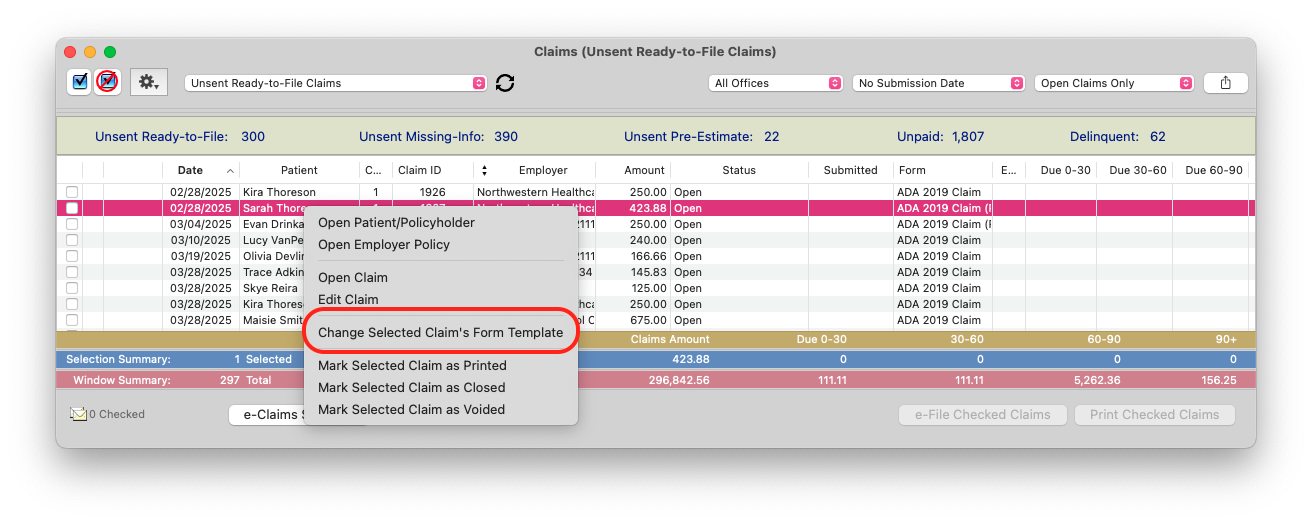
Tops Tip: Changing the form used to view or print an existing claim changes its visual presentation. It does not automatically update the underlying patient, policy, or provider information associated with the claim.
Printed Claims vs. E-Filed Claims – What's the Difference?
Here's an important distinction!
The ADA Claim Form you see in Tops is not the electronic file sent to the insurance payer when you e-file a claim.
Think of the ADA Claim Form as a template, much like a letter template in Tops. It provides a visual representation of claim information for viewing, printing, or saving as a PDF.
When you e-file a claim, Tops sends electronic claim data to DentalXChange, the clearinghouse. DentalXChange then processes and transmits the information to the insurance payer.
The information is transmitted electronically, not as a completed PDF or image of a particular ADA Claim Form.
This means that the form selected for viewing or printing a claim does not necessarily show every piece of information included in the electronic submission. As a example, in earlier versions
Tops Tip: If you're reviewing an e-filed claim, remember that what you see on the printed ADA Claim Form may not represent every detail transmitted electronically to the payer, especially if you have created a custom claim form.
Box 24 – Record of Services: Where Does the Information Come From?
Ever wonder how Tops determines which treatment fees and services appear in Box 24 - Record of Services Provided on the ADA Claim Form?
For claims involving rendered services, Tops pulls eligible fees directly from the patient's ledger. These fees may come from:
- Individual Services or Procedures: One-time charges posted directly to the patient's ledger for specific services or procedures.
- Contract Charges: Fees automatically posted to the patient's ledger according to the schedule and amounts established in the patient's treatment contract.
In either case, the fees must be posted to the patient's ledger and eligible for insurance reporting before they can be included on a claim.
The exception? Predeterminations! These can pull proposed treatment fees from a recorded contract for qualifying phases before the contract has been activated.
Which fees appear on a claim also depends on the claim type, the Fee Schedule settings, and, for automatically generated claims, the patient's Employer Policy settings.
Want to learn more? Coming Soon! How Tops Determines Which Fees Appear on Insurance Claims Be on the watch for this new article to assist with details on predeterminations, initial and periodic claims, CDT codes, and Fee Schedule settings.
Where Does Tops Get the Provider Information on a Claim?
Now let's dissect the provider information!
Your Tops database stores the information used to populate both the printed ADA Claim Form and the electronic claim data transmitted through DentalXChange.
This information is based on details your practice has provided to Tops in writing, including the Rendering information for each orthodontist and the Pay-to and Billing information associated with specific provider and location combinations.
When a claim is generated, Tops uses the patient's assigned orthodontist and home office to determine which information should populate the claim. These details are then applied to the claim if the locked ADA Claim Form templates is used.*
For claim purposes, this information is divided into three categories:
- Rendering: Who provided the treatment, and where?
- Pay-To: Who should receive payment?
- Billing: Which provider or entity is submitting the claim?
Although these details may overlap, they serve different purposes. Understanding how Tops determines each one can help you identify where the information on a patient's claim comes from and what to review if something doesn't look correct.
Important: Customized claim forms may contain a combination of static text (information entered directly into the form template) and placeholders that automatically populate information from your Tops database. If information on a claim appears incorrect, it's important to determine whether it comes from a placeholder or was manually entered into the form template.
Rendering Details – Who Treated the Patient, and Where?
ADA Claim Form: Boxes 53-57
Rendering details identify the treating orthodontist and treatment location associated with the patient's claim.
Tops uses two important details from the patient's chart: The Patient's Assigned Orthodontist and their Assigned Home Office.
The Patient's Assigned Orthodontist
The Treating Dentist information comes from the patient's assigned orthodontist, also displayed in the upper-right corner of the chart.
This information includes:
- Box 53: Treating Orthodontist Name
- Box 54: Orthodontist Individual NPI
- Box 55: Orthodontist Individual License Number
- Orthodontist Tax ID, typically the practice's Tax ID - Not visible on the claim form
These details are used to populate the Treating Dentist information on the claim, including Boxes 53–55.
Important: The patient's assigned orthodontist should not be changed simply because another doctor sees the patient chairside.
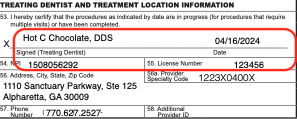
Tops Tip: When reviewing unexpected Rendering information on a claim, start by checking the patient's assigned orthodontist and home office!
The Patient's Assigned Location
The treating or rendering location is based on the patient's assigned home office in Tops.
You can find the assigned location in the upper-right corner of the patient's chart, next to their picture.
Even if the patient has appointments at multiple practice locations, their assigned home office determines which location information populates the claim.
- Box 56: Treatment Location Address
- Box 57: Treatment Location Phone Number
Important: A patient's assigned home office should not be changed simply because they are seen at another location during treatment.
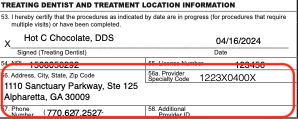
The Orthodontic Specialty Code
Box 56a will automatically populate with the orthodontic specialty code 1223X0400X when using the ADA 2019 Claim form or newer in Tops.
Has an insurance payer requested the orthodontic specialty code 1223X0400X in Box 56a, but you don't see it on your claim?
Here's what you need to know!
Regardless of which ADA Claim Form is selected in Tops, if e-filing, DentalXChange sends the orthodontic specialty code 1223X0400X to the payer as part of the electronic claim data.
Although this information is included in the raw data transmitted to the payer, it is not visible in the standard claim view within DentalXChange.
If you need to view or print a claim with the specialty code displayed in Box 56a, the ADA 2019 Claim form and later includes this information.
With the addition of the ADA 2024 Claim Form in Tops 9.13, review the form you're using to confirm that the specialty code is displayed as expected.
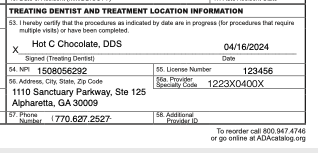
Tops Tip: Not seeing the specialty code on your printed claim does not necessarily mean the information was omitted from the electronic claim submission!
Pay-to Details – Who Receives the Payment?
ADA Claim Form: Box 48-52
Pay-to information identifies the provider or entity designated to receive payment from the insurance payer.
Tops stores Pay-to details associated with the patient's assigned orthodontist and location.
These include:
- Billing NPI
- Billing License Number
- Billing Tax ID/SSN
When Tops generates a claim, it uses Pay-to information stored in your Tops database and associated with the patient's assigned orthodontist.
| ADA Claim Form Box | Information |
|---|---|
| 48 | Pay-to Entity Name and Address |
| 49 | Pay-to NPI (Typically the Type 2 NPI for Corporations) |
| 50 | Pay-to License Number |
| 51 | Pay-to Tax ID/SSN |
| 52 | Pay-to Phone Number |
How Can I View the Pay-To Information?
You can review the Pay-to details by opening a patient's generated claim in Tops.
When viewing or printing a claim using one of the locked ADA Claim Form templates provided by Tops, the Pay-to information displayed in Box 48 is pulled directly from the details your practice has provided and that are stored in your Tops database.
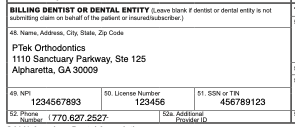
Important: Although the Pay-to details are included in the electronic claim data transmitted to the insurance payer, they are not visible in the standard claim view within DentalXChange. See below regarding Billing Details.
Tops Tip: If the Pay-to information on a claim appears incorrect, contact Tops Support to review the details stored in your database. Remember, customized claim forms may contain static text rather than placeholders that pull information directly from Tops.
Billing Details – Who Is Submitting the Claim?
In addition to Rendering and Pay-to information, Tops stores Billing details associated with the patient's assigned orthodontist.
These include:
- Billing NPI
- Billing License Number
- Billing Tax ID/SSN
How Can I View the Billing Information?
Unlike the Pay-to details displayed on the ADA Claim Form in Tops, the separate Billing information is not visible when opening a patient's generated claim in Tops.
When the claim is e-filed, these details are included in the electronic information sent to DentalXChange and can be viewed within DentalXChange.
Where Does the Address Come From?
The Billing address displayed in DentalXChange is determined by the Pay-to Address stored in Tops.
- If the Pay-to Address is a Physical Address: DentalXChange uses the Pay-to Address as the Billing Address.
- If the Pay-to Address is a P.O. Box: The patient's assigned rendering/treating location is used as the Billing Address.
This distinction is especially important when troubleshooting address differences between a printed claim and the claim information displayed in DentalXChange.
Quick Reference – Where Does the Information Come From?
| Claim Information | Source in Tops | Where to Review |
|---|---|---|
| Treating Dentist | Patient's assigned orthodontist | Patient Chart / ADA Claim Form |
| Treatment Location | Patient's assigned home office | Patient Chart / ADA Claim Form |
| Pay-to Information | Pay-to details stored by orthodontist and location | Generated ADA Claim Form |
| Billing Information | Billing details stored by orthodontist and location | DentalXChange |
| Orthodontic Specialty Code | Pre-populated on paper claims and electronic claim data sent through DentalXChange | Box 56a on supported printed forms; raw electronic data |
What If the Provider Information on My Claim Is Incorrect?
If the Rendering, Pay-to, or Billing information on a patient's claim does not appear correct, contact Tops Support for assistance.
Because these details are stored in your Tops database and may affect multiple claims, it's important to have the information reviewed before making changes.
When contacting Support, please include your name, practice name, and the practice's main phone number.
Tops Support
Phone: 770.627.2527
Text: 770.406.0685
Email: [email protected]
One Last Tops Tip!
Before printing or submitting a claim, take a moment to review the claim details.
Confirm the correct patient, Employer Policy, assigned orthodontist, treatment location, and claim form.
And remember: The ADA Claim Form is the visual representation of the claim. The electronic claim data is what gets submitted when e-filing.
Understanding the difference can save your team time when reviewing claims or troubleshooting questions from insurance payers.